
Claude Personal Finance Setup and Safety Guide

Trang Tran
November 6, 2026
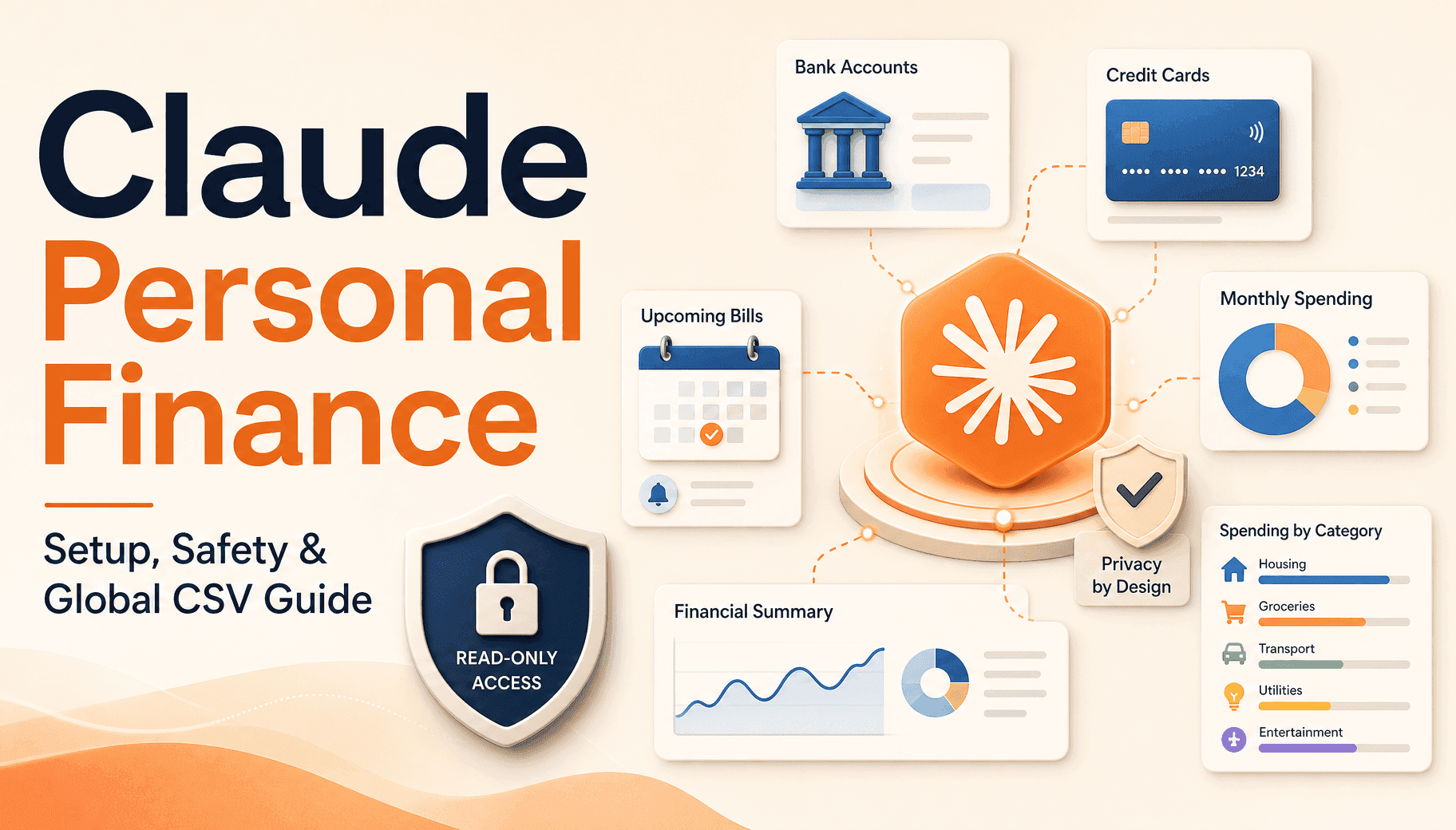
Claude personal finance explained: how Personal Finance in Claude works and what Claude finance can see. Plus a safe CSV method for non-US users.
Claude personal finance (officially “Personal Finance in Claude”) is an Anthropic beta feature. It links your bank and card accounts through Plaid so you can ask Claude about balances, spending, and bills in plain language. Access is read-only. It is available only to US users on Pro, Max, and Ultra plans. Outside the US, you can get similar results by uploading a redacted CSV statement to a Claude model in 1min.AI.
It is the end of the month and payday is still ten days away. You do not need a spreadsheet to answer “Where did my money go?” You need a clear answer you can trust. This guide covers what the feature does, how to set it up, how safe it is, and how to get similar value if you live outside the US.
What Is Claude Personal Finance?
Personal Finance in Claude is a section of the Claude app where you connect financial accounts and ask questions about your own money. It works on Claude web, Claude Desktop, iOS, and Android. Anthropic states that it has no ads or sponsored recommendations and that it does not offer credit cards, loans, or savings accounts of its own.
Watch the official walkthrough:
What Claude Finance Can Do
Claude finance covers four main jobs:
- Spending summaries: Ask “Where did my money go this month?” and get totals grouped by category such as rent, food, and shopping.
- Problem spotting: Claude can flag duplicate charges, unexpected fees, and bills that crept up over the year.
- Concept explanations: Ask “What is an APR?” and Claude explains the term, then adds up the interest you were charged.
- Dashboard building: Ask for a weekly spending chart, a calendar of what is due, or a custom set of numbers.
Who Can Use Personal Finance in Claude
| Requirement | Details |
|---|---|
| Plans | Pro, Max, and Ultra (not Free, Team, or Enterprise) |
| Region | US banks and US users only |
| Status | Beta with gradual rollout |
| Data access | Read-only: balances, credit limits, up to 24 months of transactions |
| Bank limit | Up to 16 linked banks |
How to Use Personal Finance in Claude
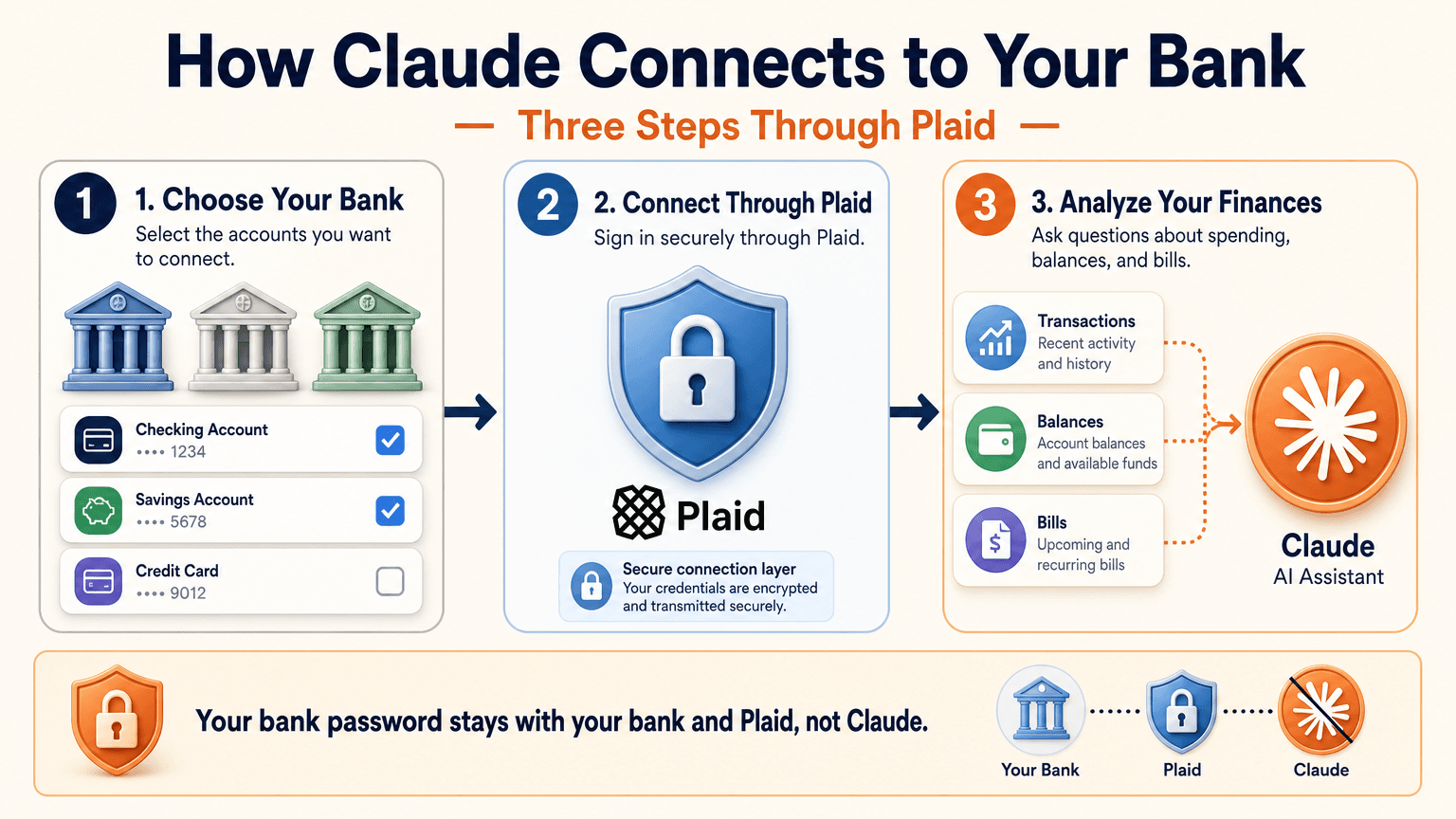
Link Your Bank Through Plaid
- Open Claude and select Personal Finance in the side menu. If you do not see it, check More.
- Select Get started and choose your goals or skip them.
- Select Link accounts with Plaid and review what Claude will be able to access.
- Sign in to your bank inside Plaid and choose the accounts to share.
- Return to Claude within 10 minutes and wait for your accounts to appear.
You sign in through Plaid, so Claude does not ask for or see your bank password. New transactions can take a few minutes to sync.
Use the Claude Personal Finance Dashboard
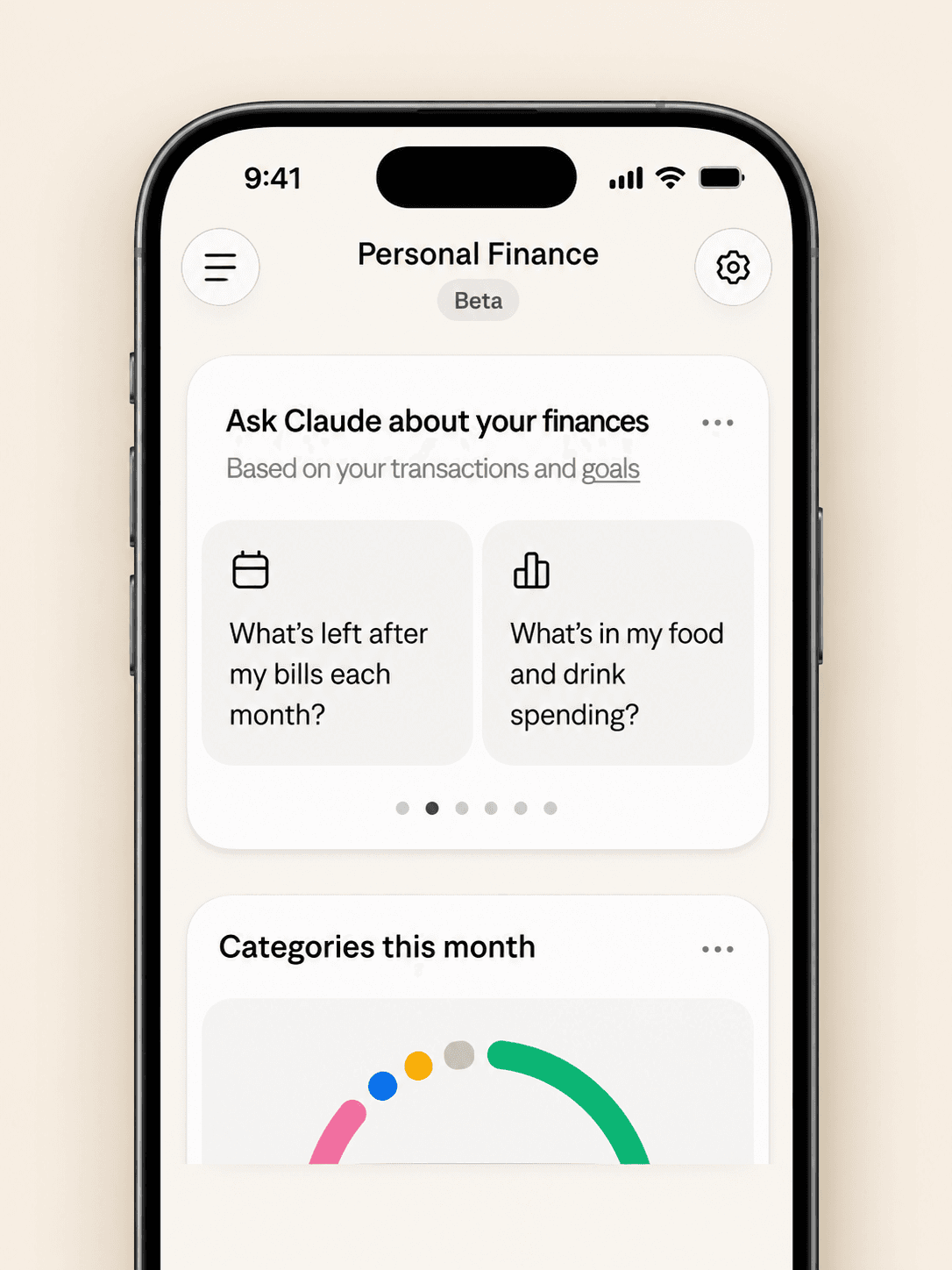
The dashboard puts spending, cash flow, accounts, subscriptions, and upcoming bills on one page. Widgets can be added, edited, removed, and reordered. Start with one account and one question, such as “Can I afford a trip this spring?”
Claude Personal Finance Prompts to Try
Spending and Bills
- “Where did my money go last month, grouped by category?”
- “Which subscriptions am I paying for, and which ones went up in price?”
- “What payments will leave my checking account before payday?”
Smarter Follow-Ups
- “Is that more than usual? Compare the last three months.”
- “Which transactions are behind this number?”
- “Do any charges look duplicated or unexpected?”
The second follow-up matters most. Anthropic itself advises asking which transactions sit behind a figure and checking important numbers with your bank.
Is Claude Personal Finance Safe?
Read-Only Access Through Plaid
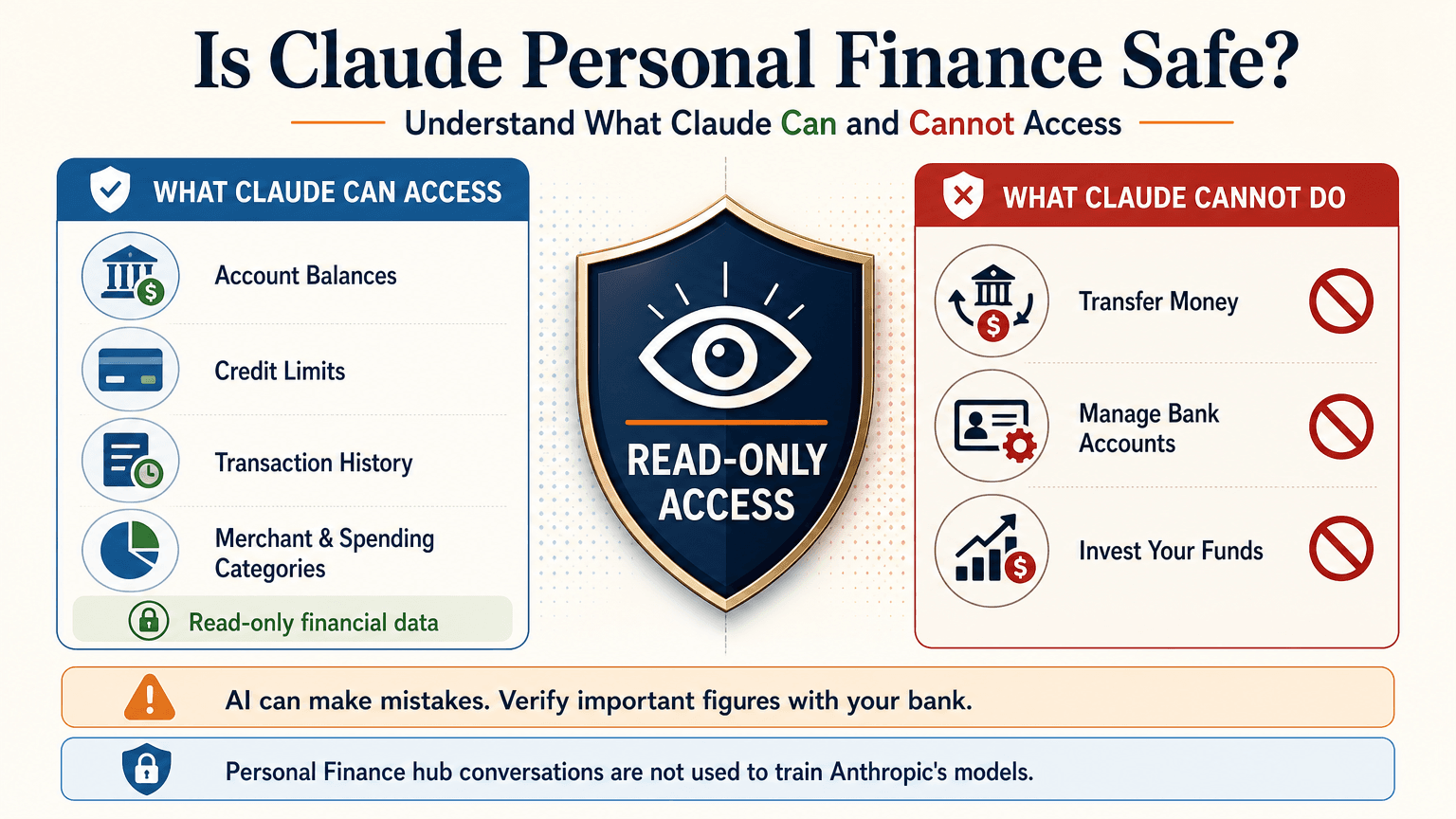
Claude cannot move, manage, or invest your money. Plaid handles the bank sign-in, so your password stays between you and your bank. You can unlink a bank at any time, and Claude can no longer see its data.
What Claude Can See
For the accounts you choose, Claude can read:
- Bank names, account names, types, and last four digits
- Balances and credit limits
- Up to 24 months of transactions with amount, date, merchant, category, and bank description
For investment accounts, loans, and cards, Claude reads balances and credit limits, not holdings, trades, or rates. Conversations in the Personal Finance hub are not used to train Anthropic’s models. For anything you share outside the hub, your normal privacy settings apply.
Accuracy Limits
Claude is AI and can make mistakes. Balances can be a day or two old. An account linked through two logins may be counted twice. Anthropic also says the feature is not designed to give investment advice. Treat Claude as an analyst that organizes and explains your data rather than the final decision maker.
Current Limitations
- US banks only
- No use of linked accounts in scheduled tasks, Cowork tasks, or Claude Code
- Not available on Free, Team, or Enterprise plans
- Saved dashboards are not yet included in data exports
Claude Personal Finance on Reddit: What People Did Before Launch
Personal Finance in Claude only just started rolling out, so real-world reviews of the official feature are still limited. For context, earlier discussions on r/ClaudeAI show how people were managing money with Claude before this feature existed. These are community workflows, not feedback on the new feature.
- Retirement planning: Running Monte Carlo simulations to estimate safe spending rates.
- Custom dashboards: Replacing spreadsheets with net worth and budget views.
- Fee hunting: Comparing bank statements with a fee schedule PDF to dispute wrong charges.
- Bank connections: A few users automated budget emails through Plaid or SimpleFIN, while many preferred uploading redacted CSV files to protect privacy.
That privacy split is useful to know. It is the same trade-off between convenience and control that the official feature and a CSV workflow now represent.
Use Claude Finance Outside the US With a CSV
You do not need account linking to get useful answers. A bank statement export contains the same raw material: dates, merchants, and amounts.
Build a Claude Personal Finance Tracker With 1min.AI
- Export one to three months of transactions from your bank as a CSV.
- Redact account numbers, full names, and addresses before sharing.
- Open Multi AI Chat in 1min.AI and select a Claude model.
- Paste or upload the cleaned data and run your prompt.
- Save the prompt in Prompt List so you can reuse it every month.
A starter prompt: “Categorize these transactions and total each category. List recurring subscriptions and flag duplicates or unusual fees. Show a table and mark any rows you are unsure about.”
1min.AI is not the official Personal Finance in Claude feature and does not connect to your bank. It gives you access to Claude models in one workspace, so this workflow works from any country. For model details, see the page for Claude Opus 5.5 and the guide to Claude Fable 5.1.
Which Claude Model Fits Which Money Task
| Task | Suggested model | Why |
|---|---|---|
| Categorizing many transactions | Claude 5.5 Haiku | Fast and low cost |
| Monthly budget and subscription audit | Claude 5.5 Sonnet | Balanced quality and cost |
| Retirement scenarios and multi-step analysis | Claude 5.5 Opus or 5.1 Fable | Stronger reasoning on complex questions |
Curious how the top models compare? Watch this test:
Claude Personal Finance Plugin Options
Community plugins can extend Claude for finance work. The Claude Cowork guide lists a Finance Tracker plugin for expense tracking and budget analysis. Review any plugin’s permissions before installing it, and never give a tool more financial data than the task needs.
Official Feature vs a CSV Workflow on 1min.AI
| Personal Finance in Claude | CSV workflow on 1min.AI | |
|---|---|---|
| Availability | US beta on paid plans | Global |
| Data source | Live accounts via Plaid | Redacted CSV or pasted rows |
| Dashboard | Built-in widgets | Tables and charts you request |
| Reusable prompts | Suggested questions | Prompt List |
| Model choice | Claude | Haiku, Sonnet, Opus, Fable, and more |
| Best for | Hands-off tracking | Privacy control and non-US users |
Teams that share finance prompts can use Shared Zone. Writers who turn results into reports can try Claude 4.6 for writing. 1min.AI is rated Excellent on Trustpilot and recognized on SourceForge, Slashdot, Capterra, Software Advice, and GetApp. If you want to see how an earlier flagship handles long analysis, try Claude 5 Fable.
Claude Personal Finance FAQ
What is Claude personal finance?
It is Anthropic’s beta feature, officially called Personal Finance in Claude. It links bank and card accounts through Plaid so you can ask about spending, balances, and bills.
Is Personal Finance in Claude free?
No. It is available on Pro, Max, and Ultra plans in the US. It is not available on Free, Team, or Enterprise.
Can Claude move my money?
No. Access is read-only. Claude cannot move, manage, or invest funds.
Can I use Claude finance features outside the US?
The official feature supports US banks only. Outside the US, you can upload a redacted CSV statement to a Claude model and prompt it for categories, subscriptions, and budgets.
Is Claude accurate with financial data?
It can make mistakes. Ask which transactions support each figure and verify key numbers with your bank.
Is this financial advice?
No. This article is educational and is not financial, tax, or investment advice. Consult a licensed professional for major decisions.
Final Thoughts
Claude personal finance turns scattered statements into clear answers. It is still a beta with strict regional limits and normal AI error risk. Use it to organize, categorize, and explain, and verify important figures yourself. If you live outside the US or prefer to keep bank access closed, a redacted CSV with the right Claude model delivers much of the same insight.
- #Information
Alternatives
Discover the best alternatives to 1minAI and compare features, pricing, and use cases.

1min.AI vs OpenRouter
1min.AI vs. OpenRouter: Compare the ready-to-use AI creation product against the technical API tool. Find out if you need a zero-code creative studio or a coding infrastructure hub.
 Ngoc Hong
1minAI vs Postbeam for LinkedIn Content
Looking for a Postbeam alternative? Compare 1minAI vs Postbeam for AI LinkedIn content creation, research, image generation, scheduling, and B2B workflows.
 Tram Ta

1minAI vs Buffer for LinkedIn Content Creation
Looking for a Buffer alternative? Compare 1minAI vs Buffer for LinkedIn content creation, AI writing, image generation, scheduling, and automation.
Tram TaAI Tools
Discover the best AI tools to boost productivity, creativity, and everyday work.
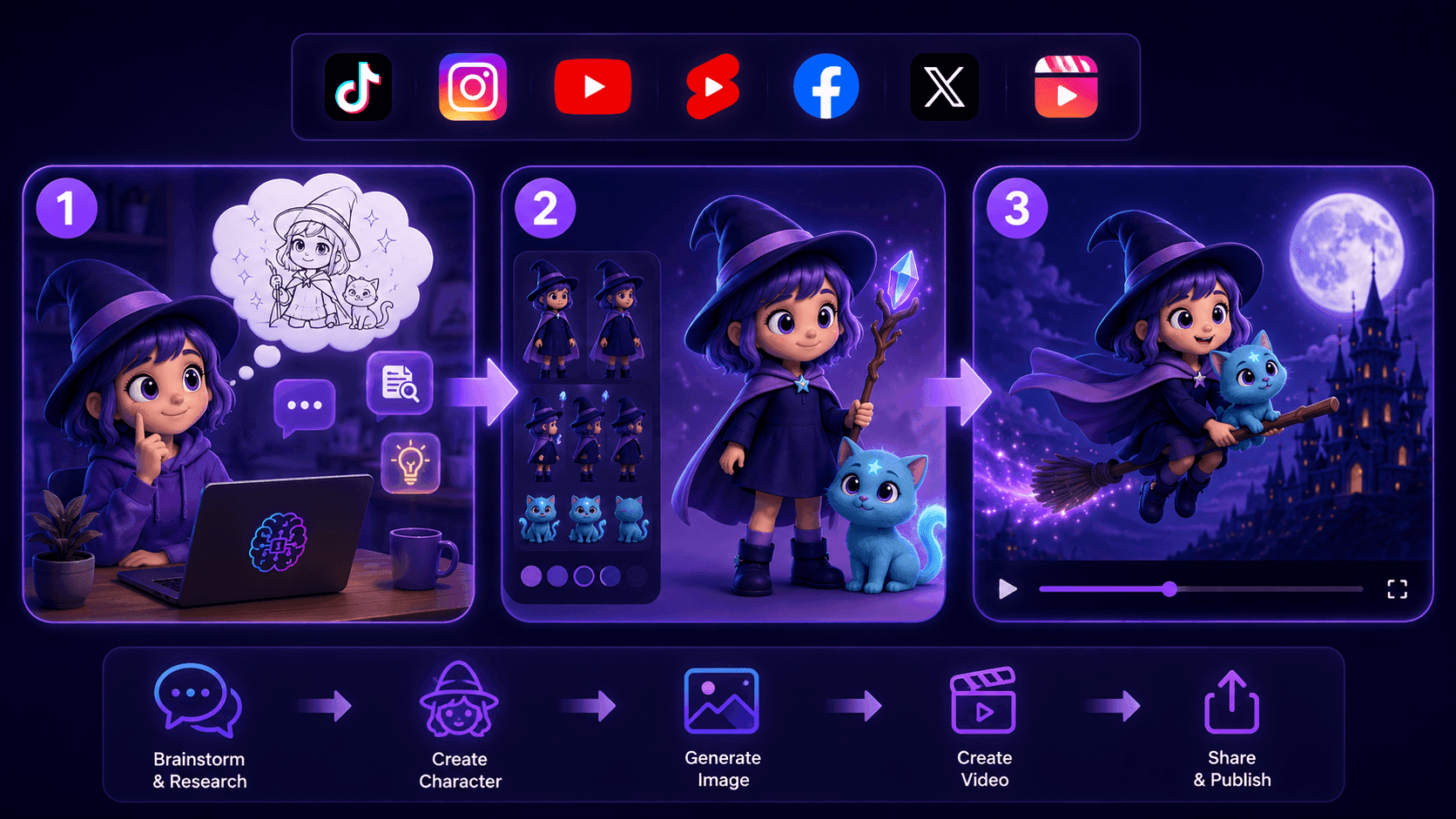
Create Consistent Cartoon Content in Just a Few Steps
Create engaging cartoon videos for TikTok and Reels with 1min.AI. Research ideas, create characters, and turn images into animated videos in 3 simple steps.
 Lien Anh Vu

One Product, 10 UGC Creatives: How AI Makes Content Testing Easier
Create more authentic UGC with an AI UGC video generator, test more creative angles and scale affiliate content without filming every version.
Lien Anh Vu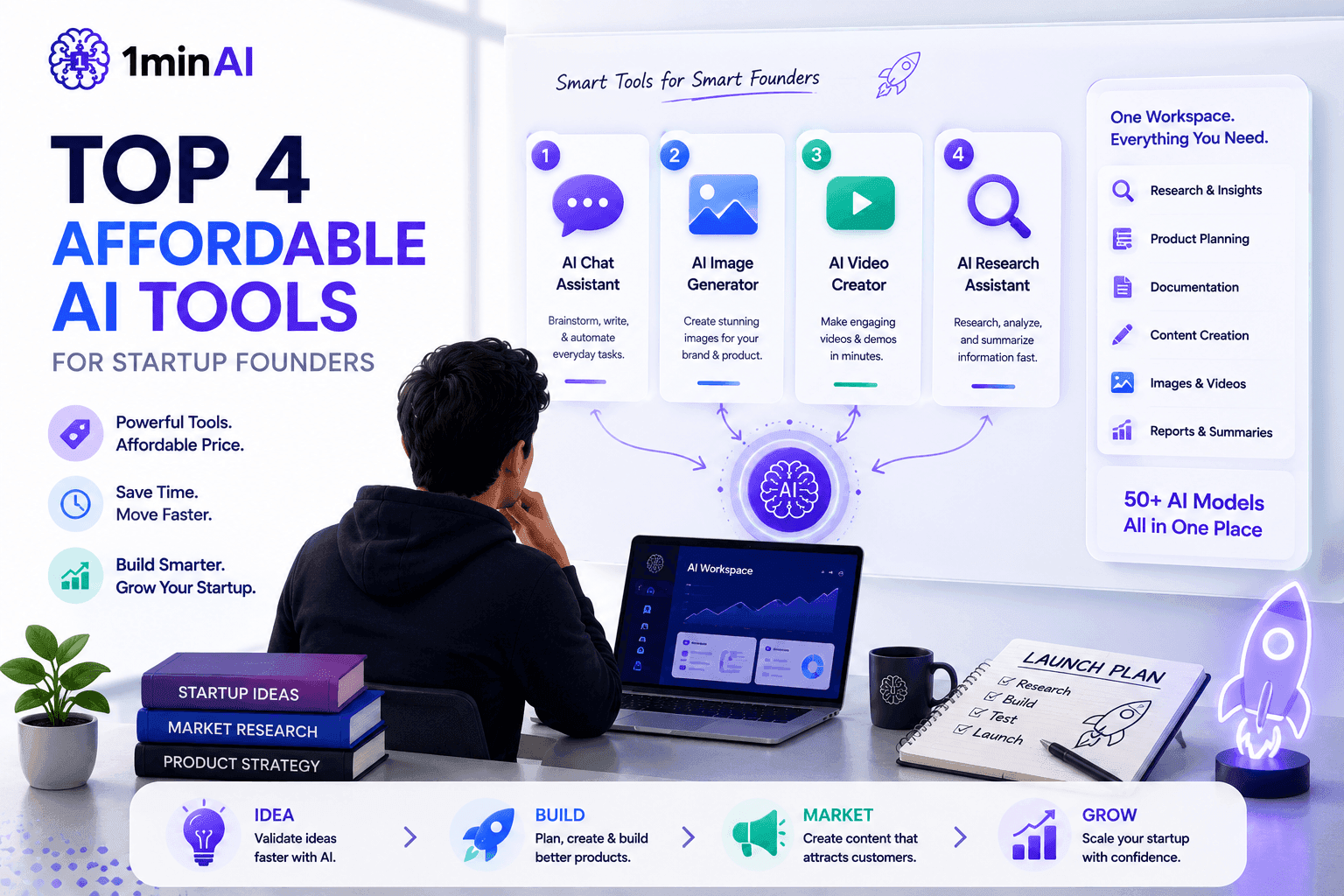
Top 4 Affordable AI Tools for Startup Founders
Discover the top 4 affordable AI tools for startup founders to validate ideas, build products, create content, and launch faster without overspending.
Tram TaAI Features
Comprehensive AI features that streamline workflows, improve efficiency, and empower teams to achieve more.
Create Consistent Cartoon Content in Just a Few Steps
Create engaging cartoon videos for TikTok and Reels with 1min.AI. Research ideas, create characters, and turn images into animated videos in 3 simple steps.
Lien Anh VuOne Product, 10 UGC Creatives: How AI Makes Content Testing Easier
Create more authentic UGC with an AI UGC video generator, test more creative angles and scale affiliate content without filming every version.
Lien Anh Vu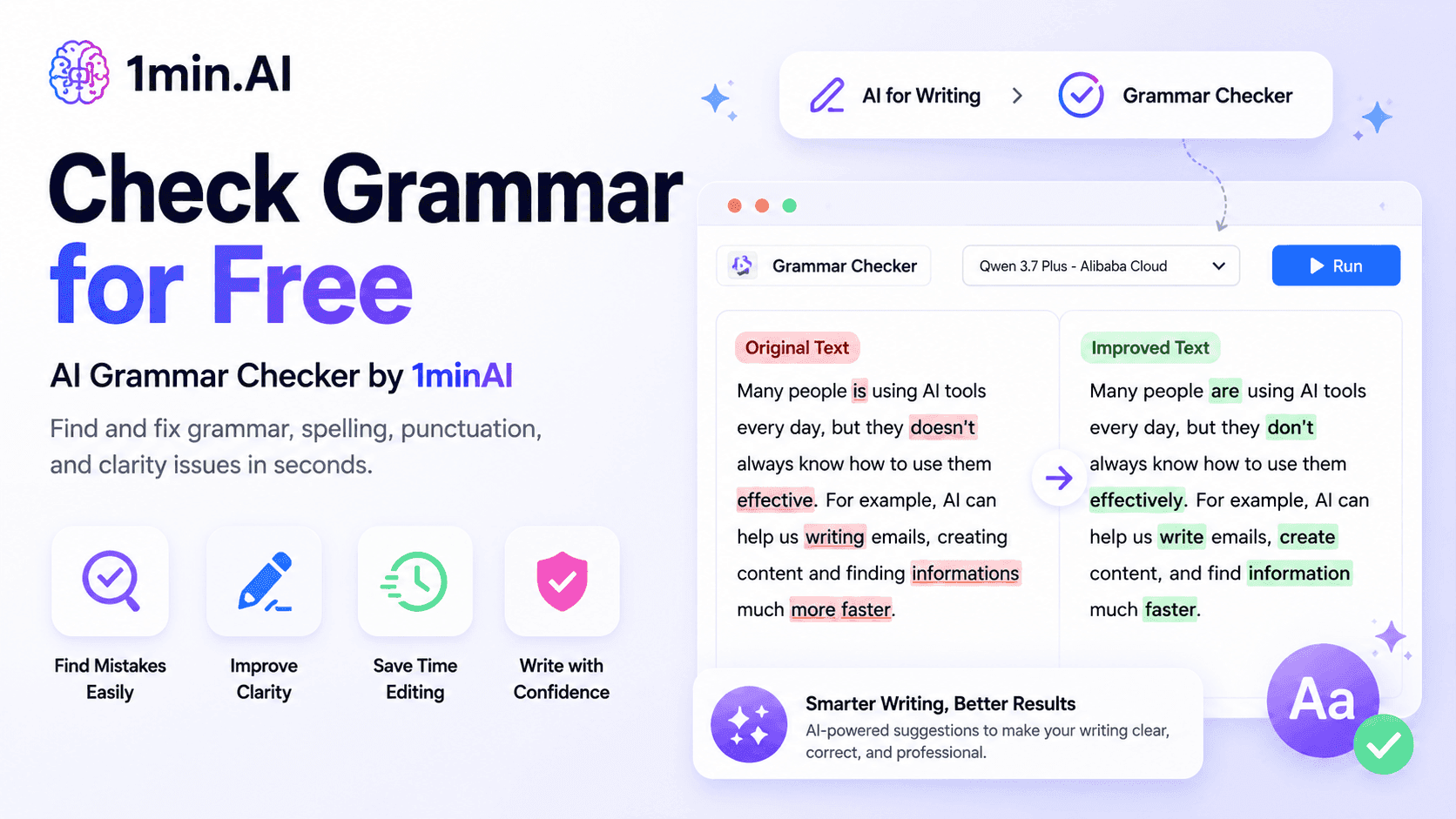
1minAI: Free AI Grammar Checker
Check grammar for free with 1minAI’s AI grammar checker. Find grammar, spelling, and writing mistakes, improve clarity, and polish your content in seconds.
Tram TaAI Use Cases
A curated collection of AI use cases for business, productivity, and industry-specific applications.
Create Consistent Cartoon Content in Just a Few Steps
Create engaging cartoon videos for TikTok and Reels with 1min.AI. Research ideas, create characters, and turn images into animated videos in 3 simple steps.
Lien Anh VuOne Product, 10 UGC Creatives: How AI Makes Content Testing Easier
Create more authentic UGC with an AI UGC video generator, test more creative angles and scale affiliate content without filming every version.
Lien Anh Vu
Best Time to Post on Instagram: A Practical Guide for Better Engagement
Discover the best time to post on Instagram, including the best days and times for different audiences, plus tips to find the ideal posting schedule for your account.
Tram TaAI Tutorials
Learn how to use AI with practical, step-by-step tutorials.

Black Friday AI Tool Deals in 2026
Discover what Black Friday AI tool deals 2026 has to offer. Find out how to secure the 1min.AI lifetime deal via AppSumo, Dealify, Stack Social, and verify on Trustpilot, Slashdot, and Software Advice.
 Hang Nguyen
Create Consistent Cartoon Content in Just a Few Steps
Create engaging cartoon videos for TikTok and Reels with 1min.AI. Research ideas, create characters, and turn images into animated videos in 3 simple steps.
Lien Anh Vu
[Seedance 2.5 New] Better AI Product Videos, Less Rework in 1min.AI
Use Seedance 2.5 image to video on 1min.AI to create more consistent AI product videos, reduce failed generations, save credits, and improve UGC workflows.
Lien Anh VuAI Guides
Learn AI faster with practical guides, real-world examples, and actionable best practices.

Safely Buy AI Tools Online: 2026 Black Friday Guide
Discover how to find and secure the best Black Friday AI deals online. Learn expert strategies to avoid scams, combat subscription fatigue, and verify software.
Hang NguyenCreate Consistent Cartoon Content in Just a Few Steps
Create engaging cartoon videos for TikTok and Reels with 1min.AI. Research ideas, create characters, and turn images into animated videos in 3 simple steps.
Lien Anh Vu[Seedance 2.5 New] Better AI Product Videos, Less Rework in 1min.AI
Use Seedance 2.5 image to video on 1min.AI to create more consistent AI product videos, reduce failed generations, save credits, and improve UGC workflows.
Lien Anh VuAI Solutions
Browse the best AI solutions for automation, coding, research, productivity, customer support, marketing, and business workflows.
Safely Buy AI Tools Online: 2026 Black Friday Guide
Discover how to find and secure the best Black Friday AI deals online. Learn expert strategies to avoid scams, combat subscription fatigue, and verify software.
Hang NguyenCreate Consistent Cartoon Content in Just a Few Steps
Create engaging cartoon videos for TikTok and Reels with 1min.AI. Research ideas, create characters, and turn images into animated videos in 3 simple steps.
Lien Anh VuOne Product, 10 UGC Creatives: How AI Makes Content Testing Easier
Create more authentic UGC with an AI UGC video generator, test more creative angles and scale affiliate content without filming every version.
Lien Anh VuAI Models
Explore the world's leading AI models in one place.
Create Consistent Cartoon Content in Just a Few Steps
Create engaging cartoon videos for TikTok and Reels with 1min.AI. Research ideas, create characters, and turn images into animated videos in 3 simple steps.
Lien Anh VuOne Product, 10 UGC Creatives: How AI Makes Content Testing Easier
Create more authentic UGC with an AI UGC video generator, test more creative angles and scale affiliate content without filming every version.
Lien Anh Vu[Seedance 2.5 New] Better AI Product Videos, Less Rework in 1min.AI
Use Seedance 2.5 image to video on 1min.AI to create more consistent AI product videos, reduce failed generations, save credits, and improve UGC workflows.
Lien Anh VuAI Comparisons
Compare AI tools, models, and platforms to find the best fit for your needs.

Kling AI Vs Veo 3: Which Model Wins?
Kling AI vs Veo 3: compare motion, native audio, pricing & free tiers to see which AI video generator wins for your project - try both on 1min.AI.
 Trang Tran
[Seedance 2.5 New] Better AI Product Videos, Less Rework in 1min.AI
Use Seedance 2.5 image to video on 1min.AI to create more consistent AI product videos, reduce failed generations, save credits, and improve UGC workflows.
Lien Anh Vu
DeepSeek V4 Pro vs Flash Comparison
Compare DeepSeek V4 Pro vs DeepSeek V4 Flash metrics. Optimize your agentic apps and improve AI fact checking on 1min.ai today.
Ngoc HongAI Integrations
Seamlessly integrate AI with the tools you already use to automate work and boost productivity.

POV: You Have 10+ Posts to Make Every Day
Learn how to build an AI content workflow that helps content creators produce 10+ social media posts a day faster with AI brainstorming, image generation, and content creation.
Lien Anh Vu
How to Use an AI Fashion Video Generator for Fashion Week 2026
Turn Fashion Week 2026 ideas into stunning fashion videos with AI. Learn how to brainstorm, create visuals, and transform images into videos with one simple workflow.
Lien Anh Vu
Stop Switching Between AI Apps: How AI Integration Transforms Employer Branding
Discover how AI integration helps HR teams streamline employer branding by combining AI writing, documents, images, video, and multiple AI models into one workspace.
Tram TaAI for Industries
Find the best AI tools and workflows for healthcare, finance, education, legal, manufacturing, retail, real estate, and more

Text To Video AI Free Without Watermark Online
Create text to video AI free without watermark online with 1min.AI. Pick top models, turn prompts into HD clips, and download clean videos fast. Try it free.
Trang Tran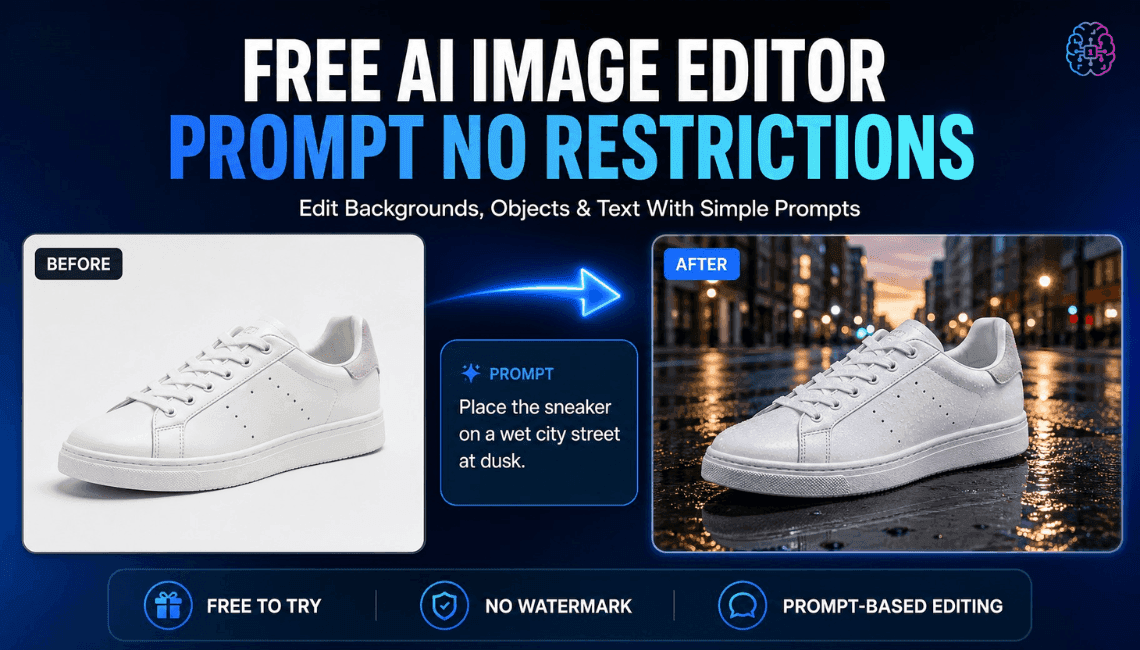
Free AI Image Editor With Prompt No Restrictions
Looking for a free AI image editor with prompt no restrictions? Edit backgrounds, objects and text by typing, no watermark. Try 1min.AI’s flexible editor now.
Trang TranClaude Personal Finance Setup and Safety Guide
Claude personal finance explained: how Personal Finance in Claude works and what Claude finance can see. Plus a safe CSV method for non-US users.
Trang TranAI Agents
Discover and run AI agents to automate tasks across your work and daily life.
1minAI: Free AI Grammar Checker
Check grammar for free with 1minAI’s AI grammar checker. Find grammar, spelling, and writing mistakes, improve clarity, and polish your content in seconds.
Tram Ta
AI Agents for Facebook
Use an AI Agent for Facebook to create content, generate images, schedule posts, and publish from your documents and conversations.
Ngoc Hong
AI Agent vs AI Assistant: Which One Actually Saves Designers More Time?
Learn the difference between AI Agent vs AI Assistant and discover which solution helps designers automate repetitive work, reduce revisions, and save more time.
Lien Anh VuAI Workflows
Explore ready-to-use AI workflows for productivity, marketing, sales, support, and more.
Create Consistent Cartoon Content in Just a Few Steps
Create engaging cartoon videos for TikTok and Reels with 1min.AI. Research ideas, create characters, and turn images into animated videos in 3 simple steps.
Lien Anh VuOne Product, 10 UGC Creatives: How AI Makes Content Testing Easier
Create more authentic UGC with an AI UGC video generator, test more creative angles and scale affiliate content without filming every version.
Lien Anh VuPOV: You Have 10+ Posts to Make Every Day
Learn how to build an AI content workflow that helps content creators produce 10+ social media posts a day faster with AI brainstorming, image generation, and content creation.
Lien Anh VuNewsletter
Weekly AI Innovations with 1minAI

🔮 Weekly AI Innovations #144: LinkedIn Content Agent: Complete B2B Publishing Pipeline
Scale B2B influence with the LinkedIn Content Agent on 1min.ai. Discover an end-to-end 4-stage pipeline with zero redundant token burn and 1-click publishing.
Hang Nguyen
🔮 Weekly AI Innovations #143: Update GPT-6, GPT-6.1 & Ideogram 4.0
Access GPT-6 Sol, Luna, GPT-6.1 Sol, and Ideogram 4.0 on 1min.ai. Boost typography accuracy to 98.4% and cut reasoning latency by 45% in one platform.
Hang Nguyen
🔮 Weekly AI Innovations #142: Grok 4.7, Opus 5.5 & Sonnet 5.5 on 1min.ai
Access Grok 4.7, Claude Opus 5.5, and Sonnet 5.5 on 1min.ai. Cut subscription costs by up to 70% and process millions tokens in a single unified workspace.
Hang Nguyen