
Claude Opus 5.5 as an AI Writing Assistant for Designers

Lien Anh Vu
November 5, 2026
Discover how designers can use Claude Opus 5.5 on 1min.AI to write portfolio descriptions and social media captions with a simple AI writing workflow.
Finished a design project but struggling to find the right words to describe it?
Claude Opus 5.5 can work as an AI writing assistant for designers, helping you write project descriptions, explain creative decisions, and create social media captions without starting from a blank page.
In this tutorial, we'll show you how to use Claude Opus 5.5 on 1min.AI to turn a finished branding project into content ready to share.
Why Designers Need an AI Writing Assistant
Designers spend a lot of time creating visuals, but presenting their work is just as important.
A great design still needs a clear story, whether you're introducing a project on Instagram, explaining your creative process on LinkedIn, or writing a portfolio description.
With Claude Opus 5.5, you can:
- Write project descriptions that explain the ideas behind your designs.
- Create social media captions adapted to different platforms.
- Improve your writing by adjusting tone, clarity, and length.
- Save time on repetitive writing while keeping your creative message consistent.
If you're managing several creative tasks, explore how AI tools for designer studios can support everything from brainstorming to content creation.
How to Use Claude Opus 5.5 on 1min.AI
Let's use our fictional Morrow Coffee branding project as an example.
The goal is to write content that introduces the project and explains its creative direction.
Step 1: Open Content Generator
First, visit 1min.AI and open AI for Writing → Content Generator.
Choose the type of content you want to create, such as Instagram Post, LinkedIn Post, or TikTok Description.
Then select Claude Opus 5.5 from the available AI models.
You can also set the language, tone, length, and brand voice to match your audience.
Step 2: Add Your Project Details
Now, tell Claude what your design project is about.
For our example, we're introducing Morrow Coffee — First Light, a fictional coffee branding concept inspired by peaceful mornings.
Here's a prompt you can customize for your own project.
Copy-Ready Prompt
Act as a professional copywriter helping a freelance graphic designer showcase a creative project.
Project: Morrow Coffee — First Light
Project type: Self-initiated fictional branding concept.
Creative concept: A warm, minimal coffee brand inspired by the calm atmosphere of early mornings.
Visual elements: Soft cream and brown colors, editorial typography, a minimal coffee illustration, and a gentle SVG animation.
Write a social media caption that:
- Starts with an engaging hook.
- Introduces the project and its inspiration.
- Explains the key visual design choices.
- Uses a natural, creative tone.
- Ends with a question that encourages feedback.
Adapt the writing to the selected social media platform. Avoid generic marketing phrases and do not describe this fictional concept as a real client project.
Enter your project information into Content Generator, select your preferred settings, and click Run.
Step 3: Create Captions for Different Platforms
One design project can become several social media posts, but each platform needs a slightly different approach.
For example, here are three sample ways to introduce Morrow Coffee.
Instagram — Visual Storytelling
What if your morning coffee felt like a little moment of peace? ☕
Meet Morrow Coffee — First Light, a personal branding concept inspired by warm sunlight, quiet mornings, and simple everyday rituals.
Soft colors, editorial typography, and gentle animation bring the idea together.
Which detail is your favorite? ✨
#BrandIdentity #GraphicDesign #CreativeProcess
LinkedIn — Professional Project Showcase
A strong brand identity starts with a clear creative direction.
For my self-initiated Morrow Coffee concept, I explored how color, typography, and subtle motion can communicate a calm, premium brand experience.
The result is First Light, a visual direction inspired by the warmth and simplicity of early mornings.
This project reminded me how important it is to connect every design decision to a consistent brand story.
TikTok — Short and Engaging
Turning a simple coffee brand idea into a complete visual identity ☕✨ From warm colors to animated details, here's the creative process behind Morrow Coffee — First Light. #BrandDesign #DesignProcess #GraphicDesigner
These examples show how the same project can be presented differently without changing its core story.
To understand how hooks, tone, and calls to action work across platforms, read our guide on creating social media captions with an AI Content Generator.
Step 4: Review and Refine Your Writing
Once Claude generates your content, don't publish it immediately.
Check whether it:
- Explains your project accurately.
- Matches your personal or brand voice.
- Sounds natural instead of overly promotional.
- Fits the platform you're posting on.
If a caption feels too generic, adjust your instructions and generate another version.
For example, try:
Rewrite this caption in a more personal and conversational tone. Focus on the creative decisions behind the project. Keep it concise and avoid exaggerated claims.
A few small adjustments can make your content feel more authentic to your work.
See the Complete Creative Workflow
Want to see how the Morrow Coffee project came together?
In our video tutorial, we use Claude on 1min.AI to brainstorm a branding concept, create an SVG animation, build a portfolio website, and write social media content.
If you're also working on your own creative website, check out our guide to building a portfolio website with 1min.AI.
Make Your Creative Work Easier to Share
Your design tells a visual story. The right words help people understand it.
With Claude Opus 5.5 on 1min.AI, you can turn project details into clearer descriptions and platform-specific captions while keeping control of your creative voice.
You focus on the design. Let AI help with the first draft.
🚀 Try Claude Opus 5.5 on 1min.AI and turn your creative projects into content worth sharing.
- #Informational
Alternatives
Discover the best alternatives to 1minAI and compare features, pricing, and use cases.

1min.AI vs OpenRouter
1min.AI vs. OpenRouter: Compare the ready-to-use AI creation product against the technical API tool. Find out if you need a zero-code creative studio or a coding infrastructure hub.
 Ngoc Hong
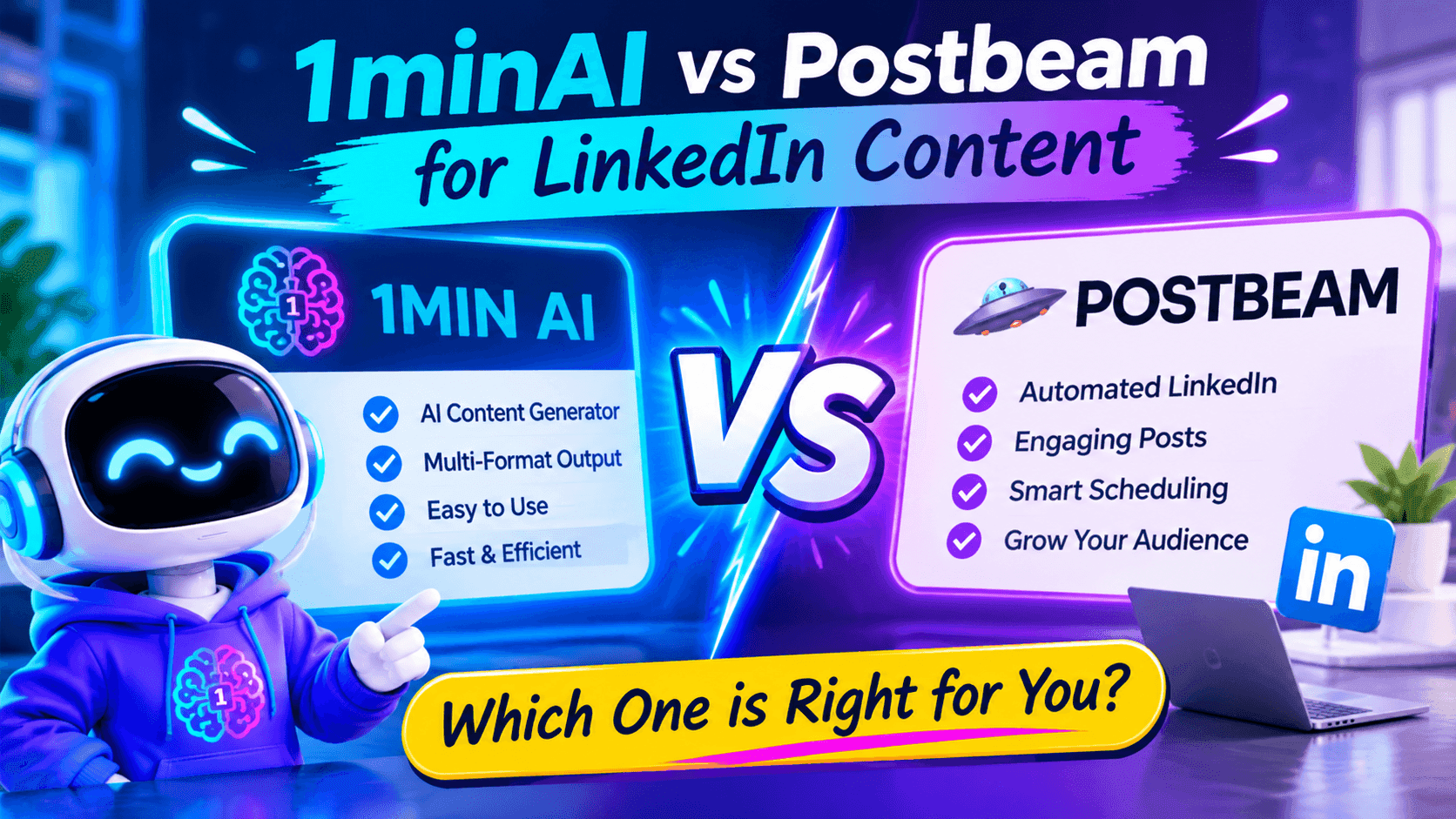
1minAI vs Postbeam for LinkedIn Content
Looking for a Postbeam alternative? Compare 1minAI vs Postbeam for AI LinkedIn content creation, research, image generation, scheduling, and B2B workflows.
 Tram Ta

1minAI vs Buffer for LinkedIn Content Creation
Looking for a Buffer alternative? Compare 1minAI vs Buffer for LinkedIn content creation, AI writing, image generation, scheduling, and automation.
Tram TaAI Tools
Discover the best AI tools to boost productivity, creativity, and everyday work.
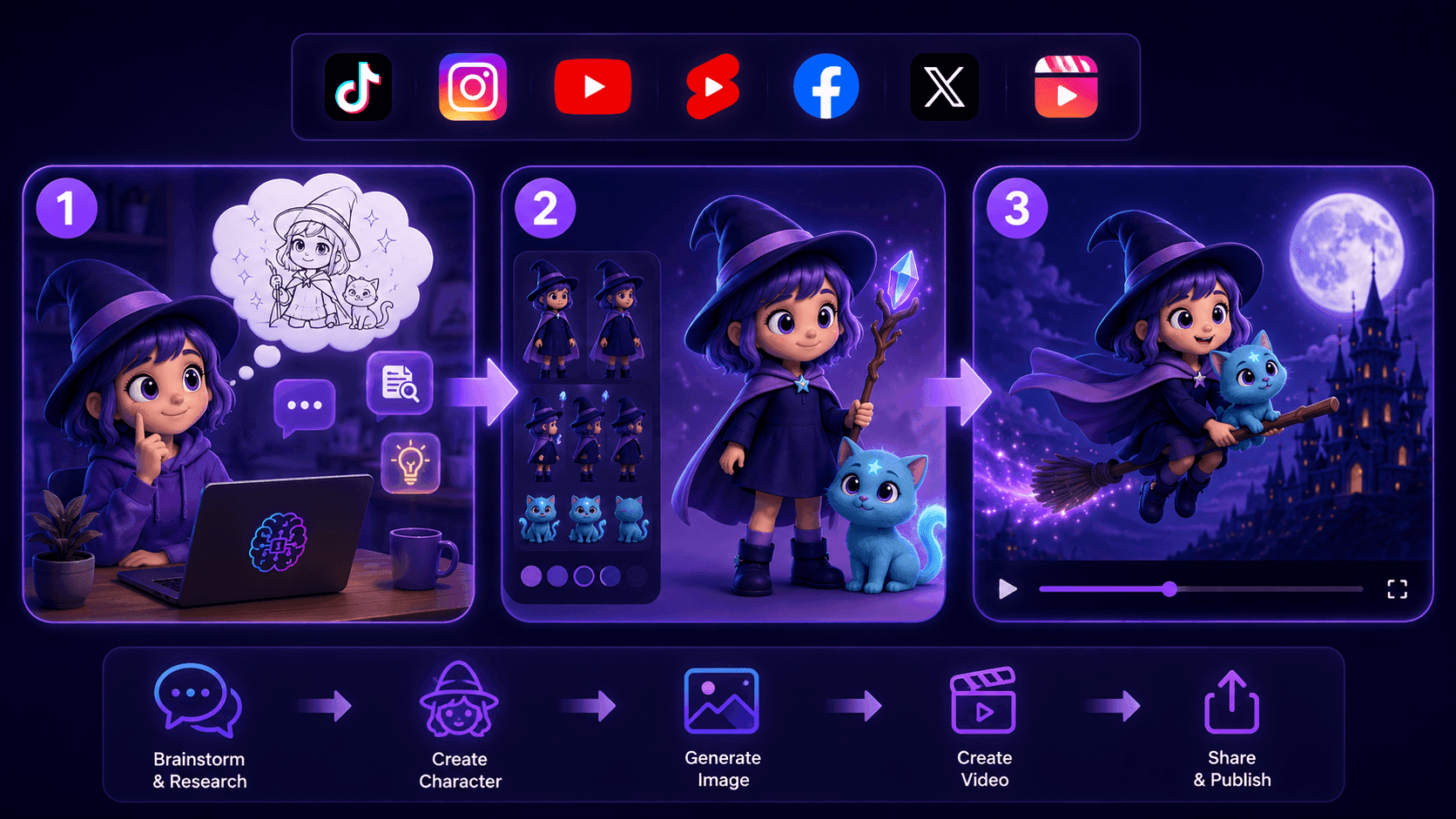
Create Consistent Cartoon Content in Just a Few Steps
Create engaging cartoon videos for TikTok and Reels with 1min.AI. Research ideas, create characters, and turn images into animated videos in 3 simple steps.
 Lien Anh Vu
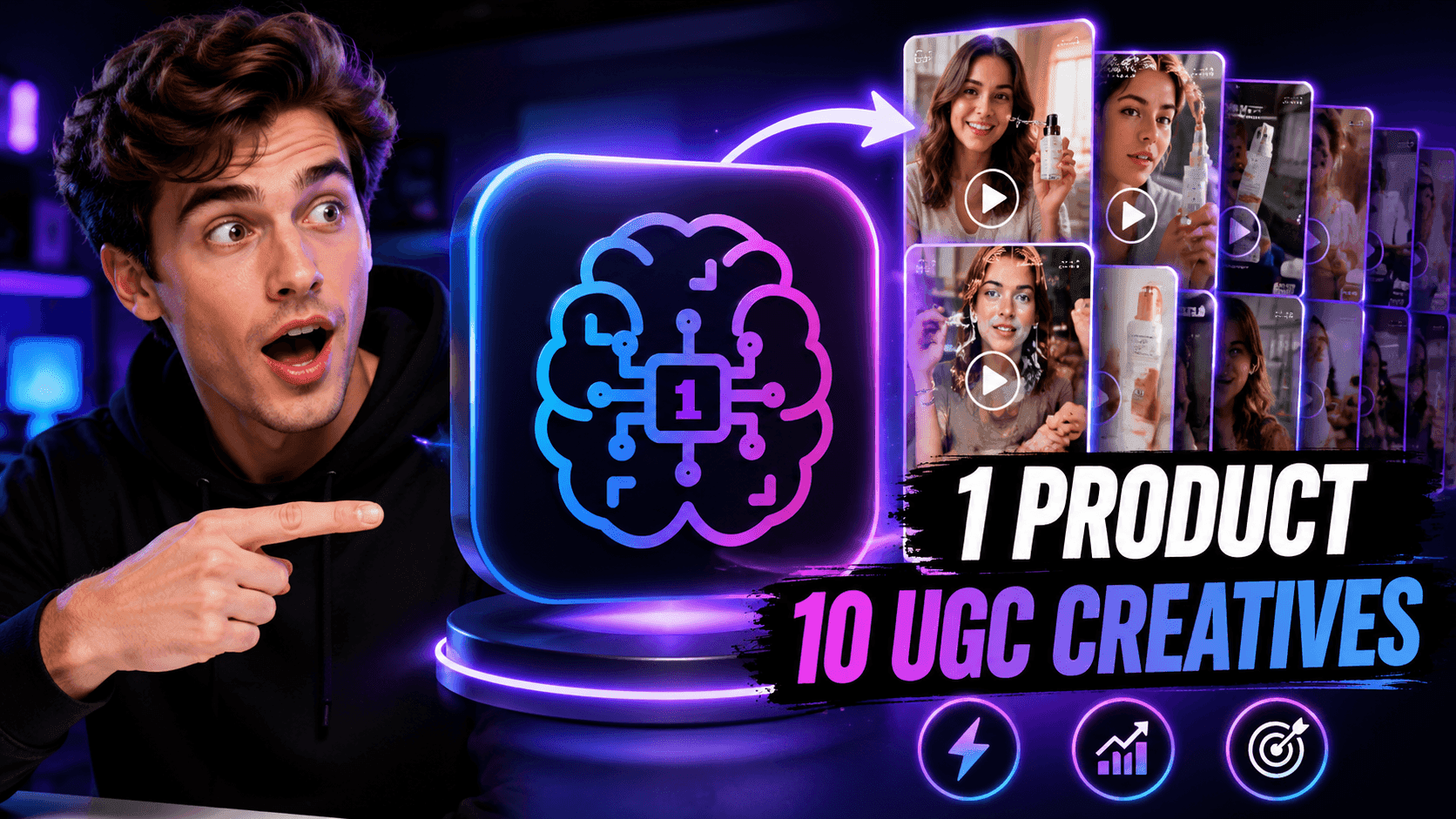
One Product, 10 UGC Creatives: How AI Makes Content Testing Easier
Create more authentic UGC with an AI UGC video generator, test more creative angles and scale affiliate content without filming every version.
Lien Anh Vu
Top 4 Affordable AI Tools for Startup Founders
Discover the top 4 affordable AI tools for startup founders to validate ideas, build products, create content, and launch faster without overspending.
Tram TaAI Features
Comprehensive AI features that streamline workflows, improve efficiency, and empower teams to achieve more.
Create Consistent Cartoon Content in Just a Few Steps
Create engaging cartoon videos for TikTok and Reels with 1min.AI. Research ideas, create characters, and turn images into animated videos in 3 simple steps.
Lien Anh VuOne Product, 10 UGC Creatives: How AI Makes Content Testing Easier
Create more authentic UGC with an AI UGC video generator, test more creative angles and scale affiliate content without filming every version.
Lien Anh Vu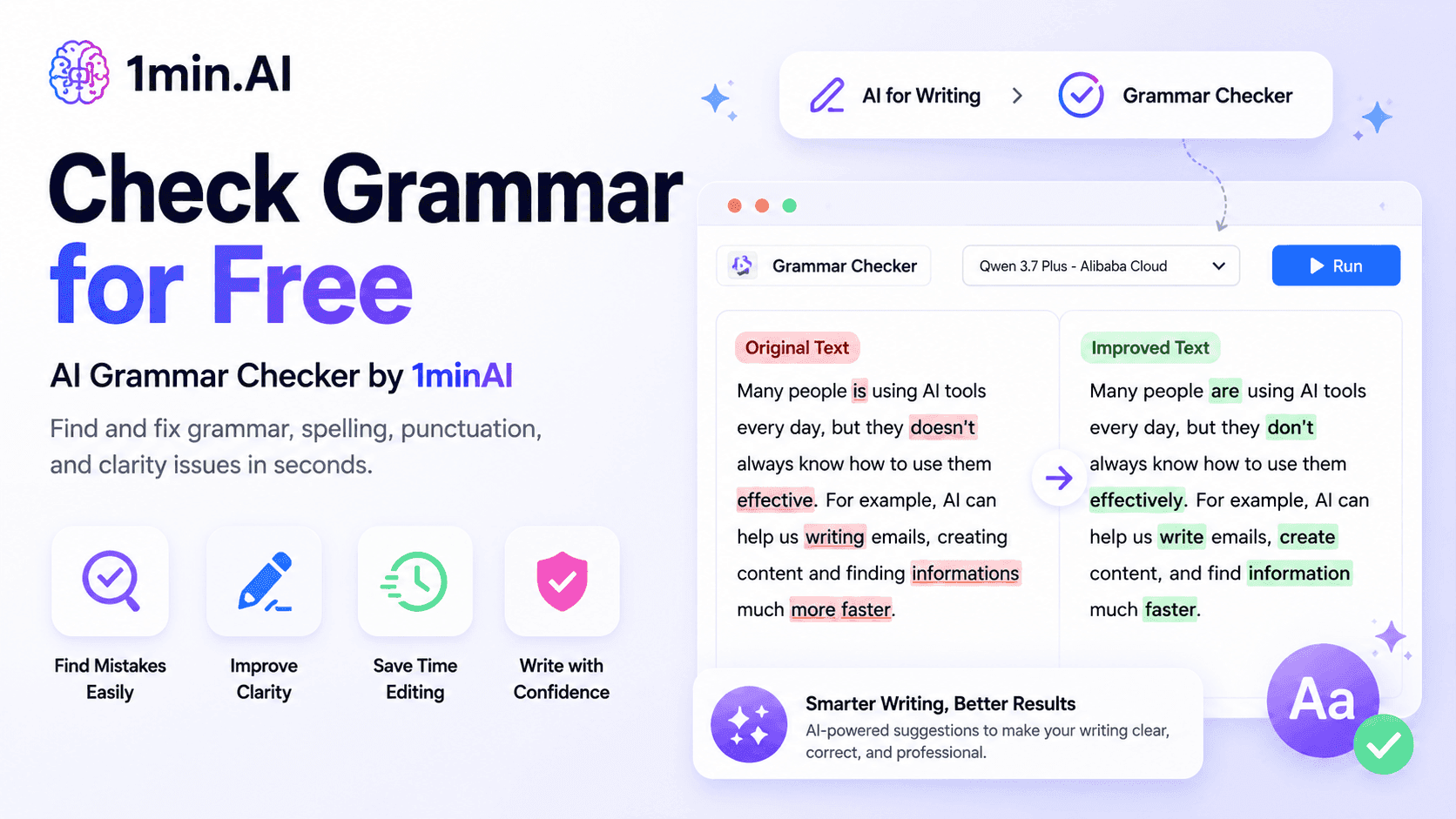
1minAI: Free AI Grammar Checker
Check grammar for free with 1minAI’s AI grammar checker. Find grammar, spelling, and writing mistakes, improve clarity, and polish your content in seconds.
Tram TaAI Use Cases
A curated collection of AI use cases for business, productivity, and industry-specific applications.
Create Consistent Cartoon Content in Just a Few Steps
Create engaging cartoon videos for TikTok and Reels with 1min.AI. Research ideas, create characters, and turn images into animated videos in 3 simple steps.
Lien Anh VuOne Product, 10 UGC Creatives: How AI Makes Content Testing Easier
Create more authentic UGC with an AI UGC video generator, test more creative angles and scale affiliate content without filming every version.
Lien Anh Vu
Best Time to Post on Instagram: A Practical Guide for Better Engagement
Discover the best time to post on Instagram, including the best days and times for different audiences, plus tips to find the ideal posting schedule for your account.
Tram TaAI Tutorials
Learn how to use AI with practical, step-by-step tutorials.

Black Friday AI Tool Deals in 2026
Discover what Black Friday AI tool deals 2026 has to offer. Find out how to secure the 1min.AI lifetime deal via AppSumo, Dealify, Stack Social, and verify on Trustpilot, Slashdot, and Software Advice.
 Hang Nguyen
Create Consistent Cartoon Content in Just a Few Steps
Create engaging cartoon videos for TikTok and Reels with 1min.AI. Research ideas, create characters, and turn images into animated videos in 3 simple steps.
Lien Anh Vu
[Seedance 2.5 New] Better AI Product Videos, Less Rework in 1min.AI
Use Seedance 2.5 image to video on 1min.AI to create more consistent AI product videos, reduce failed generations, save credits, and improve UGC workflows.
Lien Anh VuAI Guides
Learn AI faster with practical guides, real-world examples, and actionable best practices.

Safely Buy AI Tools Online: 2026 Black Friday Guide
Discover how to find and secure the best Black Friday AI deals online. Learn expert strategies to avoid scams, combat subscription fatigue, and verify software.
Hang NguyenCreate Consistent Cartoon Content in Just a Few Steps
Create engaging cartoon videos for TikTok and Reels with 1min.AI. Research ideas, create characters, and turn images into animated videos in 3 simple steps.
Lien Anh Vu[Seedance 2.5 New] Better AI Product Videos, Less Rework in 1min.AI
Use Seedance 2.5 image to video on 1min.AI to create more consistent AI product videos, reduce failed generations, save credits, and improve UGC workflows.
Lien Anh VuAI Solutions
Browse the best AI solutions for automation, coding, research, productivity, customer support, marketing, and business workflows.
Safely Buy AI Tools Online: 2026 Black Friday Guide
Discover how to find and secure the best Black Friday AI deals online. Learn expert strategies to avoid scams, combat subscription fatigue, and verify software.
Hang NguyenCreate Consistent Cartoon Content in Just a Few Steps
Create engaging cartoon videos for TikTok and Reels with 1min.AI. Research ideas, create characters, and turn images into animated videos in 3 simple steps.
Lien Anh VuOne Product, 10 UGC Creatives: How AI Makes Content Testing Easier
Create more authentic UGC with an AI UGC video generator, test more creative angles and scale affiliate content without filming every version.
Lien Anh VuAI Models
Explore the world's leading AI models in one place.
Create Consistent Cartoon Content in Just a Few Steps
Create engaging cartoon videos for TikTok and Reels with 1min.AI. Research ideas, create characters, and turn images into animated videos in 3 simple steps.
Lien Anh VuOne Product, 10 UGC Creatives: How AI Makes Content Testing Easier
Create more authentic UGC with an AI UGC video generator, test more creative angles and scale affiliate content without filming every version.
Lien Anh Vu[Seedance 2.5 New] Better AI Product Videos, Less Rework in 1min.AI
Use Seedance 2.5 image to video on 1min.AI to create more consistent AI product videos, reduce failed generations, save credits, and improve UGC workflows.
Lien Anh VuAI Comparisons
Compare AI tools, models, and platforms to find the best fit for your needs.

Kling AI Vs Veo 3: Which Model Wins?
Kling AI vs Veo 3: compare motion, native audio, pricing & free tiers to see which AI video generator wins for your project - try both on 1min.AI.
 Trang Tran
[Seedance 2.5 New] Better AI Product Videos, Less Rework in 1min.AI
Use Seedance 2.5 image to video on 1min.AI to create more consistent AI product videos, reduce failed generations, save credits, and improve UGC workflows.
Lien Anh Vu
DeepSeek V4 Pro vs Flash Comparison
Compare DeepSeek V4 Pro vs DeepSeek V4 Flash metrics. Optimize your agentic apps and improve AI fact checking on 1min.ai today.
Ngoc HongAI Integrations
Seamlessly integrate AI with the tools you already use to automate work and boost productivity.
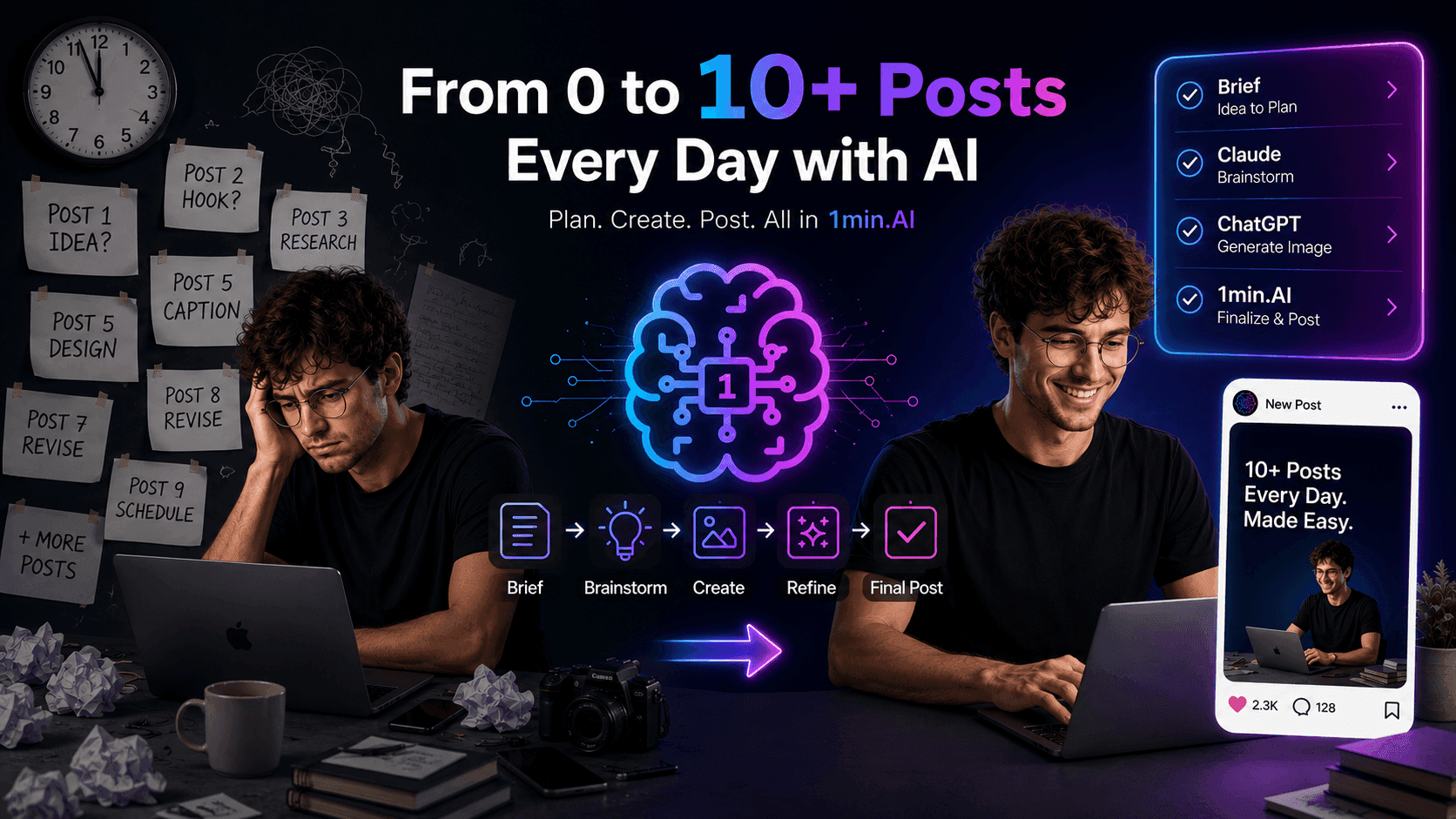
POV: You Have 10+ Posts to Make Every Day
Learn how to build an AI content workflow that helps content creators produce 10+ social media posts a day faster with AI brainstorming, image generation, and content creation.
Lien Anh Vu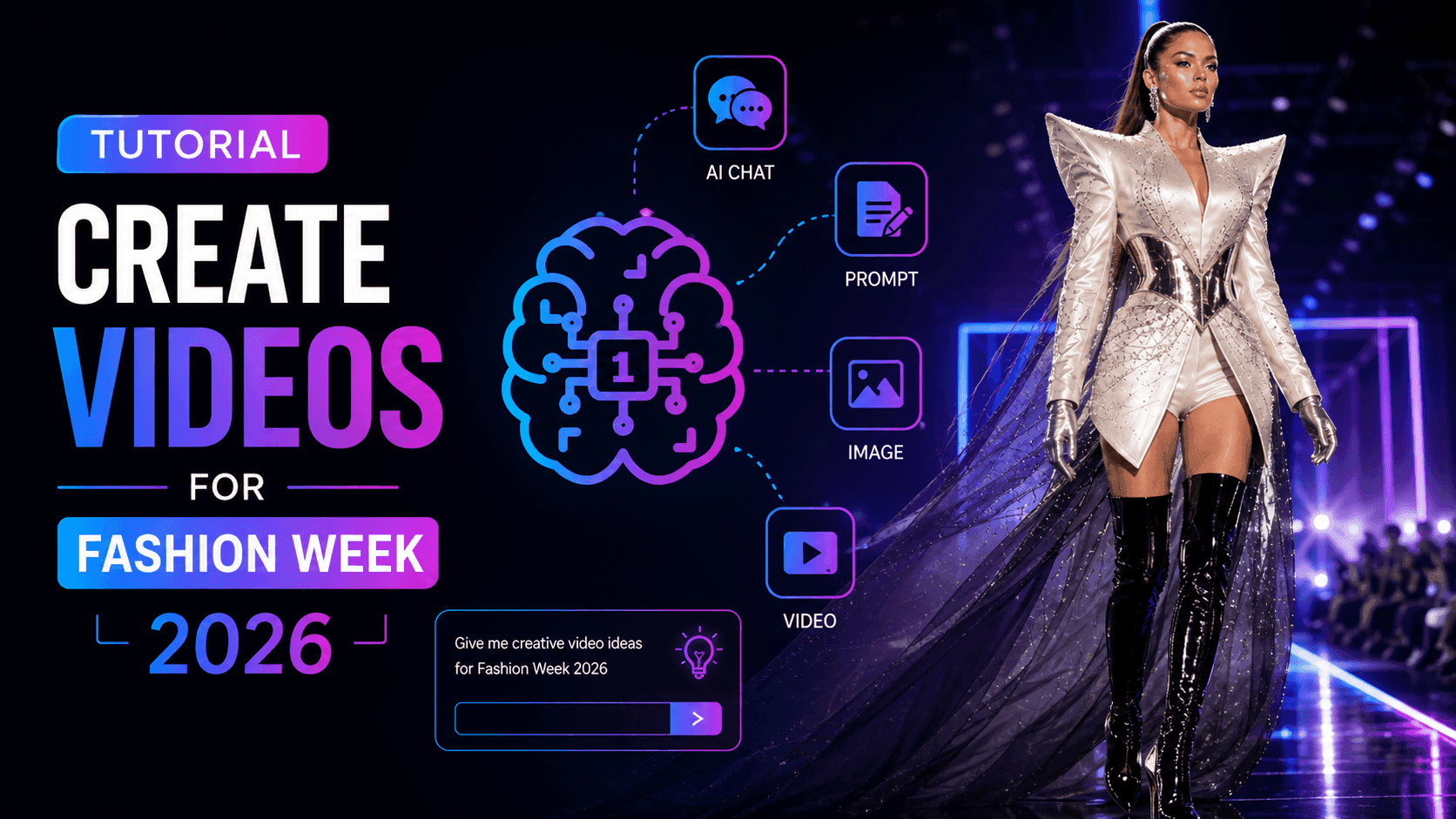
How to Use an AI Fashion Video Generator for Fashion Week 2026
Turn Fashion Week 2026 ideas into stunning fashion videos with AI. Learn how to brainstorm, create visuals, and transform images into videos with one simple workflow.
Lien Anh Vu
Stop Switching Between AI Apps: How AI Integration Transforms Employer Branding
Discover how AI integration helps HR teams streamline employer branding by combining AI writing, documents, images, video, and multiple AI models into one workspace.
Tram TaAI for Industries
Find the best AI tools and workflows for healthcare, finance, education, legal, manufacturing, retail, real estate, and more
Claude Opus 5.5 as an AI Writing Assistant for Designers
Discover how designers can use Claude Opus 5.5 on 1min.AI to write portfolio descriptions and social media captions with a simple AI writing workflow.
Lien Anh Vu
Free AI Video Generator From Image No Restrictions
Try a free AI video generator from image with no watermark. Turn photos into videos with audio using Kling, Veo 3.1 and Seedance in 1min.AI. Start now.
Trang Tran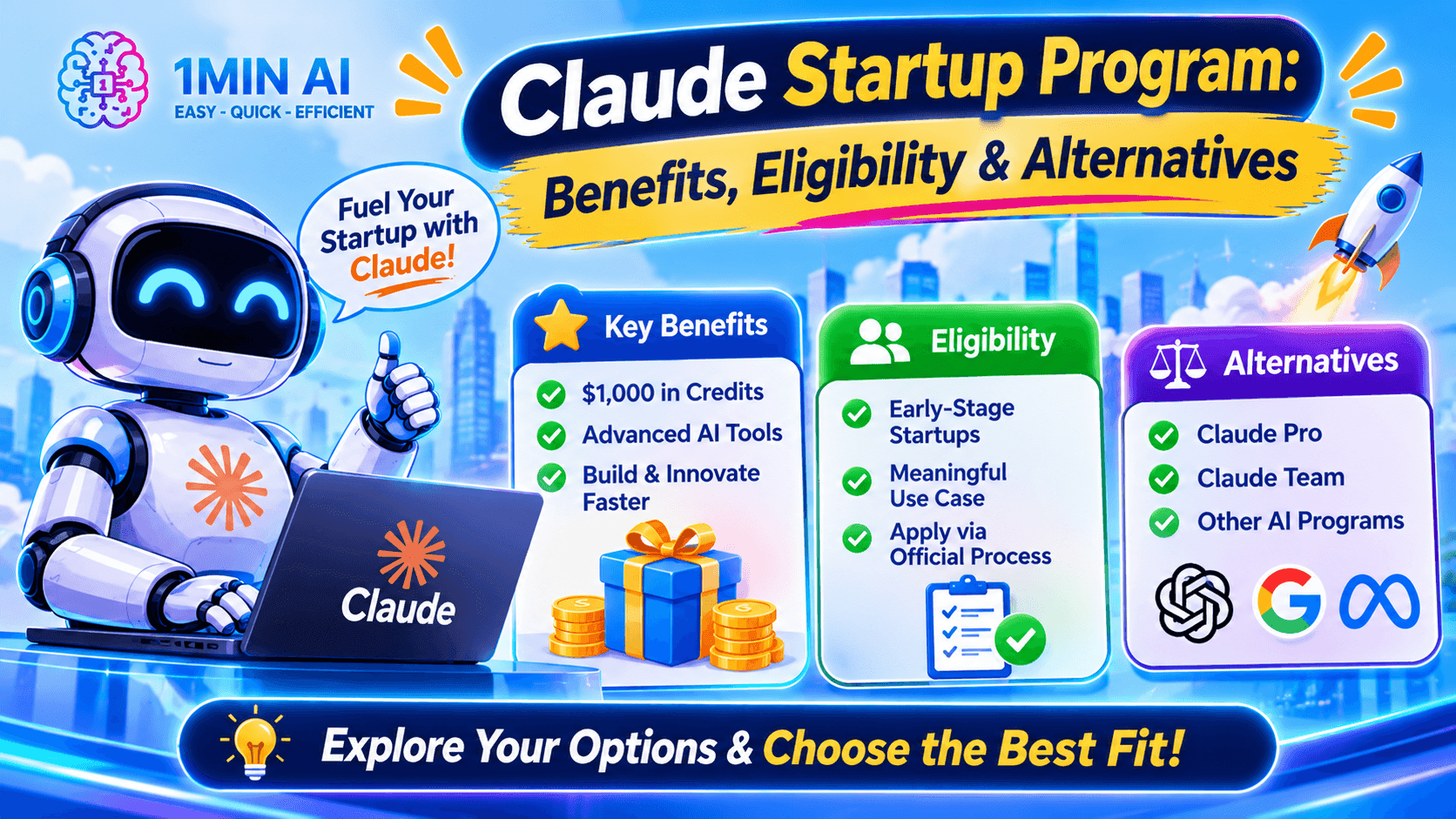
Claude Startup Program: Benefits, Eligibility, and How Startups Can Build with Claude
Learn about the Claude Startup Program, including API credits, Claude Team benefits, eligibility, application steps, and AI tools startups can explore with 1minAI.
Tram TaAI Agents
Discover and run AI agents to automate tasks across your work and daily life.
1minAI: Free AI Grammar Checker
Check grammar for free with 1minAI’s AI grammar checker. Find grammar, spelling, and writing mistakes, improve clarity, and polish your content in seconds.
Tram Ta
AI Agents for Facebook
Use an AI Agent for Facebook to create content, generate images, schedule posts, and publish from your documents and conversations.
Ngoc Hong
AI Agent vs AI Assistant: Which One Actually Saves Designers More Time?
Learn the difference between AI Agent vs AI Assistant and discover which solution helps designers automate repetitive work, reduce revisions, and save more time.
Lien Anh VuAI Workflows
Explore ready-to-use AI workflows for productivity, marketing, sales, support, and more.
Create Consistent Cartoon Content in Just a Few Steps
Create engaging cartoon videos for TikTok and Reels with 1min.AI. Research ideas, create characters, and turn images into animated videos in 3 simple steps.
Lien Anh VuOne Product, 10 UGC Creatives: How AI Makes Content Testing Easier
Create more authentic UGC with an AI UGC video generator, test more creative angles and scale affiliate content without filming every version.
Lien Anh VuPOV: You Have 10+ Posts to Make Every Day
Learn how to build an AI content workflow that helps content creators produce 10+ social media posts a day faster with AI brainstorming, image generation, and content creation.
Lien Anh VuNewsletter
Weekly AI Innovations with 1minAI

🔮 Weekly AI Innovations #144: LinkedIn Content Agent: Complete B2B Publishing Pipeline
Scale B2B influence with the LinkedIn Content Agent on 1min.ai. Discover an end-to-end 4-stage pipeline with zero redundant token burn and 1-click publishing.
Hang Nguyen
🔮 Weekly AI Innovations #143: Update GPT-6, GPT-6.1 & Ideogram 4.0
Access GPT-6 Sol, Luna, GPT-6.1 Sol, and Ideogram 4.0 on 1min.ai. Boost typography accuracy to 98.4% and cut reasoning latency by 45% in one platform.
Hang Nguyen
🔮 Weekly AI Innovations #142: Grok 4.7, Opus 5.5 & Sonnet 5.5 on 1min.ai
Access Grok 4.7, Claude Opus 5.5, and Sonnet 5.5 on 1min.ai. Cut subscription costs by up to 70% and process millions tokens in a single unified workspace.
Hang Nguyen