
AI Transition Video: Ceiling Fan Outfit Change Prompt

Ngoc Hong
October 14, 2026
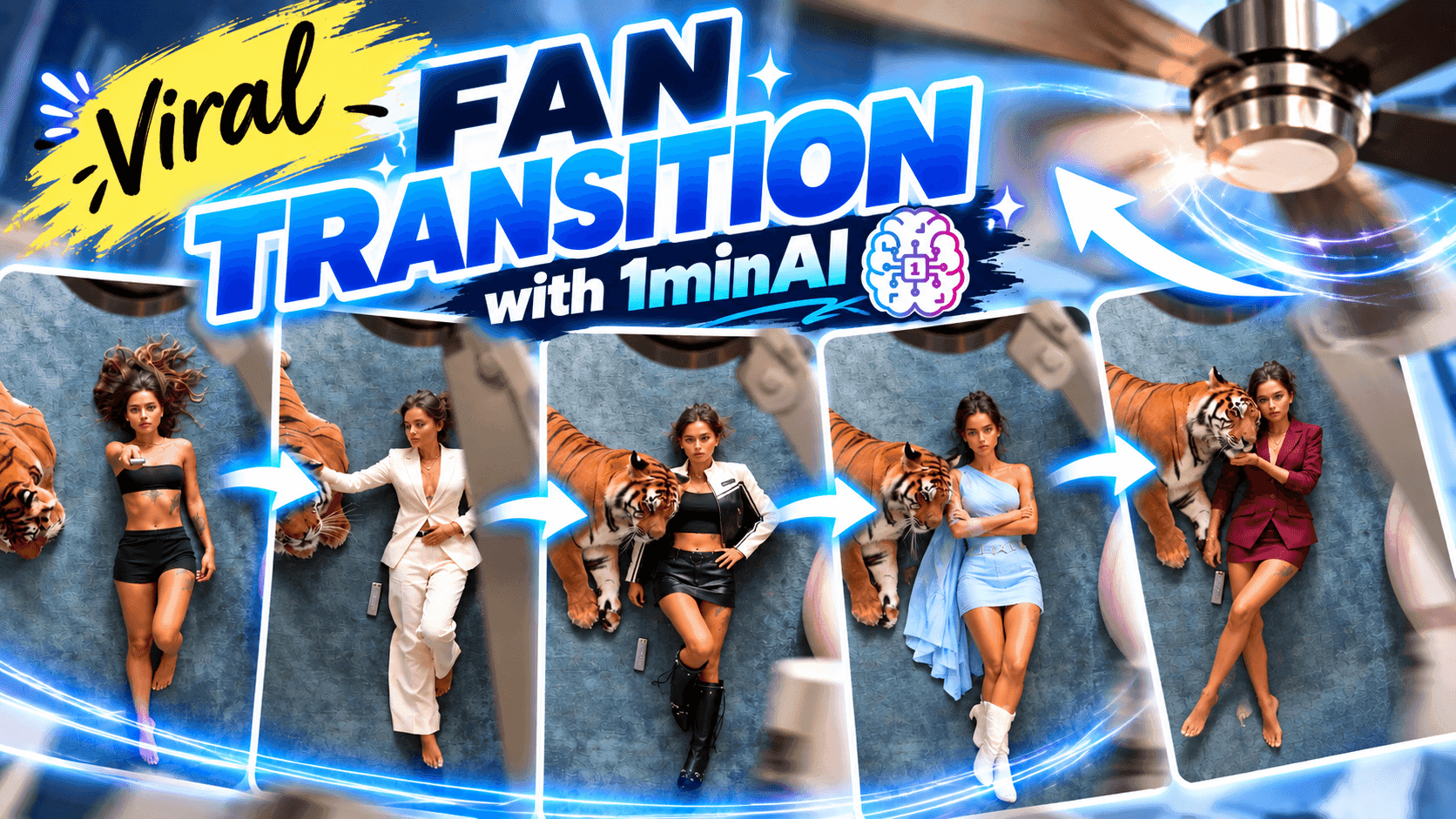
Copy a ready-made AI transition video prompt for the ceiling fan outfit change trend, with a pet tiger sidekick. Learn the 5-photo workflow.
AI Transition Video: Ceiling Fan Outfit Change Prompt
An AI transition video can recreate the ceiling fan outfit change trend without a real fan, a ceiling-mounted phone, or hours of editing. In the trend, each blade that sweeps across the lens hides a switch to a new look. This guide gives you a copy-paste prompt, a five-photo workflow, and a twist: a pet tiger who reacts to every outfit.
What Is the Ceiling Fan Outfit Change Trend?
The trend turns a spinning fan into a built-in cut between outfits.
A phone is fixed to the ceiling and points straight down at the floor, with a fan turning in front of the lens. The creator lies on the floor and presses a remote to start the fan. Every time a blade covers the screen, the creator reappears in a new outfit.
Filming it for real is demanding. You need a locked camera, a safe mount, precise timing, and several outfit changes between takes, then careful editing. An outfit transition video made with AI replaces most of that. You provide photos of each look and a detailed prompt, and the model builds the sequence.
You need three things:
- Five photos of the same person in five different outfits
- An AI video model that accepts multiple reference images
- The prompt below
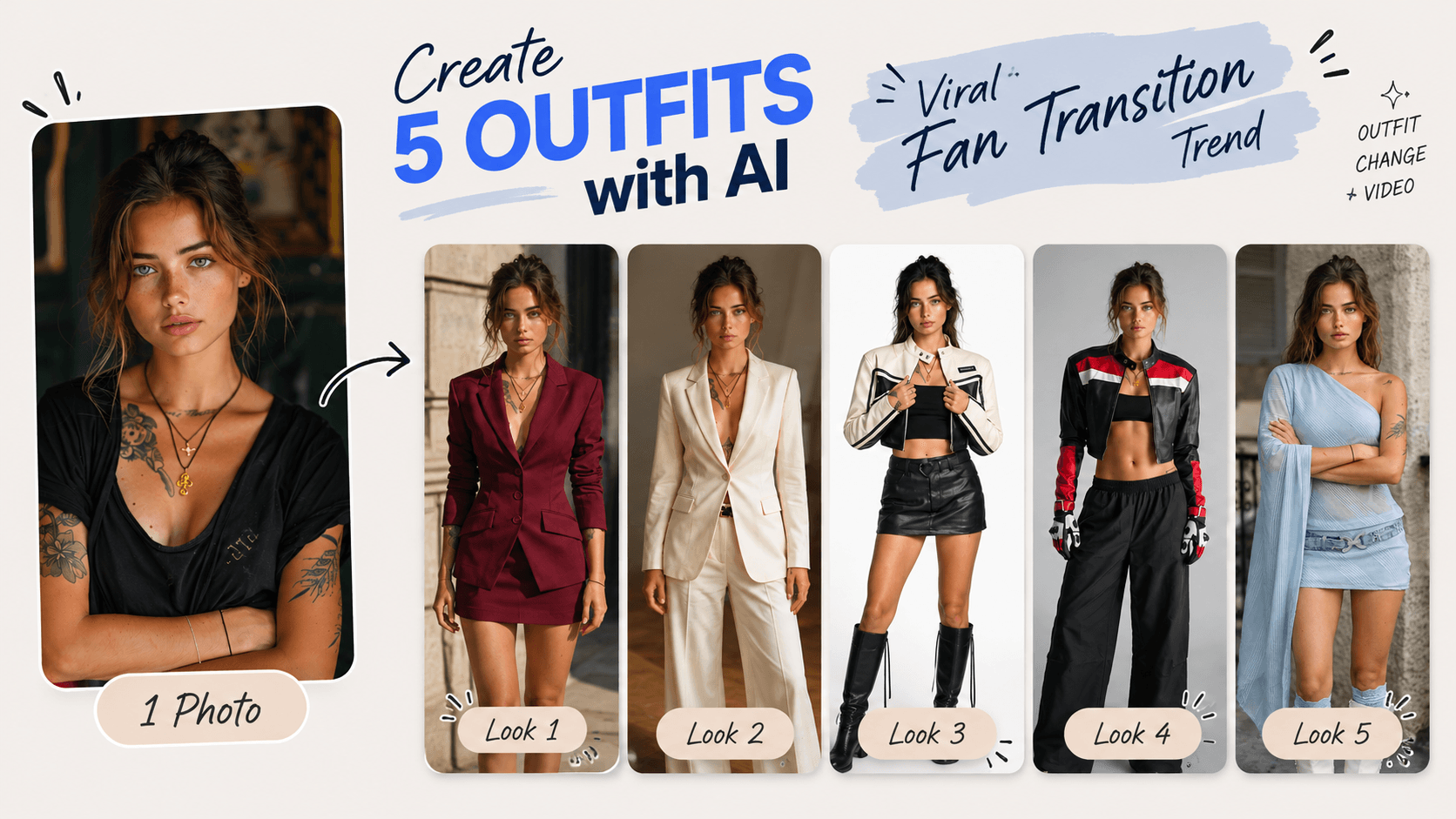
Copy-Paste AI Transition Video Prompt (With a Pet Tiger)
This prompt keeps one fixed overhead shot and adds a tiger on the left side of the frame. After each blade pass, the character and the tiger share a small moment, such as a head stroke or a lean.
How to use it:
- Prepare five outfit photos. Use the same person, similar lighting and a full-body view. Don’t have a photo of every look? An AI outfit changer workflow, also known as AI virtual try-on, lets you pair one full-body photo with each clothing image to create all five outfits.
- Upload the photos in order, from Image 1 to Image 5.
- Paste the prompt and generate. Run it several times and keep the cleanest result.
Create a realistic 15-second vertical (9:16) video that looks like it was filmed on an iPhone 17 Pro, showing one main character and one pet tiger. Use my five reference images of the main character, in order.
REFERENCE IMAGES All five images show the same main character in five different outfits. Image 1 is Outfit 1, Image 2 is Outfit 2, and so on up to Outfit 5. Keep the face, skin tone, hairstyle and body proportions identical in every scene. Copy each outfit exactly: garments, colors, fabrics, shoes and visible accessories. Use the images only as identity and clothing references; build the setting and actions from the description below.
PHONE-CAMERA LOOK Shot on an iPhone 17 Pro, ultra-wide lens, mounted on the ceiling and pointing straight down at 90 degrees. One locked, perfectly still shot with no zoom, pan, tilt or angle change. Natural smartphone footage: soft natural indoor light, true-to-life colors, real skin texture with visible pores, fine fabric weave, slight sensor noise, mild phone sharpening and slight edge distortion from the wide lens. No cinematic color grading, no glossy beauty retouching, no studio lighting, no dreamy glow.
SET A muted blue carpet with visible fiber texture covers the floor. A curved blush-pink sofa is cropped along the RIGHT edge of the frame. The main character begins on the sofa, then lies on the carpet near the center, head toward the top of the frame and feet toward the bottom. A small silver remote control lies on the carpet right beside the character's right hand.
THE PET TIGER A calm adult Bengal tiger lies on the LEFT side of the frame, head toward the top like the character. Its body is thick, muscular and rounded, about 1.3 times the character's body length, with deep natural fur, realistic shadows and correct anatomy. It must look like a living animal, not flat and not like a rug. Orange fur and black stripe pattern stay identical in every scene. The tiger is gentle and affectionate, like a well-trained pet, with relaxed ears, no teeth, no growling and no sudden movements. It wears no clothes. Both bodies stay fully inside the frame.
THE CHROME CEILING FAN A polished chrome ceiling fan hangs between the lens and the floor. Its round motor housing is partly cropped at the top center. The fan is COMPLETELY STILL, with no blade movement, vibration or motion blur, until the character presses the remote button. Only after the press does it start turning clockwise, VERY SLOWLY, so that one broad blade crosses the whole frame about every 2.6 seconds. Between passes, no blade enters the frame and the floor is clearly visible. During a pass, a single blade moves smoothly across the entire frame and fully covers both subjects. The blade keeps a clean, uniform polished-chrome surface with soft reflections and only very light motion blur. No dark patches, smears, text, ghost duplicates or extra blades.
TIMELINE 0.0-1.3s | Outfit 1: The character lies on the pink sofa, rolls sideways off its edge toward the left, and lands on their back on the carpet. The fan is motionless. The tiger lifts its head and watches calmly. 1.3-2.4s | The character looks up at the camera, relaxes their shoulders and straightens their legs, elbows bent at their sides. The tiger rests its chin back on the carpet. 2.4-3.4s | The character picks up the remote with the right hand, aims it at the fan and presses the button once. The fan stays motionless until the press is complete. 3.4-4.4s | The character lowers the hand. The fan starts to turn slowly, gaining speed gently. The tiger's ears turn toward it. 4.4-5.4s | PASS 1: The first blade slowly sweeps across the whole frame. Outfit 1 stays visible ahead of the blade, and Outfit 2 appears behind its trailing edge. 5.4-7.0s | Outfit 2: The character rests one hand at the waist and gently strokes the tiger's head with the other. The tiger closes its eyes. 7.0-8.0s | PASS 2: The second blade crosses the frame and changes Outfit 2 to Outfit 3. 8.0-9.6s | Outfit 3: The tiger leans its shoulder against the character's arm. The character keeps one hand on the hip and the other resting near the tiger. 9.6-10.6s | PASS 3: The third blade crosses the frame and changes Outfit 3 to Outfit 4. 10.6-12.2s | Outfit 4: The tiger rests its head on the character's shoulder. The character gently scratches under the tiger's chin and looks up with confidence. 12.2-13.2s | PASS 4: The fourth and final blade crosses the frame and changes Outfit 4 to Outfit 5. 13.2-15.0s | Outfit 5: The tiger rolls slightly toward the character and touches their hand with one paw. The character smiles and turns toward the tiger. Hold a clear view of the final outfit and both subjects until the end.
TRANSITION RULES Exactly five outfits and exactly four outfit changes. Exactly four blade passes. Every blade pass changes the outfit once, and outfits change only while a blade fully covers the screen. No outfit change at any other moment. Pose changes of the character and the tiger happen under the same blade. No visible clothing morphing, dissolves, flashes or jump cuts. The room, camera, subject scale and floor positions stay continuous.
QUALITY AND SAFETY Natural movement, believable fabric and fur motion, consistent shadows. Only gentle, friendly contact between the character and the tiger. No second tiger, duplicated people, extra limbs, face changes, stripe changes, floating body parts or extra scene cuts.
This prompt is adapted from a community prompt shared on TikTok, then rewritten and extended with the tiger, a slower fan sequence and a smartphone-footage look.
Why the Prompt Is Built This Way
Each section of the prompt solves a common problem in AI-generated transitions.
- Phone-camera look: Words like “iPhone 17 Pro,” “sensor noise” and “no glossy retouching” push the result away from the over-smooth, advertising look that makes AI video feel fake.
- Fan locked until the remote press: Models often start spinning the fan too early. Stating that it stays motionless until the button press keeps the cause and effect clear.
- Slow, counted blade passes: One blade every 2.6 seconds and “exactly four passes” prevent extra sweeps between outfit changes.
- Hidden changes: Outfits change only under a fully covering blade, so there are no visible morphs or flashes.
- Tiger size and fur depth: Describing body length and thickness helps avoid a flat, rug-like animal.
How to Customize the Prompt
Small edits make the video your own without breaking its structure.
| Want to change | Edit this part |
|---|---|
| The pet | Replace “Bengal tiger” with a dog, cat or fox and adjust the fur description |
| Number of outfits | Use 3 or 4 outfits, reduce the blade passes to match, and re-split the timeline |
| Video length | Match your model’s limit and shorten each time range |
| Fan style | Change “chrome” to “white matte” to reduce reflection glitches |
| Setting | Edit the carpet color and the sofa in the SET section |
| Pet interactions | Swap the stroking, leaning and head-rest moments in the TIMELINE |
If you only want the outfit change transition, delete the tiger section and the tiger lines in the timeline. For more fashion video ideas, see how to use an AI fashion video generator for Fashion Week 2026.
Troubleshooting and Limits
Complex prompts rarely work perfectly on the first try, so plan for a few generations.
- The fan moves too early: Add “The fan must not move during the first 3.4 seconds” or move the remote press earlier.
- Too many blade passes: Repeat “Exactly four blade passes in the whole video” at the end of the fan section.
- The tiger looks flat: If your model accepts a sixth reference image, add a photo of a real tiger lying down, seen from above.
- Blade glitches or dark smears: Switch the fan to a matte white finish.
- Faces or outfits drift: Use the same lighting and camera angle in all five photos.
- The model accepts one reference image only: Use Image 1 and describe the other four outfits in text.
Results vary between runs and between models, so keep the cleanest take. The tiger is AI-generated and meant as a creative concept only. Wild tigers are not pets, and keeping them is illegal in many places. Use only photos you have the right to use.
Why Try This Workflow on 1min.AI
An AI transition video takes more than one step: outfit images first, then video. 1min.AI keeps these steps in one workspace, so you don’t switch between separate tools.
You can create outfit images with the AI image generator, then explore image-to-video models in the same place. For one example, see how Seedance 2.5 image-to-video works on 1min.AI, or read how to create viral TikTok trend videos with a quick workflow.
Not every model will follow every line of this prompt. Testing the same prompt on different video models and keeping the best result is the practical approach.
Final Thoughts
The ceiling fan outfit change trend is easier to recreate as an AI transition video than to film. Prepare five outfit photos, paste the prompt, and add a pet tiger for a more memorable result. Test a few generations, adjust the troubleshooting lines, and start your next transition on 1min.AI.
- #Information
Alternatives
Discover the best alternatives to 1minAI and compare features, pricing, and use cases.

1min.AI vs OpenRouter
1min.AI vs. OpenRouter: Compare the ready-to-use AI creation product against the technical API tool. Find out if you need a zero-code creative studio or a coding infrastructure hub.
 Ngoc Hong
1min.AI vs Jarvis AI
Compare 1min.AI vs Jarvis AI to discover which AI platform is better for writing, research, automation, and content creation. Find the best AI assistant for your workflow.
Ngoc Hong
1min.AI vs Taskade
Compare 1min.AI vs Taskade for AI content creation, automation, agents, and creative workflows to find the right workspace.
Ngoc HongAI Tools
Discover the best AI tools to boost productivity, creativity, and everyday work.
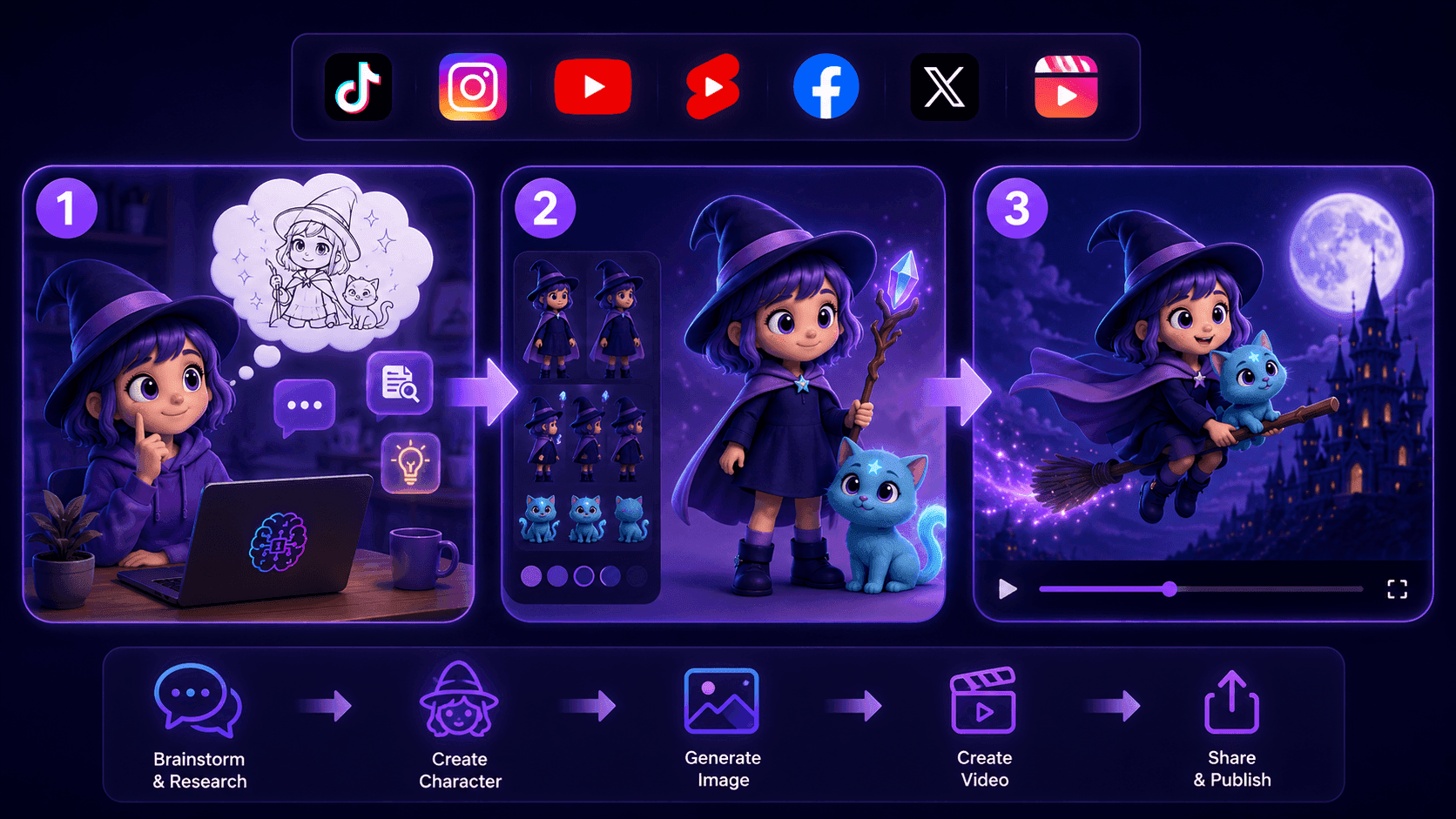
Create Consistent Cartoon Content in Just a Few Steps
Create engaging cartoon videos for TikTok and Reels with 1min.AI. Research ideas, create characters, and turn images into animated videos in 3 simple steps.
 Lien Anh Vu
One Product, 10 UGC Creatives: How AI Makes Content Testing Easier
Create more authentic UGC with an AI UGC video generator, test more creative angles and scale affiliate content without filming every version.
Lien Anh Vu
Top 4 Affordable AI Tools for Startup Founders
Discover the top 4 affordable AI tools for startup founders to validate ideas, build products, create content, and launch faster without overspending.
 Tram Ta
AI Features
Comprehensive AI features that streamline workflows, improve efficiency, and empower teams to achieve more.
Create Consistent Cartoon Content in Just a Few Steps
Create engaging cartoon videos for TikTok and Reels with 1min.AI. Research ideas, create characters, and turn images into animated videos in 3 simple steps.
Lien Anh VuOne Product, 10 UGC Creatives: How AI Makes Content Testing Easier
Create more authentic UGC with an AI UGC video generator, test more creative angles and scale affiliate content without filming every version.
Lien Anh Vu
1minAI: Free AI Grammar Checker
Check grammar for free with 1minAI’s AI grammar checker. Find grammar, spelling, and writing mistakes, improve clarity, and polish your content in seconds.
Tram TaAI Use Cases
A curated collection of AI use cases for business, productivity, and industry-specific applications.
Create Consistent Cartoon Content in Just a Few Steps
Create engaging cartoon videos for TikTok and Reels with 1min.AI. Research ideas, create characters, and turn images into animated videos in 3 simple steps.
Lien Anh VuOne Product, 10 UGC Creatives: How AI Makes Content Testing Easier
Create more authentic UGC with an AI UGC video generator, test more creative angles and scale affiliate content without filming every version.
Lien Anh Vu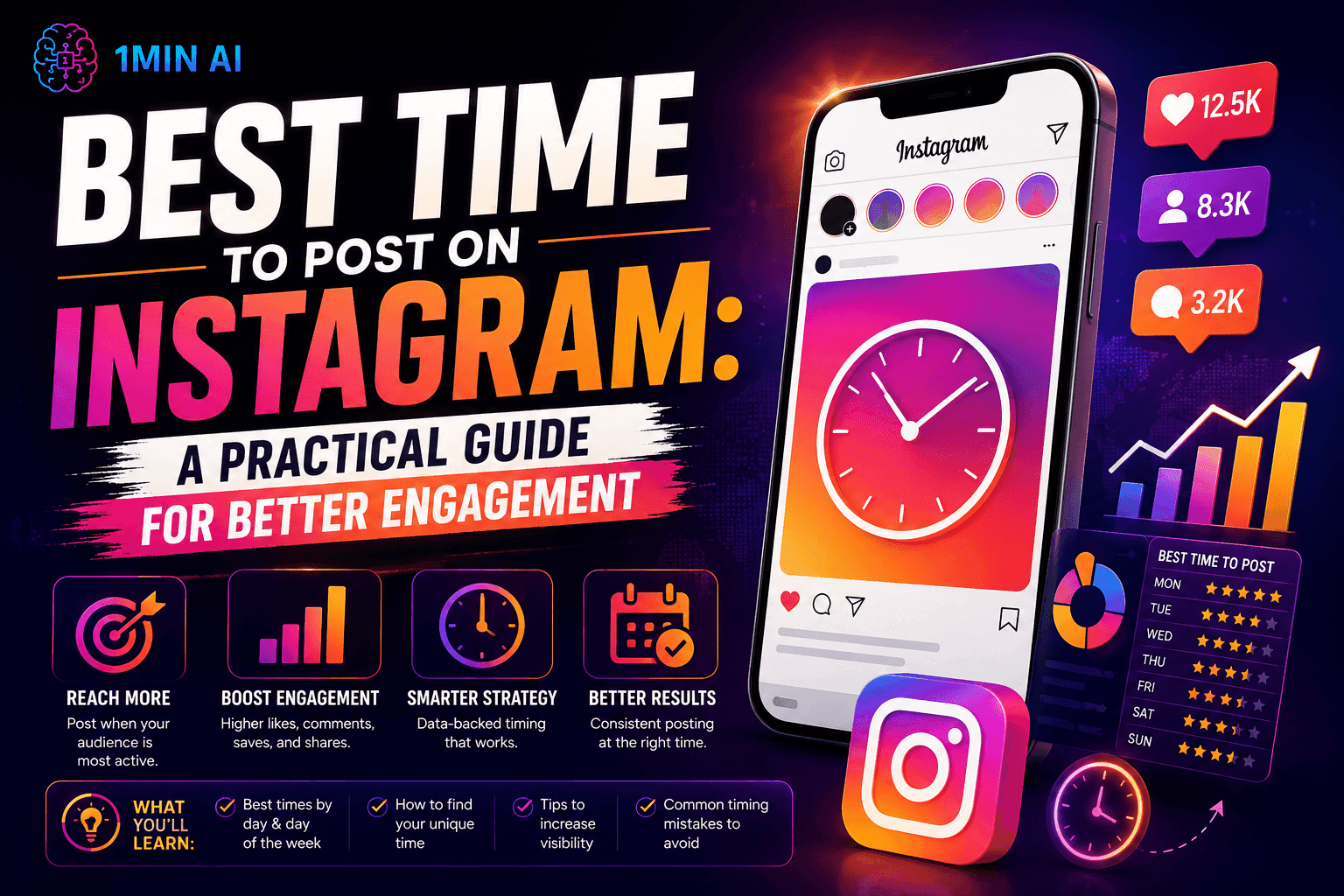
Best Time to Post on Instagram: A Practical Guide for Better Engagement
Discover the best time to post on Instagram, including the best days and times for different audiences, plus tips to find the ideal posting schedule for your account.
Tram TaAI Tutorials
Learn how to use AI with practical, step-by-step tutorials.

Black Friday AI Tool Deals in 2026
Discover what Black Friday AI tool deals 2026 has to offer. Find out how to secure the 1min.AI lifetime deal via AppSumo, Dealify, Stack Social, and verify on Trustpilot, Slashdot, and Software Advice.
 Hang Nguyen
Create Consistent Cartoon Content in Just a Few Steps
Create engaging cartoon videos for TikTok and Reels with 1min.AI. Research ideas, create characters, and turn images into animated videos in 3 simple steps.
Lien Anh Vu
[Seedance 2.5 New] Better AI Product Videos, Less Rework in 1min.AI
Use Seedance 2.5 image to video on 1min.AI to create more consistent AI product videos, reduce failed generations, save credits, and improve UGC workflows.
Lien Anh VuAI Guides
Learn AI faster with practical guides, real-world examples, and actionable best practices.

Safely Buy AI Tools Online: 2026 Black Friday Guide
Discover how to find and secure the best Black Friday AI deals online. Learn expert strategies to avoid scams, combat subscription fatigue, and verify software.
Hang NguyenCreate Consistent Cartoon Content in Just a Few Steps
Create engaging cartoon videos for TikTok and Reels with 1min.AI. Research ideas, create characters, and turn images into animated videos in 3 simple steps.
Lien Anh Vu[Seedance 2.5 New] Better AI Product Videos, Less Rework in 1min.AI
Use Seedance 2.5 image to video on 1min.AI to create more consistent AI product videos, reduce failed generations, save credits, and improve UGC workflows.
Lien Anh VuAI Solutions
Browse the best AI solutions for automation, coding, research, productivity, customer support, marketing, and business workflows.
Safely Buy AI Tools Online: 2026 Black Friday Guide
Discover how to find and secure the best Black Friday AI deals online. Learn expert strategies to avoid scams, combat subscription fatigue, and verify software.
Hang NguyenCreate Consistent Cartoon Content in Just a Few Steps
Create engaging cartoon videos for TikTok and Reels with 1min.AI. Research ideas, create characters, and turn images into animated videos in 3 simple steps.
Lien Anh VuOne Product, 10 UGC Creatives: How AI Makes Content Testing Easier
Create more authentic UGC with an AI UGC video generator, test more creative angles and scale affiliate content without filming every version.
Lien Anh VuAI Models
Explore the world's leading AI models in one place.
Create Consistent Cartoon Content in Just a Few Steps
Create engaging cartoon videos for TikTok and Reels with 1min.AI. Research ideas, create characters, and turn images into animated videos in 3 simple steps.
Lien Anh VuOne Product, 10 UGC Creatives: How AI Makes Content Testing Easier
Create more authentic UGC with an AI UGC video generator, test more creative angles and scale affiliate content without filming every version.
Lien Anh Vu[Seedance 2.5 New] Better AI Product Videos, Less Rework in 1min.AI
Use Seedance 2.5 image to video on 1min.AI to create more consistent AI product videos, reduce failed generations, save credits, and improve UGC workflows.
Lien Anh VuAI Comparisons
Compare AI tools, models, and platforms to find the best fit for your needs.

Kling AI Vs Veo 3: Which Model Wins?
Kling AI vs Veo 3: compare motion, native audio, pricing & free tiers to see which AI video generator wins for your project - try both on 1min.AI.
 Trang Tran
[Seedance 2.5 New] Better AI Product Videos, Less Rework in 1min.AI
Use Seedance 2.5 image to video on 1min.AI to create more consistent AI product videos, reduce failed generations, save credits, and improve UGC workflows.
Lien Anh Vu
DeepSeek V4 Pro vs Flash Comparison
Compare DeepSeek V4 Pro vs DeepSeek V4 Flash metrics. Optimize your agentic apps and improve AI fact checking on 1min.ai today.
Ngoc HongAI Integrations
Seamlessly integrate AI with the tools you already use to automate work and boost productivity.

POV: You Have 10+ Posts to Make Every Day
Learn how to build an AI content workflow that helps content creators produce 10+ social media posts a day faster with AI brainstorming, image generation, and content creation.
Lien Anh Vu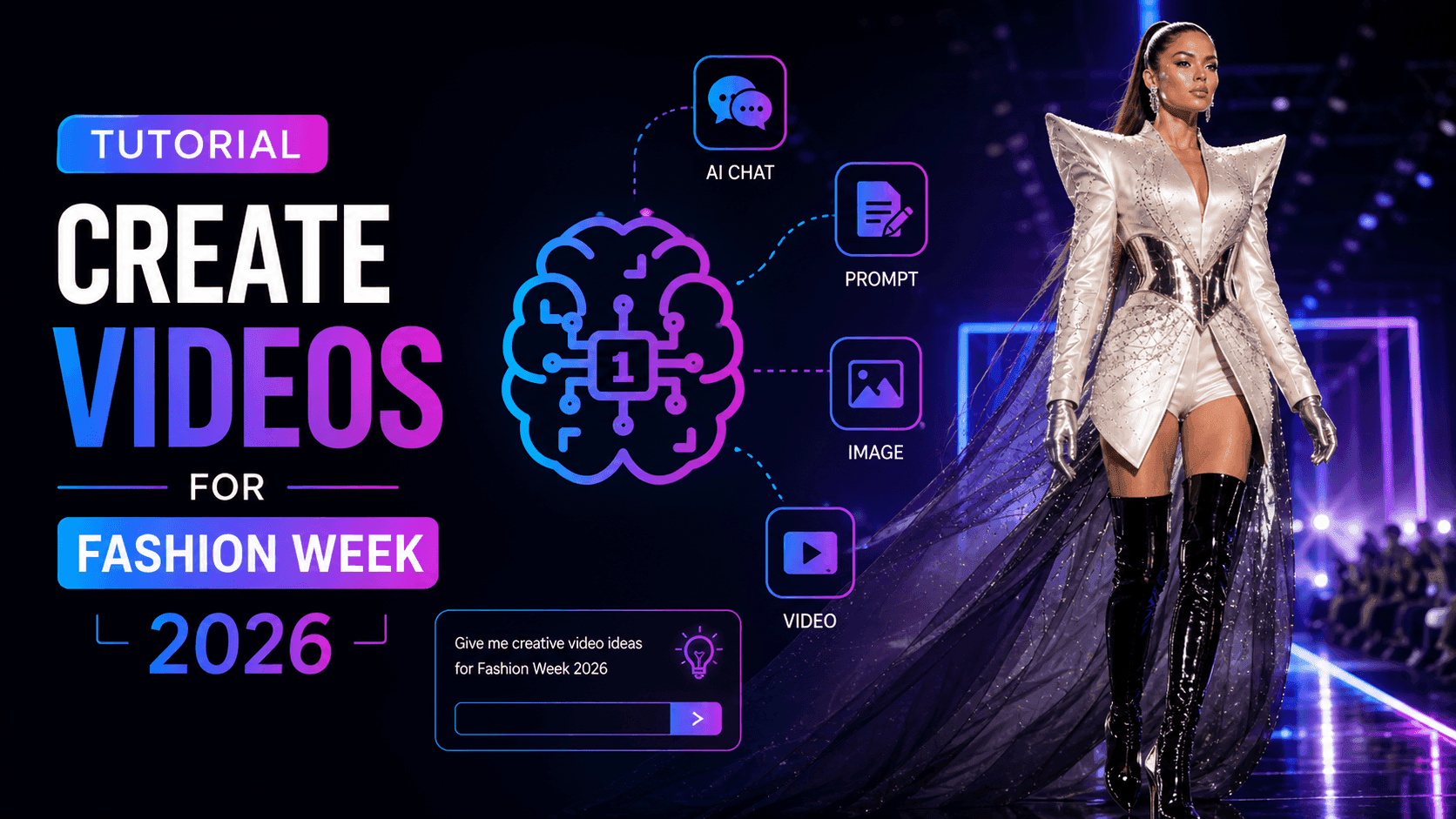
How to Use an AI Fashion Video Generator for Fashion Week 2026
Turn Fashion Week 2026 ideas into stunning fashion videos with AI. Learn how to brainstorm, create visuals, and transform images into videos with one simple workflow.
Lien Anh Vu
Stop Switching Between AI Apps: How AI Integration Transforms Employer Branding
Discover how AI integration helps HR teams streamline employer branding by combining AI writing, documents, images, video, and multiple AI models into one workspace.
Tram TaAI for Industries
Find the best AI tools and workflows for healthcare, finance, education, legal, manufacturing, retail, real estate, and more

Best Business Productivity Tools for Startups to Maximize Profits | 1minAI
Discover the best business productivity tools for startups to save time, streamline workflows, reduce repetitive tasks, and support profitable growth with AI.
Tram Ta
Best AI Tool for Content Marketing |1minAI
Looking for the best AI tool for content marketing? See how 1minAI helps marketers research, write, repurpose, create visuals, and scale content from one AI workspace.
Tram Ta
7 Low-Cost AI Business Ideas for Your Startup
Explore 7 low-cost AI business ideas you can start with a small budget, from content and video services to AI consulting, reselling, and automation.
Tram TaAI Agents
Discover and run AI agents to automate tasks across your work and daily life.
1minAI: Free AI Grammar Checker
Check grammar for free with 1minAI’s AI grammar checker. Find grammar, spelling, and writing mistakes, improve clarity, and polish your content in seconds.
Tram Ta
AI Agents for Facebook
Use an AI Agent for Facebook to create content, generate images, schedule posts, and publish from your documents and conversations.
Ngoc Hong
AI Agent vs AI Assistant: Which One Actually Saves Designers More Time?
Learn the difference between AI Agent vs AI Assistant and discover which solution helps designers automate repetitive work, reduce revisions, and save more time.
Lien Anh VuAI Workflows
Explore ready-to-use AI workflows for productivity, marketing, sales, support, and more.
Create Consistent Cartoon Content in Just a Few Steps
Create engaging cartoon videos for TikTok and Reels with 1min.AI. Research ideas, create characters, and turn images into animated videos in 3 simple steps.
Lien Anh VuOne Product, 10 UGC Creatives: How AI Makes Content Testing Easier
Create more authentic UGC with an AI UGC video generator, test more creative angles and scale affiliate content without filming every version.
Lien Anh VuPOV: You Have 10+ Posts to Make Every Day
Learn how to build an AI content workflow that helps content creators produce 10+ social media posts a day faster with AI brainstorming, image generation, and content creation.
Lien Anh VuNewsletter
Weekly AI Innovations with 1minAI

🔮 Weekly AI Innovations #141: Seedance 2.5 & Stable Audio 3: Next-Gen AI
Explore Seedance 2.0, 2.5, and StabilityAI's Stable Audio 3 on 1min.ai. Generate studio-grade audio and synchronized motion with next-gen generative AI.
Hang Nguyen
🔮 Weekly AI Innovations #140: Deepseek 4.1 Flash & Gemini Upgrades
Explore Deepseek 4.1 Flash and new Gemini models on 1min.ai. Plus, check our update on your Billing - Usage page for better clarity.
Hang Nguyen
🔮 Weekly AI Innovations #139: Dawn of the next-gen AI
Discover the immense power of GPT-6 Astra and Claude Fable 5.1. Unlock next-generation AI models on 1min.ai to solve complex tasks effortlessly.
Hang Nguyen