
How to Create SVG Animations With Claude Fable 5.1

Lien Anh Vu
November 5, 2026
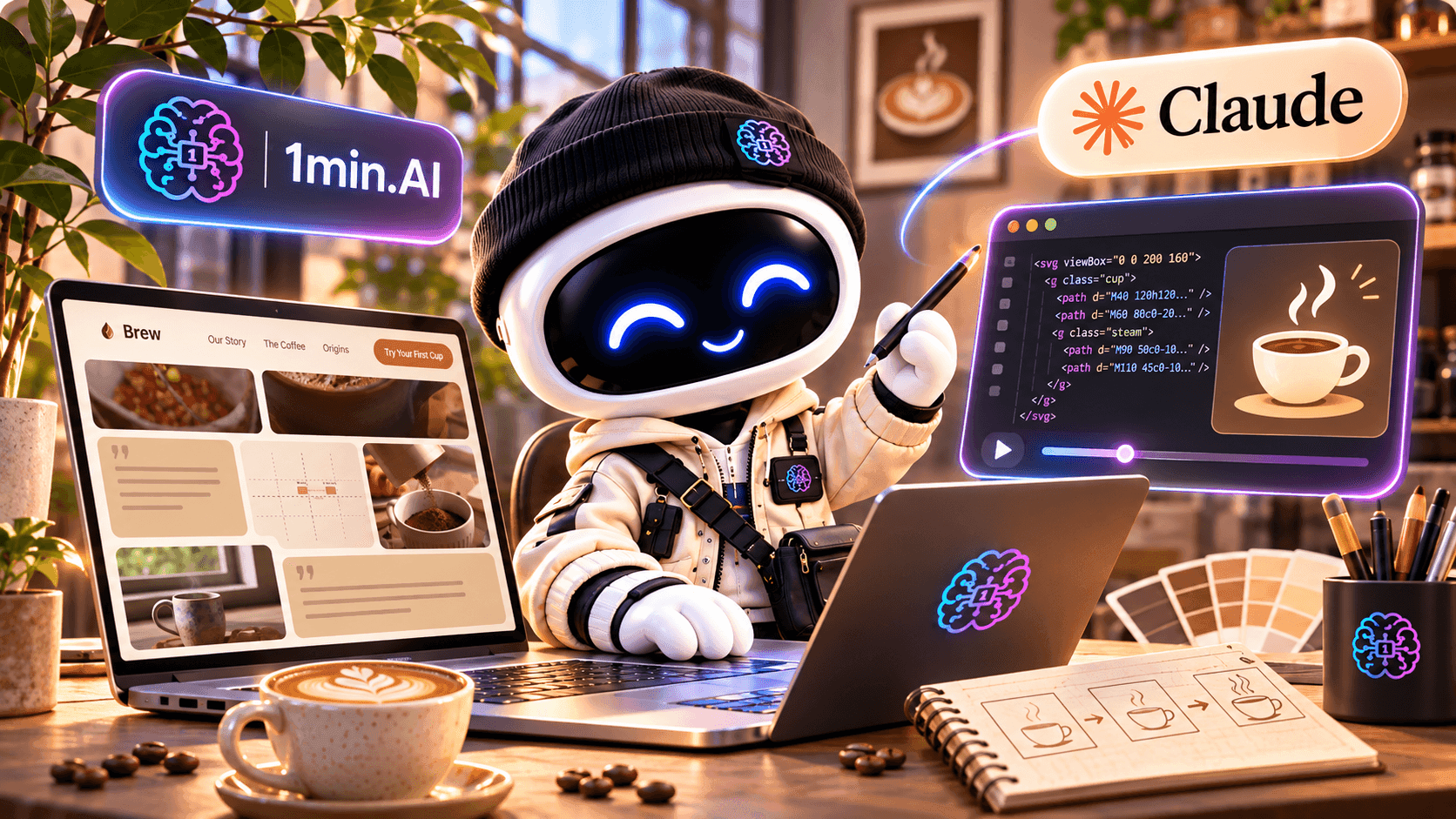
Learn how to create SVG animations with Claude Fable 5.1 on 1min.AI. Follow a simple tutorial to generate, preview, and refine animated designs.
Want to add smooth animations to your designs but don't know how to code?
Claude Fable 5.1 can help you create SVG animations by turning simple text prompts into HTML, SVG, and CSS code. Instead of building every animation from scratch, you can describe what you want, generate the code, and preview the result in your browser.
In this tutorial, we'll use Claude Fable 5.1 on 1min.AI to create an animated coffee cup for our fictional Morrow Coffee branding project.
You'll learn how to generate, preview, and customize your first SVG animation, even if you're new to coding.
What Is SVG Animation?
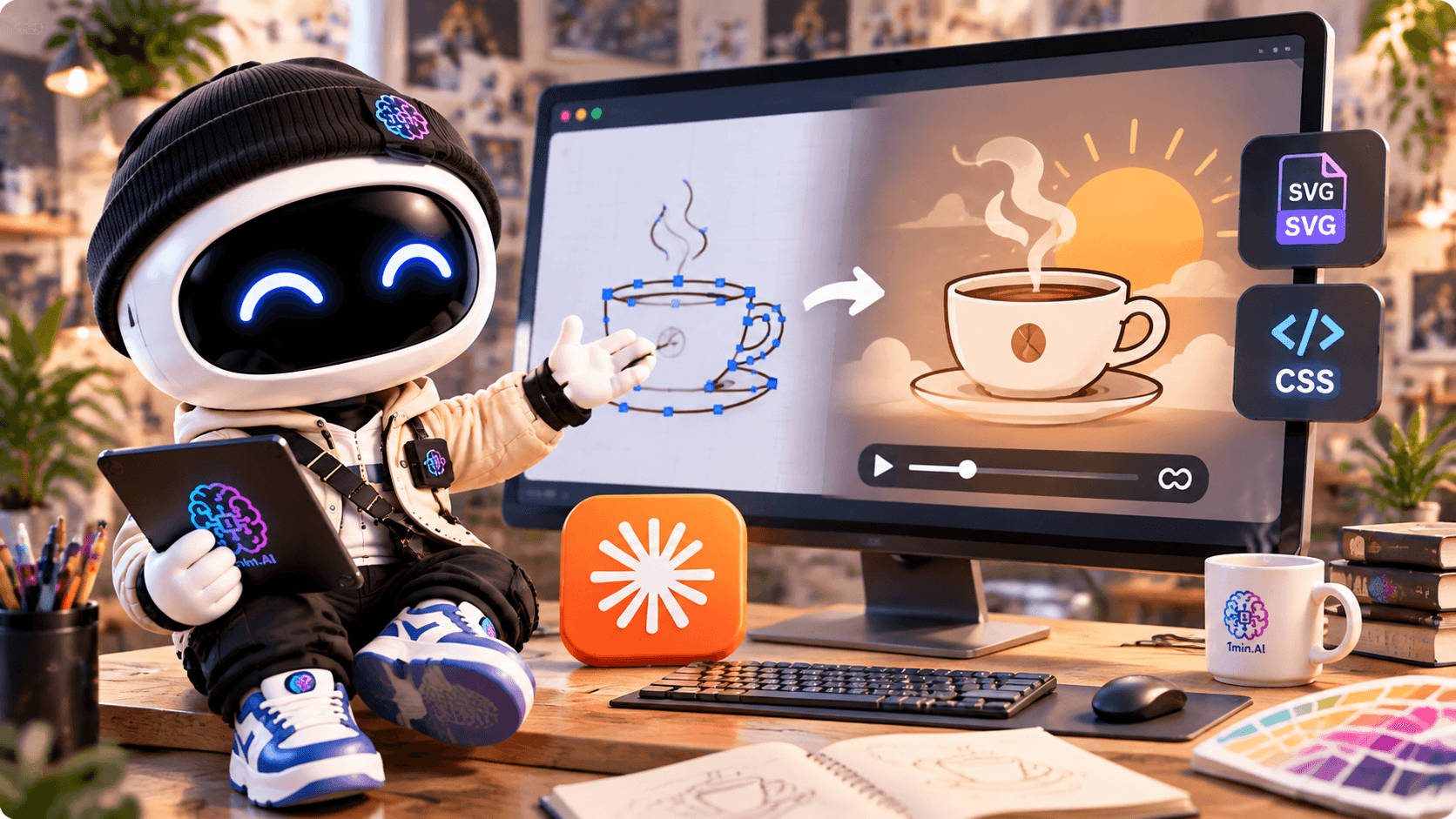
SVG (Scalable Vector Graphics) is a vector image format commonly used for icons, logos, illustrations, and website graphics.
Unlike regular images, SVG graphics can scale without losing sharpness. By adding CSS or SVG animation, you can bring individual elements to life.
For example, you can animate:
- A logo appearing smoothly.
- Steam rising from a coffee cup.
- A sun slowly moving across the background.
- Simple illustrations used in websites or portfolios.
SVG animations are especially useful for designers who want to add subtle movement to digital projects without relying on a video.
The challenge? Creating them manually often requires knowledge of SVG and CSS.
That's where Claude Fable 5.1 can help.
How to Create SVG Animations With Claude on 1min.AI
Let's create a simple coffee cup animation using Claude Fable 5.1.
Our example is inspired by Morrow Coffee — First Light, a fictional branding concept built around warm morning sunlight, calm colors, and minimal design.
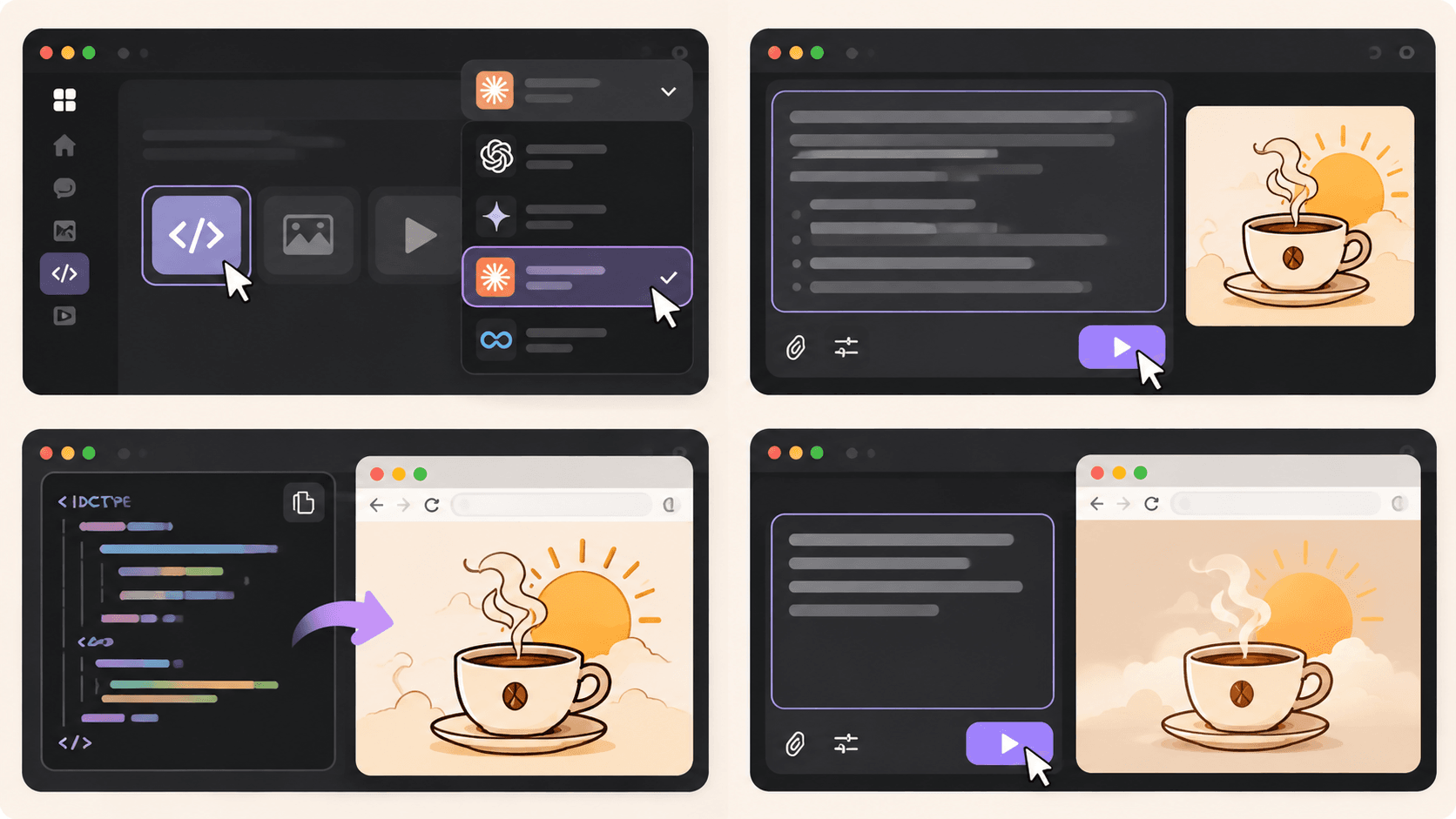
Step 1: Open AI Code and Select Claude Fable 5.1
First, visit 1min.AI's Code Generator.
Open AI for Code → Code Generator and select Claude Fable 5.1 from the available AI models.
Next, think about the animation you want to create.
For our coffee brand, we want a hand-drawn coffee cup with gently rising steam and a warm sunrise in the background.
The more clearly you describe your idea, the easier it is for Claude to understand the intended design.
Step 2: Enter Your SVG Animation Prompt
Now, let's turn that idea into an animation.
You don't need to write the SVG or CSS yourself. Start with a detailed prompt that describes the illustration, colors, and movement.
Copy-Ready Prompt — Animated Coffee Cup
Act as a creative front-end developer specializing in SVG animations.
Create a complete, self-contained HTML file with an animated SVG illustration for Morrow Coffee, a fictional specialty coffee brand.
Creative direction: First Light — warm, minimal, calm, and inspired by peaceful mornings.
Design requirements:
- A hand-drawn coffee cup as the main illustration.
- Soft steam gently rising from the cup.
- A golden sun slowly appearing behind the cup.
- A minimal background with warm cream colors.
Brand color palette:
- First Light: #F2C98A
- Dawn Blush: #E7B497
- Morning Linen: #EADFCB
- Roast: #6B4A3A
Animation requirements:
- Use inline SVG and CSS animations.
- Make the steam move naturally and continuously.
- Add a slow, subtle sunrise effect.
- Keep the animation smooth, responsive, and seamlessly looping.
- Support
prefers-reduced-motionwith a static version.- Do not use external libraries, images, or fonts.
- Include all HTML, CSS, and SVG in one file.
Return the complete HTML code so I can save it as
coffee-animation.htmland open it directly in Chrome.
Once you've entered the prompt, click Run and let Claude generate the code.
The result should be a complete HTML file containing your SVG illustration and animation styles.
Step 3: Preview Your SVG Animation
Once Claude finishes generating the code, it's time to see your design in action.
Follow these simple steps:
- Copy the complete HTML code generated by Claude.
- Open a text editor such as Notepad or Visual Studio Code.
- Paste the code and save it as
coffee-animation.html. If you're using Notepad, choose All Files as the file type. - Double-click the HTML file to open it in Chrome.
You should now see your animated coffee cup in the browser.
For our Morrow Coffee concept, the illustration features a minimal coffee cup, rising steam, and a soft golden sun.
Tip: Save the generated code as an .html file, not a .txt file. This lets the browser render the SVG and run its CSS animations.
The preview is a web page containing an animated SVG, rather than an exported GIF or video.
Step 4: Customize Your Animation
Your first result doesn't have to be perfect.
Maybe the steam moves too quickly, the sun feels too bright, or the illustration doesn't quite match your brand.
You can return to Claude and describe what you'd like to change.
Try this follow-up prompt:
Refine the SVG animation to make it feel more natural and elegant.
Slow down the rising steam, soften the sunrise effect, and keep the movement subtle.
Maintain the original First Light color palette and illustration style.
Return the complete updated HTML code so I can replace my previous version.
Generate the updated code, save your file again, and refresh the browser to compare the results.
This process makes it easier to experiment with different animation styles without manually editing every line of CSS.
For better visual results, you can also explore our guide on how to write more intentional AI design prompts.
Real Example: Morrow Coffee SVG Animation
For our Morrow Coffee project, we wanted to create an animation that matched the brand's calm, premium personality.
Instead of using fast transitions or dramatic effects, we focused on three simple elements:
The coffee cup: A minimal, hand-drawn illustration representing the brand.
The rising steam: Gentle movement that makes the illustration feel warm and inviting.
The morning sun: A subtle sunrise effect that connects the animation to the First Light concept.
Together, these elements create a small animated illustration that could be used in a website hero section or a creative portfolio.
The most important lesson is that a good SVG animation doesn't need complicated effects. A few carefully chosen movements can make a design more engaging while preserving its visual identity.
Watch the Full Claude Animation Tutorial
Want to see the actual workflow?
In our video, we use Claude on 1min.AI to brainstorm the Morrow Coffee concept, generate an animated SVG illustration, and build a creative portfolio website.
You'll see how a simple creative idea can become working animation code.
Tips for Creating Better SVG Animations With AI
If you're using an AI SVG animation generator, a few small changes to your prompts can make a big difference.
1. Describe the movement clearly
Instead of asking for "a cool animation," explain exactly what should move and how. For example, ask for steam that rises slowly and fades naturally.
- Keep the animation simple
Start with one or two moving elements. Too many effects can distract from the design and make the animation feel overwhelming.
3. Use your brand colors
Provide specific HEX codes so Claude can keep the illustration consistent with your visual identity.
4. Test your animation in the browser
Check that everything displays correctly, loops smoothly, and works at different screen sizes. Reduce unnecessary motion and provide a static alternative when appropriate.
Where Can You Use SVG Animations?
Once your animation is working, you can use similar techniques for website illustrations, animated brand graphics, loading indicators, and portfolio presentations.
For example, a freelance designer could use an animated illustration to make a project case study more engaging.
If you want to take the next step, our guide on building a portfolio website with 1min.AI explains how to create a website using AI-generated code.
For a broader creative process, you can also explore how to organize your design workflow with 1min.AI.
Before publishing, test the animation in its intended environment. Some platforms restrict inline SVG or custom CSS, so you may need to adjust how the animation is embedded.
Start Creating SVG Animations With Claude
Creating SVG animations doesn't have to mean writing code from scratch.
With Claude Fable 5.1 on 1min.AI, you can describe an illustration, generate the HTML and SVG code, preview the animation, and refine the result until it matches your creative direction.
Whether you're experimenting with animated logos, website illustrations, or personal branding projects, start with a simple idea and build from there.
🚀 Try Claude Fable 5.1 on 1min.AI and bring your designs to life with SVG animation.
- #Informational
Alternatives
Discover the best alternatives to 1minAI and compare features, pricing, and use cases.

1min.AI vs OpenRouter
1min.AI vs. OpenRouter: Compare the ready-to-use AI creation product against the technical API tool. Find out if you need a zero-code creative studio or a coding infrastructure hub.
 Ngoc Hong
1minAI vs Postbeam for LinkedIn Content
Looking for a Postbeam alternative? Compare 1minAI vs Postbeam for AI LinkedIn content creation, research, image generation, scheduling, and B2B workflows.
 Tram Ta
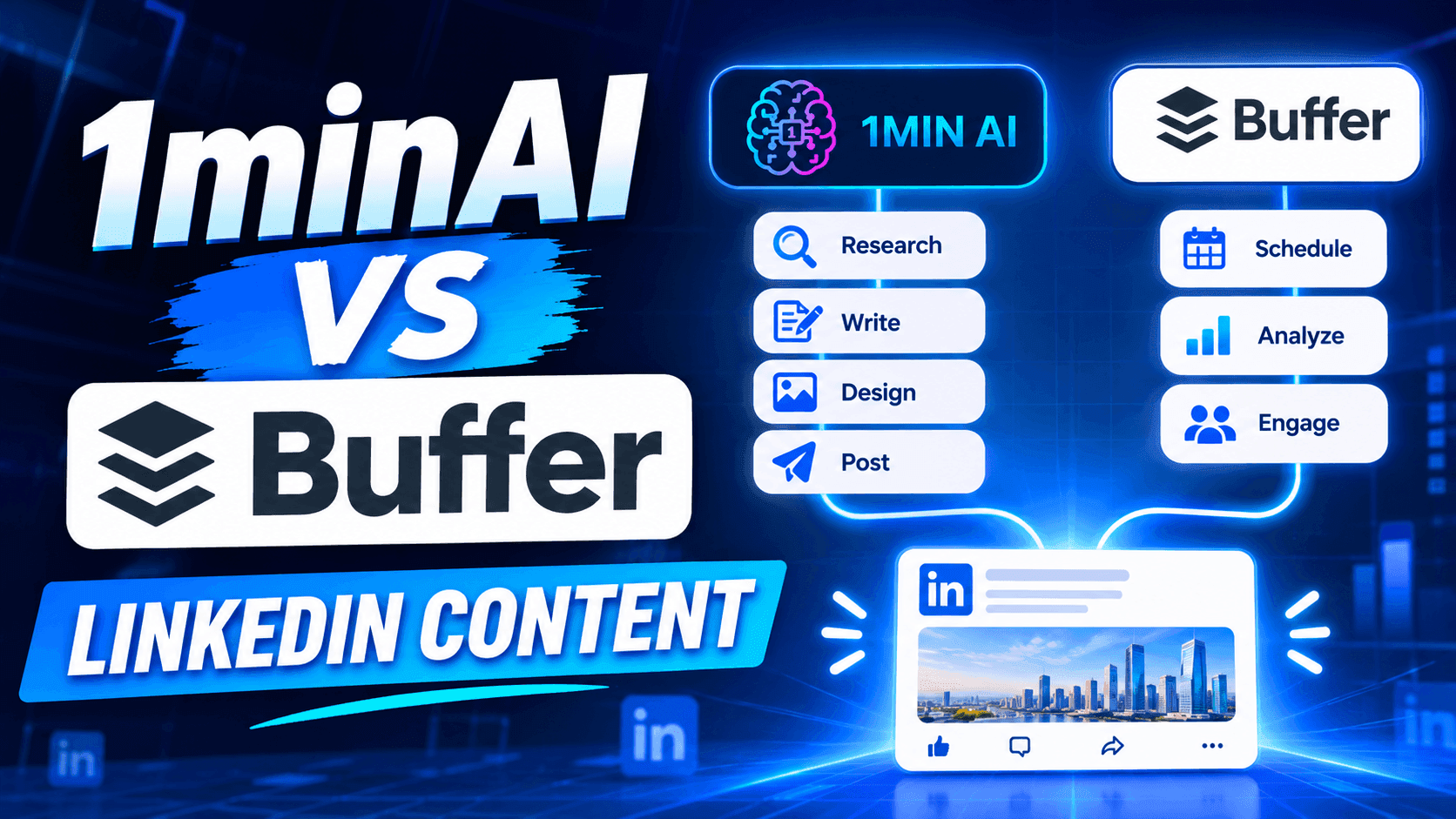
1minAI vs Buffer for LinkedIn Content Creation
Looking for a Buffer alternative? Compare 1minAI vs Buffer for LinkedIn content creation, AI writing, image generation, scheduling, and automation.
Tram TaAI Tools
Discover the best AI tools to boost productivity, creativity, and everyday work.
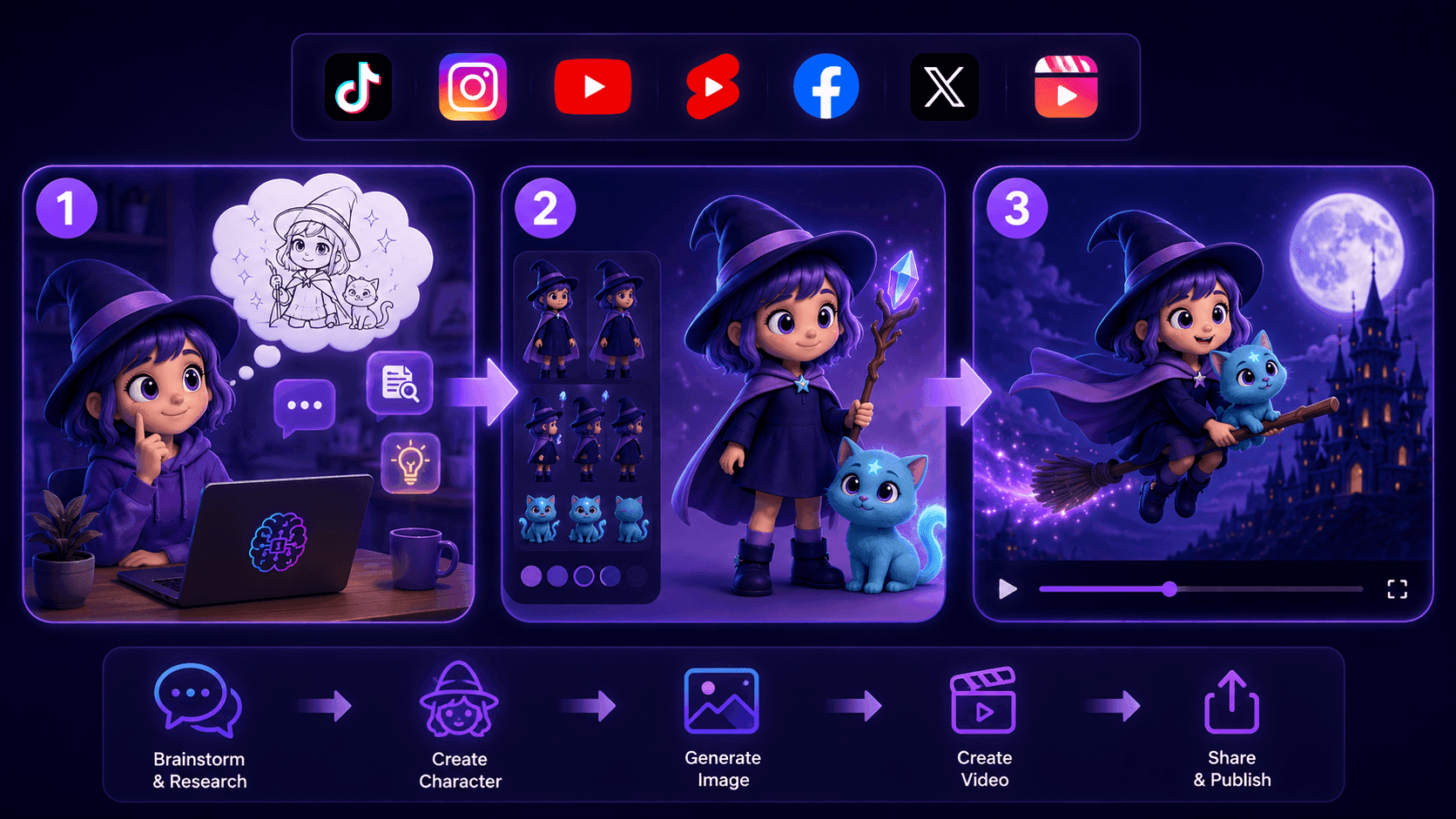
Create Consistent Cartoon Content in Just a Few Steps
Create engaging cartoon videos for TikTok and Reels with 1min.AI. Research ideas, create characters, and turn images into animated videos in 3 simple steps.
 Lien Anh Vu
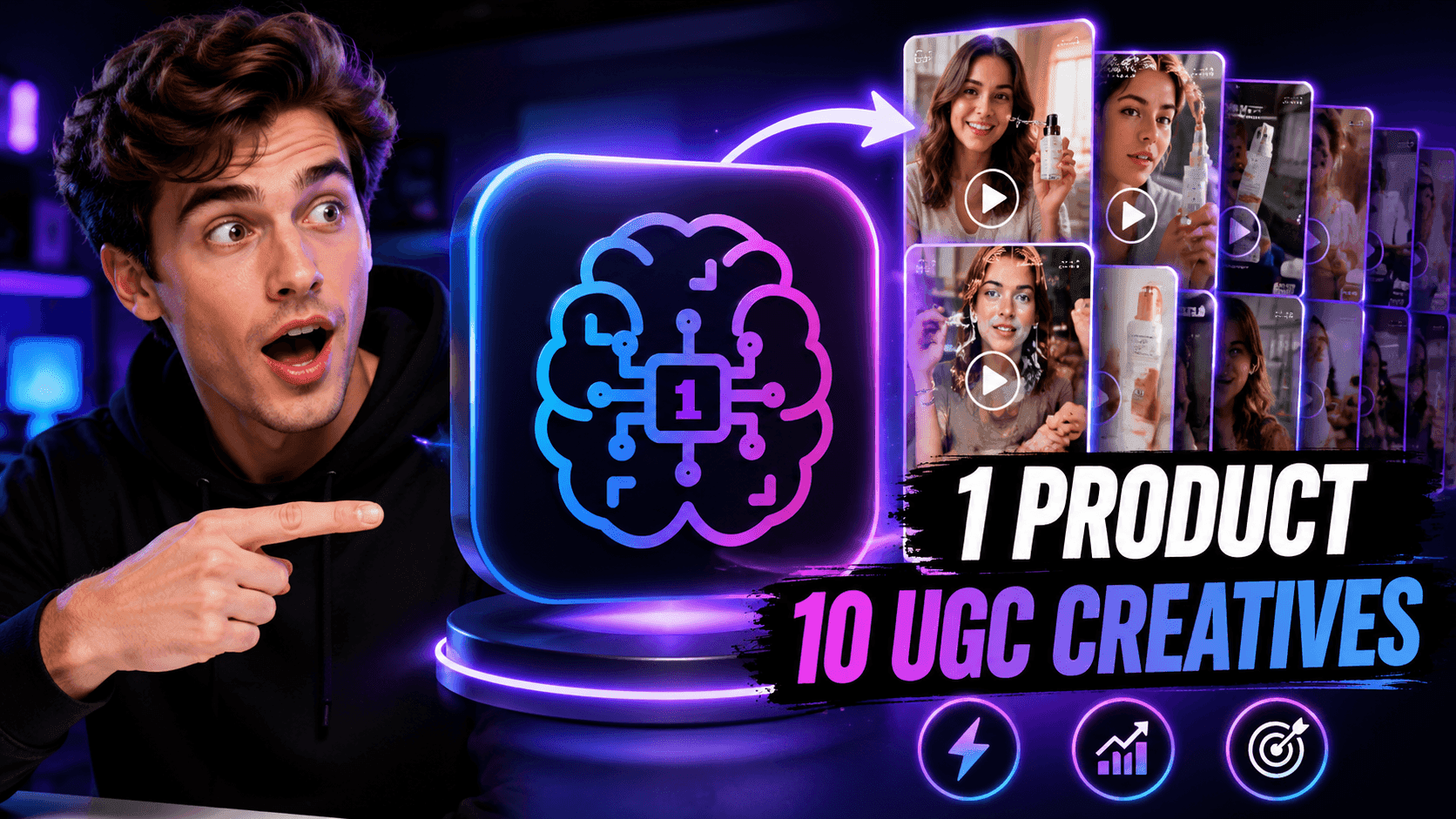
One Product, 10 UGC Creatives: How AI Makes Content Testing Easier
Create more authentic UGC with an AI UGC video generator, test more creative angles and scale affiliate content without filming every version.
Lien Anh Vu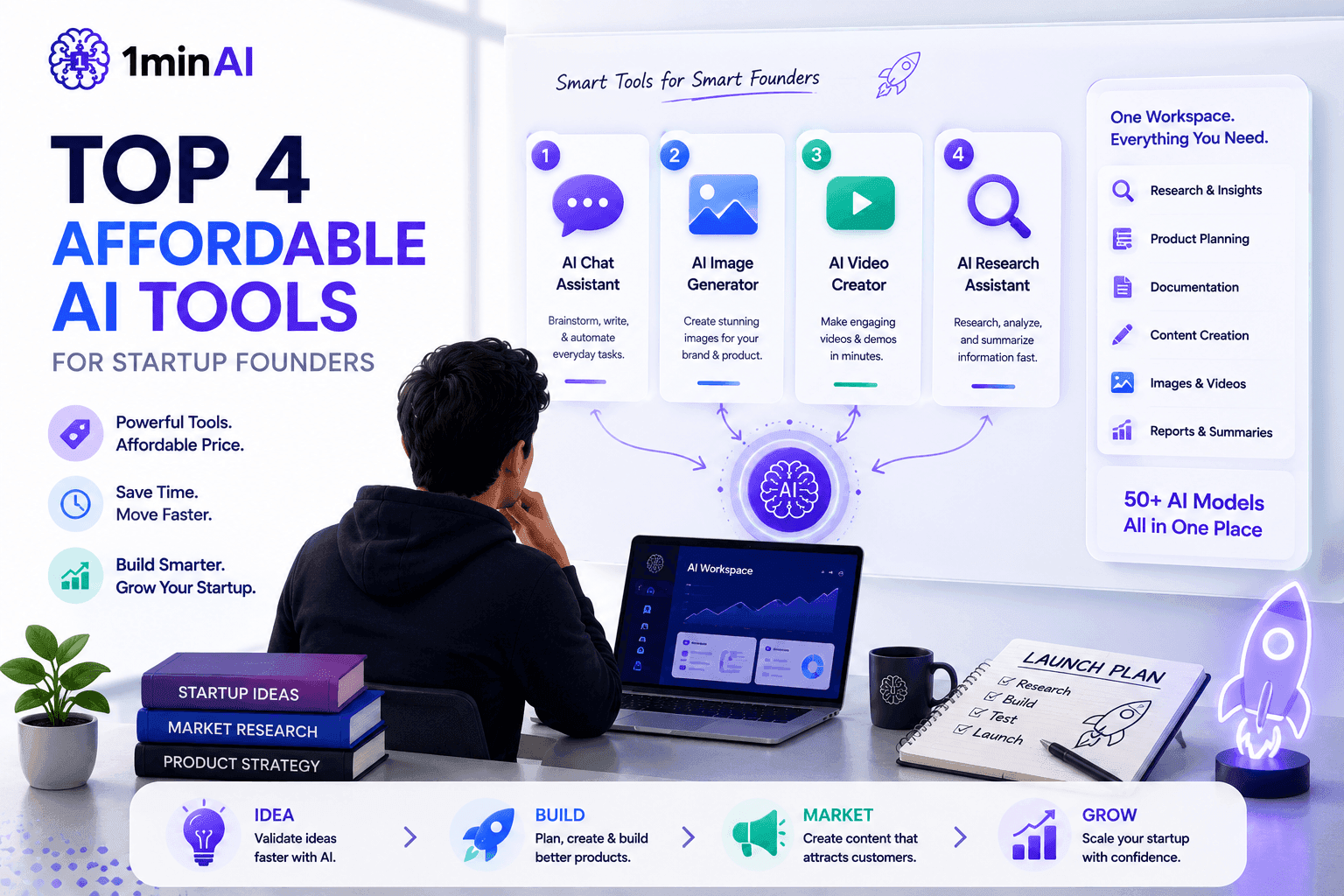
Top 4 Affordable AI Tools for Startup Founders
Discover the top 4 affordable AI tools for startup founders to validate ideas, build products, create content, and launch faster without overspending.
Tram TaAI Features
Comprehensive AI features that streamline workflows, improve efficiency, and empower teams to achieve more.
Create Consistent Cartoon Content in Just a Few Steps
Create engaging cartoon videos for TikTok and Reels with 1min.AI. Research ideas, create characters, and turn images into animated videos in 3 simple steps.
Lien Anh VuOne Product, 10 UGC Creatives: How AI Makes Content Testing Easier
Create more authentic UGC with an AI UGC video generator, test more creative angles and scale affiliate content without filming every version.
Lien Anh Vu
1minAI: Free AI Grammar Checker
Check grammar for free with 1minAI’s AI grammar checker. Find grammar, spelling, and writing mistakes, improve clarity, and polish your content in seconds.
Tram TaAI Use Cases
A curated collection of AI use cases for business, productivity, and industry-specific applications.
Create Consistent Cartoon Content in Just a Few Steps
Create engaging cartoon videos for TikTok and Reels with 1min.AI. Research ideas, create characters, and turn images into animated videos in 3 simple steps.
Lien Anh VuOne Product, 10 UGC Creatives: How AI Makes Content Testing Easier
Create more authentic UGC with an AI UGC video generator, test more creative angles and scale affiliate content without filming every version.
Lien Anh Vu
Best Time to Post on Instagram: A Practical Guide for Better Engagement
Discover the best time to post on Instagram, including the best days and times for different audiences, plus tips to find the ideal posting schedule for your account.
Tram TaAI Tutorials
Learn how to use AI with practical, step-by-step tutorials.

Black Friday AI Tool Deals in 2026
Discover what Black Friday AI tool deals 2026 has to offer. Find out how to secure the 1min.AI lifetime deal via AppSumo, Dealify, Stack Social, and verify on Trustpilot, Slashdot, and Software Advice.
 Hang Nguyen
Create Consistent Cartoon Content in Just a Few Steps
Create engaging cartoon videos for TikTok and Reels with 1min.AI. Research ideas, create characters, and turn images into animated videos in 3 simple steps.
Lien Anh Vu
[Seedance 2.5 New] Better AI Product Videos, Less Rework in 1min.AI
Use Seedance 2.5 image to video on 1min.AI to create more consistent AI product videos, reduce failed generations, save credits, and improve UGC workflows.
Lien Anh VuAI Guides
Learn AI faster with practical guides, real-world examples, and actionable best practices.

Safely Buy AI Tools Online: 2026 Black Friday Guide
Discover how to find and secure the best Black Friday AI deals online. Learn expert strategies to avoid scams, combat subscription fatigue, and verify software.
Hang NguyenCreate Consistent Cartoon Content in Just a Few Steps
Create engaging cartoon videos for TikTok and Reels with 1min.AI. Research ideas, create characters, and turn images into animated videos in 3 simple steps.
Lien Anh Vu[Seedance 2.5 New] Better AI Product Videos, Less Rework in 1min.AI
Use Seedance 2.5 image to video on 1min.AI to create more consistent AI product videos, reduce failed generations, save credits, and improve UGC workflows.
Lien Anh VuAI Solutions
Browse the best AI solutions for automation, coding, research, productivity, customer support, marketing, and business workflows.
Safely Buy AI Tools Online: 2026 Black Friday Guide
Discover how to find and secure the best Black Friday AI deals online. Learn expert strategies to avoid scams, combat subscription fatigue, and verify software.
Hang NguyenCreate Consistent Cartoon Content in Just a Few Steps
Create engaging cartoon videos for TikTok and Reels with 1min.AI. Research ideas, create characters, and turn images into animated videos in 3 simple steps.
Lien Anh VuOne Product, 10 UGC Creatives: How AI Makes Content Testing Easier
Create more authentic UGC with an AI UGC video generator, test more creative angles and scale affiliate content without filming every version.
Lien Anh VuAI Models
Explore the world's leading AI models in one place.
Create Consistent Cartoon Content in Just a Few Steps
Create engaging cartoon videos for TikTok and Reels with 1min.AI. Research ideas, create characters, and turn images into animated videos in 3 simple steps.
Lien Anh VuOne Product, 10 UGC Creatives: How AI Makes Content Testing Easier
Create more authentic UGC with an AI UGC video generator, test more creative angles and scale affiliate content without filming every version.
Lien Anh Vu[Seedance 2.5 New] Better AI Product Videos, Less Rework in 1min.AI
Use Seedance 2.5 image to video on 1min.AI to create more consistent AI product videos, reduce failed generations, save credits, and improve UGC workflows.
Lien Anh VuAI Comparisons
Compare AI tools, models, and platforms to find the best fit for your needs.

Kling AI Vs Veo 3: Which Model Wins?
Kling AI vs Veo 3: compare motion, native audio, pricing & free tiers to see which AI video generator wins for your project - try both on 1min.AI.
 Trang Tran
[Seedance 2.5 New] Better AI Product Videos, Less Rework in 1min.AI
Use Seedance 2.5 image to video on 1min.AI to create more consistent AI product videos, reduce failed generations, save credits, and improve UGC workflows.
Lien Anh Vu
DeepSeek V4 Pro vs Flash Comparison
Compare DeepSeek V4 Pro vs DeepSeek V4 Flash metrics. Optimize your agentic apps and improve AI fact checking on 1min.ai today.
Ngoc HongAI Integrations
Seamlessly integrate AI with the tools you already use to automate work and boost productivity.
POV: You Have 10+ Posts to Make Every Day
Learn how to build an AI content workflow that helps content creators produce 10+ social media posts a day faster with AI brainstorming, image generation, and content creation.
Lien Anh Vu
How to Use an AI Fashion Video Generator for Fashion Week 2026
Turn Fashion Week 2026 ideas into stunning fashion videos with AI. Learn how to brainstorm, create visuals, and transform images into videos with one simple workflow.
Lien Anh Vu
Stop Switching Between AI Apps: How AI Integration Transforms Employer Branding
Discover how AI integration helps HR teams streamline employer branding by combining AI writing, documents, images, video, and multiple AI models into one workspace.
Tram TaAI for Industries
Find the best AI tools and workflows for healthcare, finance, education, legal, manufacturing, retail, real estate, and more
Claude Opus 5.5 as an AI Writing Assistant for Designers
Discover how designers can use Claude Opus 5.5 on 1min.AI to write portfolio descriptions and social media captions with a simple AI writing workflow.
Lien Anh Vu
Free AI Video Generator From Image No Restrictions
Try a free AI video generator from image with no watermark. Turn photos into videos with audio using Kling, Veo 3.1 and Seedance in 1min.AI. Start now.
Trang Tran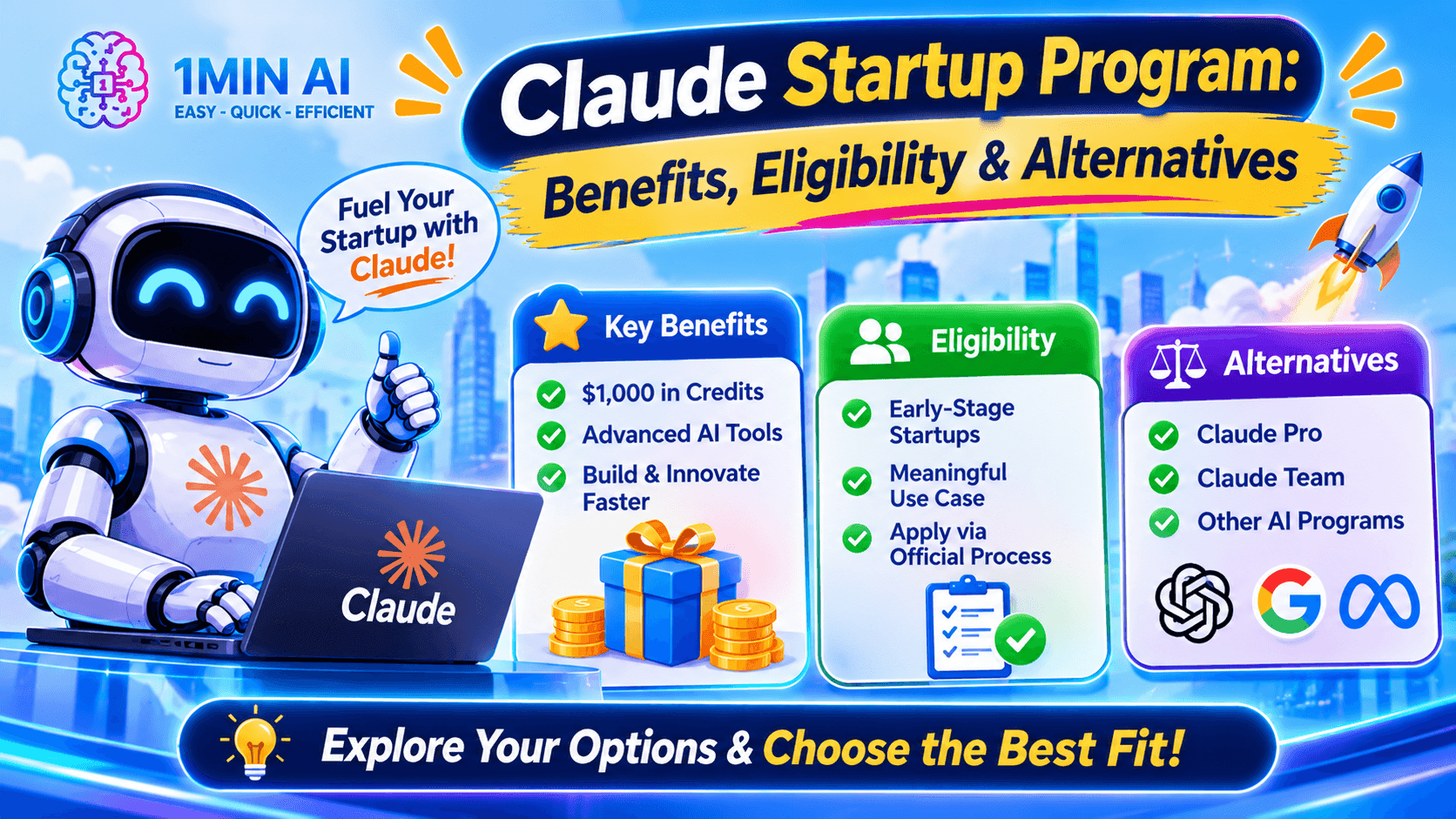
Claude Startup Program: Benefits, Eligibility, and How Startups Can Build with Claude
Learn about the Claude Startup Program, including API credits, Claude Team benefits, eligibility, application steps, and AI tools startups can explore with 1minAI.
Tram TaAI Agents
Discover and run AI agents to automate tasks across your work and daily life.
1minAI: Free AI Grammar Checker
Check grammar for free with 1minAI’s AI grammar checker. Find grammar, spelling, and writing mistakes, improve clarity, and polish your content in seconds.
Tram Ta
AI Agents for Facebook
Use an AI Agent for Facebook to create content, generate images, schedule posts, and publish from your documents and conversations.
Ngoc Hong
AI Agent vs AI Assistant: Which One Actually Saves Designers More Time?
Learn the difference between AI Agent vs AI Assistant and discover which solution helps designers automate repetitive work, reduce revisions, and save more time.
Lien Anh VuAI Workflows
Explore ready-to-use AI workflows for productivity, marketing, sales, support, and more.
Create Consistent Cartoon Content in Just a Few Steps
Create engaging cartoon videos for TikTok and Reels with 1min.AI. Research ideas, create characters, and turn images into animated videos in 3 simple steps.
Lien Anh VuOne Product, 10 UGC Creatives: How AI Makes Content Testing Easier
Create more authentic UGC with an AI UGC video generator, test more creative angles and scale affiliate content without filming every version.
Lien Anh VuPOV: You Have 10+ Posts to Make Every Day
Learn how to build an AI content workflow that helps content creators produce 10+ social media posts a day faster with AI brainstorming, image generation, and content creation.
Lien Anh VuNewsletter
Weekly AI Innovations with 1minAI

🔮 Weekly AI Innovations #144: LinkedIn Content Agent: Complete B2B Publishing Pipeline
Scale B2B influence with the LinkedIn Content Agent on 1min.ai. Discover an end-to-end 4-stage pipeline with zero redundant token burn and 1-click publishing.
Hang Nguyen
🔮 Weekly AI Innovations #143: Update GPT-6, GPT-6.1 & Ideogram 4.0
Access GPT-6 Sol, Luna, GPT-6.1 Sol, and Ideogram 4.0 on 1min.ai. Boost typography accuracy to 98.4% and cut reasoning latency by 45% in one platform.
Hang Nguyen
🔮 Weekly AI Innovations #142: Grok 4.7, Opus 5.5 & Sonnet 5.5 on 1min.ai
Access Grok 4.7, Claude Opus 5.5, and Sonnet 5.5 on 1min.ai. Cut subscription costs by up to 70% and process millions tokens in a single unified workspace.
Hang Nguyen