
The Problem With AI Design? It Looks Too AI

Lien Anh Vu
September 18, 2026
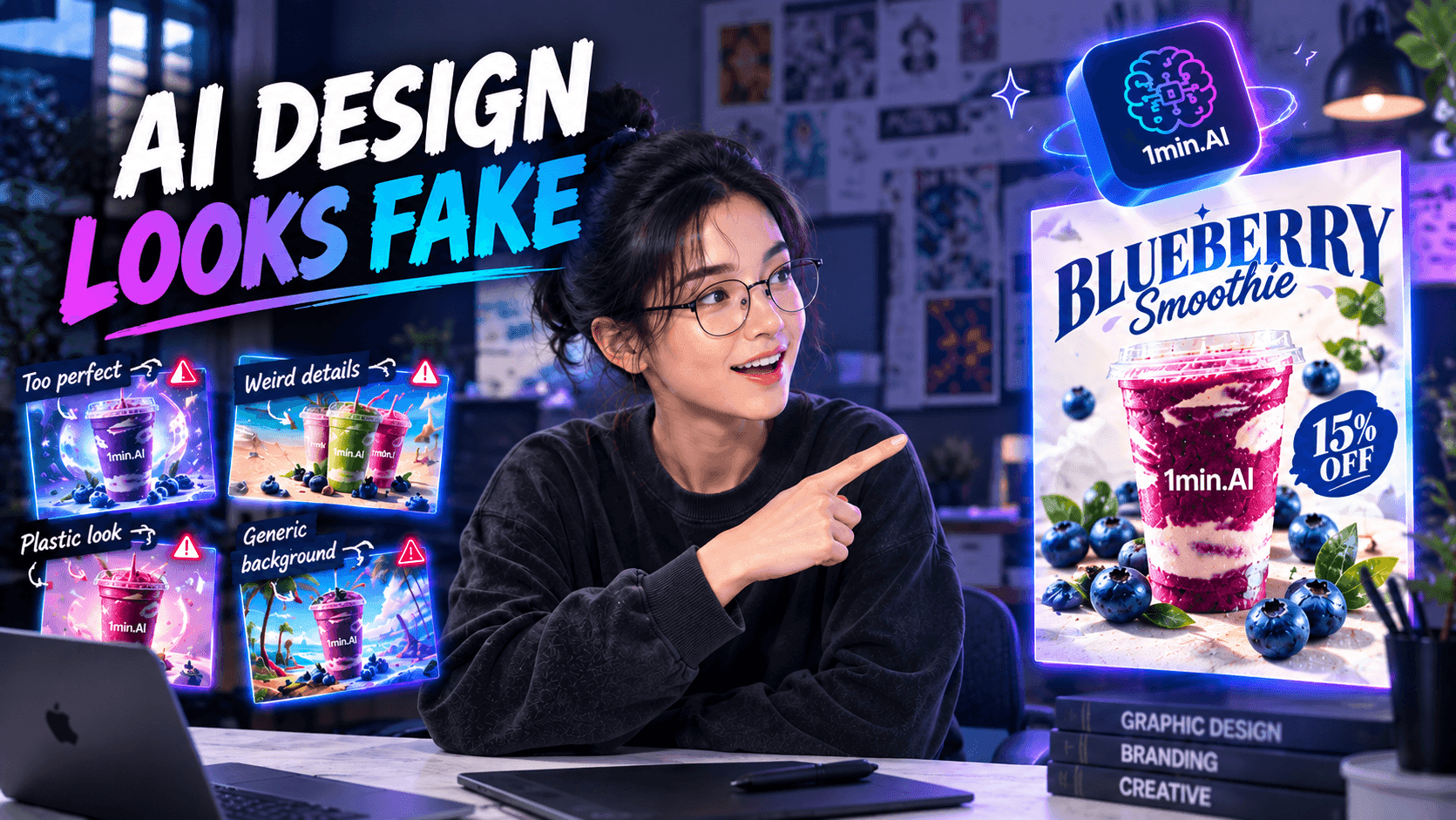
AI-generated designs can look polished but still feel artificial. Here are 5 prompt techniques designers can use to create more realistic, intentional visuals.
AI can generate polished visuals in seconds, but many still look unmistakably AI. The problem often starts with vague prompts that leave too many creative decisions to the model. For designers, better results come from giving AI clearer direction through style, lighting, environment, texture, and composition.
Why Does AI Design Still Look Too AI?
The Image Can Be Good and Still Feel Wrong
One of the frustrating things about AI-generated design is that the output can be technically impressive and still fail the professional eye. The subject is there, the colors may look attractive, and the composition might appear polished at first glance. But something feels off. A product may look too smooth, the lighting may feel disconnected from the environment, or the background may look like a collection of decorative elements rather than a real place. These details matter because designers are not judging an image only by whether it looks attractive. They are looking at whether the visual has a clear point of view and whether every element feels intentional.
This becomes especially noticeable when the image is supposed to represent a real product or a specific brand. AI can generate something that resembles the brief without necessarily understanding the visual logic behind it. The designer still has to decide what belongs, what does not, what needs refinement, and whether the result actually works for its intended use. AI can accelerate the generation process, but the creative direction still comes from the designer.
“Make It Premium” Is Not Enough
Take a prompt like “Create a premium, beautiful, realistic blueberry smoothie poster.” There is nothing technically wrong with it. The problem is that almost every important design decision has been left open. What kind of premium? What kind of lighting? What does realistic mean for the smoothie, the cup, and the blueberries? What environment should the product exist in? Where should the hero product sit within the composition?
AI fills those gaps itself. Sometimes the result works. Often, it falls into a familiar AI aesthetic: overly polished surfaces, generic backgrounds, dramatic lighting, perfectly arranged objects, and details that look visually convincing but physically questionable. For designers, the answer is not simply writing a longer prompt. It is writing a more specific one.
5 Prompt Details That Make AI Design More Intentional
1. Start With a Visual Style, Not an Adjective
“Premium” is a judgment. “Contemporary European editorial food advertising” is a direction. That distinction matters. When you describe a specific visual style, you give AI a reference point for how the image should be constructed rather than asking it to interpret an abstract quality. A designer might already have a mental picture of what a contemporary European café campaign should feel like: restrained colors, editorial photography, intentional typography, organic graphic shapes, and a clean but distinctive composition. Putting that visual language into the prompt gives AI something much more useful than a collection of positive adjectives.
The goal is to describe the kind of design you want, not simply how good you want it to look.
2. Tell AI What the Light Is Actually Doing
“Beautiful lighting” tells AI almost nothing. Lighting becomes useful as a prompt when you describe its behavior. For example, “soft, diffused natural studio light coming from the upper left, creating gentle highlights, realistic reflections, and subtle contact shadows” gives the model a much clearer set of instructions.
This is particularly important for product design. Light is what makes materials readable. Transparent plastic reflects light differently from stone. A liquid surface behaves differently from paper. A blueberry has a different texture from a polished graphic element. When the prompt describes these relationships, the image has a better chance of feeling physically coherent rather than simply well lit.
3. Give the Product Somewhere to Exist
An AI-generated object floating against an undefined background is one of the fastest ways to make a visual feel synthetic. Instead of asking for a “beautiful background,” define the environment. “A warm ivory studio surface with subtle natural stone texture” immediately establishes a physical setting. The color creates the mood, while the surface gives the product somewhere believable to sit.
This also gives designers greater control over the visual system. The environment can support the brand palette, reinforce the intended mood, and create contrast with the hero product without competing with it.
4. Describe Materials Like a Photographer Would See Them
If you want something to look real, describe the details that reveal its material. For a smoothie poster, that could mean condensation on the cup, tiny water droplets on the blueberries, subtle imperfections in the fruit skin, believable reflections on transparent plastic, and the actual texture of the smoothie. These details are more useful than simply writing “photorealistic.”
Realism Is in the Imperfections
Real objects are rarely perfectly uniform. Surfaces have small variations. Reflections are affected by their surroundings. Water collects unevenly. Shadows change depending on where an object touches a surface. Those small physical details are often what separate a convincing commercial image from an image that merely has a photorealistic style.
5. Control the Composition Before AI Does
AI can arrange objects into a visually pleasing image, but “pleasing” is not necessarily the same as intentional. A designer should still decide what the viewer sees first. If the smoothie is the hero, say so. If the composition needs breathing room, describe the negative space. If supporting ingredients should remain secondary, make that relationship clear.
For example, “Make the smoothie the clear hero product, positioned slightly off-center with generous negative space and a strong visual hierarchy.” That instruction gives AI a compositional job rather than asking it to make the image “beautiful.”
From a Generic Prompt to a Designer-Level Prompt
The Before
The original prompt is simple:
Create a premium, beautiful, realistic advertising poster for a blueberry smoothie. Make it fresh, vibrant, professional, and visually appealing.
It communicates the desired outcome, but not the design thinking behind it. AI still has to determine the art direction, lighting, environment, materials, and composition.
The After
The refined prompt takes a different approach. Instead of stacking adjectives, it defines the visual decisions:
Create a photorealistic European editorial food advertising poster for a blueberry smoothie. Use contemporary European café advertising with refined editorial art direction. Use soft, diffused natural studio light coming from the upper left, creating gentle highlights, realistic reflections, and subtle contact shadows. Place the product on a warm ivory studio surface with subtle natural stone texture. Show realistic condensation on the transparent cup, natural blueberry skin, tiny water droplets, subtle fruit imperfections, believable reflections, and physically accurate smoothie texture. Make the smoothie the clear hero product, positioned slightly off-center with generous negative space and a clear visual hierarchy.
The difference is not that the second prompt is simply longer. It gives AI fewer important decisions to invent. That is the real shift in AI design prompting: from describing an outcome to directing the visual system that creates it.
Put the Prompt Into Practice With 1min.AI
Start With the Reference, Then Refine the Direction
Step 1: Open Image Generator
Start by opening Image Generator in 1min.AI. This is where you can turn your refined creative direction into a generated visual.
Step 2: Select the Black Forest Labs AI Model
Choose the Black Forest Labs AI model for the image generation. Selecting the model before adding your reference and prompt keeps the workflow focused on generating the visual you are trying to create.
Step 3: Upload Your Reference Image
Upload your original product or design reference. The reference gives AI a visual starting point, while your prompt provides the additional creative direction for the final result.
Step 4: Add Your Refined Prompt
Paste the refined prompt into Image Generator. Instead of using vague instructions such as “make it premium” or “make it realistic,” describe the five key elements we covered: style, lighting, environment, material and texture, and composition.
Step 5: Refine Your Prompt With Multi AI Chat
If you already have the idea but are not sure how to turn it into a detailed AI prompt, use Multi AI Chat first. You can work with models such as Claude Opus 4.8 and ChatGPT 5.5 to refine your initial idea and make the visual instructions more specific before bringing the final prompt into Image Generator.
Step 6: Generate and Review the Result
Generate the image and review it from a designer's perspective. Look beyond whether the image simply looks good. Check whether the lighting feels natural, the materials look believable, the environment supports the product, and the composition follows your intended visual hierarchy. If something feels wrong, refine the relevant part of the prompt and generate again.
Frequently Asked Questions
1. Why does my AI-generated design look fake?
AI-generated designs can look fake when the prompt is too vague about visual details. Words such as “realistic,” “premium,” or “beautiful” describe the desired result but do not explain how the style, lighting, materials, environment, or composition should look. More specific visual direction gives AI fewer decisions to guess.
2. How can designers make AI-generated images look more realistic?
Designers can improve realism by describing physical details rather than simply asking for a photorealistic result. Specify how the lighting behaves, how materials reflect light, where shadows fall, and what natural imperfections should be visible. Details such as condensation, water droplets, surface texture, reflections, and subtle imperfections can make generated visuals feel more physically believable.
3. What should designers include in an AI design prompt?
A strong AI design prompt should communicate the key visual decisions behind the image. For this workflow, five areas are especially useful: style, lighting, environment, material and texture, and composition. These details help AI understand not only what to generate, but how the final visual should look and feel.
4. Is a longer AI prompt always better?
Not necessarily. A longer prompt is not automatically a better prompt. What matters is whether the prompt contains specific and relevant creative direction. Repeating adjectives such as “beautiful,” “professional,” and “high quality” adds little control. A concise prompt with clear information about visual style, lighting, materials, and composition can be more useful than a much longer prompt filled with vague descriptions.
5. Can I create better AI designs with 1min.AI?
Yes. 1min.AI can be used as part of an AI design workflow through Image Generator and Multi AI Chat. Designers can start with a reference image, refine their creative direction into a more detailed prompt, generate the visual, and then review and refine the result. This approach keeps the designer in control of the creative direction while using AI to speed up visual exploration and generation.
🚀 Ready to try it yourself? Try Black Forest Labs in 1min.AI and see how much difference a more intentional prompt can make.
Alternatives
Discover the best alternatives to 1minAI and compare features, pricing, and use cases.

1min.AI vs OpenRouter
1min.AI vs. OpenRouter: Compare the ready-to-use AI creation product against the technical API tool. Find out if you need a zero-code creative studio or a coding infrastructure hub.
 Ngoc Hong
1minAI vs Postbeam for LinkedIn Content
Looking for a Postbeam alternative? Compare 1minAI vs Postbeam for AI LinkedIn content creation, research, image generation, scheduling, and B2B workflows.
 Tram Ta
1minAI vs Buffer for LinkedIn Content Creation
Looking for a Buffer alternative? Compare 1minAI vs Buffer for LinkedIn content creation, AI writing, image generation, scheduling, and automation.
Tram TaAI Tools
Discover the best AI tools to boost productivity, creativity, and everyday work.
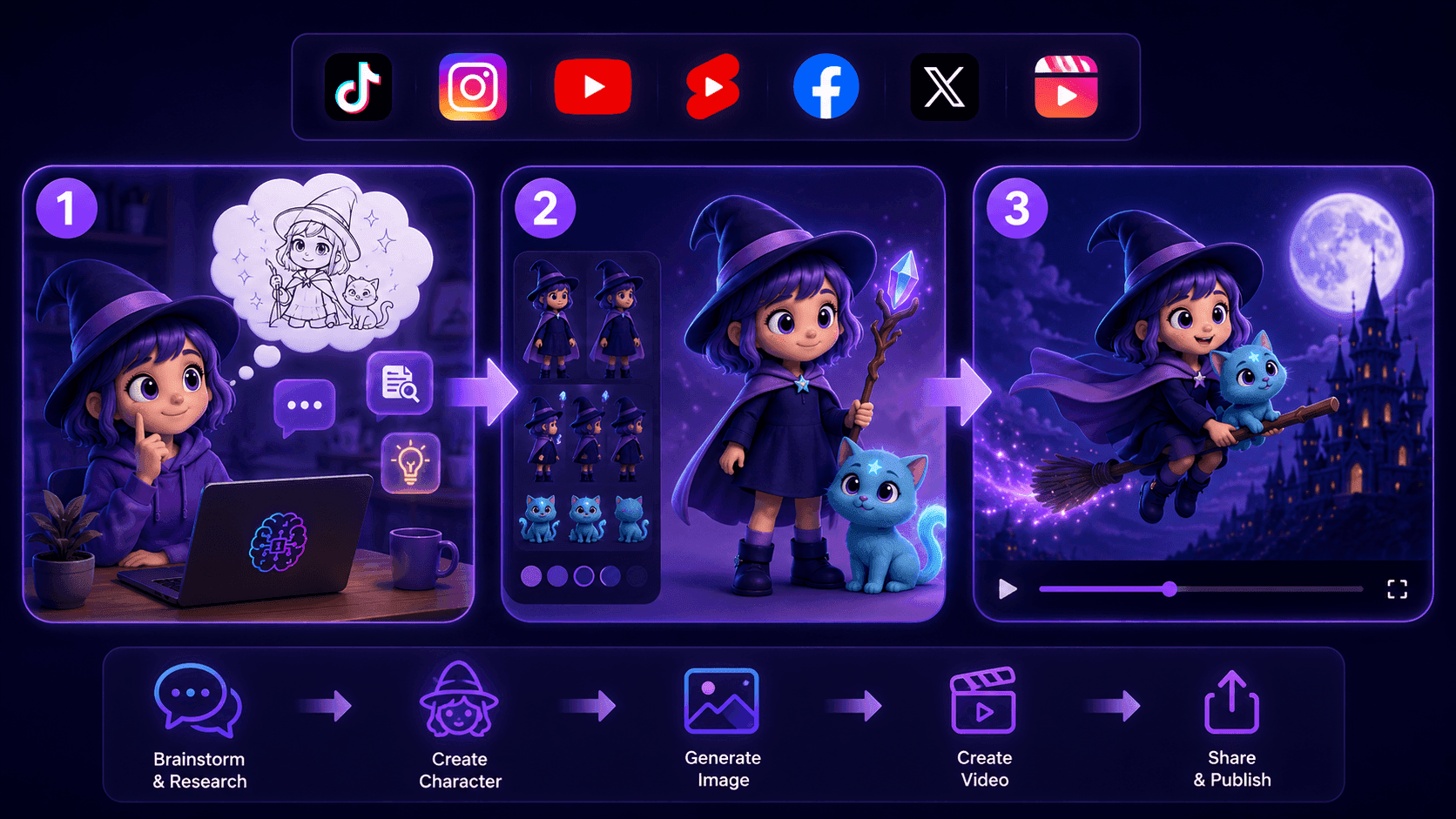
Create Consistent Cartoon Content in Just a Few Steps
Create engaging cartoon videos for TikTok and Reels with 1min.AI. Research ideas, create characters, and turn images into animated videos in 3 simple steps.
 Lien Anh Vu
One Product, 10 UGC Creatives: How AI Makes Content Testing Easier
Create more authentic UGC with an AI UGC video generator, test more creative angles and scale affiliate content without filming every version.
Lien Anh Vu
Top 4 Affordable AI Tools for Startup Founders
Discover the top 4 affordable AI tools for startup founders to validate ideas, build products, create content, and launch faster without overspending.
Tram TaAI Features
Comprehensive AI features that streamline workflows, improve efficiency, and empower teams to achieve more.
Create Consistent Cartoon Content in Just a Few Steps
Create engaging cartoon videos for TikTok and Reels with 1min.AI. Research ideas, create characters, and turn images into animated videos in 3 simple steps.
Lien Anh VuOne Product, 10 UGC Creatives: How AI Makes Content Testing Easier
Create more authentic UGC with an AI UGC video generator, test more creative angles and scale affiliate content without filming every version.
Lien Anh Vu
1minAI: Free AI Grammar Checker
Check grammar for free with 1minAI’s AI grammar checker. Find grammar, spelling, and writing mistakes, improve clarity, and polish your content in seconds.
Tram TaAI Use Cases
A curated collection of AI use cases for business, productivity, and industry-specific applications.
Create Consistent Cartoon Content in Just a Few Steps
Create engaging cartoon videos for TikTok and Reels with 1min.AI. Research ideas, create characters, and turn images into animated videos in 3 simple steps.
Lien Anh VuOne Product, 10 UGC Creatives: How AI Makes Content Testing Easier
Create more authentic UGC with an AI UGC video generator, test more creative angles and scale affiliate content without filming every version.
Lien Anh Vu
Best Time to Post on Instagram: A Practical Guide for Better Engagement
Discover the best time to post on Instagram, including the best days and times for different audiences, plus tips to find the ideal posting schedule for your account.
Tram TaAI Tutorials
Learn how to use AI with practical, step-by-step tutorials.

Black Friday AI Tool Deals in 2026
Discover what Black Friday AI tool deals 2026 has to offer. Find out how to secure the 1min.AI lifetime deal via AppSumo, Dealify, Stack Social, and verify on Trustpilot, Slashdot, and Software Advice.
 Hang Nguyen
Create Consistent Cartoon Content in Just a Few Steps
Create engaging cartoon videos for TikTok and Reels with 1min.AI. Research ideas, create characters, and turn images into animated videos in 3 simple steps.
Lien Anh Vu
[Seedance 2.5 New] Better AI Product Videos, Less Rework in 1min.AI
Use Seedance 2.5 image to video on 1min.AI to create more consistent AI product videos, reduce failed generations, save credits, and improve UGC workflows.
Lien Anh VuAI Guides
Learn AI faster with practical guides, real-world examples, and actionable best practices.

Safely Buy AI Tools Online: 2026 Black Friday Guide
Discover how to find and secure the best Black Friday AI deals online. Learn expert strategies to avoid scams, combat subscription fatigue, and verify software.
Hang NguyenCreate Consistent Cartoon Content in Just a Few Steps
Create engaging cartoon videos for TikTok and Reels with 1min.AI. Research ideas, create characters, and turn images into animated videos in 3 simple steps.
Lien Anh Vu[Seedance 2.5 New] Better AI Product Videos, Less Rework in 1min.AI
Use Seedance 2.5 image to video on 1min.AI to create more consistent AI product videos, reduce failed generations, save credits, and improve UGC workflows.
Lien Anh VuAI Solutions
Browse the best AI solutions for automation, coding, research, productivity, customer support, marketing, and business workflows.
Safely Buy AI Tools Online: 2026 Black Friday Guide
Discover how to find and secure the best Black Friday AI deals online. Learn expert strategies to avoid scams, combat subscription fatigue, and verify software.
Hang NguyenCreate Consistent Cartoon Content in Just a Few Steps
Create engaging cartoon videos for TikTok and Reels with 1min.AI. Research ideas, create characters, and turn images into animated videos in 3 simple steps.
Lien Anh VuOne Product, 10 UGC Creatives: How AI Makes Content Testing Easier
Create more authentic UGC with an AI UGC video generator, test more creative angles and scale affiliate content without filming every version.
Lien Anh VuAI Models
Explore the world's leading AI models in one place.
Create Consistent Cartoon Content in Just a Few Steps
Create engaging cartoon videos for TikTok and Reels with 1min.AI. Research ideas, create characters, and turn images into animated videos in 3 simple steps.
Lien Anh VuOne Product, 10 UGC Creatives: How AI Makes Content Testing Easier
Create more authentic UGC with an AI UGC video generator, test more creative angles and scale affiliate content without filming every version.
Lien Anh Vu[Seedance 2.5 New] Better AI Product Videos, Less Rework in 1min.AI
Use Seedance 2.5 image to video on 1min.AI to create more consistent AI product videos, reduce failed generations, save credits, and improve UGC workflows.
Lien Anh VuAI Comparisons
Compare AI tools, models, and platforms to find the best fit for your needs.
Kling AI Vs Veo 3: Which Model Wins?
Kling AI vs Veo 3: compare motion, native audio, pricing & free tiers to see which AI video generator wins for your project - try both on 1min.AI.
 Trang Tran
[Seedance 2.5 New] Better AI Product Videos, Less Rework in 1min.AI
Use Seedance 2.5 image to video on 1min.AI to create more consistent AI product videos, reduce failed generations, save credits, and improve UGC workflows.
Lien Anh Vu
DeepSeek V4 Pro vs Flash Comparison
Compare DeepSeek V4 Pro vs DeepSeek V4 Flash metrics. Optimize your agentic apps and improve AI fact checking on 1min.ai today.
Ngoc HongAI Integrations
Seamlessly integrate AI with the tools you already use to automate work and boost productivity.
POV: You Have 10+ Posts to Make Every Day
Learn how to build an AI content workflow that helps content creators produce 10+ social media posts a day faster with AI brainstorming, image generation, and content creation.
Lien Anh Vu
How to Use an AI Fashion Video Generator for Fashion Week 2026
Turn Fashion Week 2026 ideas into stunning fashion videos with AI. Learn how to brainstorm, create visuals, and transform images into videos with one simple workflow.
Lien Anh Vu
Stop Switching Between AI Apps: How AI Integration Transforms Employer Branding
Discover how AI integration helps HR teams streamline employer branding by combining AI writing, documents, images, video, and multiple AI models into one workspace.
Tram TaAI for Industries
Find the best AI tools and workflows for healthcare, finance, education, legal, manufacturing, retail, real estate, and more

Free AI Video Generator From Image No Restrictions
Try a free AI video generator from image with no watermark. Turn photos into videos with audio using Kling, Veo 3.1 and Seedance in 1min.AI. Start now.
Trang Tran
Claude Startup Program: Benefits, Eligibility, and How Startups Can Build with Claude
Learn about the Claude Startup Program, including API credits, Claude Team benefits, eligibility, application steps, and AI tools startups can explore with 1minAI.
Tram Ta
TikTok Studio Analytics Tips for Better Content Performance
Learn how to use TikTok Studio Analytics to track views, watch time, and engagement. Turn your insights into better TikTok content with practical tips.
Lien Anh VuAI Agents
Discover and run AI agents to automate tasks across your work and daily life.
1minAI: Free AI Grammar Checker
Check grammar for free with 1minAI’s AI grammar checker. Find grammar, spelling, and writing mistakes, improve clarity, and polish your content in seconds.
Tram Ta
AI Agents for Facebook
Use an AI Agent for Facebook to create content, generate images, schedule posts, and publish from your documents and conversations.
Ngoc Hong
AI Agent vs AI Assistant: Which One Actually Saves Designers More Time?
Learn the difference between AI Agent vs AI Assistant and discover which solution helps designers automate repetitive work, reduce revisions, and save more time.
Lien Anh VuAI Workflows
Explore ready-to-use AI workflows for productivity, marketing, sales, support, and more.
Create Consistent Cartoon Content in Just a Few Steps
Create engaging cartoon videos for TikTok and Reels with 1min.AI. Research ideas, create characters, and turn images into animated videos in 3 simple steps.
Lien Anh VuOne Product, 10 UGC Creatives: How AI Makes Content Testing Easier
Create more authentic UGC with an AI UGC video generator, test more creative angles and scale affiliate content without filming every version.
Lien Anh VuPOV: You Have 10+ Posts to Make Every Day
Learn how to build an AI content workflow that helps content creators produce 10+ social media posts a day faster with AI brainstorming, image generation, and content creation.
Lien Anh VuNewsletter
Weekly AI Innovations with 1minAI

🔮 Weekly AI Innovations #144: LinkedIn Content Agent: Complete B2B Publishing Pipeline
Scale B2B influence with the LinkedIn Content Agent on 1min.ai. Discover an end-to-end 4-stage pipeline with zero redundant token burn and 1-click publishing.
Hang Nguyen
🔮 Weekly AI Innovations #143: Update GPT-6, GPT-6.1 & Ideogram 4.0
Access GPT-6 Sol, Luna, GPT-6.1 Sol, and Ideogram 4.0 on 1min.ai. Boost typography accuracy to 98.4% and cut reasoning latency by 45% in one platform.
Hang Nguyen
🔮 Weekly AI Innovations #142: Grok 4.7, Opus 5.5 & Sonnet 5.5 on 1min.ai
Access Grok 4.7, Claude Opus 5.5, and Sonnet 5.5 on 1min.ai. Cut subscription costs by up to 70% and process millions tokens in a single unified workspace.
Hang Nguyen