Free AI Photo Editor for Students in 2026 | 1minAI

Tram Ta
October 5, 2026
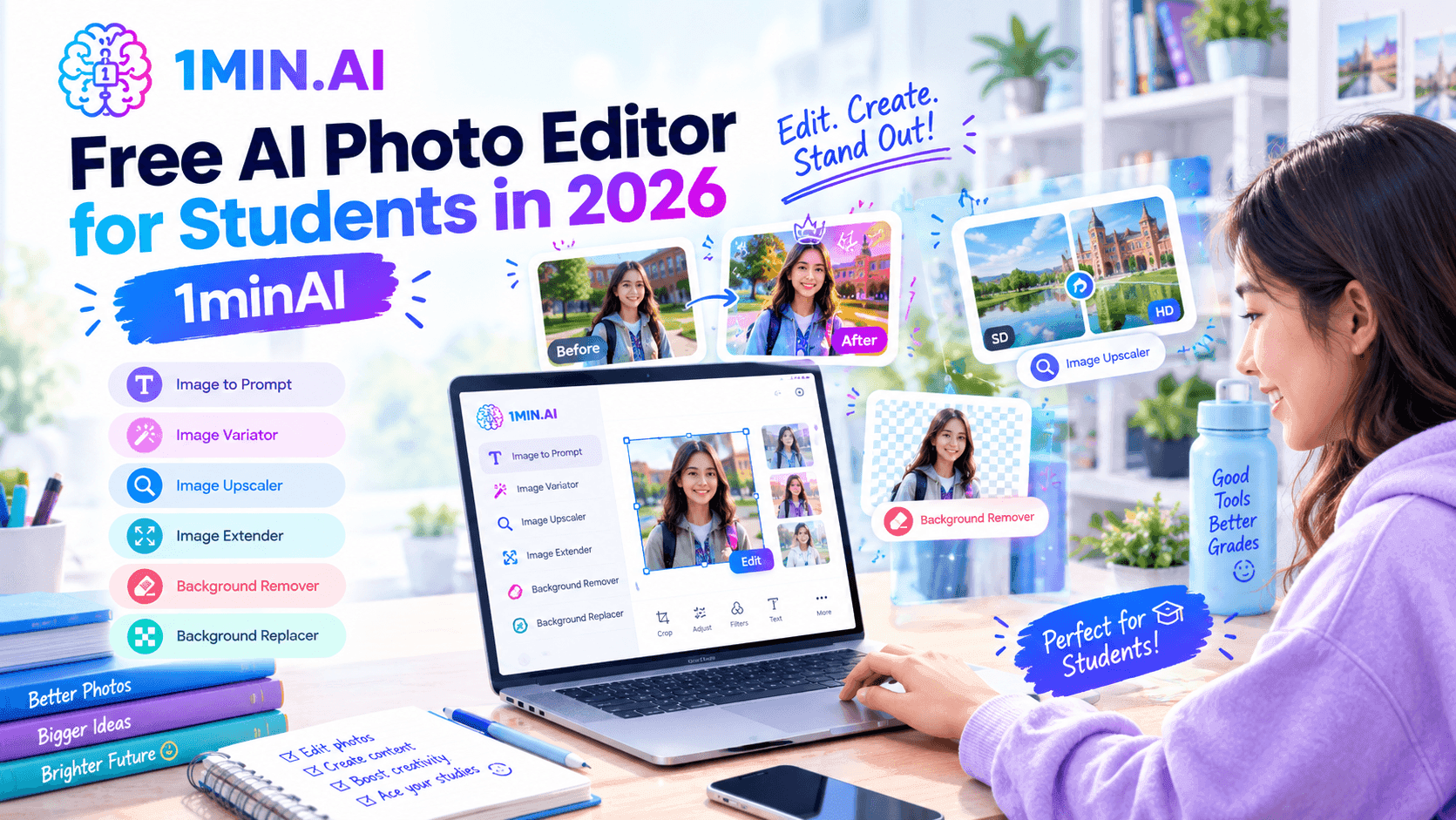
Looking for a free AI photo editor for students? Learn how to edit, upscale, remove backgrounds, extend images, and create better visuals for school projects with AI.
Students often need to edit photos for presentations, research projects, posters, social content, portfolios, and class assignments. The problem is that traditional photo editing software can take time to learn, while professional tools may require expensive subscriptions.
A free AI photo editor offers a simpler alternative. Instead of manually adjusting dozens of settings, students can use AI-powered tools to remove backgrounds, improve image quality, extend a photo's canvas, or create a new visual from a prompt.
In 2026, free and freemium AI photo editing tools have become increasingly useful for common student tasks, although free plans can still differ in credits, resolution, watermarks, and available features.
This guide explains how students can use an AI photo editor for everyday academic and creative work, including practical workflows you can start using today.
What Is an AI Photo Editor?
An AI photo editor is an image editing tool that uses artificial intelligence to automate or simplify tasks that traditionally required manual editing.
Instead of selecting objects pixel by pixel or spending time adjusting every image setting, you can often upload a photo and let AI handle part of the process.
For example, a student might need to:
- Remove the background from a portrait for a presentation
- Make a small image sharper and larger
- Add more space around a photo for a PowerPoint slide
- Create a new illustration for a school project
- Prepare an image for a poster or infographic
- Improve a poorly framed photo
- Create different versions of the same visual for different formats
The biggest advantage is not simply automation. It is speed.
A student preparing a presentation at the last minute may not need to become an expert in Photoshop. An AI photo editor can handle specific editing jobs in a few steps.
However, students should still review AI-generated edits before submitting them. AI can sometimes change small details, introduce visual inconsistencies, or interpret an editing instruction differently from what you intended.
7 Ways Students Can Use a Free AI Photo Editor
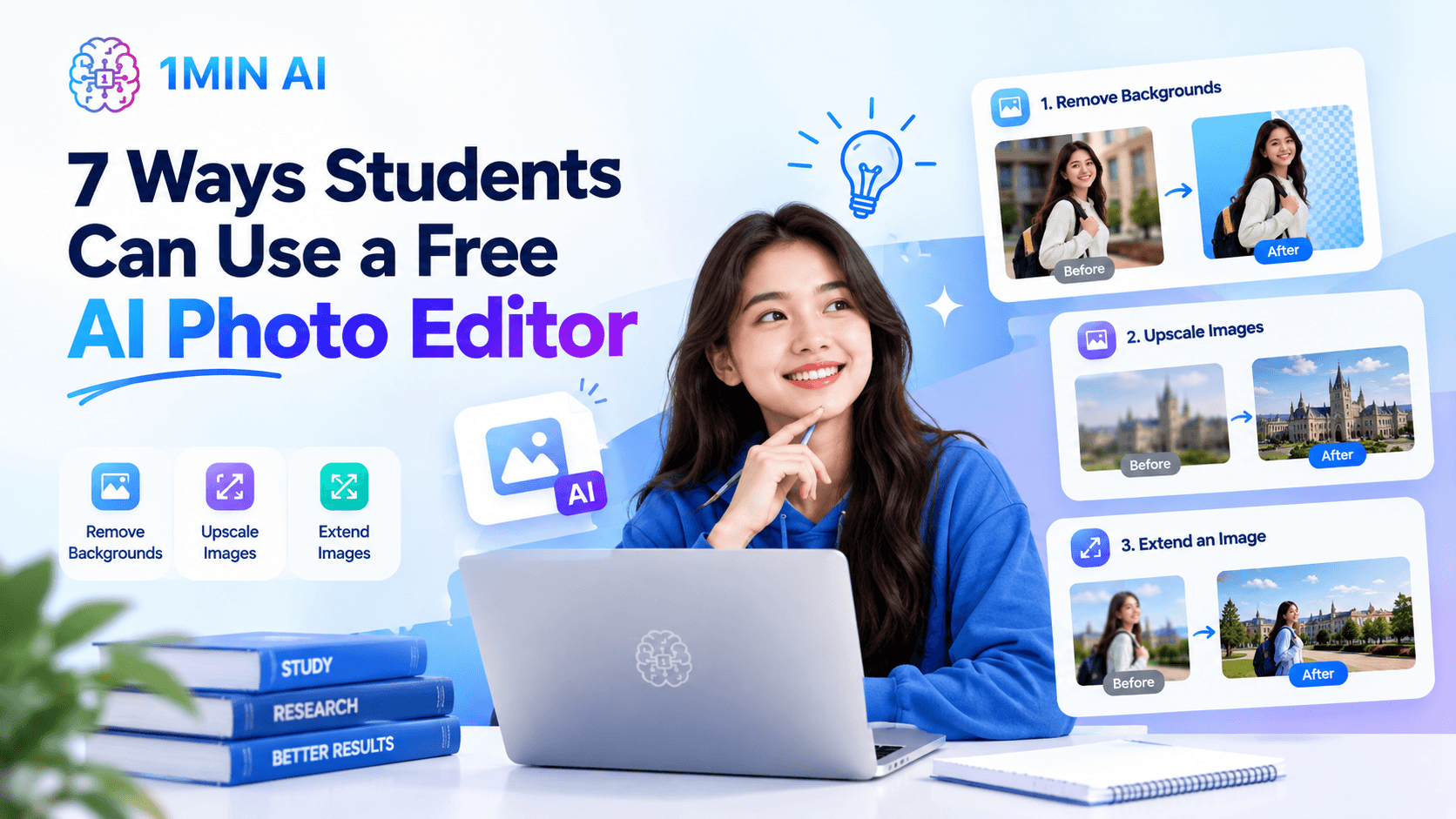
1. Remove Backgrounds for Presentations
One of the most common student image-editing tasks is removing a distracting background.
For example, imagine you are preparing a presentation about a historical figure, scientist, athlete, or artist. You have a portrait but the original background does not match your slide design.
Instead of manually creating a selection around the person, you can use an AI background remover.
With an AI-powered background remover, the tool identifies the main subject and separates it from the surrounding background. You can then place the subject over a colored background, presentation template, infographic, or another image.
This is particularly useful for:
- PowerPoint presentations
- Google Slides projects
- School posters
- Student portfolios
- Club announcements
- Event graphics
You can use 1minAI's AI Background Remover when you need to isolate a subject from an existing image.
Example workflow:
Photo → Remove background → Add clean background → Place into presentation
The important thing is to check the edges after processing. Hair, transparent objects, hands, and complicated backgrounds can sometimes be harder for AI to separate cleanly.
2. Upscale Low-Resolution Images
Students frequently work with images downloaded from websites, screenshots, old photos, or compressed images. Unfortunately, these files may look acceptable on a small screen but become blurry when inserted into a large presentation or printed poster.
AI upscaling can help increase the apparent resolution and recover visual detail.
For example, suppose you find a small historical photograph for a research presentation. Instead of stretching the original image and making it even blurrier, an AI image upscaler can process the image before you place it into your project.
This can be useful for:
- Historical photos
- Research diagrams
- Screenshots
- Portfolio images
- Poster graphics
- Presentation visuals
You can try the 1minAI Image Upscaler to improve the quality of images before using them in larger designs.
Remember that upscaling cannot magically recover every detail from an extremely low-quality source. It is better to think of AI upscaling as a way to improve usable image quality rather than recreate an original photograph perfectly.
3. Extend an Image Instead of Cropping It
Sometimes the problem is not image quality but image composition.
Imagine you have a portrait that fits perfectly into a square format but your presentation requires a wide horizontal image. Cropping may cut off the person's head or remove important parts of the original composition.
An AI image extender can generate additional content around the edges of the original image.
This is useful when you need to:
- Create a wider presentation image
- Add space for text beside a subject
- Convert a square image into a landscape format
- Prepare an image for a poster
- Create social media versions of a project
- Adapt one image to multiple layouts
1minAI Image Extender can expand the canvas around an existing photo and generate matching background content. The tool is designed to preserve the original subject while extending the surrounding visual environment.
For example:
Original: Student portrait with very little space above the head
Edit: Extend the top area
Result: More space for a presentation title
This can be much more useful than simply stretching an image, which can distort the subject.
4. Create Illustrations for School Projects
An AI photo editor can also be part of a broader image-creation workflow.
Not every school assignment requires a real photograph. Sometimes you need an illustration, concept image, diagram-style visual, or creative background.
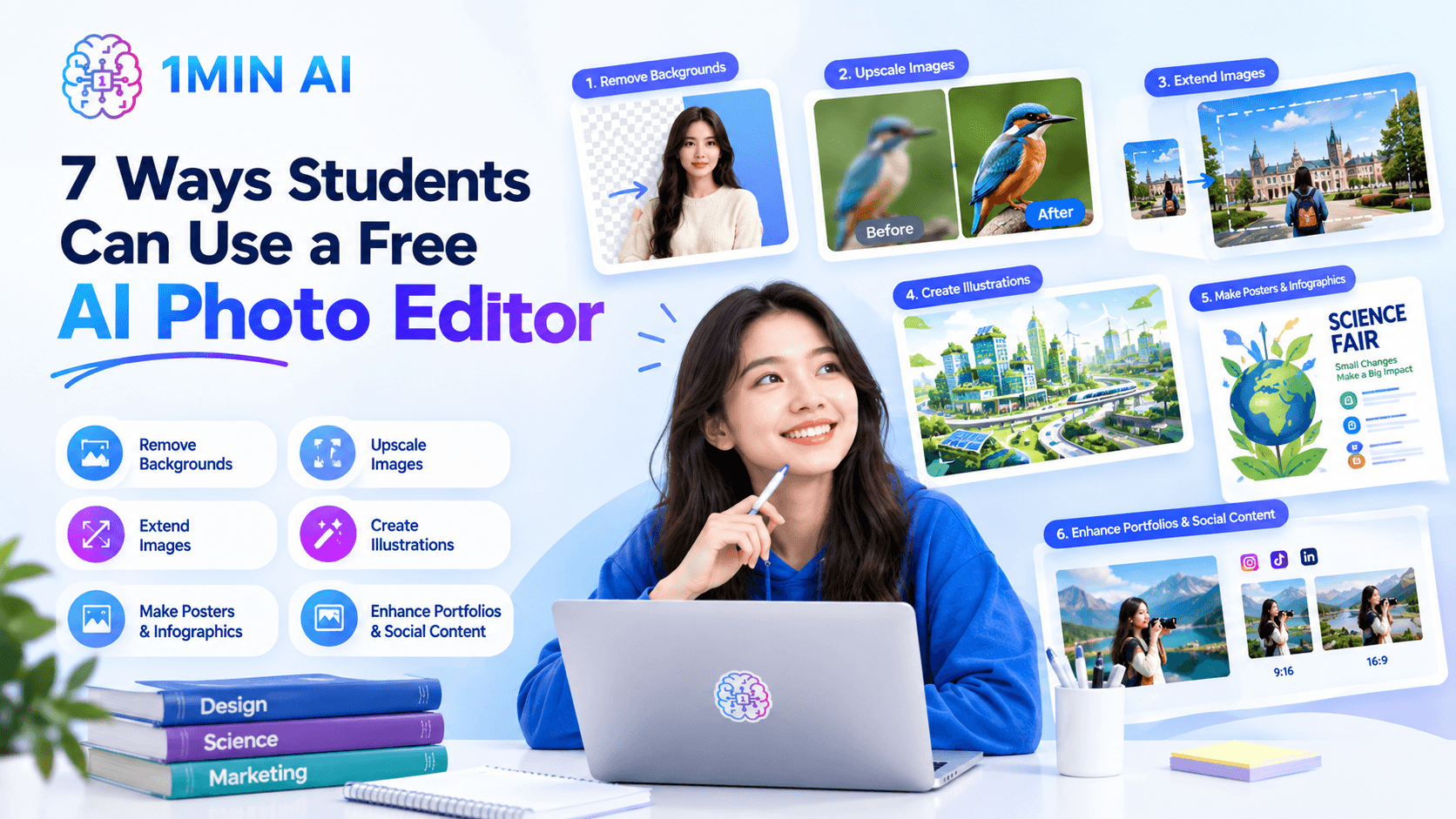
For example, a student working on an environmental science project could create an illustration showing a futuristic sustainable city. A marketing student could generate a mock advertisement for a fictional product. A history student could create a visual concept to support a presentation, as long as the assignment and academic rules permit AI-generated visuals.
An AI image generator can help create original visuals from text prompts.
A simple prompt could be:
Prompt:
“Create a clean educational illustration of a sustainable city with solar panels, electric buses, green rooftops, trees, and bicycle lanes, designed for a university presentation.”
You can then edit or resize the generated image for your final project.
The key is to treat AI-generated visuals as supporting material, not evidence. For academic work, factual claims should still come from credible sources.
5. Prepare Images for Posters and Infographics
A good poster needs more than a good photo. The image needs to fit the layout.
For example, a student organization might have a portrait-oriented photo but need to create a horizontal event banner. Another student may have a product photo that needs extra space for a headline.
This is where several AI image editing functions can work together.
A practical workflow might look like:
Generate → Remove background → Extend canvas → Upscale → Add to design
For example:
- Generate an illustration with an AI image generator.
- Remove the background if the design requires a transparent subject.
- Extend the image to fit the poster dimensions.
- Upscale the final visual if a larger output is required.
- Add the image to Canva, Google Slides, PowerPoint, or another design tool.
This approach lets students solve several small image problems without learning a complicated professional editing workflow.
6. Improve Visuals for Student Portfolios
Students building portfolios often need consistent, clean images.
This applies to:
- Design students
- Photography students
- Architecture students
- Marketing students
- Fashion students
- Art students
- Computer science students presenting UI projects
An AI photo editor can help standardize images by improving resolution, removing distracting backgrounds, and creating consistent compositions.
For example, if you have screenshots or project images in different sizes, you can upscale them and adjust their framing before adding them to a portfolio.
The goal is not to make every image look artificially perfect. Instead, AI should reduce distracting inconsistencies so that the work itself receives more attention.
7. Create Social Content for Student Organizations
AI photo editing is also useful outside formal coursework.
University clubs, student organizations, campus events, and personal creator accounts often need images for Instagram, Facebook, LinkedIn, or other platforms.
Instead of creating every visual from scratch, students can reuse an existing image and adapt it for multiple formats.
For example:
One photo → portrait version → square version → landscape version → poster version
AI image extension can create additional canvas space, while background removal can isolate important subjects. Upscaling can improve images that are too small for a larger design.
This makes AI photo editing particularly useful for students who manage social media alongside their studies.
Why 1minAI Can Be Useful for Student Image Editing
Students often do not need a complicated professional photo editor. They need to solve a specific visual problem quickly.
That is where 1minAI's AI image tools can fit into a student workflow.
Instead of using one application for every task, you can choose a tool based on what your image actually needs.
For example, if you have a low-resolution image for a presentation, start with the 1minAI Image Upscaler. If the image is framed too tightly, use the AI Image Extender to create additional space around it.
If you need a clean subject for a poster, presentation, or social graphic, use the AI Background Remover. And if you do not have the right visual in the first place, you can start with the 1minAI AI Image Generator and create an image from a description.
This makes the workflow flexible:
Create → Edit → Extend → Upscale → Use
The advantage for students is that these tasks can be handled as part of a broader AI workflow rather than requiring a separate specialized application for every small problem.
For example, you could create an illustration for a class presentation, remove its background, extend the composition to make room for a title, and upscale the final image before placing it into PowerPoint or Google Slides.
The same approach works for student portfolios, club graphics, research presentations, social content, posters, and other visual projects.
AI does not replace good design judgment. It simply reduces the amount of repetitive editing required to get an image ready.
If you are a student looking for a free AI photo editor for everyday school projects, start with the specific task you need to solve, choose the appropriate AI image tool, and always review the final result before submitting or publishing it.
For further information, explore AI image extender
Discover more AI features: https://1min.ai/features
Try 1minAI agent now: https://app.1min.ai/ai-agent-demo
Alternatives
Discover the best alternatives to 1minAI and compare features, pricing, and use cases.
1min.AI vs OpenRouter
1min.AI vs. OpenRouter: Compare the ready-to-use AI creation product against the technical API tool. Find out if you need a zero-code creative studio or a coding infrastructure hub.
 Ngoc Hong
1min.AI vs Lovart
Compare 1min.AI vs Lovart across features, pricing, credits, brand tools, and use cases to find the right AI platform for your workflow.
Ngoc Hong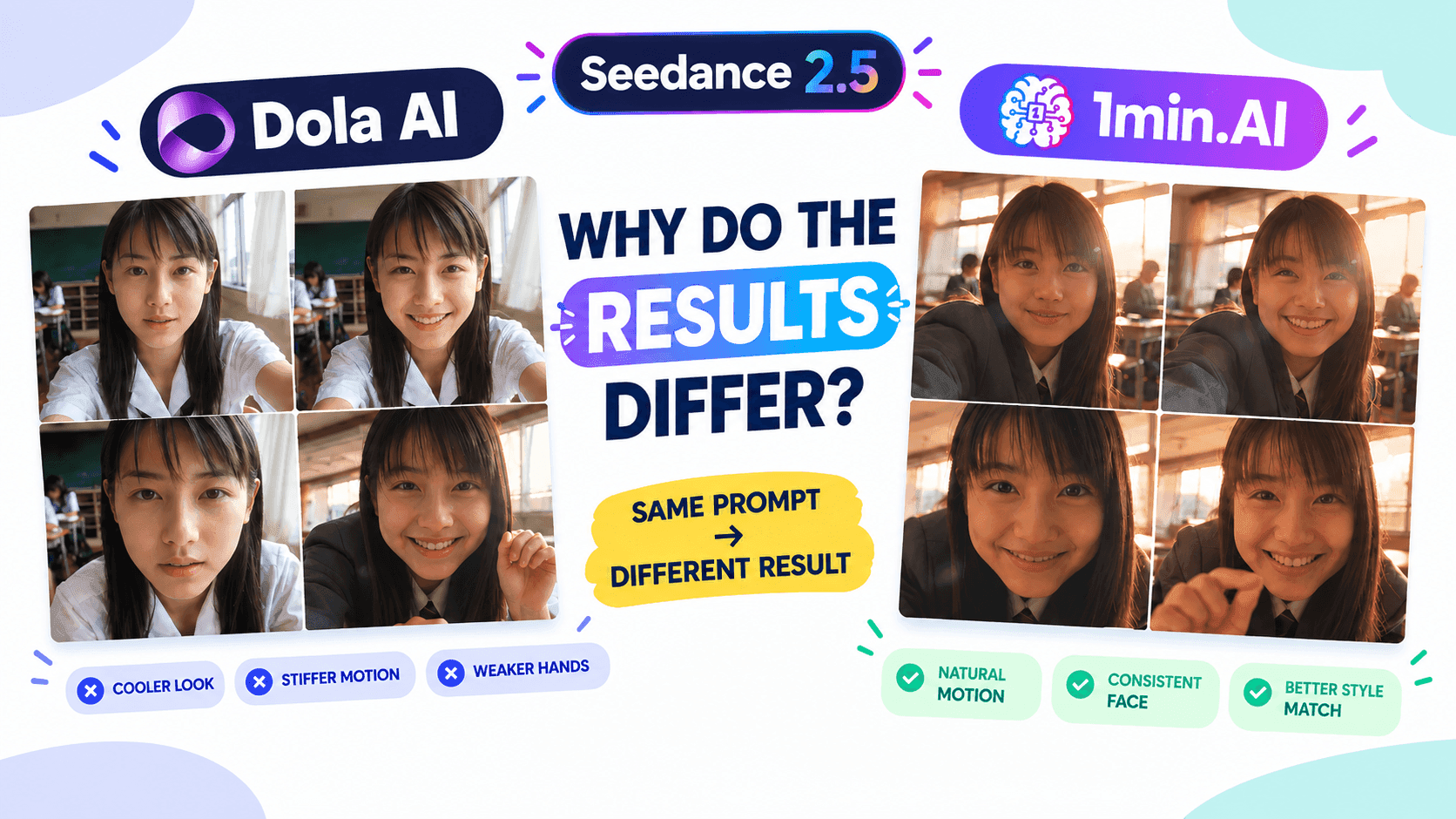
1min. AI vs Dola AI
Looking for a Dola AI alternative? Compare 1min.AI vs Dola AI on video generation, free plans, pricing and privacy to pick the right AI app.
Ngoc HongAI Tools
Discover the best AI tools to boost productivity, creativity, and everyday work.
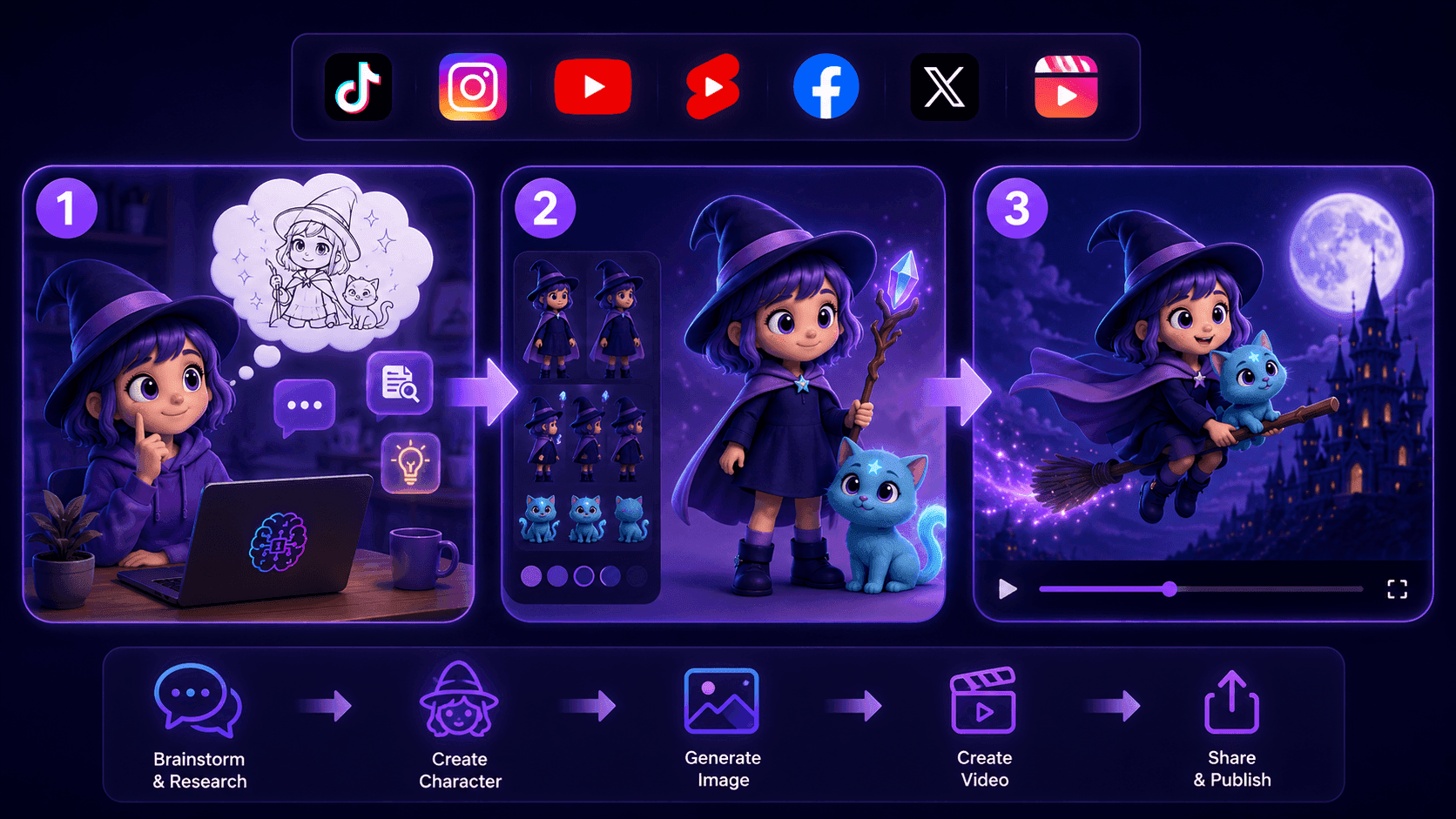
Create Consistent Cartoon Content in Just a Few Steps
Create engaging cartoon videos for TikTok and Reels with 1min.AI. Research ideas, create characters, and turn images into animated videos in 3 simple steps.
 Lien Anh Vu
One Product, 10 UGC Creatives: How AI Makes Content Testing Easier
Create more authentic UGC with an AI UGC video generator, test more creative angles and scale affiliate content without filming every version.
Lien Anh Vu
Top 4 Affordable AI Tools for Startup Founders
Discover the top 4 affordable AI tools for startup founders to validate ideas, build products, create content, and launch faster without overspending.
 Tram Ta
AI Features
Comprehensive AI features that streamline workflows, improve efficiency, and empower teams to achieve more.
Create Consistent Cartoon Content in Just a Few Steps
Create engaging cartoon videos for TikTok and Reels with 1min.AI. Research ideas, create characters, and turn images into animated videos in 3 simple steps.
Lien Anh VuOne Product, 10 UGC Creatives: How AI Makes Content Testing Easier
Create more authentic UGC with an AI UGC video generator, test more creative angles and scale affiliate content without filming every version.
Lien Anh Vu
1minAI: Free AI Grammar Checker
Check grammar for free with 1minAI’s AI grammar checker. Find grammar, spelling, and writing mistakes, improve clarity, and polish your content in seconds.
Tram TaAI Use Cases
A curated collection of AI use cases for business, productivity, and industry-specific applications.
Create Consistent Cartoon Content in Just a Few Steps
Create engaging cartoon videos for TikTok and Reels with 1min.AI. Research ideas, create characters, and turn images into animated videos in 3 simple steps.
Lien Anh VuOne Product, 10 UGC Creatives: How AI Makes Content Testing Easier
Create more authentic UGC with an AI UGC video generator, test more creative angles and scale affiliate content without filming every version.
Lien Anh Vu
Best Time to Post on Instagram: A Practical Guide for Better Engagement
Discover the best time to post on Instagram, including the best days and times for different audiences, plus tips to find the ideal posting schedule for your account.
Tram TaAI Tutorials
Learn how to use AI with practical, step-by-step tutorials.
Create Consistent Cartoon Content in Just a Few Steps
Create engaging cartoon videos for TikTok and Reels with 1min.AI. Research ideas, create characters, and turn images into animated videos in 3 simple steps.
Lien Anh Vu
Black Friday AI Tool Deals in 2026
Discover what Black Friday AI tool deals 2026 has to offer. Find out how to secure the 1min.AI lifetime deal via AppSumo, Dealify, Stack Social, and verify on Trustpilot, Slashdot, and Software Advice.
 Hang Nguyen
[Seedance 2.5 New] Better AI Product Videos, Less Rework in 1min.AI
Use Seedance 2.5 image to video on 1min.AI to create more consistent AI product videos, reduce failed generations, save credits, and improve UGC workflows.
Lien Anh VuAI Guides
Learn AI faster with practical guides, real-world examples, and actionable best practices.
Create Consistent Cartoon Content in Just a Few Steps
Create engaging cartoon videos for TikTok and Reels with 1min.AI. Research ideas, create characters, and turn images into animated videos in 3 simple steps.
Lien Anh Vu
Safely Buy AI Tools Online: 2026 Black Friday Guide
Discover how to find and secure the best Black Friday AI deals online. Learn expert strategies to avoid scams, combat subscription fatigue, and verify software.
Hang Nguyen[Seedance 2.5 New] Better AI Product Videos, Less Rework in 1min.AI
Use Seedance 2.5 image to video on 1min.AI to create more consistent AI product videos, reduce failed generations, save credits, and improve UGC workflows.
Lien Anh VuAI Solutions
Browse the best AI solutions for automation, coding, research, productivity, customer support, marketing, and business workflows.
Create Consistent Cartoon Content in Just a Few Steps
Create engaging cartoon videos for TikTok and Reels with 1min.AI. Research ideas, create characters, and turn images into animated videos in 3 simple steps.
Lien Anh VuOne Product, 10 UGC Creatives: How AI Makes Content Testing Easier
Create more authentic UGC with an AI UGC video generator, test more creative angles and scale affiliate content without filming every version.
Lien Anh Vu
Free AI Tattoo Generator: Custom Designs
Turn any idea into a custom tattoo design with 1min.AI's free AI tattoo generator. Describe your idea, pick a style, and download in seconds.
 Trang Tran
AI Models
Explore the world's leading AI models in one place.
Create Consistent Cartoon Content in Just a Few Steps
Create engaging cartoon videos for TikTok and Reels with 1min.AI. Research ideas, create characters, and turn images into animated videos in 3 simple steps.
Lien Anh VuOne Product, 10 UGC Creatives: How AI Makes Content Testing Easier
Create more authentic UGC with an AI UGC video generator, test more creative angles and scale affiliate content without filming every version.
Lien Anh Vu[Seedance 2.5 New] Better AI Product Videos, Less Rework in 1min.AI
Use Seedance 2.5 image to video on 1min.AI to create more consistent AI product videos, reduce failed generations, save credits, and improve UGC workflows.
Lien Anh VuAI Comparisons
Compare AI tools, models, and platforms to find the best fit for your needs.
Kling AI Vs Veo 3: Which Model Wins?
Kling AI vs Veo 3: compare motion, native audio, pricing & free tiers to see which AI video generator wins for your project - try both on 1min.AI.
Trang Tran[Seedance 2.5 New] Better AI Product Videos, Less Rework in 1min.AI
Use Seedance 2.5 image to video on 1min.AI to create more consistent AI product videos, reduce failed generations, save credits, and improve UGC workflows.
Lien Anh Vu
DeepSeek V4 Pro vs Flash Comparison
Compare DeepSeek V4 Pro vs DeepSeek V4 Flash metrics. Optimize your agentic apps and improve AI fact checking on 1min.ai today.
Ngoc HongAI Integrations
Seamlessly integrate AI with the tools you already use to automate work and boost productivity.
POV: You Have 10+ Posts to Make Every Day
Learn how to build an AI content workflow that helps content creators produce 10+ social media posts a day faster with AI brainstorming, image generation, and content creation.
Lien Anh Vu
How to Use an AI Fashion Video Generator for Fashion Week 2026
Turn Fashion Week 2026 ideas into stunning fashion videos with AI. Learn how to brainstorm, create visuals, and transform images into videos with one simple workflow.
Lien Anh Vu
Stop Switching Between AI Apps: How AI Integration Transforms Employer Branding
Discover how AI integration helps HR teams streamline employer branding by combining AI writing, documents, images, video, and multiple AI models into one workspace.
Tram TaAI for Industries
Find the best AI tools and workflows for healthcare, finance, education, legal, manufacturing, retail, real estate, and more
7 Low-Cost AI Business Ideas for Your Startup
Explore 7 low-cost AI business ideas you can start with a small budget, from content and video services to AI consulting, reselling, and automation.
Tram Ta
Free AI Image Generator For Ecommerce
Turn phone photos into studio, white-background, and lifestyle product images. Try the best AI image generator for ecommerce online free with 1min.AI.
Trang Tran
Free Property Management Email Templates
Free property management email templates for tenants and owners: rent reminders, renewals, maintenance updates. Copy, customize, and send in minutes.
Trang TranAI Agents
Discover and run AI agents to automate tasks across your work and daily life.
1minAI: Free AI Grammar Checker
Check grammar for free with 1minAI’s AI grammar checker. Find grammar, spelling, and writing mistakes, improve clarity, and polish your content in seconds.
Tram Ta
AI Agents for Facebook
Use an AI Agent for Facebook to create content, generate images, schedule posts, and publish from your documents and conversations.
Ngoc Hong
AI Agent vs AI Assistant: Which One Actually Saves Designers More Time?
Learn the difference between AI Agent vs AI Assistant and discover which solution helps designers automate repetitive work, reduce revisions, and save more time.
Lien Anh VuAI Workflows
Explore ready-to-use AI workflows for productivity, marketing, sales, support, and more.
Create Consistent Cartoon Content in Just a Few Steps
Create engaging cartoon videos for TikTok and Reels with 1min.AI. Research ideas, create characters, and turn images into animated videos in 3 simple steps.
Lien Anh VuOne Product, 10 UGC Creatives: How AI Makes Content Testing Easier
Create more authentic UGC with an AI UGC video generator, test more creative angles and scale affiliate content without filming every version.
Lien Anh VuPOV: You Have 10+ Posts to Make Every Day
Learn how to build an AI content workflow that helps content creators produce 10+ social media posts a day faster with AI brainstorming, image generation, and content creation.
Lien Anh VuNewsletter
Weekly AI Innovations with 1minAI
🔮 Weekly AI Innovations #136: Grok 4.6 and Smart Data Retention
Discover the latest 1min.ai updates! Upgrade to Grok 4.6 for blazing-fast AI, and check our new Data Retention policies to secure your files today.
Hang Nguyen
🔮 Weekly AI Innovations #139: Dawn of the next-gen AI
Discover the immense power of GPT-6 Astra and Claude Fable 5.1. Unlock next-generation AI models on 1min.ai to solve complex tasks effortlessly.
Hang Nguyen
🔮 Weekly AI Innovations #138: Claude Sonnet 5, Fable 5 & Wan 2.7
Explode your creative potential with massive 1min.ai updates! Access Claude Sonnet 5, Fable 5, and Alibaba Wan 2.7 for unmatched multi-modal generation today.
Hang Nguyen