
Free AI Image Editor No Restrictions with 1minAI

Tram Ta
November 11, 2026
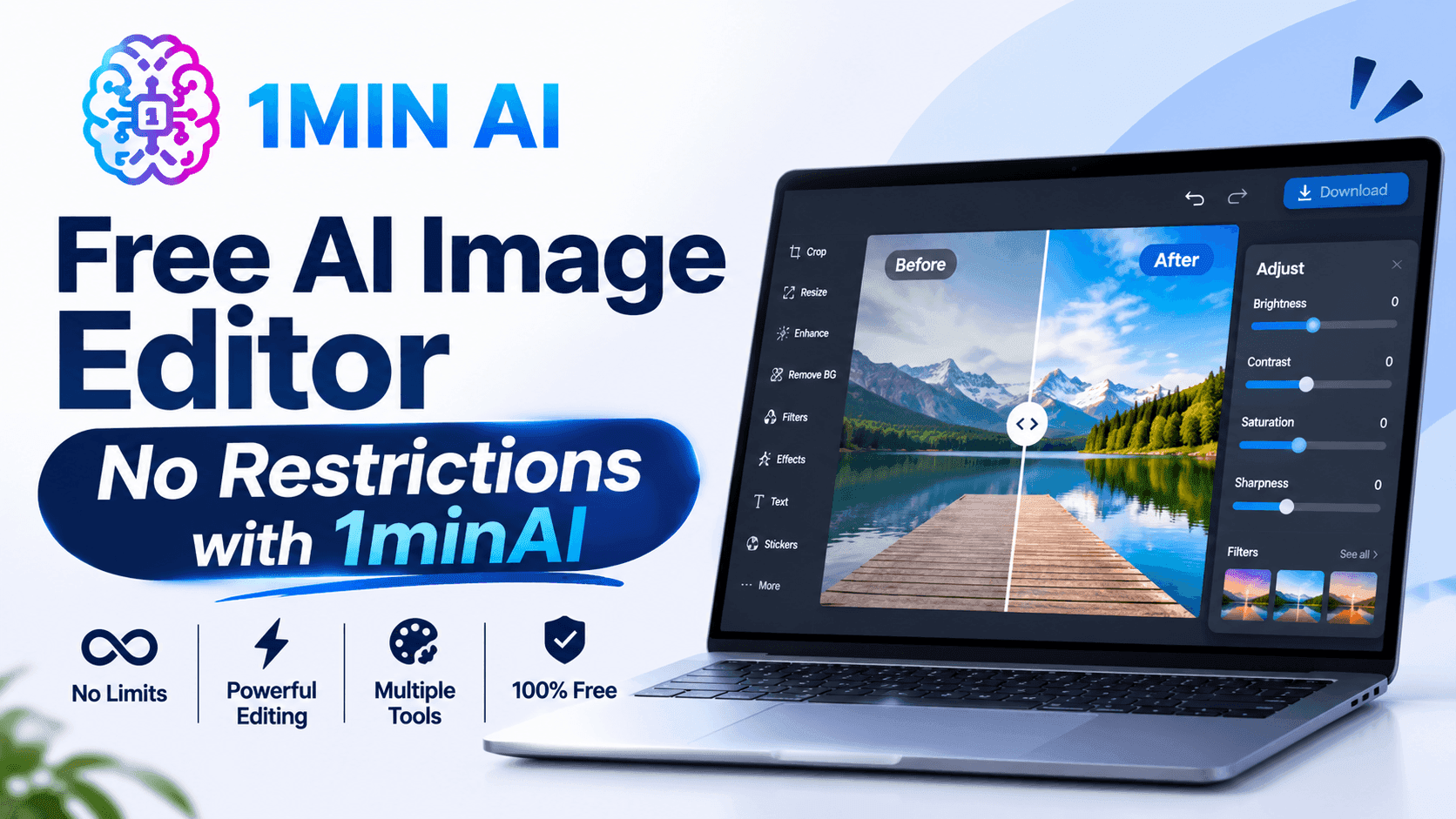
Looking for a free AI image editor with no restrictions? Edit photos with prompts, replace objects, remove text, change backgrounds, and transform images with 1minAI.
You have a photo that is almost perfect, but something needs to change. Maybe the background does not match your campaign, an unwanted object distracts from the subject, or the image needs a different size for social media.
Traditional photo editing can require multiple tools, complicated selections, and time-consuming manual adjustments. A free AI image editor offers a simpler approach: upload an image, describe the change you want, and let AI help transform it.
But what does "no restrictions" really mean? Does it mean unlimited editing, no watermarks, or the freedom to create any image?
With 1minAI, the focus is on giving creators more flexibility over how they edit. You can use natural-language prompts to replace objects, change backgrounds, modify selected areas, remove text, extend images, and explore creative variations in one workspace.
This guide explains how to use a free AI image editor, which tools to choose for different editing tasks, and how to write better prompts to get the results you want.
What Can You Do With 1minAI's Free AI Image Editor?
1minAI brings multiple AI image capabilities into one workspace. Instead of relying on one editor for every task, you can choose a tool based on the specific change you want to make.
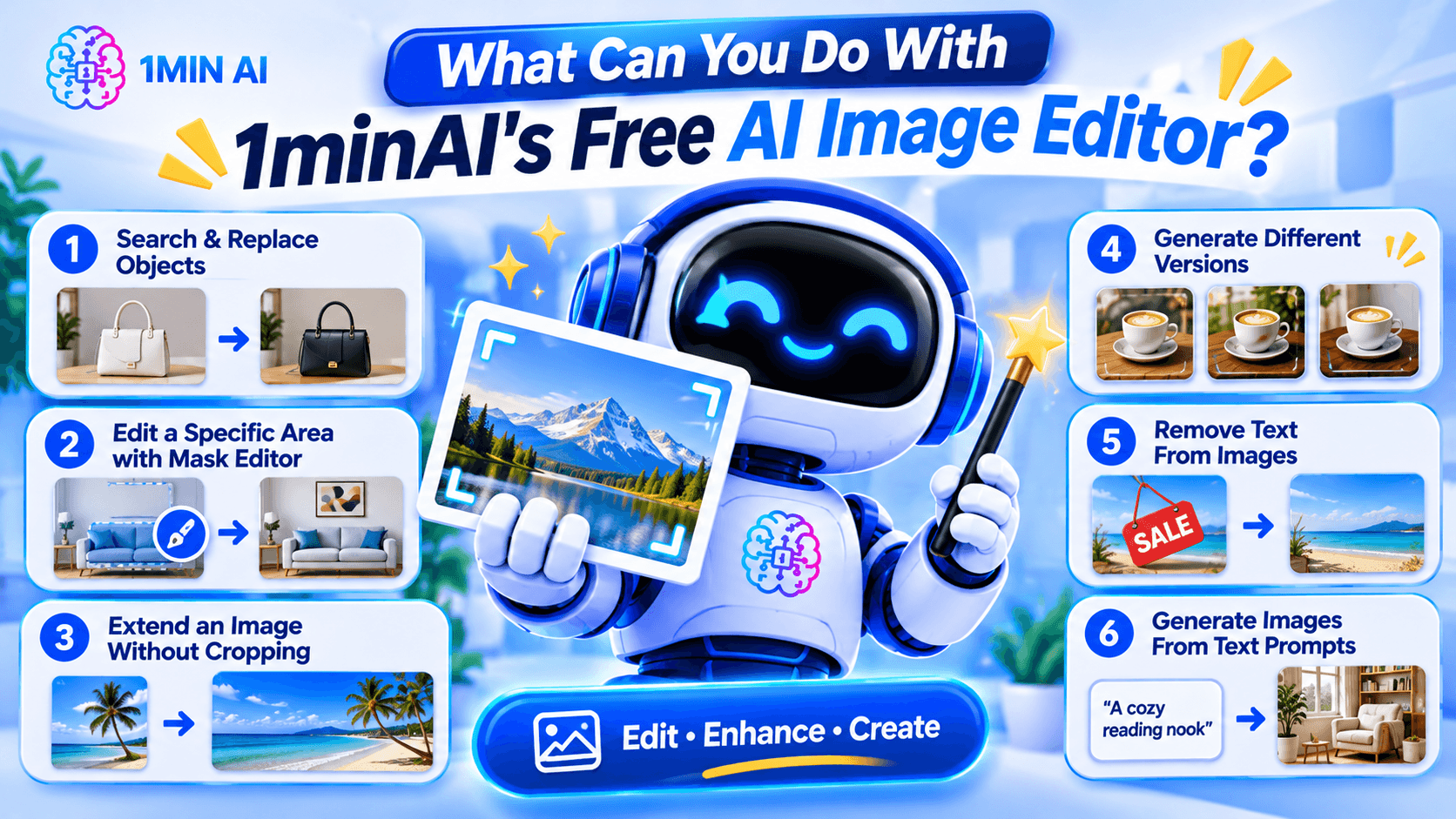
Here are some of the main editing workflows.
1. Search and Replace Objects in an Image
AI photo editing before after product image object replacement example replacing handbag color or furniture with new object realistic seamless edit" aspectRatio="16:9" width="100%" />
Sometimes an image is good except for one object.
For example, you may like a product photo but want to change the packaging color, replace a piece of furniture, or swap an accessory.
1minAI's AI Image Object Search and Replace lets you identify an object and describe what should replace it.
Example prompt:
"Replace the white ceramic vase on the table with a matte black vase. Keep the flowers, table, wall, and lighting unchanged."
This can be useful for:
- E-commerce product photography.
- Marketing and advertising creatives.
- Interior design concepts.
- Social media content.
- Creative experimentation.
The main advantage is that you can focus on the object you want to change instead of manually rebuilding the whole image.
2. Edit a Specific Area With the Image Mask Editor
Sometimes you want to modify only one part of an image while preserving everything else.
The 1minAI Image Mask Editor lets you select the area you want to edit, then describe what should appear in that region.
For example, you could:
- Change an object in the background.
- Add a decorative element.
- Fix an unwanted detail.
- Change the color of a selected item.
- Refresh part of an older image.
Example prompt:
"Replace the selected empty wall area with a framed abstract painting in warm neutral colors. Keep the furniture and room lighting unchanged."
This is especially useful when a full-image transformation would change details you want to preserve.
3. Extend an Image Without Cropping the Original Subject
Have you ever created a square image but later needed a wide banner?
Cropping may remove important details, while stretching can distort the subject.
The 1minAI Image Extender expands the canvas by generating additional background around the original image.
You can use it to:
- Turn square images into landscape banners.
- Adapt product photos for website headers.
- Create more space for advertising text.
- Reformat social media visuals.
- Expand portraits or landscapes.
Example instruction:
"Extend this image to a wide landscape composition. Continue the existing studio background naturally and keep the product centered at its original size."
This helps you adapt existing visuals to different layouts without starting over.
4. Generate Different Versions With AI Image Variator
If you like the original image but want to explore alternative styles, use the 1minAI AI Image Variator.
It creates alternative versions of an existing image while maintaining its core subject.
You can experiment with:
- Different color palettes.
- New backgrounds.
- Alternative lighting.
- Different artistic styles.
- Fresh compositions.
- Different visual moods.
Example prompt:
"Create three visual variations of this coffee product photo. Version one should have a warm minimalist kitchen background, version two should use a modern dark studio, and version three should feature a bright outdoor café setting. Keep the product design recognizable."
This can help marketers and creators explore different creative directions before choosing a final visual.
5. Remove Text From Images
Sometimes an image contains text that you no longer need.
For example, you may have an old promotional graphic with an expired discount, an outdated date, or a caption that no longer fits your campaign.
1minAI provides a Stable Diffusion XL Text Remover API for removing text elements from images through an API workflow.
The documented endpoint uses the TEXT_REMOVER feature type and stable-diffusion-xl model identifier. It accepts an image path and supports PNG, JPEG, and WebP output formats.
This is particularly useful for developers who want to integrate text removal into an image-processing application.
Example use case:
A marketing team has an old promotional image with a previous campaign date. They can use text removal to clear the outdated text and prepare the image for a new design.
Always review the result carefully, especially when text overlaps detailed textures, logos, or important visual elements.
6. Generate Images From Text Prompts
You do not always need an existing photo to start editing.
With the 1minAI AI Image Generator, you can create a new visual from a written description.
Describe:
- The main subject.
- The environment.
- The visual style.
- The lighting.
- The composition.
- The mood and color palette.
Example prompt:
"A premium skincare serum bottle on a natural stone surface, surrounded by soft green leaves, bright morning sunlight, minimalist luxury product photography, neutral beige background, realistic texture, professional commercial advertising style."
Once you have a base image, you can continue refining it with the other editing tools.
How to Edit an Image With AI in 1minAI
You do not need to master complicated editing software to get started. A simple workflow can take you from an existing photo to a refined visual.
Step 1: Open the Image Editing Workspace
Visit 1minAI's Create, Edit, and Transform Images page to explore the available image tools.
Choose the tool that matches your goal:
- Object replacement.
- Mask-based editing.
- Image extension.
- Image variation.
- Text removal.
- Image generation.
If you already have a photo, upload it to the relevant editing tool.
Step 2: Describe the Change You Want
Write a prompt explaining what should change.
A useful prompt should be specific enough for the AI to understand the subject, action, and desired result.
Try this formula:
Object + Action + Style or Setting + Details to Preserve
For example:
"Replace the wooden chair with a modern cream-colored armchair, use a Scandinavian interior style, and keep the original room layout, lighting, and camera angle unchanged."
The more clearly you describe the desired edit, the easier it is to evaluate the result.
Step 3: Generate and Review the Result
Run the edit and inspect the generated image.
Pay attention to:
- Object shapes and proportions.
- Lighting and shadows.
- Edges around edited areas.
- Text and logos.
- Background consistency.
- Unwanted changes to the original subject.
AI editing may not produce a perfect result on the first attempt. If something looks wrong, refine the prompt or make a smaller edit.
Step 4: Download and Use Your Image
Once the result looks right, download it and prepare it for your intended project.
Before using an image commercially, check the applicable tool terms, model licenses, and rights associated with any source images, logos, or people shown in the visual.
How to Choose the Right AI Image Editing Tool
Not every editing task needs the same tool.
Choosing the right workflow can save time and reduce unnecessary edits.
| Your goal | Recommended 1minAI tool |
|---|---|
| Create an image from a text description | AI Image Generator |
| Find and replace an object | AI Image Object Search and Replace |
| Change one specific area | Image Mask Editor |
| Expand the image canvas | Image Extender |
| Generate alternative versions | AI Image Variator |
| Remove text through an API | Stable Diffusion XL Text Remover |
| Explore several image tools in one place | Create, Edit, and Transform Images |
What If You Do Not Know How to Write an Image Prompt?
You can use 1minAI Image to Prompt to analyze an existing image and turn its visual details into a written prompt.
This can help you understand how to describe:
- Main subjects.
- Colors and lighting.
- Composition.
- Camera perspective.
- Artistic style.
- Background details.
For example, if you find a product image with a style you like, you can use Image to Prompt to generate a description that helps you create a similar visual direction.
Remember to use reference images you have the right to use, and avoid copying protected designs or branding without permission.
Who Can Benefit From a Free AI Image Editor?
AI image editing is useful for more than professional designers. Different types of users can apply it to everyday creative work.
E-commerce Sellers
Online sellers need product visuals for listings, advertisements, and social media.
An AI image editor can help them:
- Change product backgrounds.
- Create lifestyle product scenes.
- Explore packaging variations.
- Remove distracting objects.
- Adapt photos for different platforms.
For example, a seller could start with one product photo and create several campaign concepts for seasonal promotions.
Digital Marketers
Marketing teams often need multiple creative assets for different campaigns.
They can use AI editing to test different backgrounds, colors, product placements, and visual styles without rebuilding every design from scratch.
Content Creators
Creators may need images for blog posts, thumbnails, social media, and presentations.
AI tools can help them turn a basic photo into a more polished visual, extend the canvas, or create alternative styles.
Small Business Owners
Small businesses may not have an in-house designer.
A prompt-based editor gives owners a way to make straightforward visual adjustments, prepare promotional materials, and explore design ideas without mastering professional editing software.
Designers and Creative Professionals
AI does not replace professional creative judgment. However, it can help designers explore concepts, generate alternatives, and handle repetitive editing tasks.
Professionals can use it as an additional tool in their creative process while retaining control over the final design.
Conclusion
A free AI image editor can make visual editing easier by turning written instructions into practical image transformations.
Whether you want to replace an object, remove text, extend a photo, create alternative versions, or generate a new visual, the right AI tool can reduce repetitive manual work and help you explore more creative ideas.
With 1minAI, you can move between image generation and editing tools in one workspace. Start with an existing photo or a text prompt, describe the change you want, review the result, and refine it until it fits your project.
More creative control starts with a clearer prompt. Try 1minAI's AI image tools and turn your next image-editing idea into reality.
- #Commerce
- #Information
Alternatives
Discover the best alternatives to 1minAI and compare features, pricing, and use cases.
1min.AI vs OpenRouter
1min.AI vs. OpenRouter: Compare the ready-to-use AI creation product against the technical API tool. Find out if you need a zero-code creative studio or a coding infrastructure hub.
 Ngoc Hong

1min AI vs Buffer
Compare 1min.AI vs Buffer for Facebook content creation, AI writing, image generation, scheduling, pricing, and everyday marketing workflows.
Ngoc Hong
1min.AI vs ContentStudio Alternative
Compare 1min.AI vs ContentStudio for Facebook content creation, brand context, AI images, publishing, team workflows, and pricing.
Ngoc HongAI Tools
Discover the best AI tools to boost productivity, creativity, and everyday work.
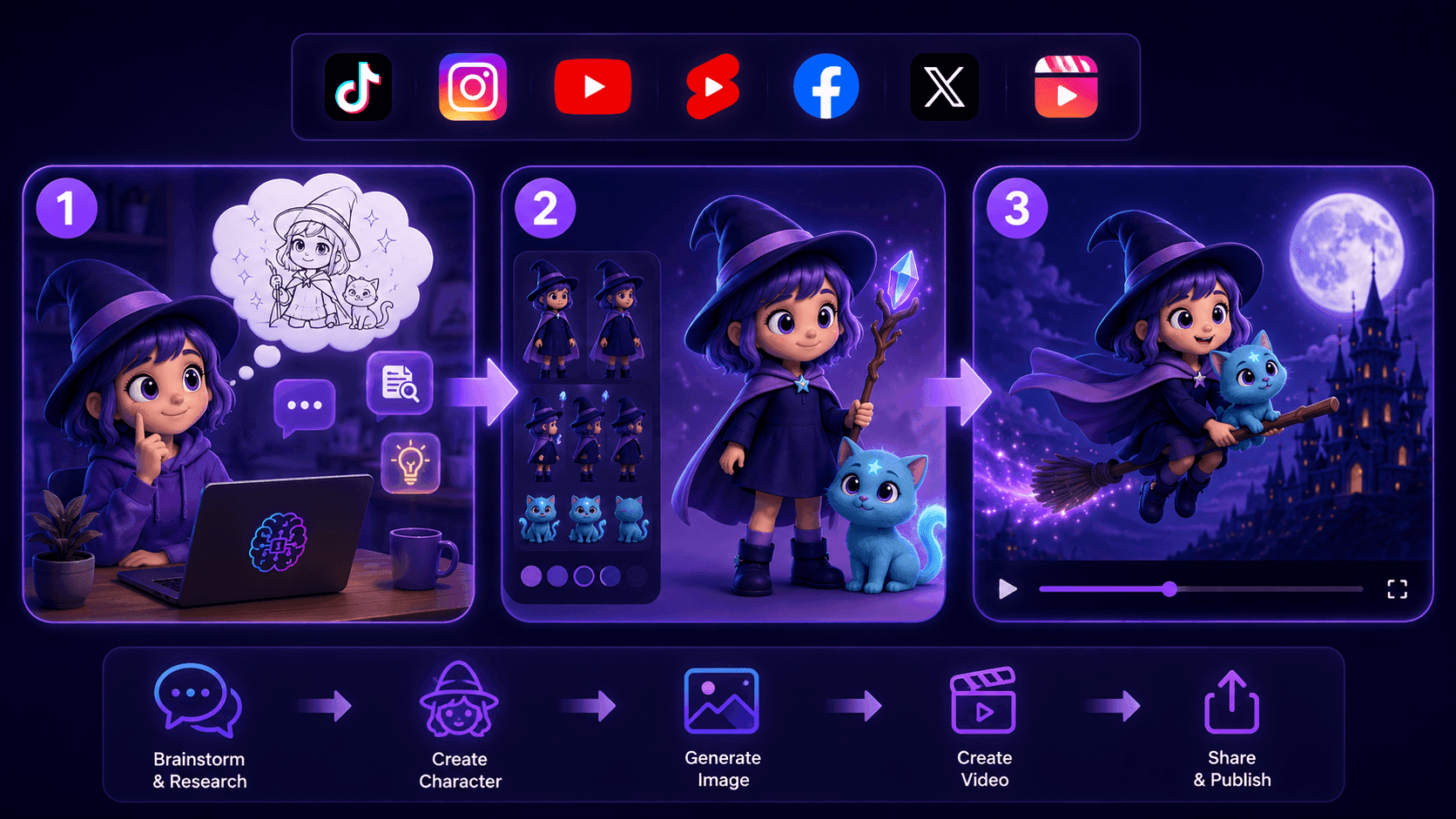
Create Consistent Cartoon Content in Just a Few Steps
Create engaging cartoon videos for TikTok and Reels with 1min.AI. Research ideas, create characters, and turn images into animated videos in 3 simple steps.
 Lien Anh Vu
One Product, 10 UGC Creatives: How AI Makes Content Testing Easier
Create more authentic UGC with an AI UGC video generator, test more creative angles and scale affiliate content without filming every version.
Lien Anh Vu
Top 4 Affordable AI Tools for Startup Founders
Discover the top 4 affordable AI tools for startup founders to validate ideas, build products, create content, and launch faster without overspending.
 Tram Ta
AI Features
Comprehensive AI features that streamline workflows, improve efficiency, and empower teams to achieve more.
Create Consistent Cartoon Content in Just a Few Steps
Create engaging cartoon videos for TikTok and Reels with 1min.AI. Research ideas, create characters, and turn images into animated videos in 3 simple steps.
Lien Anh VuOne Product, 10 UGC Creatives: How AI Makes Content Testing Easier
Create more authentic UGC with an AI UGC video generator, test more creative angles and scale affiliate content without filming every version.
Lien Anh Vu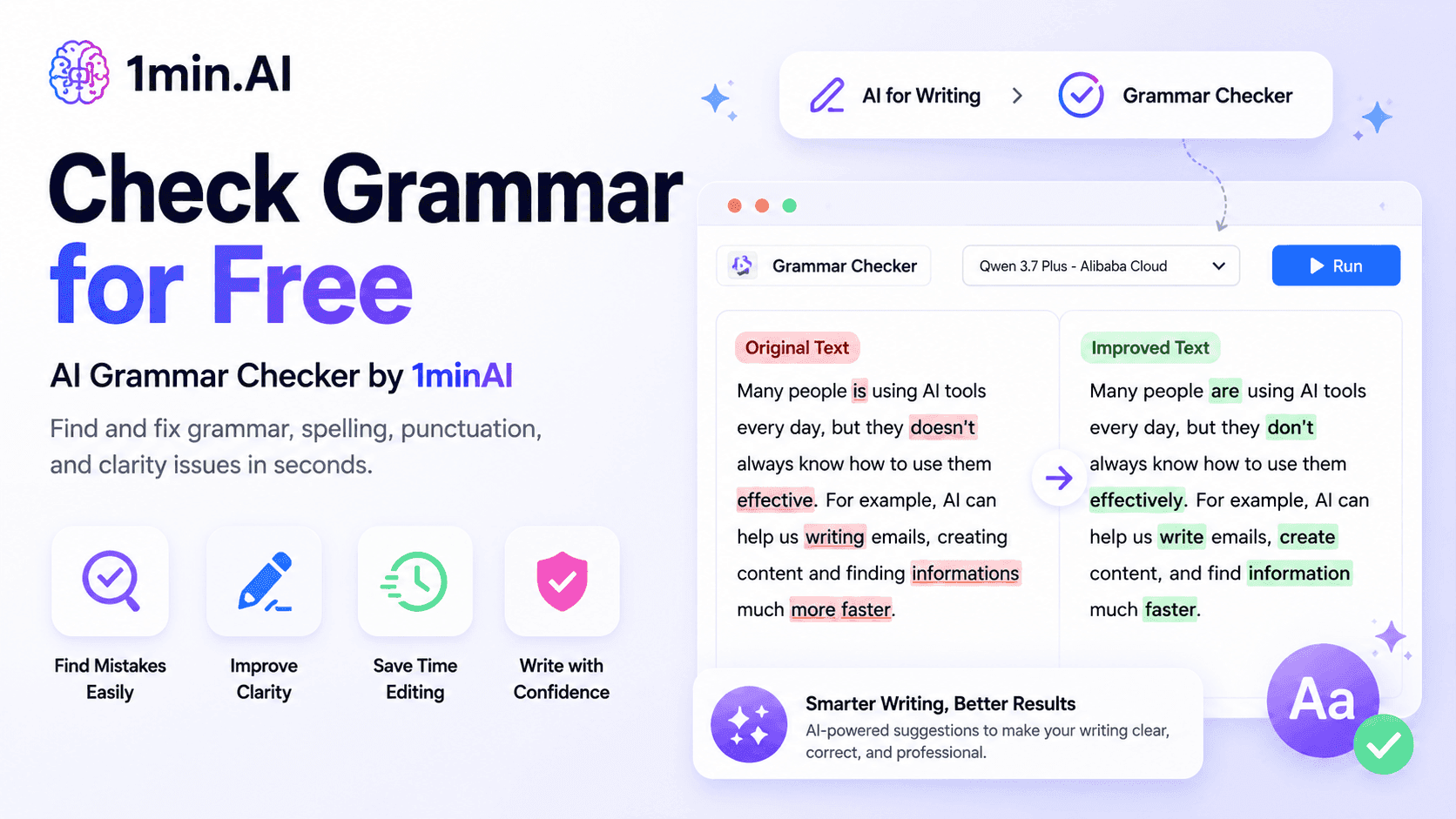
1minAI: Free AI Grammar Checker
Check grammar for free with 1minAI’s AI grammar checker. Find grammar, spelling, and writing mistakes, improve clarity, and polish your content in seconds.
Tram TaAI Use Cases
A curated collection of AI use cases for business, productivity, and industry-specific applications.
Create Consistent Cartoon Content in Just a Few Steps
Create engaging cartoon videos for TikTok and Reels with 1min.AI. Research ideas, create characters, and turn images into animated videos in 3 simple steps.
Lien Anh VuOne Product, 10 UGC Creatives: How AI Makes Content Testing Easier
Create more authentic UGC with an AI UGC video generator, test more creative angles and scale affiliate content without filming every version.
Lien Anh Vu
Best Time to Post on Instagram: A Practical Guide for Better Engagement
Discover the best time to post on Instagram, including the best days and times for different audiences, plus tips to find the ideal posting schedule for your account.
Tram TaAI Tutorials
Learn how to use AI with practical, step-by-step tutorials.

Black Friday AI Tool Deals in 2026
Discover what Black Friday AI tool deals 2026 has to offer. Find out how to secure the 1min.AI lifetime deal via AppSumo, Dealify, Stack Social, and verify on Trustpilot, Slashdot, and Software Advice.
 Hang Nguyen
Create Consistent Cartoon Content in Just a Few Steps
Create engaging cartoon videos for TikTok and Reels with 1min.AI. Research ideas, create characters, and turn images into animated videos in 3 simple steps.
Lien Anh Vu
[Seedance 2.5 New] Better AI Product Videos, Less Rework in 1min.AI
Use Seedance 2.5 image to video on 1min.AI to create more consistent AI product videos, reduce failed generations, save credits, and improve UGC workflows.
Lien Anh VuAI Guides
Learn AI faster with practical guides, real-world examples, and actionable best practices.

Safely Buy AI Tools Online: 2026 Black Friday Guide
Discover how to find and secure the best Black Friday AI deals online. Learn expert strategies to avoid scams, combat subscription fatigue, and verify software.
Hang NguyenCreate Consistent Cartoon Content in Just a Few Steps
Create engaging cartoon videos for TikTok and Reels with 1min.AI. Research ideas, create characters, and turn images into animated videos in 3 simple steps.
Lien Anh Vu[Seedance 2.5 New] Better AI Product Videos, Less Rework in 1min.AI
Use Seedance 2.5 image to video on 1min.AI to create more consistent AI product videos, reduce failed generations, save credits, and improve UGC workflows.
Lien Anh VuAI Solutions
Browse the best AI solutions for automation, coding, research, productivity, customer support, marketing, and business workflows.
Safely Buy AI Tools Online: 2026 Black Friday Guide
Discover how to find and secure the best Black Friday AI deals online. Learn expert strategies to avoid scams, combat subscription fatigue, and verify software.
Hang NguyenCreate Consistent Cartoon Content in Just a Few Steps
Create engaging cartoon videos for TikTok and Reels with 1min.AI. Research ideas, create characters, and turn images into animated videos in 3 simple steps.
Lien Anh VuOne Product, 10 UGC Creatives: How AI Makes Content Testing Easier
Create more authentic UGC with an AI UGC video generator, test more creative angles and scale affiliate content without filming every version.
Lien Anh VuAI Models
Explore the world's leading AI models in one place.
Create Consistent Cartoon Content in Just a Few Steps
Create engaging cartoon videos for TikTok and Reels with 1min.AI. Research ideas, create characters, and turn images into animated videos in 3 simple steps.
Lien Anh VuOne Product, 10 UGC Creatives: How AI Makes Content Testing Easier
Create more authentic UGC with an AI UGC video generator, test more creative angles and scale affiliate content without filming every version.
Lien Anh Vu[Seedance 2.5 New] Better AI Product Videos, Less Rework in 1min.AI
Use Seedance 2.5 image to video on 1min.AI to create more consistent AI product videos, reduce failed generations, save credits, and improve UGC workflows.
Lien Anh VuAI Comparisons
Compare AI tools, models, and platforms to find the best fit for your needs.
Kling AI Vs Veo 3: Which Model Wins?
Kling AI vs Veo 3: compare motion, native audio, pricing & free tiers to see which AI video generator wins for your project - try both on 1min.AI.
 Trang Tran
[Seedance 2.5 New] Better AI Product Videos, Less Rework in 1min.AI
Use Seedance 2.5 image to video on 1min.AI to create more consistent AI product videos, reduce failed generations, save credits, and improve UGC workflows.
Lien Anh Vu
DeepSeek V4 Pro vs Flash Comparison
Compare DeepSeek V4 Pro vs DeepSeek V4 Flash metrics. Optimize your agentic apps and improve AI fact checking on 1min.ai today.
Ngoc HongAI Integrations
Seamlessly integrate AI with the tools you already use to automate work and boost productivity.
POV: You Have 10+ Posts to Make Every Day
Learn how to build an AI content workflow that helps content creators produce 10+ social media posts a day faster with AI brainstorming, image generation, and content creation.
Lien Anh Vu
How to Use an AI Fashion Video Generator for Fashion Week 2026
Turn Fashion Week 2026 ideas into stunning fashion videos with AI. Learn how to brainstorm, create visuals, and transform images into videos with one simple workflow.
Lien Anh Vu
Stop Switching Between AI Apps: How AI Integration Transforms Employer Branding
Discover how AI integration helps HR teams streamline employer branding by combining AI writing, documents, images, video, and multiple AI models into one workspace.
Tram TaAI for Industries
Find the best AI tools and workflows for healthcare, finance, education, legal, manufacturing, retail, real estate, and more
Voice Cloning AI Free: How to Clone Any Voice Online in Minutes
Try voice cloning AI free with 1min.AI. Upload a 5-second clip, pick an ElevenLabs model, choose from 32 languages, and turn text to speech in your own voice.
Trang Tran
Text To Video AI Free Without Watermark Online
Create text to video AI free without watermark online with 1min.AI. Pick top models, turn prompts into HD clips, and download clean videos fast. Try it free.
Trang Tran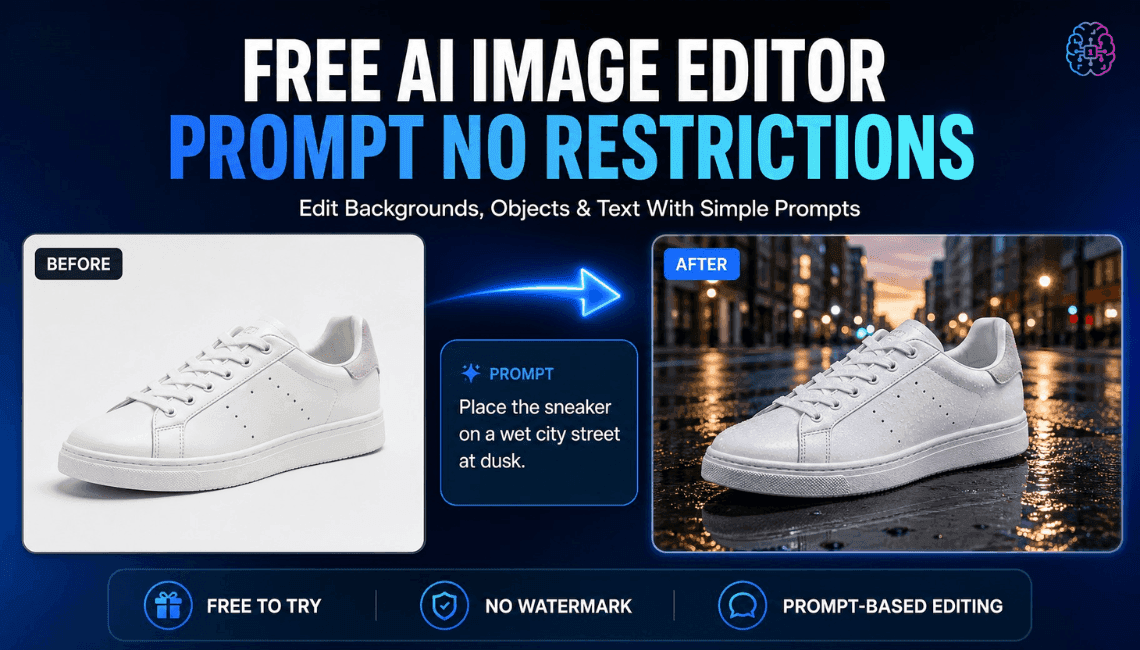
Free AI Image Editor With Prompt No Restrictions
Looking for a free AI image editor with prompt no restrictions? Edit backgrounds, objects and text by typing, no watermark. Try 1min.AI’s flexible editor now.
Trang TranAI Agents
Discover and run AI agents to automate tasks across your work and daily life.
1minAI: Free AI Grammar Checker
Check grammar for free with 1minAI’s AI grammar checker. Find grammar, spelling, and writing mistakes, improve clarity, and polish your content in seconds.
Tram Ta
AI Agents for Facebook
Use an AI Agent for Facebook to create content, generate images, schedule posts, and publish from your documents and conversations.
Ngoc Hong
AI Agent vs AI Assistant: Which One Actually Saves Designers More Time?
Learn the difference between AI Agent vs AI Assistant and discover which solution helps designers automate repetitive work, reduce revisions, and save more time.
Lien Anh VuAI Workflows
Explore ready-to-use AI workflows for productivity, marketing, sales, support, and more.
Create Consistent Cartoon Content in Just a Few Steps
Create engaging cartoon videos for TikTok and Reels with 1min.AI. Research ideas, create characters, and turn images into animated videos in 3 simple steps.
Lien Anh VuOne Product, 10 UGC Creatives: How AI Makes Content Testing Easier
Create more authentic UGC with an AI UGC video generator, test more creative angles and scale affiliate content without filming every version.
Lien Anh VuPOV: You Have 10+ Posts to Make Every Day
Learn how to build an AI content workflow that helps content creators produce 10+ social media posts a day faster with AI brainstorming, image generation, and content creation.
Lien Anh VuNewsletter
Weekly AI Innovations with 1minAI

🔮 Weekly AI Innovations #145: X Content Agent & GPT 6.1 Terra on 1min.ai
Scale viral reach with the X Content Agent on 1min.ai. Discover an end-to-end 4-stage pipeline with zero token burn, plus the launch of GPT 6.1 Terra.
Hang Nguyen
🔮 Weekly AI Innovations #144: LinkedIn Content Agent: Complete B2B Publishing Pipeline
Scale B2B influence with the LinkedIn Content Agent on 1min.ai. Discover an end-to-end 4-stage pipeline with zero redundant token burn and 1-click publishing.
Hang Nguyen
🔮 Weekly AI Innovations #143: Update GPT-6, GPT-6.1 & Ideogram 4.0
Access GPT-6 Sol, Luna, GPT-6.1 Sol, and Ideogram 4.0 on 1min.ai. Boost typography accuracy to 98.4% and cut reasoning latency by 45% in one platform.
Hang Nguyen