
Free AI Background Remover for Product Photos

Lien Anh Vu
October 11, 2026
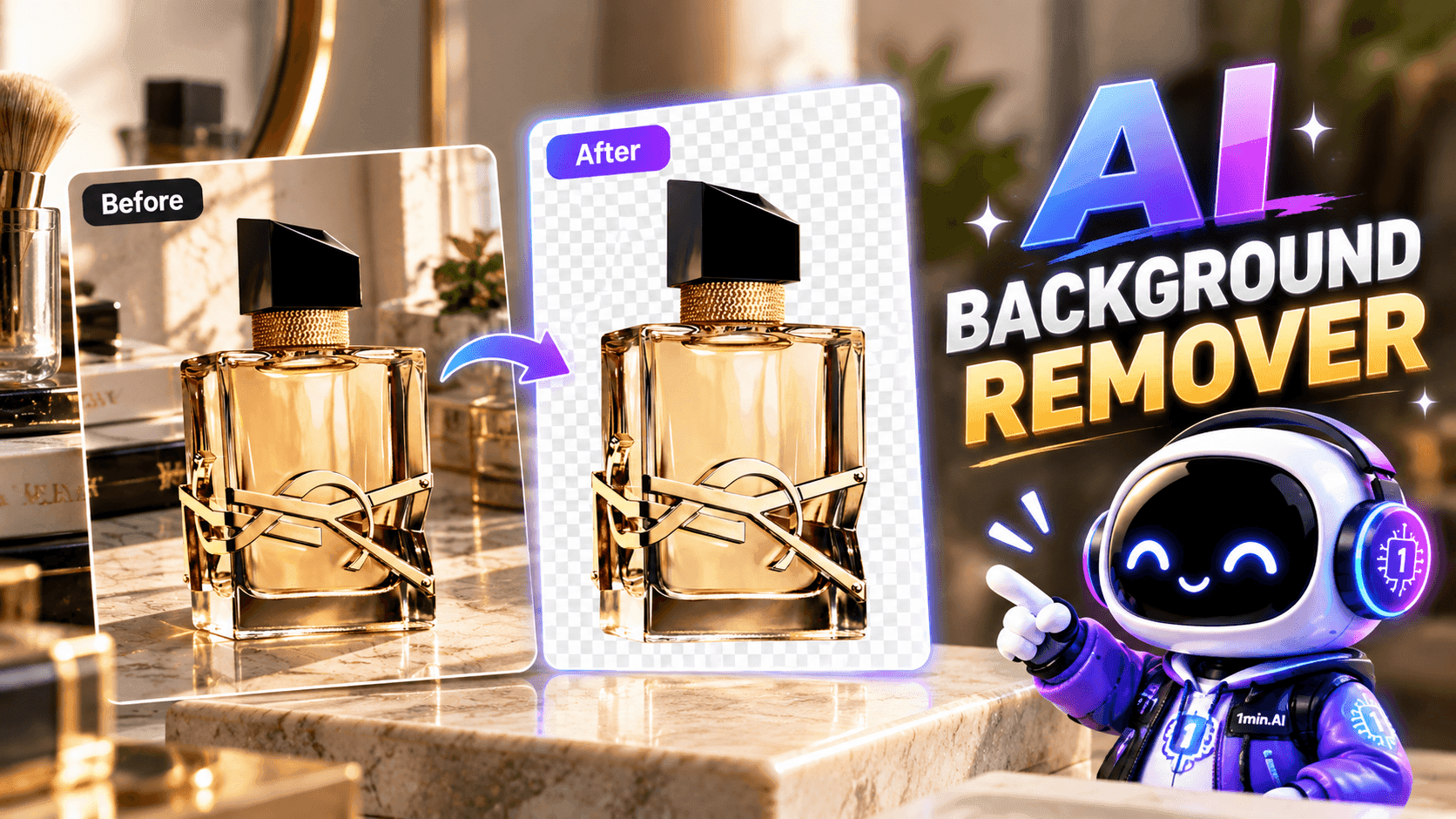
Remove and replace product photo backgrounds with AI. Turn ordinary images into clean, professional advertising visuals with 1min.AI.
You've taken a beautiful photo of your product, but something isn't quite right. Maybe there's a messy desk behind it, distracting objects in the frame, or a background that makes the product harder to notice.
You could spend time manually editing around every edge. Or you could let AI handle the most time-consuming part.
With a free AI background remover, you can separate your product from its surroundings and create a clean, transparent image in just a few steps.
Whether you're preparing product listings, designing social media posts, or organizing images for your online store, removing the background helps keep the attention where it belongs: on your product.
In this guide, we'll show you how to remove backgrounds from product photos using 1min.AI, how to handle tricky details like glass and reflective surfaces, and how to prepare your transparent images for different uses.
What Is an AI Background Remover?
An AI background remover is a tool that automatically identifies the main subject in an image and separates it from the surrounding background.
Traditionally, removing a photo background often meant using selection tools, manually tracing outlines, and carefully editing difficult edges.
AI simplifies much of that process.
Instead of selecting every part of a product by hand, the tool analyzes the image, identifies the subject, and removes the surrounding pixels.
The result is a clean product cutout that can be saved with a transparent background.
For example, imagine a perfume bottle photographed on a cluttered dressing table. An AI background remover can isolate the bottle, removing the table, mirror, and other distracting objects.
The perfume bottle remains the focus, while everything around it disappears.
This is particularly useful for:
- E-commerce product listings.
- Transparent PNG product images.
- Online store catalogs.
- Social media graphics.
- Marketing and presentation materials.
- Product image libraries.
With 1min.AI's Background Remover, you can remove image backgrounds online without manually tracing every edge.
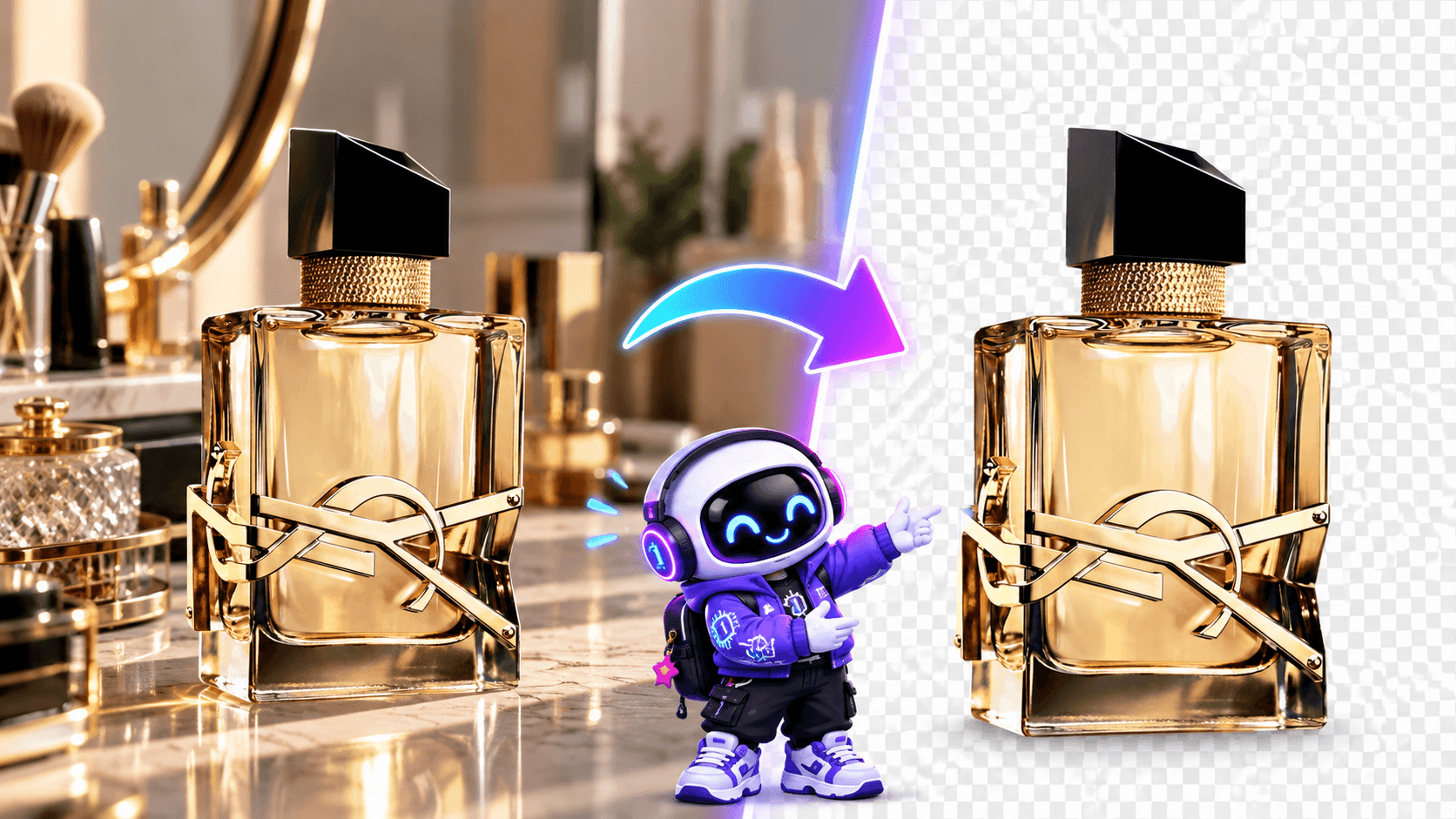
How to Remove a Product Photo Background with 1min.AI
Let's walk through the process using a perfume bottle as our example.
We'll start with an ordinary product photo and turn it into a clean image with a transparent background.
Step 1: Choose a Clear Product Photo
Before using the AI background remover, choose a photo where the product is clearly visible.
You don't need an expensive camera. A smartphone photo can work well if the image is sharp and properly exposed.
For better results:
- Keep the entire product visible in the frame.
- Use soft, natural lighting whenever possible.
- Avoid heavy filters and excessive reflections.
- Make sure the product's edges are clearly defined.
- Choose an image with minimal motion blur.
For our example, we're using a perfume bottle with a black cap, transparent glass, and metallic gold details.
These materials make the example more interesting because transparent glass and reflective metal can be challenging to isolate accurately.
Demo: Show the original perfume bottle with its existing background before processing.

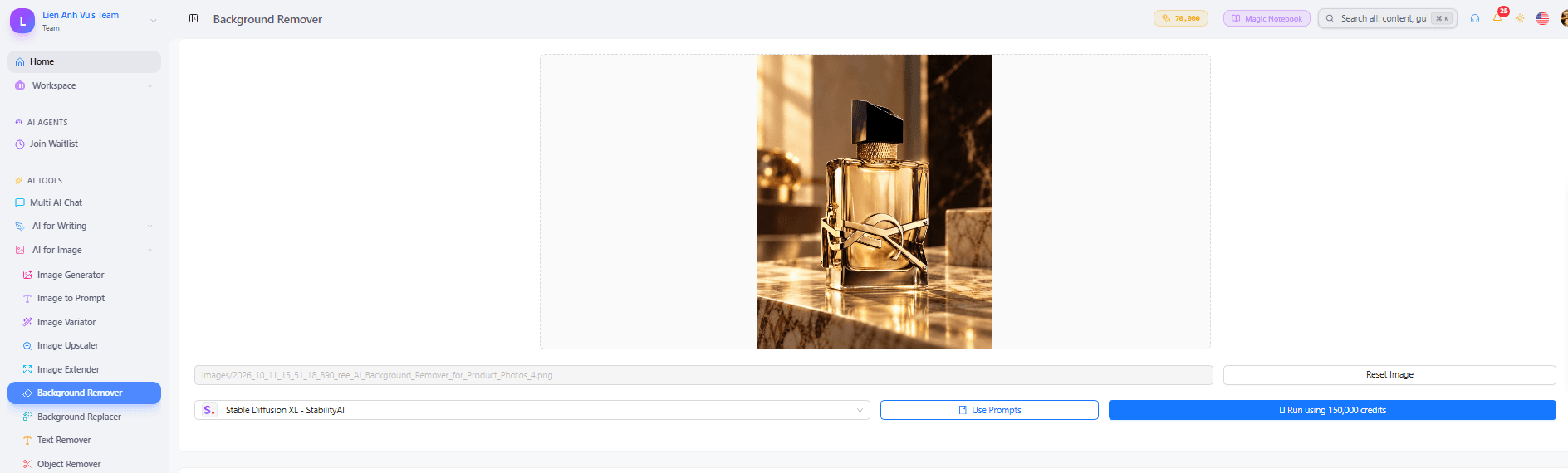
Step 2: Open the AI Background Remover
Go to 1min.AI and open the Background Remover tool.
Upload the product photo you want to edit.
The tool uses AI to detect the main subject and separate it from the surrounding background.
You don't need to write a complicated prompt or describe the background you want removed.
Simply provide the image and start the background-removal process.
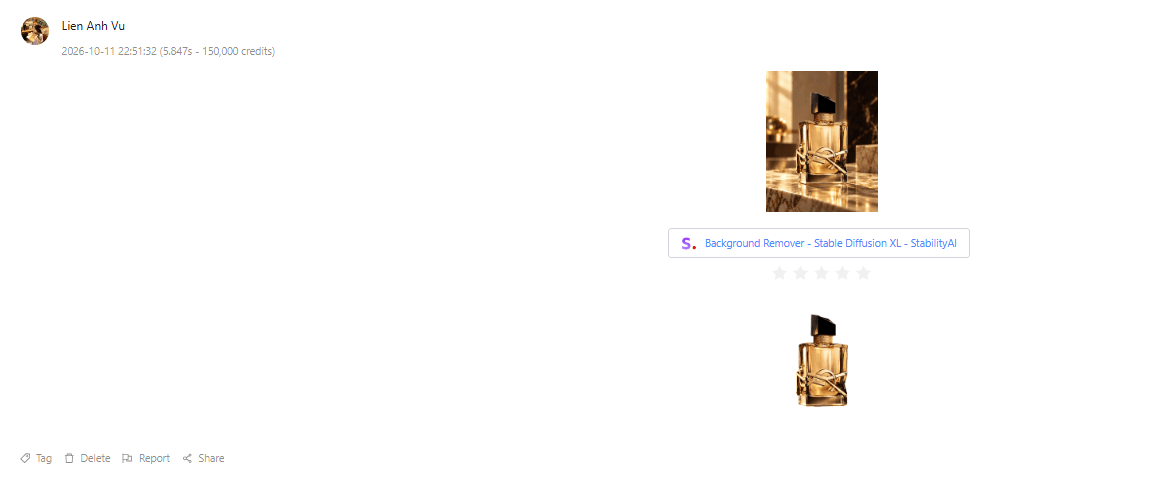
Step 3: Let AI Remove the Background
Once your image is processed, the original background is removed, leaving the product isolated.
In our perfume example, the AI aims to preserve the bottle while removing the surrounding environment.
The resulting image should clearly show the product's silhouette without unnecessary background elements.
Pay close attention to the difference between the original image and the cutout.
The goal isn't to redesign the perfume bottle or modify its appearance. It's to remove the background while keeping the product as accurate as possible.
Step 4: Check the Edges and Fine Details
Before downloading your image, zoom in and inspect the cutout.
This step matters especially for products made from glass, plastic, metal, or other reflective materials.
For our perfume bottle, check these areas:
Glass edges: The transparent bottle should retain a believable shape without missing corners or jagged outlines.
Metallic details: Gold decorations and reflective surfaces should remain intact.
Bottle cap: Straight edges and sharp corners should not look distorted.
Product logo: Any branding or decorative elements should remain visible and unchanged.
AI background removal is useful, but transparent and reflective objects may still produce imperfect results.
If an important part of your product disappears, try using a clearer original photograph or an image with stronger separation between the subject and background.
Step 5: Download Your Transparent Product Image
Once you're satisfied with the cutout, download the processed image.
When available, choose PNG with transparency to preserve the transparent background.
A transparent PNG makes the product easier to reuse in different layouts without having to remove its background again.
Remember that a checkerboard pattern in an image editor usually represents transparency. It should not appear as a permanent pattern in the exported transparent file.
You now have a clean product cutout ready for use.
Why Remove Backgrounds from Product Photos?
Removing a background isn't just about making an image look cleaner.
It can also improve how you organize, reuse, and present product visuals.
1. Keep Attention on the Product
A busy background can compete with the product for attention.
When unnecessary objects disappear, viewers can focus on the product's design, color, shape, and details.
This is especially useful for smaller items like perfume bottles, jewelry, cosmetics, and accessories.
2. Create More Consistent Product Listings
Imagine an online store where every product photo has a different background.
One item is photographed on a wooden table, another on a bedroom floor, and a third against a colorful wall.
Even when the products themselves are attractive, the overall catalog may feel inconsistent.
Removing backgrounds helps you prepare cleaner, more uniform product images.
If your marketplace requires a solid white background, you'll still need to export the cutout on a compliant white canvas. A transparent PNG alone is not the same as a white-background image.
3. Save Time on Repetitive Editing
Manually removing backgrounds from a large number of product photos can be time-consuming.
AI helps automate the initial subject isolation, reducing the amount of manual work needed.
You should still review the final result, especially for complex products, but the workflow can be much faster than tracing every outline yourself.
4. Prepare Images for Multiple Platforms
A clean product cutout can be useful beyond your online store.
You might need the same product image for:
- A website product page.
- An Instagram promotional graphic.
- A Pinterest pin.
- An email marketing campaign.
- A product comparison chart.
Rather than isolating the product every time, you can save a transparent PNG and reuse it.
Which Product Photos Benefit Most from Background Removal?
AI background removal can be useful for many product categories, but different objects present different editing challenges.
| Product Type | Main Benefit | What to Check |
|---|---|---|
| Perfume bottles | Isolate luxury packaging | Glass transparency and reflections |
| Skincare products | Create clean catalog images | Labels and packaging edges |
| Jewelry | Highlight small product details | Thin chains and reflective surfaces |
| Shoes | Remove distracting surroundings | Laces, soles, and shadows |
| Handbags | Prepare reusable product cutouts | Handles, straps, and openings |
| Clothing | Isolate garments | Fabric edges and fine details |
For this tutorial, perfume is a particularly useful example because it combines several difficult materials in one product.
A well-isolated perfume bottle can demonstrate how the tool handles clear glass, dark surfaces, and metallic details.
5 Tips for Cleaner AI Background Removal
An AI background remover can simplify editing, but the quality of the original photograph still matters.
Here are five practical ways to get better results.
1. Use Good Lighting
Clear lighting helps define the product's boundaries.
Try photographing your product near a window or under soft, even lighting.
Avoid extreme highlights or shadows that hide important details.
2. Create Contrast Between the Product and Background
If a product is almost the same color as its surroundings, the AI may have difficulty distinguishing the two.
For example, a white handbag photographed against a white wall may have less visible edge contrast than the same handbag against a neutral gray background.
You don't need an elaborate photography setup. Just make sure the subject is visually distinguishable.
3. Avoid Blurry Images
Motion blur can make the edges of a product less clear.
Use a sharp image whenever possible, especially when photographing small objects or intricate details.
If your original image is very blurry, background removal may not fully recover the missing edge information.
4. Be Careful with Transparent Objects
Glass bottles, clear packaging, and transparent accessories are more difficult to process than solid objects.
Some parts of a transparent object show the original background through the material.
Removing those background pixels while preserving realistic transparency can be challenging.
Always inspect the result instead of assuming every transparent surface has been isolated perfectly.
5. Check the Exported File
Before using your final image, open the downloaded file in an application that supports transparency.
Confirm that:
- The unwanted background is gone.
- The product outline looks clean.
- Important details remain visible.
- There is no unwanted color fringe around the edges.
- The transparency is preserved in the exported file.
A quick final inspection can prevent small editing errors from appearing in published product listings.
PNG vs. JPG: Which Format Is Better After Background Removal?
File format is especially important when working with transparent product photos.
| Feature | PNG | JPG |
|---|---|---|
| Transparent background | Supported | Not supported |
| Best for product cutouts | Yes | No |
| Image compression | Lossless | Lossy |
| Typical file size | Often larger | Often smaller |
| Reusable in designs | Excellent | Limited when transparency is required |
If your goal is to keep the background transparent, PNG is generally the better choice.
JPG doesn't support transparency, so a transparent cutout must be flattened against a background color before being saved as a JPG.
If you're preparing product assets for websites or marketing graphics, keeping a transparent PNG master file gives you more flexibility.
Common AI Background Removal Problems and How to Fix Them
Even with AI, background removal doesn't always produce a perfect result on the first attempt.
Here are some common issues.
Problem 1: Parts of the Product Disappear
Possible cause: The product has low contrast against its original background, or certain details are difficult to distinguish.
Try this: Use another photograph with clearer lighting and more defined edges.
Problem 2: The Product Has Rough or Jagged Edges
Possible cause: The original image has low resolution, blur, or intricate edge details.
Try this: Start with a sharper photo and inspect the cutout at its intended display size.
Problem 3: Glass Looks Strange After Removal
Possible cause: Transparent materials contain background colors and reflections that are difficult to separate.
Try this: Choose a photo with a simpler original background and avoid strong reflections crossing the bottle's edges.
Problem 4: The Downloaded Image Has a White Background
Possible cause: The image was exported without transparency or opened in a viewer that displays transparent areas as white.
Try this: Check the output format and reopen the file in an image editor that supports transparent PNG files.
Problem 5: A Colored Outline Remains Around the Product
Possible cause: Edge pixels may still contain colors from the original background.
Try this: Use a cleaner source photo or refine the cutout in an image editor if necessary.
The important thing is to evaluate the cutout rather than relying entirely on the automatic result.
Frequently Asked Questions
Is there a free AI background remover online?
Yes. 1min.AI offers an online AI Background Remover that can isolate subjects without manual tracing. Free access and usage allowances depend on the platform's current credits and account limits.
Can I remove a background without Photoshop?
Yes. AI background removal tools can automatically separate a product from its surroundings, so you don't need advanced Photoshop skills for basic background removal.
How do I make a product photo background transparent?
Upload your image to an AI background remover, process the image, check the cutout, and export it in a transparency-supporting format such as PNG.
Can AI remove the background from a perfume bottle?
Yes, AI can attempt to isolate perfume bottles, including glass and metallic elements. However, transparent surfaces and reflective details can make the result less accurate, so careful review is important.
What is the best format for a transparent product image?
PNG is a common choice because it supports transparency and preserves image details without lossy compression.
Can I use transparent product photos for e-commerce?
Yes. Transparent product cutouts are useful for preparing e-commerce assets. However, each marketplace may have its own background, image dimension, and file-format requirements.
Final Thoughts: Make Your Product Stand Out
A great product photo doesn't always need an elaborate background.
Sometimes, removing the distractions is enough to make the product easier to see, organize, and present.
With a free AI background remover, you can turn ordinary product photographs into clean cutouts without spending hours manually selecting every edge.
Whether you're working with perfume, skincare, jewelry, clothing, or accessories, the process is simple: upload your photo, remove the background, inspect the details, and save your transparent image.
The key is keeping the actual product accurate while removing everything that doesn't belong.
🚀 Ready to clean up your product photos? Try 1min.AI's Free Background Remover and create transparent product images for your store, marketing materials, and creative projects.
- #Transactional
Alternatives
Discover the best alternatives to 1minAI and compare features, pricing, and use cases.
1min.AI vs OpenRouter
1min.AI vs. OpenRouter: Compare the ready-to-use AI creation product against the technical API tool. Find out if you need a zero-code creative studio or a coding infrastructure hub.
 Ngoc Hong
1min.AI vs Jarvis AI
Compare 1min.AI vs Jarvis AI to discover which AI platform is better for writing, research, automation, and content creation. Find the best AI assistant for your workflow.
Ngoc Hong
1min.AI vs Taskade
Compare 1min.AI vs Taskade for AI content creation, automation, agents, and creative workflows to find the right workspace.
Ngoc HongAI Tools
Discover the best AI tools to boost productivity, creativity, and everyday work.
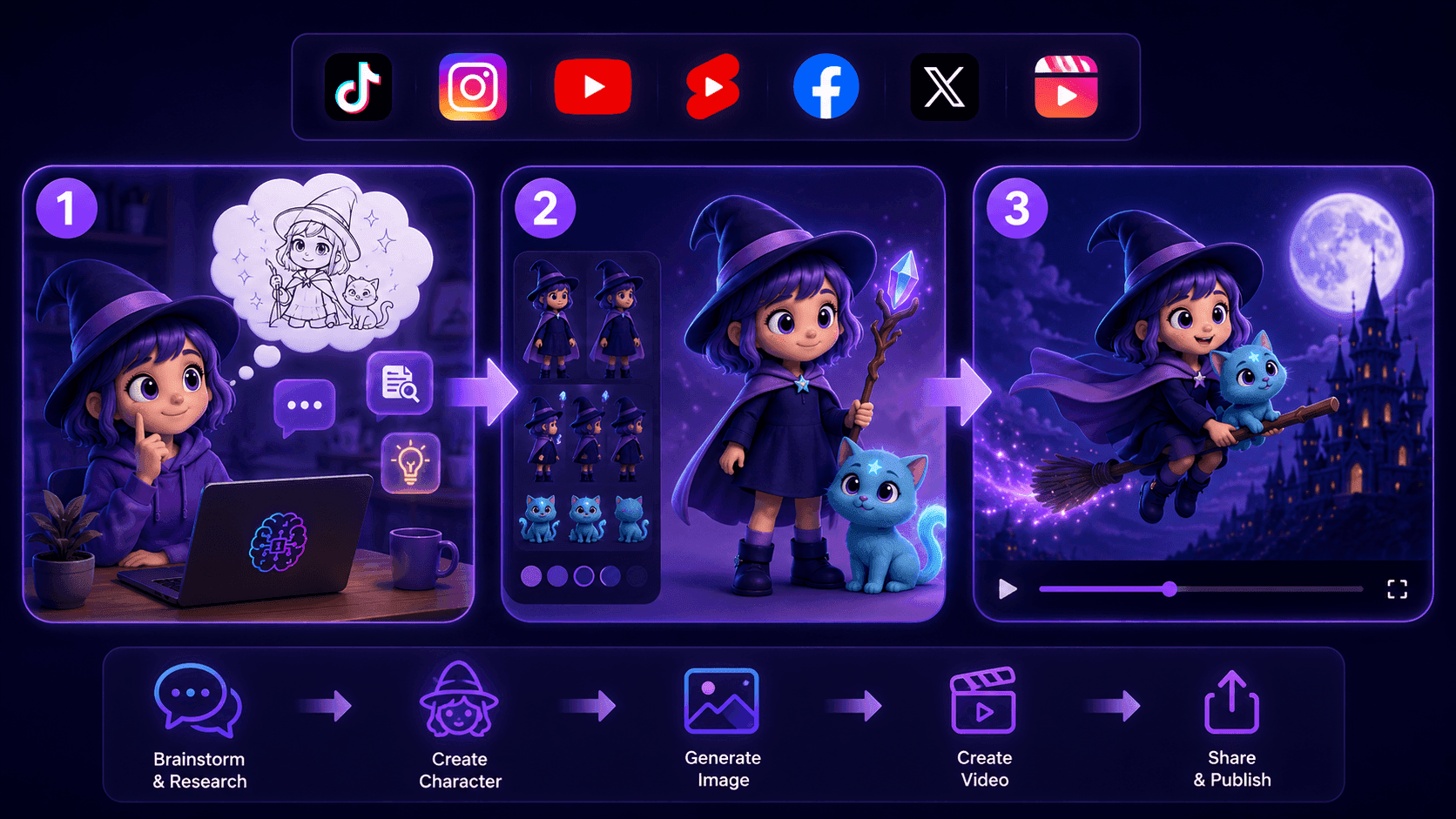
Create Consistent Cartoon Content in Just a Few Steps
Create engaging cartoon videos for TikTok and Reels with 1min.AI. Research ideas, create characters, and turn images into animated videos in 3 simple steps.
 Lien Anh Vu
One Product, 10 UGC Creatives: How AI Makes Content Testing Easier
Create more authentic UGC with an AI UGC video generator, test more creative angles and scale affiliate content without filming every version.
Lien Anh Vu
Top 4 Affordable AI Tools for Startup Founders
Discover the top 4 affordable AI tools for startup founders to validate ideas, build products, create content, and launch faster without overspending.
 Tram Ta
AI Features
Comprehensive AI features that streamline workflows, improve efficiency, and empower teams to achieve more.
Create Consistent Cartoon Content in Just a Few Steps
Create engaging cartoon videos for TikTok and Reels with 1min.AI. Research ideas, create characters, and turn images into animated videos in 3 simple steps.
Lien Anh VuOne Product, 10 UGC Creatives: How AI Makes Content Testing Easier
Create more authentic UGC with an AI UGC video generator, test more creative angles and scale affiliate content without filming every version.
Lien Anh Vu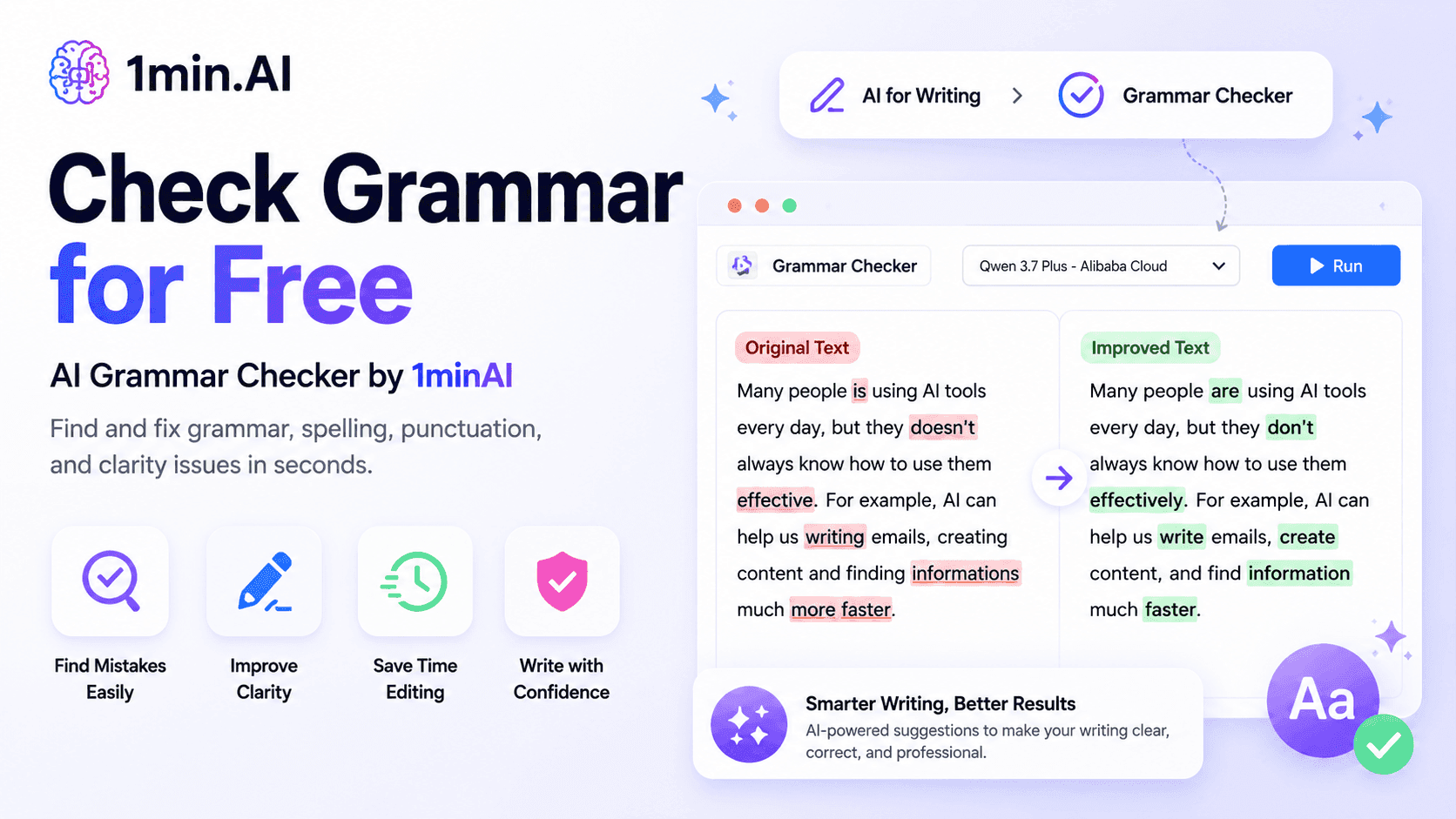
1minAI: Free AI Grammar Checker
Check grammar for free with 1minAI’s AI grammar checker. Find grammar, spelling, and writing mistakes, improve clarity, and polish your content in seconds.
Tram TaAI Use Cases
A curated collection of AI use cases for business, productivity, and industry-specific applications.
Create Consistent Cartoon Content in Just a Few Steps
Create engaging cartoon videos for TikTok and Reels with 1min.AI. Research ideas, create characters, and turn images into animated videos in 3 simple steps.
Lien Anh VuOne Product, 10 UGC Creatives: How AI Makes Content Testing Easier
Create more authentic UGC with an AI UGC video generator, test more creative angles and scale affiliate content without filming every version.
Lien Anh Vu
Best Time to Post on Instagram: A Practical Guide for Better Engagement
Discover the best time to post on Instagram, including the best days and times for different audiences, plus tips to find the ideal posting schedule for your account.
Tram TaAI Tutorials
Learn how to use AI with practical, step-by-step tutorials.

Black Friday AI Tool Deals in 2026
Discover what Black Friday AI tool deals 2026 has to offer. Find out how to secure the 1min.AI lifetime deal via AppSumo, Dealify, Stack Social, and verify on Trustpilot, Slashdot, and Software Advice.
 Hang Nguyen
Create Consistent Cartoon Content in Just a Few Steps
Create engaging cartoon videos for TikTok and Reels with 1min.AI. Research ideas, create characters, and turn images into animated videos in 3 simple steps.
Lien Anh Vu
[Seedance 2.5 New] Better AI Product Videos, Less Rework in 1min.AI
Use Seedance 2.5 image to video on 1min.AI to create more consistent AI product videos, reduce failed generations, save credits, and improve UGC workflows.
Lien Anh VuAI Guides
Learn AI faster with practical guides, real-world examples, and actionable best practices.

Safely Buy AI Tools Online: 2026 Black Friday Guide
Discover how to find and secure the best Black Friday AI deals online. Learn expert strategies to avoid scams, combat subscription fatigue, and verify software.
Hang NguyenCreate Consistent Cartoon Content in Just a Few Steps
Create engaging cartoon videos for TikTok and Reels with 1min.AI. Research ideas, create characters, and turn images into animated videos in 3 simple steps.
Lien Anh Vu[Seedance 2.5 New] Better AI Product Videos, Less Rework in 1min.AI
Use Seedance 2.5 image to video on 1min.AI to create more consistent AI product videos, reduce failed generations, save credits, and improve UGC workflows.
Lien Anh VuAI Solutions
Browse the best AI solutions for automation, coding, research, productivity, customer support, marketing, and business workflows.
Safely Buy AI Tools Online: 2026 Black Friday Guide
Discover how to find and secure the best Black Friday AI deals online. Learn expert strategies to avoid scams, combat subscription fatigue, and verify software.
Hang NguyenCreate Consistent Cartoon Content in Just a Few Steps
Create engaging cartoon videos for TikTok and Reels with 1min.AI. Research ideas, create characters, and turn images into animated videos in 3 simple steps.
Lien Anh VuOne Product, 10 UGC Creatives: How AI Makes Content Testing Easier
Create more authentic UGC with an AI UGC video generator, test more creative angles and scale affiliate content without filming every version.
Lien Anh VuAI Models
Explore the world's leading AI models in one place.
Create Consistent Cartoon Content in Just a Few Steps
Create engaging cartoon videos for TikTok and Reels with 1min.AI. Research ideas, create characters, and turn images into animated videos in 3 simple steps.
Lien Anh VuOne Product, 10 UGC Creatives: How AI Makes Content Testing Easier
Create more authentic UGC with an AI UGC video generator, test more creative angles and scale affiliate content without filming every version.
Lien Anh Vu[Seedance 2.5 New] Better AI Product Videos, Less Rework in 1min.AI
Use Seedance 2.5 image to video on 1min.AI to create more consistent AI product videos, reduce failed generations, save credits, and improve UGC workflows.
Lien Anh VuAI Comparisons
Compare AI tools, models, and platforms to find the best fit for your needs.

Kling AI Vs Veo 3: Which Model Wins?
Kling AI vs Veo 3: compare motion, native audio, pricing & free tiers to see which AI video generator wins for your project - try both on 1min.AI.
 Trang Tran
[Seedance 2.5 New] Better AI Product Videos, Less Rework in 1min.AI
Use Seedance 2.5 image to video on 1min.AI to create more consistent AI product videos, reduce failed generations, save credits, and improve UGC workflows.
Lien Anh Vu
DeepSeek V4 Pro vs Flash Comparison
Compare DeepSeek V4 Pro vs DeepSeek V4 Flash metrics. Optimize your agentic apps and improve AI fact checking on 1min.ai today.
Ngoc HongAI Integrations
Seamlessly integrate AI with the tools you already use to automate work and boost productivity.

POV: You Have 10+ Posts to Make Every Day
Learn how to build an AI content workflow that helps content creators produce 10+ social media posts a day faster with AI brainstorming, image generation, and content creation.
Lien Anh Vu
How to Use an AI Fashion Video Generator for Fashion Week 2026
Turn Fashion Week 2026 ideas into stunning fashion videos with AI. Learn how to brainstorm, create visuals, and transform images into videos with one simple workflow.
Lien Anh Vu
Stop Switching Between AI Apps: How AI Integration Transforms Employer Branding
Discover how AI integration helps HR teams streamline employer branding by combining AI writing, documents, images, video, and multiple AI models into one workspace.
Tram TaAI for Industries
Find the best AI tools and workflows for healthcare, finance, education, legal, manufacturing, retail, real estate, and more

Best Business Productivity Tools for Startups to Maximize Profits | 1minAI
Discover the best business productivity tools for startups to save time, streamline workflows, reduce repetitive tasks, and support profitable growth with AI.
Tram Ta
Best AI Tool for Content Marketing |1minAI
Looking for the best AI tool for content marketing? See how 1minAI helps marketers research, write, repurpose, create visuals, and scale content from one AI workspace.
Tram Ta
7 Low-Cost AI Business Ideas for Your Startup
Explore 7 low-cost AI business ideas you can start with a small budget, from content and video services to AI consulting, reselling, and automation.
Tram TaAI Agents
Discover and run AI agents to automate tasks across your work and daily life.
1minAI: Free AI Grammar Checker
Check grammar for free with 1minAI’s AI grammar checker. Find grammar, spelling, and writing mistakes, improve clarity, and polish your content in seconds.
Tram Ta
AI Agents for Facebook
Use an AI Agent for Facebook to create content, generate images, schedule posts, and publish from your documents and conversations.
Ngoc Hong
AI Agent vs AI Assistant: Which One Actually Saves Designers More Time?
Learn the difference between AI Agent vs AI Assistant and discover which solution helps designers automate repetitive work, reduce revisions, and save more time.
Lien Anh VuAI Workflows
Explore ready-to-use AI workflows for productivity, marketing, sales, support, and more.
Create Consistent Cartoon Content in Just a Few Steps
Create engaging cartoon videos for TikTok and Reels with 1min.AI. Research ideas, create characters, and turn images into animated videos in 3 simple steps.
Lien Anh VuOne Product, 10 UGC Creatives: How AI Makes Content Testing Easier
Create more authentic UGC with an AI UGC video generator, test more creative angles and scale affiliate content without filming every version.
Lien Anh VuPOV: You Have 10+ Posts to Make Every Day
Learn how to build an AI content workflow that helps content creators produce 10+ social media posts a day faster with AI brainstorming, image generation, and content creation.
Lien Anh VuNewsletter
Weekly AI Innovations with 1minAI

🔮 Weekly AI Innovations #141: Seedance 2.5 & Stable Audio 3: Next-Gen AI
Explore Seedance 2.0, 2.5, and StabilityAI's Stable Audio 3 on 1min.ai. Generate studio-grade audio and synchronized motion with next-gen generative AI.
Hang Nguyen
🔮 Weekly AI Innovations #140: Deepseek 4.1 Flash & Gemini Upgrades
Explore Deepseek 4.1 Flash and new Gemini models on 1min.ai. Plus, check our update on your Billing - Usage page for better clarity.
Hang Nguyen
🔮 Weekly AI Innovations #139: Dawn of the next-gen AI
Discover the immense power of GPT-6 Astra and Claude Fable 5.1. Unlock next-generation AI models on 1min.ai to solve complex tasks effortlessly.
Hang Nguyen