
Claude Code Mods: What They Are & How to Use

Tram Ta
November 4, 2026

Learn what Claude Code mods are, how they work, how to install or build them, and how to use AI coding tools to customize your development workflow.
Claude Code has become a popular tool for developers who want an AI assistant to work directly with their codebase. But what if you want to change more than the code it writes? What if you want to customize its interface, modify how tool calls behave, add a custom command, or introduce safeguards into your development workflow?
That's where Claude Code mods come in.
Mods let developers customize how Claude Code behaves through JavaScript or TypeScript functions that respond to events inside the application. They can modify prompts, interact with tool calls, add interface elements, and extend existing functionality.
In this guide, you'll learn what Claude Code mods are, how they differ from plugins and hooks, how to install or create them, and how to use AI coding assistants to make development easier. We'll also cover security considerations and practical alternatives for developers who want AI help without building a custom mod from scratch.
What Are Claude Code Mods?
Claude Code mods are custom extensions that change how Claude Code works or looks. Introduced by Anthropic in October 2026, mods use JavaScript or TypeScript event handlers to interact with events inside Claude Code.
A mod can respond when Claude Code submits a prompt, invokes a tool, requests permission, or renders part of its interface. Depending on the event, it can observe what happens, modify the event, or handle it differently.
For example, a developer could create a mod that:
- Displays a custom status indicator during a coding session.
- Adds a panel showing build or test status.
- Checks a tool call before it executes.
- Rewrites a prompt to add project-specific context.
- Redacts sensitive information from tool output.
- Adds a custom command for a repetitive development task.
Mods are packaged inside Claude Code plugins, making it possible to install and share customizations through plugin workflows.
The key difference is that mods can change Claude Code's behavior from inside the application, including parts of its interface. They provide a more flexible customization mechanism than traditional configuration alone.
What Can You Do with Claude Code Mods?
The best mod depends on the friction you experience in your daily development workflow. Here are several practical examples.
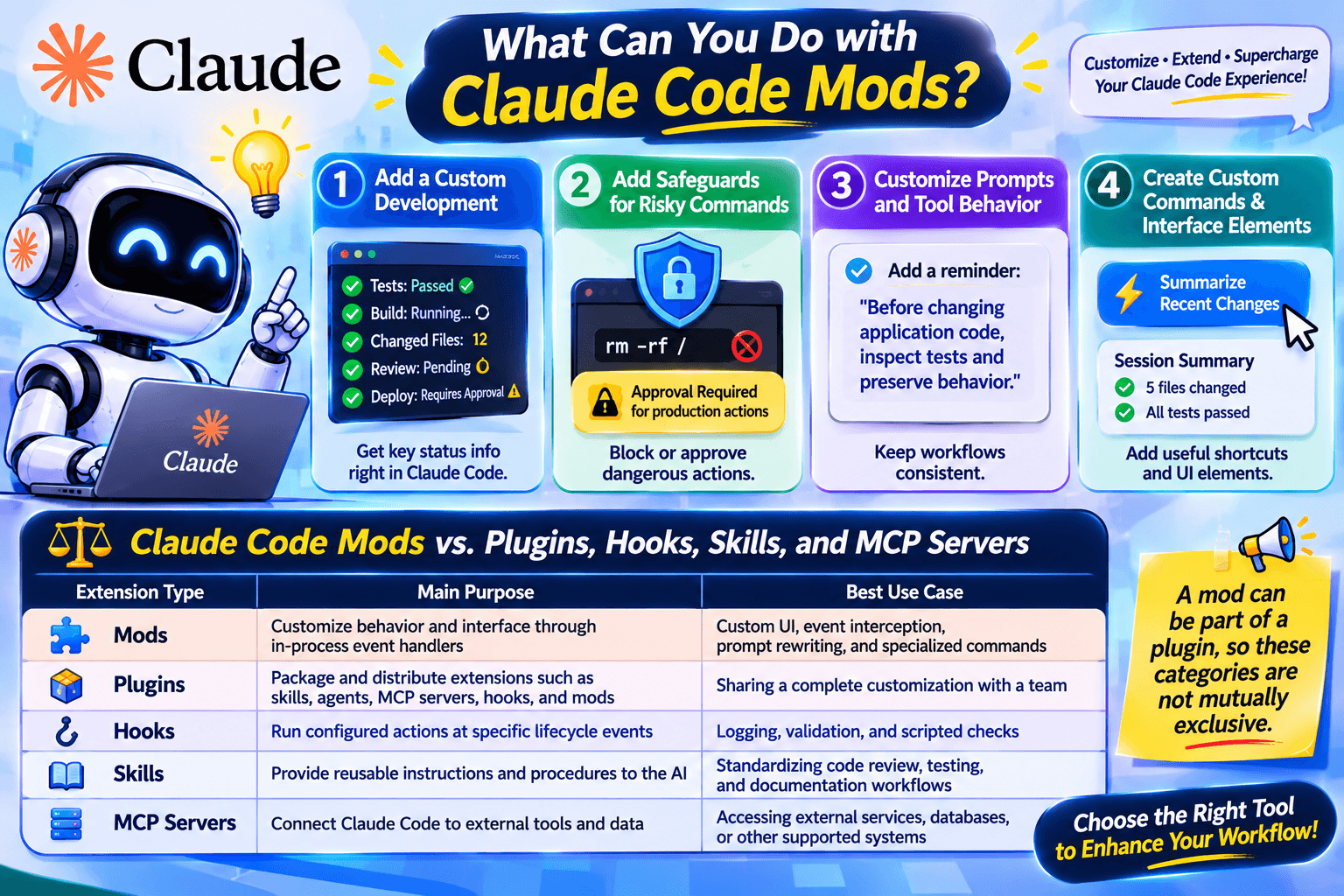
1. Add a custom development dashboard
When working on a large project, developers often switch between Claude Code, a terminal, test output, and a separate build dashboard.
A mod can add a custom panel or status display to bring selected information into the coding session.
For example, a team could create a panel that shows:
- Whether the latest test run passed.
- Whether a build is still running.
- Which files have changed.
- Whether a code review is pending.
- Whether a deployment requires approval.
This can reduce unnecessary context switching. However, the mod still needs a reliable way to obtain the relevant status information, such as a compatible tool or build-system integration.
2. Add safeguards for risky commands
AI coding agents can execute tools and interact with project files. This is useful, but a mistake can have consequences when commands affect production settings, databases, or deployment environments.
A mod can inspect certain tool calls and block or modify them according to defined rules.
For example, a team might want additional checks before running a command that changes production configuration.
A sensible safeguard should:
- Identify the command or action being requested.
- Check whether it matches a restricted pattern.
- Require appropriate approval or block the action.
- Record enough information for the team to review what happened.
A mod is not a substitute for proper access control, environment separation, or tested deployment procedures. Security-sensitive rules should be carefully designed and tested before use.
3. Customize prompts and tool behavior
Developers often repeat the same instructions across projects. They might want Claude Code to follow a specific testing convention, avoid certain commands, or add project context before processing a request.
A mod can intercept supported events and modify them before they continue.
For example, a team could prepend a reminder to relevant prompts:
Before changing application code, inspect the existing architecture, identify affected tests, and preserve current behavior unless the task explicitly requires a change.
The goal is to make recurring workflows more consistent without requiring developers to manually repeat every instruction.
However, a mod that changes prompts should be transparent about what it adds. Hidden modifications can make it harder to understand why the model behaves differently.
4. Create custom commands and interface elements
Mods can also add custom interface elements, such as buttons, input fields, status displays, or panes.
Imagine a team that frequently asks Claude Code to summarize recent changes before a code review. A custom command could package the repeated workflow into a shortcut.
Similarly, a mod could display a small summary of the current session or provide a button that starts a predefined action.
These customizations are most valuable when they solve a recurring problem. A simple instruction or reusable skill may be enough for a one-off task, while a mod makes more sense when you need deeper integration with Claude Code's events or interface.
Claude Code Mods vs. Plugins, Hooks, Skills, and MCP Servers
Claude Code supports several extension mechanisms, and they are not interchangeable. Understanding the differences helps you choose the simplest tool for the job.
| Extension type | Main purpose | Best use case |
|---|---|---|
| Mods | Customize behavior and interface through in-process event handlers | Custom UI, event interception, prompt rewriting, and specialized commands |
| Plugins | Package and distribute extensions such as skills, agents, MCP servers, hooks, and mods | Sharing a complete customization with a team |
| Hooks | Run configured actions at specific lifecycle events | Logging, validation, and scripted checks |
| Skills | Provide reusable instructions and procedures to the AI | Standardizing code review, testing, and documentation workflows |
| MCP servers | Connect Claude Code to external tools and data | Accessing external services, databases, or other supported systems |
A mod can be part of a plugin, so these categories are not mutually exclusive.
When should you use a mod instead of a hook?
Use a hook when you need a scripted action to run at a particular point in the workflow, such as executing a validation command or recording an event.
Consider a mod when you need to change how an event is handled, create interface elements, or introduce behavior that ordinary settings hooks cannot provide.
How to Install Claude Code Mods
The exact installation process depends on the mod, the plugin marketplace, and your Claude Code version.
Before installing anything, confirm that your version supports mods and that your organization allows the relevant plugin.
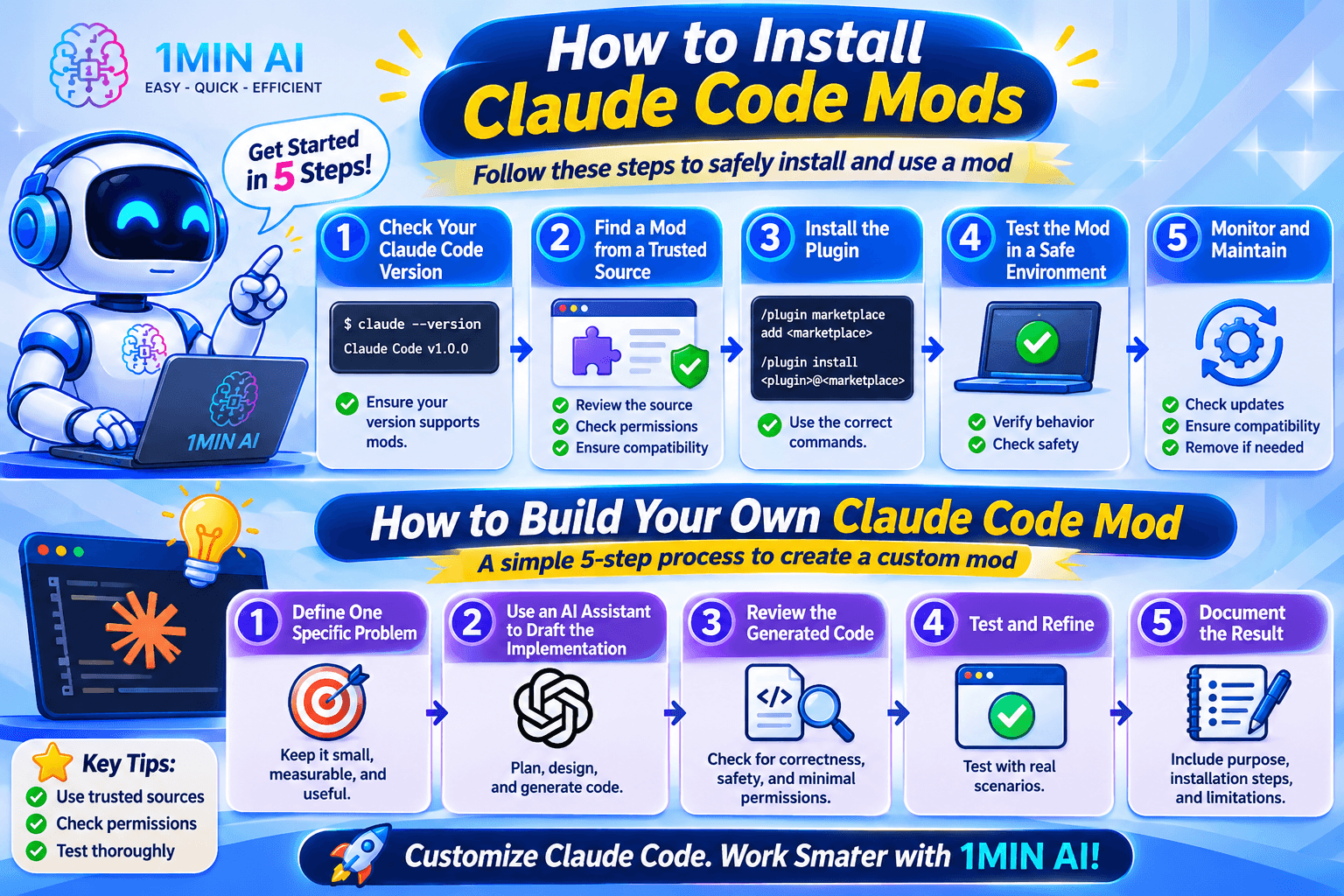
Step 1: Check your Claude Code version
Use the command-line interface to check your installed version:
claude --version
Anthropic's October 2026 announcement describes mods as available in the Claude Code CLI and desktop app. Check the current official documentation for the minimum version and supported interface before following a tutorial, because support can vary by release.
Step 2: Find a mod from a trusted source
Look for mods in a trusted plugin marketplace or a repository maintained by a developer or organization you recognize.
Before installing, review:
- The source code and author.
- The permissions and tools the mod can access.
- Whether it reads or modifies files.
- Whether it sends data over the network.
- Whether it changes permission or tool-call behavior.
- Whether the mod is compatible with your version.
A listing or validation result does not automatically guarantee that a mod is safe.
Step 3: Install the plugin
For a mod distributed through a plugin marketplace, the installation process generally uses Claude Code's plugin commands.
A typical workflow looks like this:
/plugin marketplace add <marketplace-name>
/plugin install <plugin-name>@<marketplace-name>
Replace the placeholders with the actual marketplace and plugin identifiers provided by the publisher. Do not run commands copied from an unfamiliar source without checking what they do.
If you install a plugin while Claude Code is already running, you may need to reload plugins or start a new session, depending on the installation method and version.
Step 4: Test the mod in a safe environment
Start with a non-production project or a disposable test environment.
Verify that the mod performs the expected action, does not interfere with unrelated workflows, and handles errors safely.
For mods that intercept tool calls or modify prompts, test both normal and unexpected inputs. Confirm that critical safety rules remain effective.
Step 5: Monitor and maintain the mod
Mods can depend on application behavior that changes across releases. Recheck compatibility after upgrades, review updates before applying them, and remove extensions that are no longer needed.
For team environments, establish a clear policy for which plugin sources and mods are approved.
How to Build Your Own Claude Code Mod
If no existing mod solves your problem, you can create a custom one. Anthropic's documentation provides the supported event system and API for developing mods.
A useful first project is a small, transparent customization rather than a complex extension that modifies multiple behaviors at once.
Step 1: Define one specific problem
Choose a task that is frequent, measurable, and small enough to test.
Examples include:
- Displaying a simple session status.
- Adding a project-specific command.
- Showing a reminder before a risky operation.
- Formatting selected tool output for easier reading.
Write down the expected behavior before you start coding.
Step 2: Ask an AI assistant to draft the implementation
You can use an AI coding assistant to help plan the mod, write TypeScript, explain the event lifecycle, and generate tests.
For example, use this prompt:
Help me design a Claude Code mod for the following use case: [describe the problem].
First, explain whether a mod is necessary or whether a skill, hook, or existing plugin would be simpler.
If a mod is appropriate:
- Identify the relevant supported events and APIs from the current official documentation.
- Propose the smallest viable implementation.
- Explain every permission, file operation, network request, and tool-call interaction.
- Generate the required plugin files.
- Include tests for expected behavior, unexpected inputs, and failure cases.
- Explain how to install and disable the mod.
Do not invent undocumented APIs. If an API detail is uncertain, flag it for verification instead of guessing.
This approach encourages the model to justify the design before producing code.
Step 3: Review the generated code
Do not assume that AI-generated code is correct simply because it compiles.
Check that it uses supported APIs, handles errors appropriately, and performs only the actions needed for the intended feature.
Pay particular attention to code that reads environment variables, accesses project files, makes network requests, or modifies permission decisions.
Step 4: Test and refine
Test the mod with representative inputs. If it changes a tool call, verify both the permitted and blocked paths. If it adds UI, check that the interface remains usable when data is missing or an operation fails.
Ask the AI assistant to explain test failures, but verify proposed fixes yourself.
Step 5: Document the result
A maintainable mod should include a description of its purpose, installation steps, permissions, configuration options, and known limitations.
If other developers will use it, provide clear instructions for disabling it and reporting problems.
Use AI Coding Tools to Build Mods Faster
Building a mod requires understanding the problem, selecting the right extension mechanism, writing code, and testing the result. AI coding tools can assist with each stage.
For example, an AI assistant can help you:
- Translate a workflow problem into technical requirements.
- Compare mods, hooks, and skills.
- Draft TypeScript and plugin configuration.
- Explain unfamiliar APIs.
- Generate test cases.
- Review code for potential security issues.
- Document installation and maintenance procedures.
The most effective approach is iterative. Ask the AI to explain the design, generate a small implementation, and then help diagnose specific test failures. This is generally more reliable than asking it to create a large, complicated mod in a single pass.
Explore AI assistance for software development with 1minAI
If you want help planning or coding a mod, 1minAI offers several relevant starting points.
- AI Agent for Software Development: Explore AI-assisted software-development workflows for coding tasks, debugging, and implementation planning.
- Free AI Chat with Claude 5 Fable: Try an available Claude model through 1minAI for discussing architecture, drafting code, and reviewing implementation ideas.
- Free AI Chat with Claude 5 Fable by Anthropic: Explore this dedicated Claude chat option and check its current model and access details.
- AI Chat with Claude 3.5 Sonnet: Access the dedicated Claude 3.5 Sonnet page when you want to explore that model for coding assistance.
- Free AI API for Developers: Review developer API options if you want to investigate integrating AI into a separate tool or application.
Model availability, pricing, and access conditions may change. Check each page for current details. Also, a model available through a chat interface is not automatically integrated into your local Claude Code environment; you may need a separate supported API or integration for that workflow.
Conclusion
Claude Code mods give developers more control over how their AI coding environment behaves. They can support custom interfaces, event handling, workflow safeguards, and shortcuts tailored to a team's needs.
The best way to get started is to identify one recurring problem, check whether an existing plugin or skill already solves it, and build a small mod only when deeper customization is necessary. Review permissions carefully, test the implementation, and keep it compatible with your development environment.
If you want help planning or implementing a customization, explore 1minAI's AI Agent for Software Development or use an available Claude AI chat workflow to discuss the design, draft code, and review potential issues.
Build a smaller, safer customization first—and expand it only when it proves useful.
- #Information
- #Commerce
Alternatives
Discover the best alternatives to 1minAI and compare features, pricing, and use cases.

1min.AI vs OpenRouter
1min.AI vs. OpenRouter: Compare the ready-to-use AI creation product against the technical API tool. Find out if you need a zero-code creative studio or a coding infrastructure hub.
 Ngoc Hong
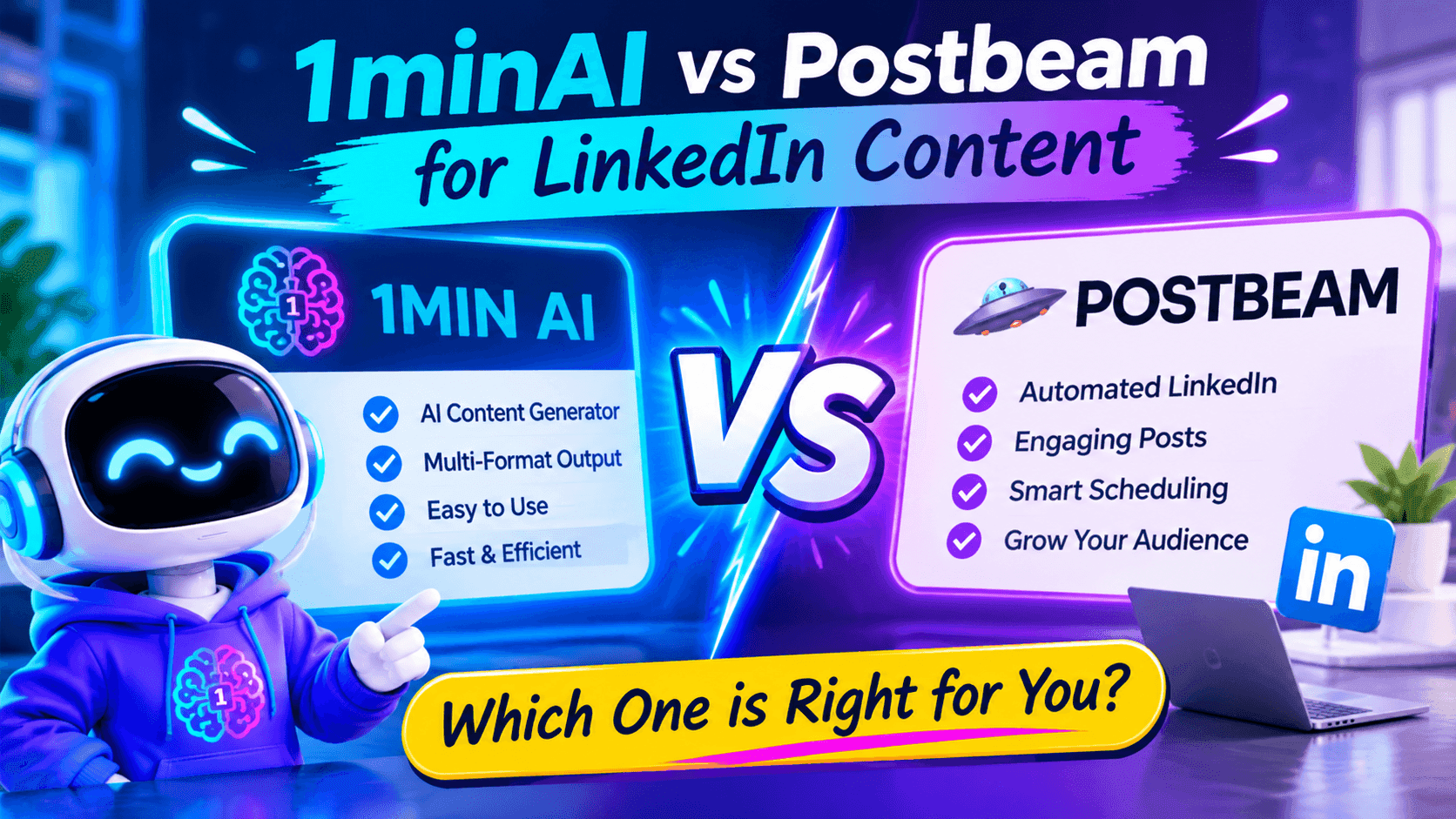
1minAI vs Postbeam for LinkedIn Content
Looking for a Postbeam alternative? Compare 1minAI vs Postbeam for AI LinkedIn content creation, research, image generation, scheduling, and B2B workflows.
 Tram Ta

1minAI vs Buffer for LinkedIn Content Creation
Looking for a Buffer alternative? Compare 1minAI vs Buffer for LinkedIn content creation, AI writing, image generation, scheduling, and automation.
Tram TaAI Tools
Discover the best AI tools to boost productivity, creativity, and everyday work.
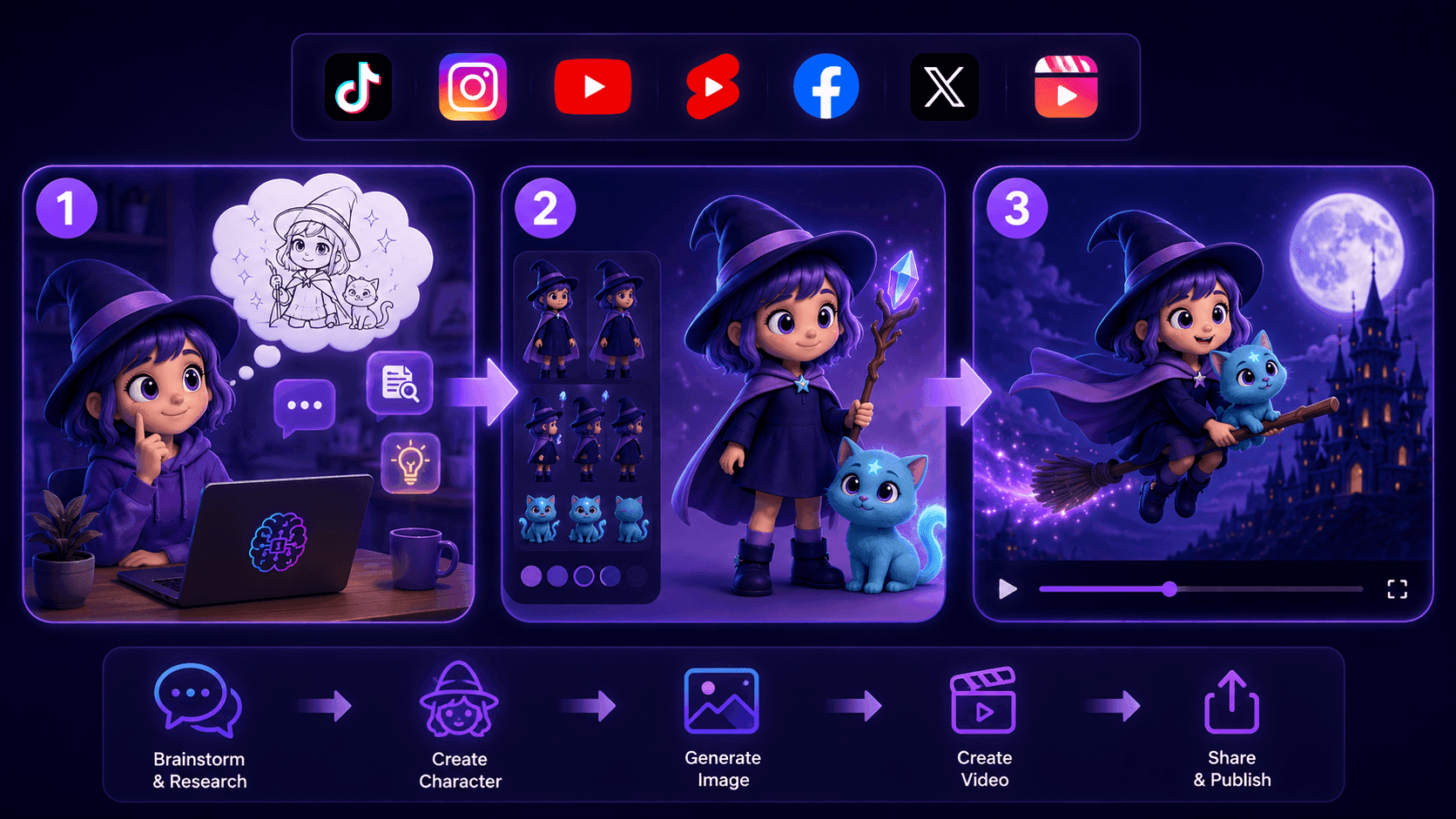
Create Consistent Cartoon Content in Just a Few Steps
Create engaging cartoon videos for TikTok and Reels with 1min.AI. Research ideas, create characters, and turn images into animated videos in 3 simple steps.
 Lien Anh Vu
One Product, 10 UGC Creatives: How AI Makes Content Testing Easier
Create more authentic UGC with an AI UGC video generator, test more creative angles and scale affiliate content without filming every version.
Lien Anh Vu
Top 4 Affordable AI Tools for Startup Founders
Discover the top 4 affordable AI tools for startup founders to validate ideas, build products, create content, and launch faster without overspending.
Tram TaAI Features
Comprehensive AI features that streamline workflows, improve efficiency, and empower teams to achieve more.
Create Consistent Cartoon Content in Just a Few Steps
Create engaging cartoon videos for TikTok and Reels with 1min.AI. Research ideas, create characters, and turn images into animated videos in 3 simple steps.
Lien Anh VuOne Product, 10 UGC Creatives: How AI Makes Content Testing Easier
Create more authentic UGC with an AI UGC video generator, test more creative angles and scale affiliate content without filming every version.
Lien Anh Vu
1minAI: Free AI Grammar Checker
Check grammar for free with 1minAI’s AI grammar checker. Find grammar, spelling, and writing mistakes, improve clarity, and polish your content in seconds.
Tram TaAI Use Cases
A curated collection of AI use cases for business, productivity, and industry-specific applications.
Create Consistent Cartoon Content in Just a Few Steps
Create engaging cartoon videos for TikTok and Reels with 1min.AI. Research ideas, create characters, and turn images into animated videos in 3 simple steps.
Lien Anh VuOne Product, 10 UGC Creatives: How AI Makes Content Testing Easier
Create more authentic UGC with an AI UGC video generator, test more creative angles and scale affiliate content without filming every version.
Lien Anh Vu
Best Time to Post on Instagram: A Practical Guide for Better Engagement
Discover the best time to post on Instagram, including the best days and times for different audiences, plus tips to find the ideal posting schedule for your account.
Tram TaAI Tutorials
Learn how to use AI with practical, step-by-step tutorials.

Black Friday AI Tool Deals in 2026
Discover what Black Friday AI tool deals 2026 has to offer. Find out how to secure the 1min.AI lifetime deal via AppSumo, Dealify, Stack Social, and verify on Trustpilot, Slashdot, and Software Advice.
 Hang Nguyen
Create Consistent Cartoon Content in Just a Few Steps
Create engaging cartoon videos for TikTok and Reels with 1min.AI. Research ideas, create characters, and turn images into animated videos in 3 simple steps.
Lien Anh Vu
[Seedance 2.5 New] Better AI Product Videos, Less Rework in 1min.AI
Use Seedance 2.5 image to video on 1min.AI to create more consistent AI product videos, reduce failed generations, save credits, and improve UGC workflows.
Lien Anh VuAI Guides
Learn AI faster with practical guides, real-world examples, and actionable best practices.

Safely Buy AI Tools Online: 2026 Black Friday Guide
Discover how to find and secure the best Black Friday AI deals online. Learn expert strategies to avoid scams, combat subscription fatigue, and verify software.
Hang NguyenCreate Consistent Cartoon Content in Just a Few Steps
Create engaging cartoon videos for TikTok and Reels with 1min.AI. Research ideas, create characters, and turn images into animated videos in 3 simple steps.
Lien Anh Vu[Seedance 2.5 New] Better AI Product Videos, Less Rework in 1min.AI
Use Seedance 2.5 image to video on 1min.AI to create more consistent AI product videos, reduce failed generations, save credits, and improve UGC workflows.
Lien Anh VuAI Solutions
Browse the best AI solutions for automation, coding, research, productivity, customer support, marketing, and business workflows.
Safely Buy AI Tools Online: 2026 Black Friday Guide
Discover how to find and secure the best Black Friday AI deals online. Learn expert strategies to avoid scams, combat subscription fatigue, and verify software.
Hang NguyenCreate Consistent Cartoon Content in Just a Few Steps
Create engaging cartoon videos for TikTok and Reels with 1min.AI. Research ideas, create characters, and turn images into animated videos in 3 simple steps.
Lien Anh VuOne Product, 10 UGC Creatives: How AI Makes Content Testing Easier
Create more authentic UGC with an AI UGC video generator, test more creative angles and scale affiliate content without filming every version.
Lien Anh VuAI Models
Explore the world's leading AI models in one place.
Create Consistent Cartoon Content in Just a Few Steps
Create engaging cartoon videos for TikTok and Reels with 1min.AI. Research ideas, create characters, and turn images into animated videos in 3 simple steps.
Lien Anh VuOne Product, 10 UGC Creatives: How AI Makes Content Testing Easier
Create more authentic UGC with an AI UGC video generator, test more creative angles and scale affiliate content without filming every version.
Lien Anh Vu[Seedance 2.5 New] Better AI Product Videos, Less Rework in 1min.AI
Use Seedance 2.5 image to video on 1min.AI to create more consistent AI product videos, reduce failed generations, save credits, and improve UGC workflows.
Lien Anh VuAI Comparisons
Compare AI tools, models, and platforms to find the best fit for your needs.

Kling AI Vs Veo 3: Which Model Wins?
Kling AI vs Veo 3: compare motion, native audio, pricing & free tiers to see which AI video generator wins for your project - try both on 1min.AI.
 Trang Tran
[Seedance 2.5 New] Better AI Product Videos, Less Rework in 1min.AI
Use Seedance 2.5 image to video on 1min.AI to create more consistent AI product videos, reduce failed generations, save credits, and improve UGC workflows.
Lien Anh Vu
DeepSeek V4 Pro vs Flash Comparison
Compare DeepSeek V4 Pro vs DeepSeek V4 Flash metrics. Optimize your agentic apps and improve AI fact checking on 1min.ai today.
Ngoc HongAI Integrations
Seamlessly integrate AI with the tools you already use to automate work and boost productivity.

POV: You Have 10+ Posts to Make Every Day
Learn how to build an AI content workflow that helps content creators produce 10+ social media posts a day faster with AI brainstorming, image generation, and content creation.
Lien Anh Vu
How to Use an AI Fashion Video Generator for Fashion Week 2026
Turn Fashion Week 2026 ideas into stunning fashion videos with AI. Learn how to brainstorm, create visuals, and transform images into videos with one simple workflow.
Lien Anh Vu
Stop Switching Between AI Apps: How AI Integration Transforms Employer Branding
Discover how AI integration helps HR teams streamline employer branding by combining AI writing, documents, images, video, and multiple AI models into one workspace.
Tram TaAI for Industries
Find the best AI tools and workflows for healthcare, finance, education, legal, manufacturing, retail, real estate, and more
Claude Startup Program: Benefits, Eligibility, and How Startups Can Build with Claude
Learn about the Claude Startup Program, including API credits, Claude Team benefits, eligibility, application steps, and AI tools startups can explore with 1minAI.
Tram Ta
TikTok Studio Analytics Tips for Better Content Performance
Learn how to use TikTok Studio Analytics to track views, watch time, and engagement. Turn your insights into better TikTok content with practical tips.
Lien Anh Vu
Text To Video AI Free Without Watermark Online
Create text to video AI free without watermark online with 1min.AI. Pick top models, turn prompts into HD clips, and download clean videos fast. Try it free.
Trang TranAI Agents
Discover and run AI agents to automate tasks across your work and daily life.
1minAI: Free AI Grammar Checker
Check grammar for free with 1minAI’s AI grammar checker. Find grammar, spelling, and writing mistakes, improve clarity, and polish your content in seconds.
Tram Ta
AI Agents for Facebook
Use an AI Agent for Facebook to create content, generate images, schedule posts, and publish from your documents and conversations.
Ngoc Hong
AI Agent vs AI Assistant: Which One Actually Saves Designers More Time?
Learn the difference between AI Agent vs AI Assistant and discover which solution helps designers automate repetitive work, reduce revisions, and save more time.
Lien Anh VuAI Workflows
Explore ready-to-use AI workflows for productivity, marketing, sales, support, and more.
Create Consistent Cartoon Content in Just a Few Steps
Create engaging cartoon videos for TikTok and Reels with 1min.AI. Research ideas, create characters, and turn images into animated videos in 3 simple steps.
Lien Anh VuOne Product, 10 UGC Creatives: How AI Makes Content Testing Easier
Create more authentic UGC with an AI UGC video generator, test more creative angles and scale affiliate content without filming every version.
Lien Anh VuPOV: You Have 10+ Posts to Make Every Day
Learn how to build an AI content workflow that helps content creators produce 10+ social media posts a day faster with AI brainstorming, image generation, and content creation.
Lien Anh VuNewsletter
Weekly AI Innovations with 1minAI

🔮 Weekly AI Innovations #144: LinkedIn Content Agent: Complete B2B Publishing Pipeline
Scale B2B influence with the LinkedIn Content Agent on 1min.ai. Discover an end-to-end 4-stage pipeline with zero redundant token burn and 1-click publishing.
Hang Nguyen
🔮 Weekly AI Innovations #143: Update GPT-6, GPT-6.1 & Ideogram 4.0
Access GPT-6 Sol, Luna, GPT-6.1 Sol, and Ideogram 4.0 on 1min.ai. Boost typography accuracy to 98.4% and cut reasoning latency by 45% in one platform.
Hang Nguyen
🔮 Weekly AI Innovations #142: Grok 4.7, Opus 5.5 & Sonnet 5.5 on 1min.ai
Access Grok 4.7, Claude Opus 5.5, and Sonnet 5.5 on 1min.ai. Cut subscription costs by up to 70% and process millions tokens in a single unified workspace.
Hang Nguyen