
Remove Unwanted Proof From Pictures With 1minAI

Tram Ta
August 28, 2026
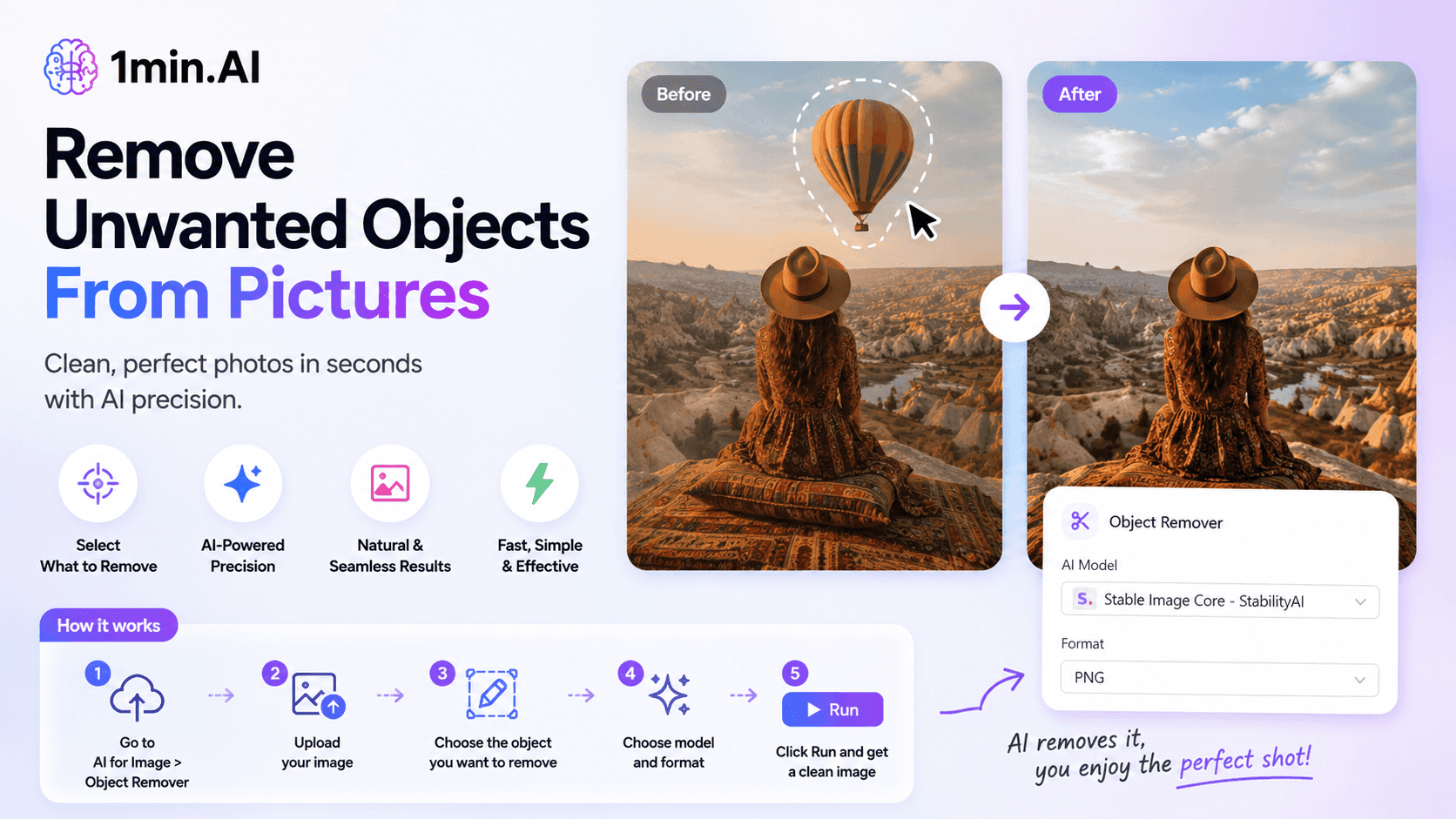
Remove unwanted objects, people, or watermarks from your pictures with 1minAI’s AI Object Remover. Upload, select, and clean your image in a few clicks.
Have you ever taken a great photo only to notice an unwanted object distracting from the main subject? It could be a person in the background, a sign, piece of text, watermark, or another object that you simply don't want in the final image.
Instead of opening complicated photo-editing software and manually removing it, you can use 1minAI Object Remover to clean up your picture with AI.
The tool lets you upload an image, select the object you want to remove, choose an AI model and output format, and generate an edited version in just a few steps.
Why Use an AI Object Remover?
Removing objects from a picture manually can take time, especially when the unwanted object overlaps with the background or other important elements.
An AI object remover can simplify this process by identifying the selected area and generating a replacement that blends with the surrounding image.
With 1minAI, you can use Object Remover to help:
- Remove unwanted people from photos
- Clean up distracting objects
- Remove text or signs
- Remove watermarks from images you own or have permission to edit
- Improve product and marketing images
- Clean up backgrounds
- Prepare images for social media and websites
How to Remove an Object From a Picture With 1minAI
Using the 1minAI Object Remover is straightforward.
Step 1: Go to AI for Image → Object Remover
Open 1minAI and select AI for Image from the menu.
Then choose Object Remover.
This opens the tool where you can upload your image and select the unwanted area.
Step 2: Upload Your Image
Upload the picture you want to edit.
1minAI supports common image formats, making it easy to work with photos and other visual assets.
Once the image is uploaded, it will appear in the Object Remover workspace.
Step 3: Select the Object You Want to Remove
Use the selection tool to mark the object you want to remove.
You can select the specific area that needs to be cleaned up rather than changing the entire image.
For example, you could select:
- A person in the background
- An unwanted object
- Text
- A distracting element
- Part of a background
The more accurately you select the unwanted area, the easier it is for the AI to understand what should be removed.
Step 4: Choose the AI Model and Format
After selecting the object, choose the available AI model for the image editing task.
You can also select your preferred output format, such as PNG.
These options let you control how the processed image is generated and exported.
Step 5: Click Run
Once everything is ready, click Run.
1minAI processes the image and generates the edited version with the selected object removed.
You can then review the result and use the cleaned-up image for your project.
Use Cases for 1minAI Object Remover
An AI object remover can be useful for more than simply cleaning up personal photos.
Social Media Content
Social media images often need to look clean and focused. Removing distracting people, objects, or background elements can make an image more suitable for posts, ads, and campaigns.
Product Images
Ecommerce and marketing teams can use object removal to clean up product photos or remove unwanted elements from a product scene.
This can help create more polished visuals without extensive manual editing.
Marketing Materials
Marketers can quickly clean images before using them in:
- Social media campaigns
- Blog posts
- Advertisements
- Landing pages
- Presentations
- Promotional materials
Personal Photos
For everyday photography, Object Remover can help remove photobombers, distracting objects, or other elements that take attention away from the main subject.
Make Image Cleanup Faster With 1minAI
Traditional photo editing can require multiple tools and detailed editing skills. 1minAI Object Remover provides a simpler AI-powered workflow: upload your picture, select what you want to remove, choose the model and format, and run the tool.
Whether you're a marketer, content creator, ecommerce seller, or simply want to clean up a personal photo, it can help turn an imperfect image into a cleaner visual with less manual editing.
Try 1minAI Object Remover and clean up your images in just a few clicks.
Alternatives
Discover the best alternatives to 1minAI and compare features, pricing, and use cases.

1min.AI vs OpenRouter
1min.AI vs. OpenRouter: Compare the ready-to-use AI creation product against the technical API tool. Find out if you need a zero-code creative studio or a coding infrastructure hub.
 Ngoc Hong
1min.AI vs Chatplayground AI
Compare 1min.AI (Voice Cloning, Object Removal, Team Plans) vs. ChatPlayground AI (14+ Models, Teams/O365 Integration). Discover the superior platform for predictable pricing and long-term content production growth.
Ngoc Hong
1min.AI vs Krater AI
Compare 1min.AI vs Krater AI features, pricing, AI models, and workflows to find the best all-in-one AI tool for content, design, and productivity.
Ngoc HongAI Tools
Discover the best AI tools to boost productivity, creativity, and everyday work.
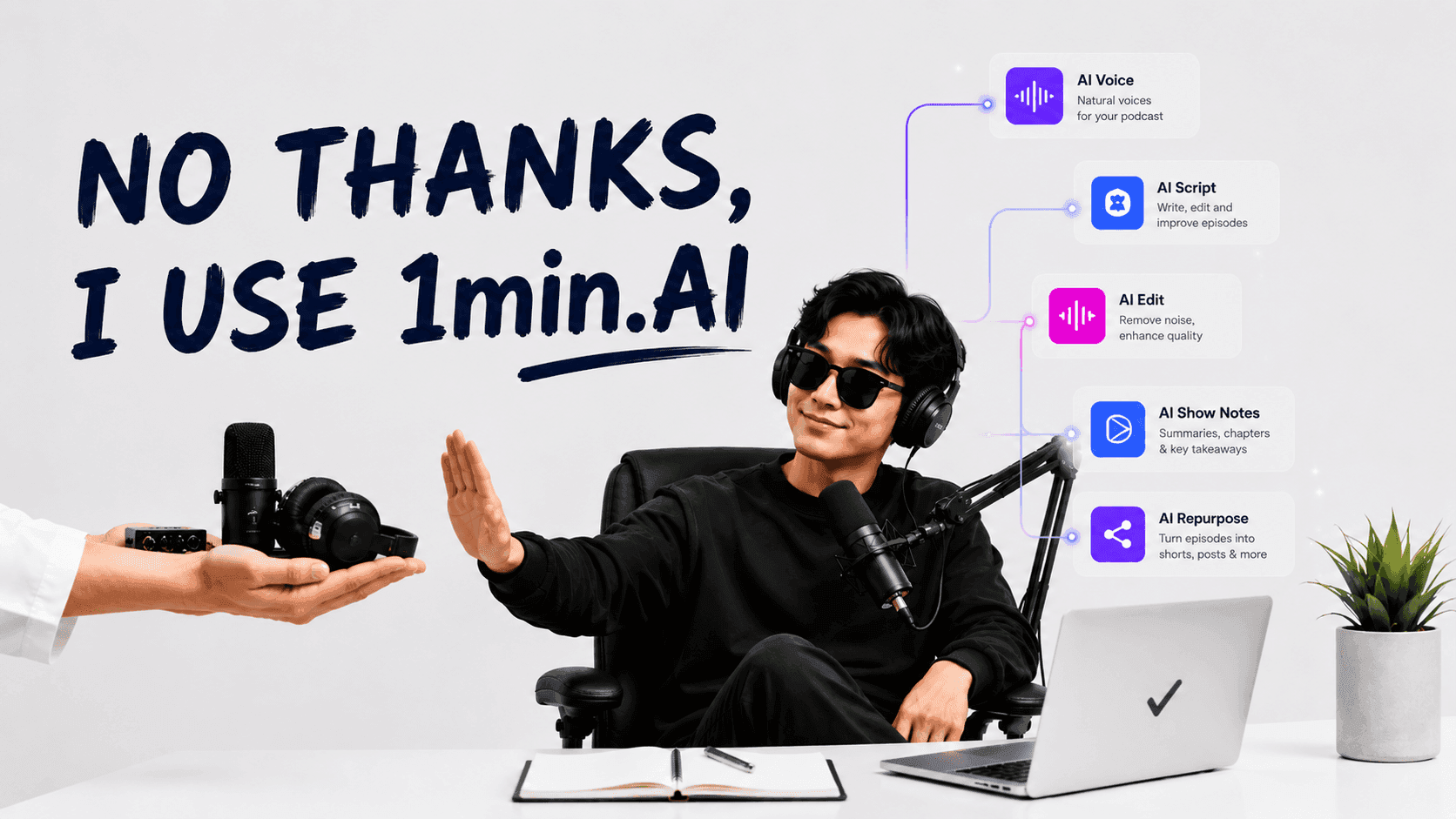
How to Create a Podcast Without Expensive Equipment
Learn how to create a podcast without expensive equipment using AI for scripting, voice, video, editing, and content repurposing with 1min.AI.
 Lien Anh Vu
Free AI Character Generator - No Signup
Generate an AI character free from text or photo prompts. Try 1min.AI's AI character generator with multiple models, no design skills needed.
 Trang Tran
Turn “Make It Better” Into Better Content With AI
Use AI to turn vague client feedback into clear revisions, reduce unnecessary edits, and deliver better content faster.
Lien Anh VuAI Features
Comprehensive AI features that streamline workflows, improve efficiency, and empower teams to achieve more.
Remove Unwanted Proof From Pictures With 1minAI
Remove unwanted objects, people, or watermarks from your pictures with 1minAI’s AI Object Remover. Upload, select, and clean your image in a few clicks.
 Tram Ta
Create, Edit and Transform Images with AI in One Workspace
Explore how Photo AI can simplify image creation and editing. Discover how 1minAI combines image generation, editing, and multiple AI models in one workspace.
 Uyen Hoang
Create Better Prompts by Testing Multiple AI Models
Looking for a prompt generator? Learn how to create, test, and refine AI prompts across multiple models with 1minAI’s Multi AI Chat.
Uyen HoangAI Use Cases
A curated collection of AI use cases for business, productivity, and industry-specific applications.
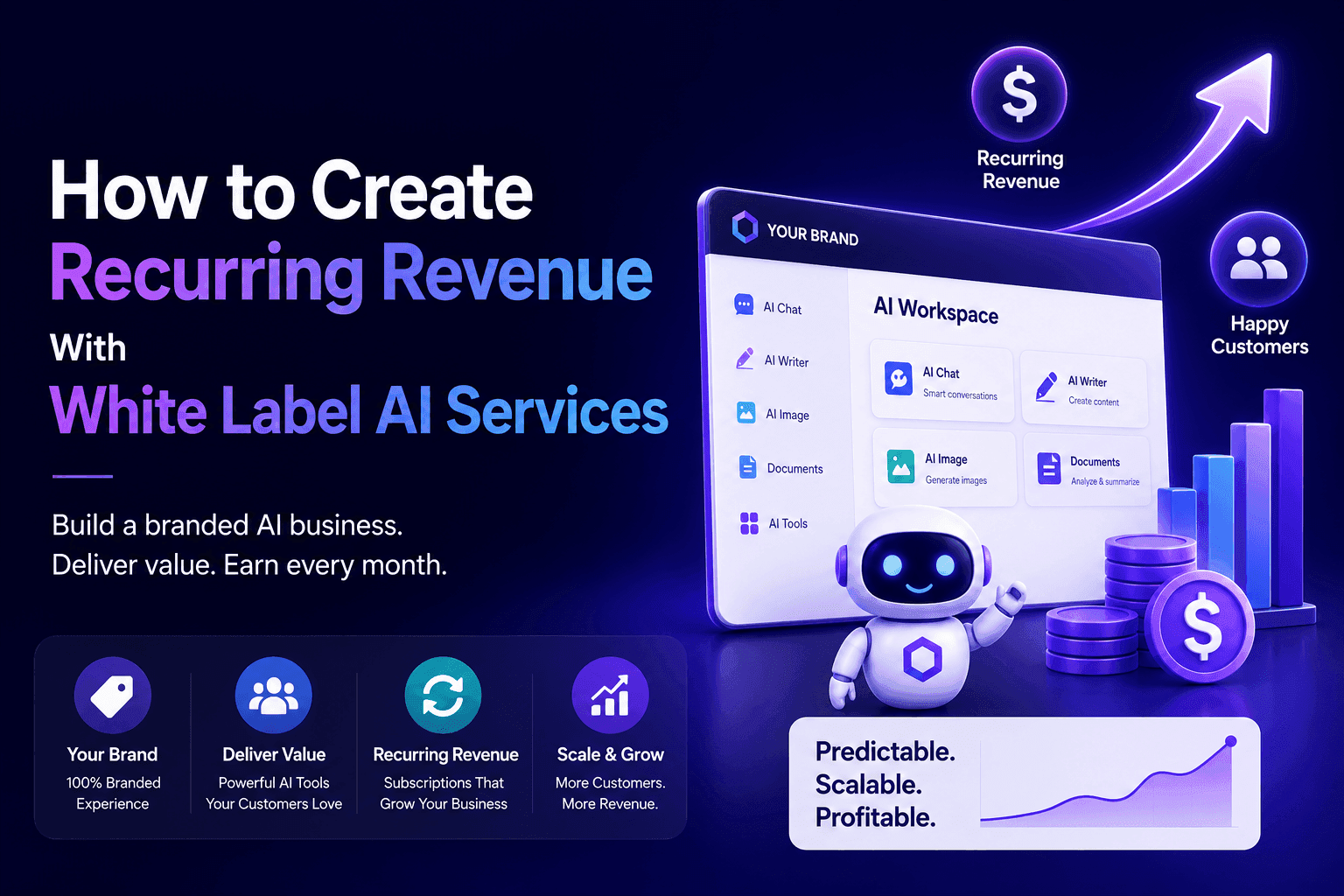
How to Create Recurring Revenue With White Label AI Services
Learn how to create recurring revenue with white label AI services using subscriptions, AI-as-a-service, usage-based pricing, managed services, training, and support.
Tram Ta
1min.AI vs QuillBot for Korean-to-English Translation
Compare 1min.AI vs QuillBot for Korean-to-English translation, including limits, document workflows, AI models, and long-form translation needs.
Ngoc Hong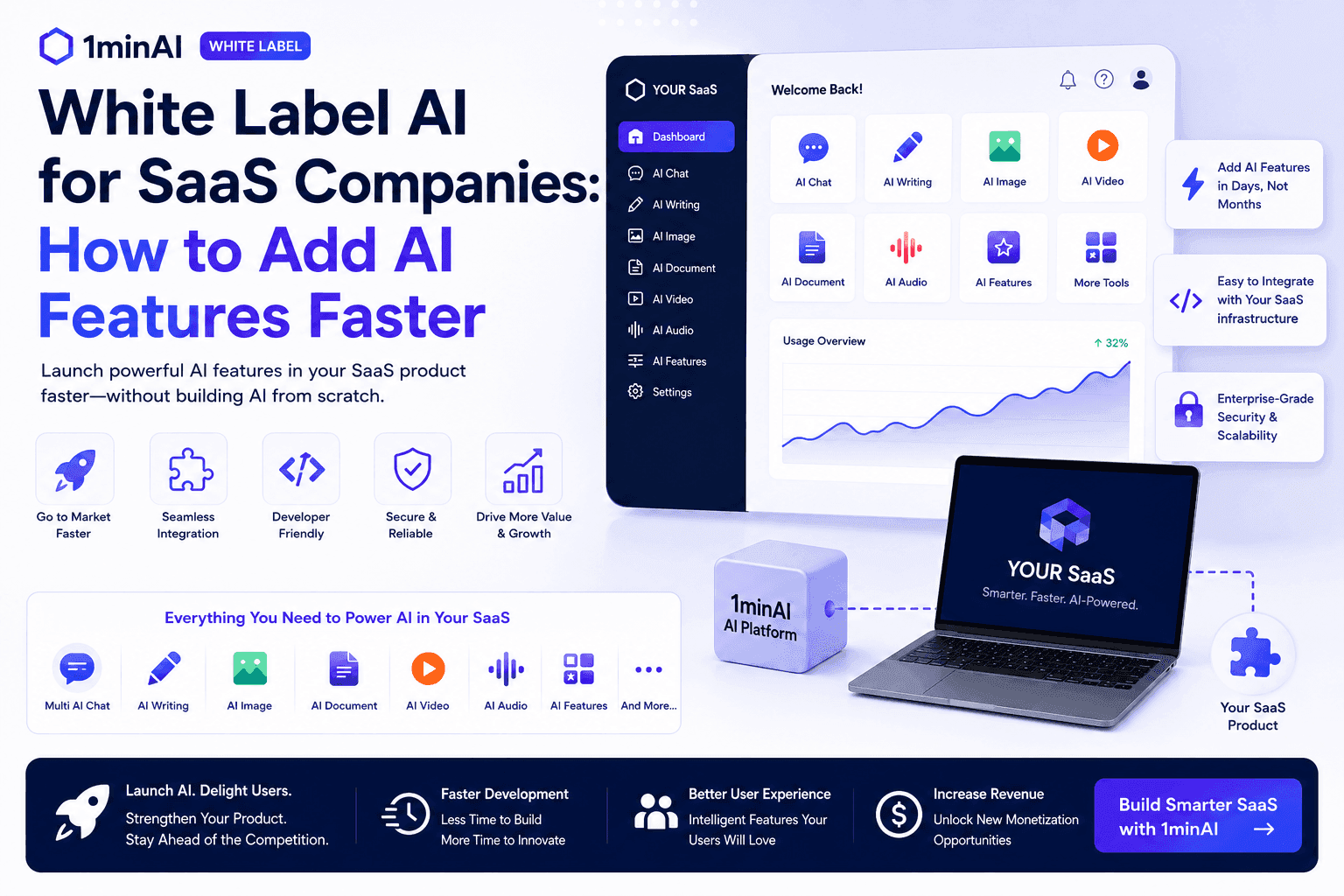
White Label AI for SaaS Companies: How to Add AI Features Faster
Discover how white label AI for SaaS companies can help you add AI features faster without building AI infrastructure from scratch. Learn what to consider and how 1minAI can help.
Tram TaAI Tutorials
Learn how to use AI with practical, step-by-step tutorials.
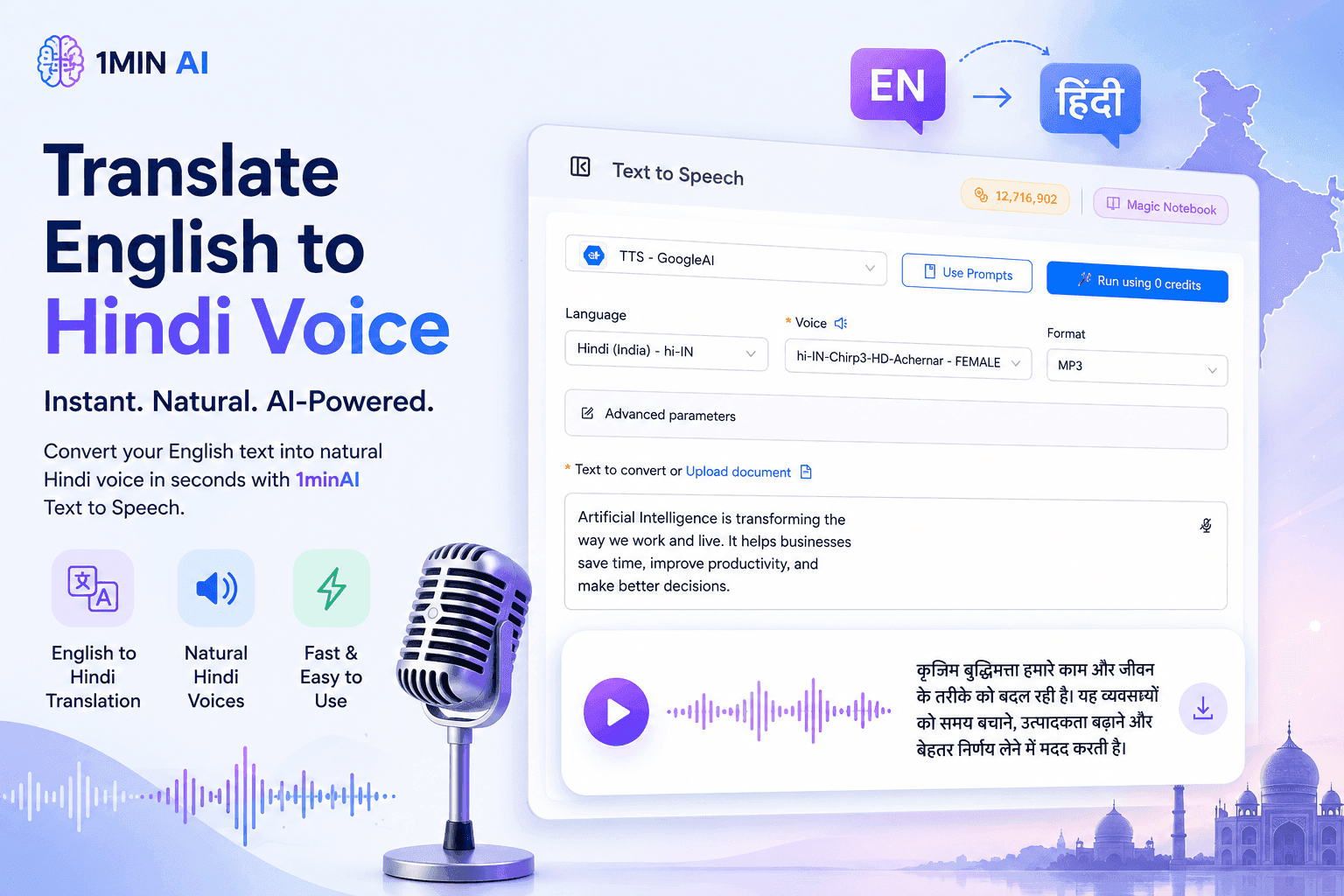
Translate English to Hindi Voice With 1minAI
Translate English to Hindi and convert your text into natural-sounding Hindi voice with 1minAI. Choose a Hindi voice, paste your text, and generate audio in seconds.
Tram Ta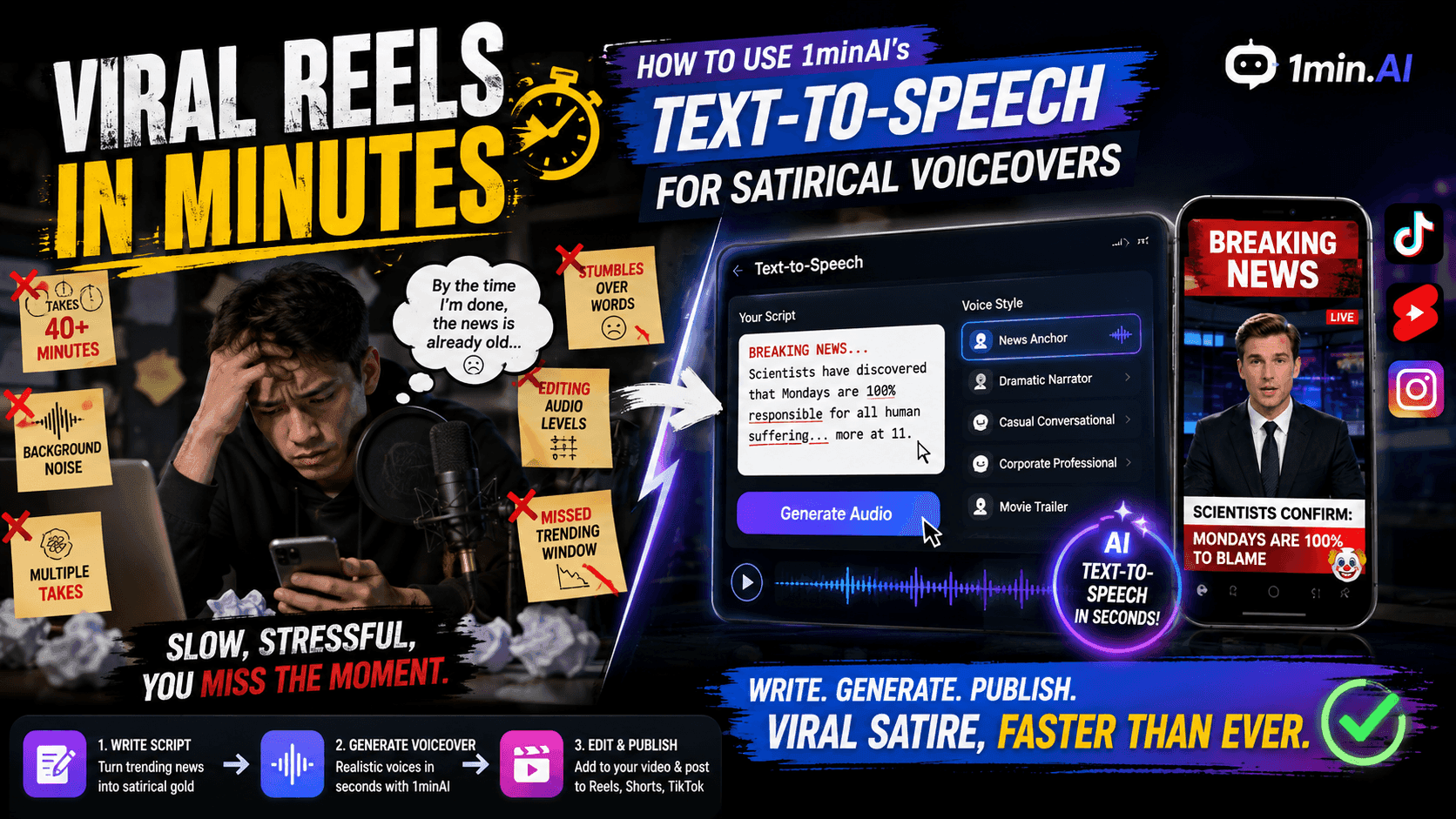
Viral Reels in Minutes: How to Use 1minAI’s Text-to-Speech for Satirical Voiceovers
Learn how satirical page admins use 1minAI’s Text-to-Speech feature to generate instant news anchor and dramatic voiceovers for TikToks, Shorts, and Instagram Reels.
Uyen Hoang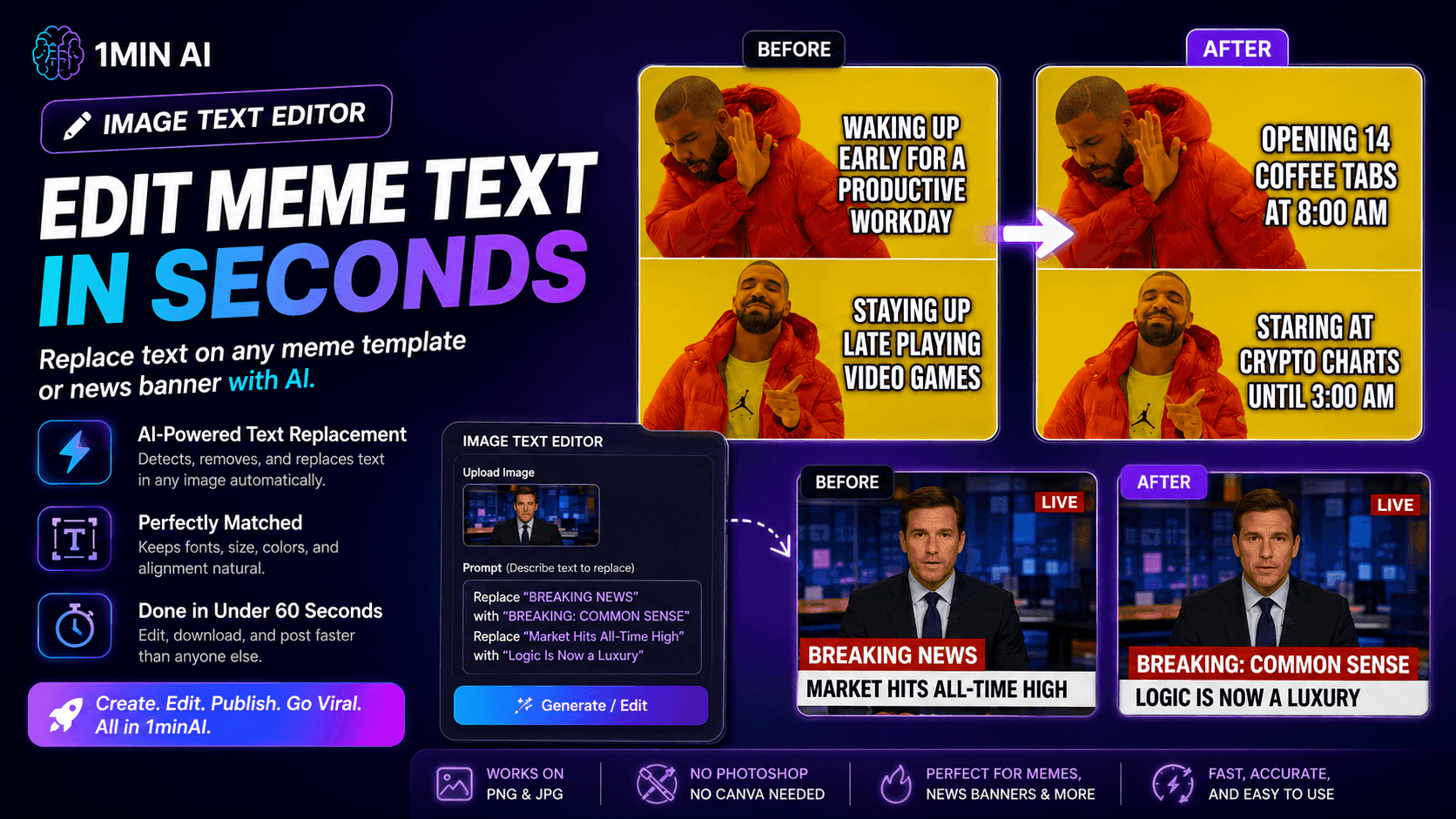
No Photoshop Needed: How to Use 1minAI’s Image Text Editor for Instant Meme Customization
Stop wasting time opening Photoshop or Canva to edit meme captions. Learn how 1minAI’s Image Text Editor replaces text on any meme template or news banner in seconds.
Uyen HoangAI Guides
Learn AI faster with practical guides, real-world examples, and actionable best practices.
How to Create a Podcast Without Expensive Equipment
Learn how to create a podcast without expensive equipment using AI for scripting, voice, video, editing, and content repurposing with 1min.AI.
Lien Anh Vu
How to Sell AI Tools Under Your Own Brand: A Practical Guide to White Label AI
Learn how to sell AI tools under your own brand with white label AI. Discover how branding, packaging, pricing, onboarding, and recurring revenue work.
Tram Ta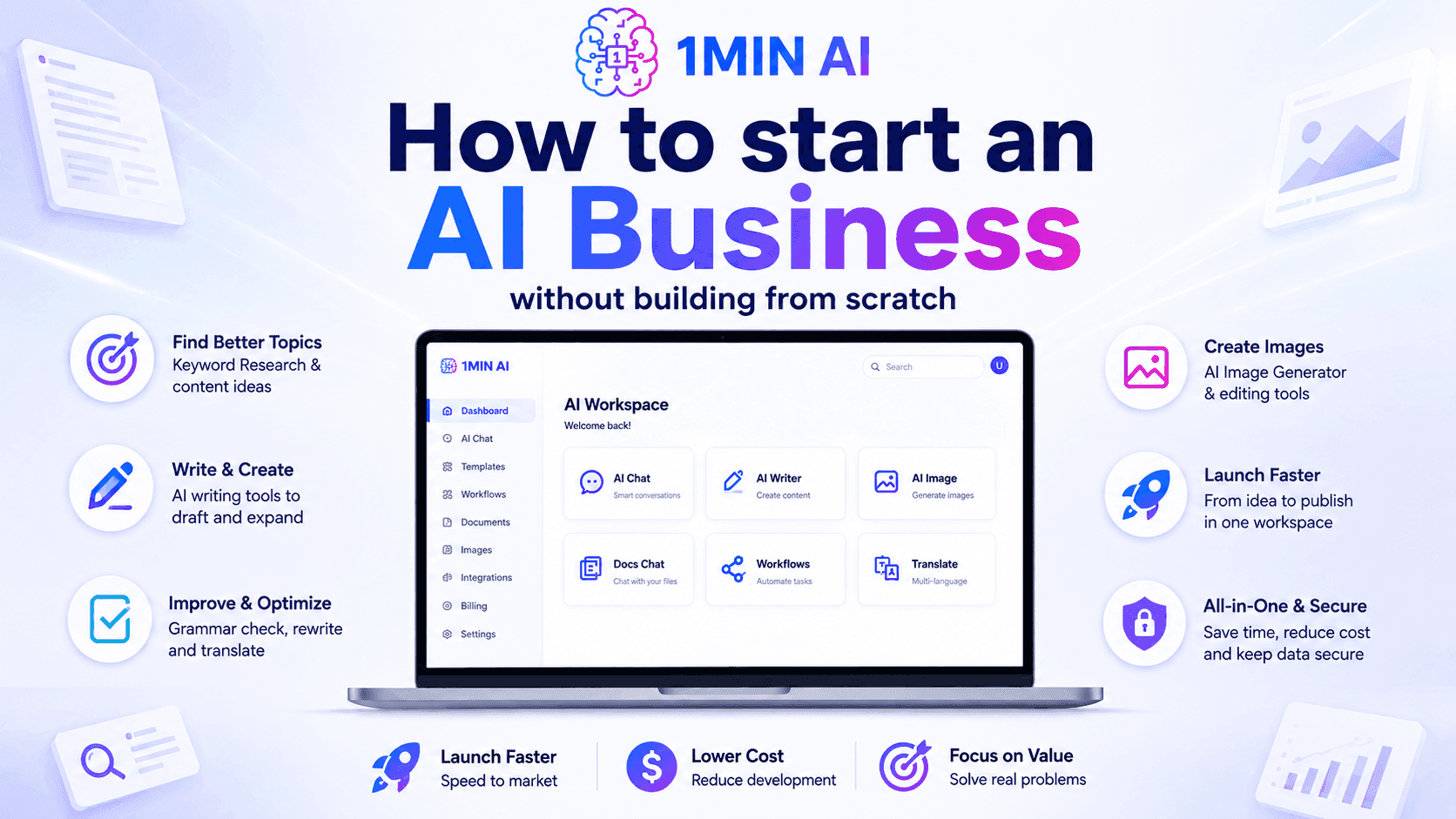
How to start an AI business without building from scratch
Learn how to start an AI business, validate your idea, and launch faster without building costly AI infrastructure from scratch.
Ngoc HongAI Solutions
Browse the best AI solutions for automation, coding, research, productivity, customer support, marketing, and business workflows.
How to Create Recurring Revenue With White Label AI Services
Learn how to create recurring revenue with white label AI services using subscriptions, AI-as-a-service, usage-based pricing, managed services, training, and support.
Tram Ta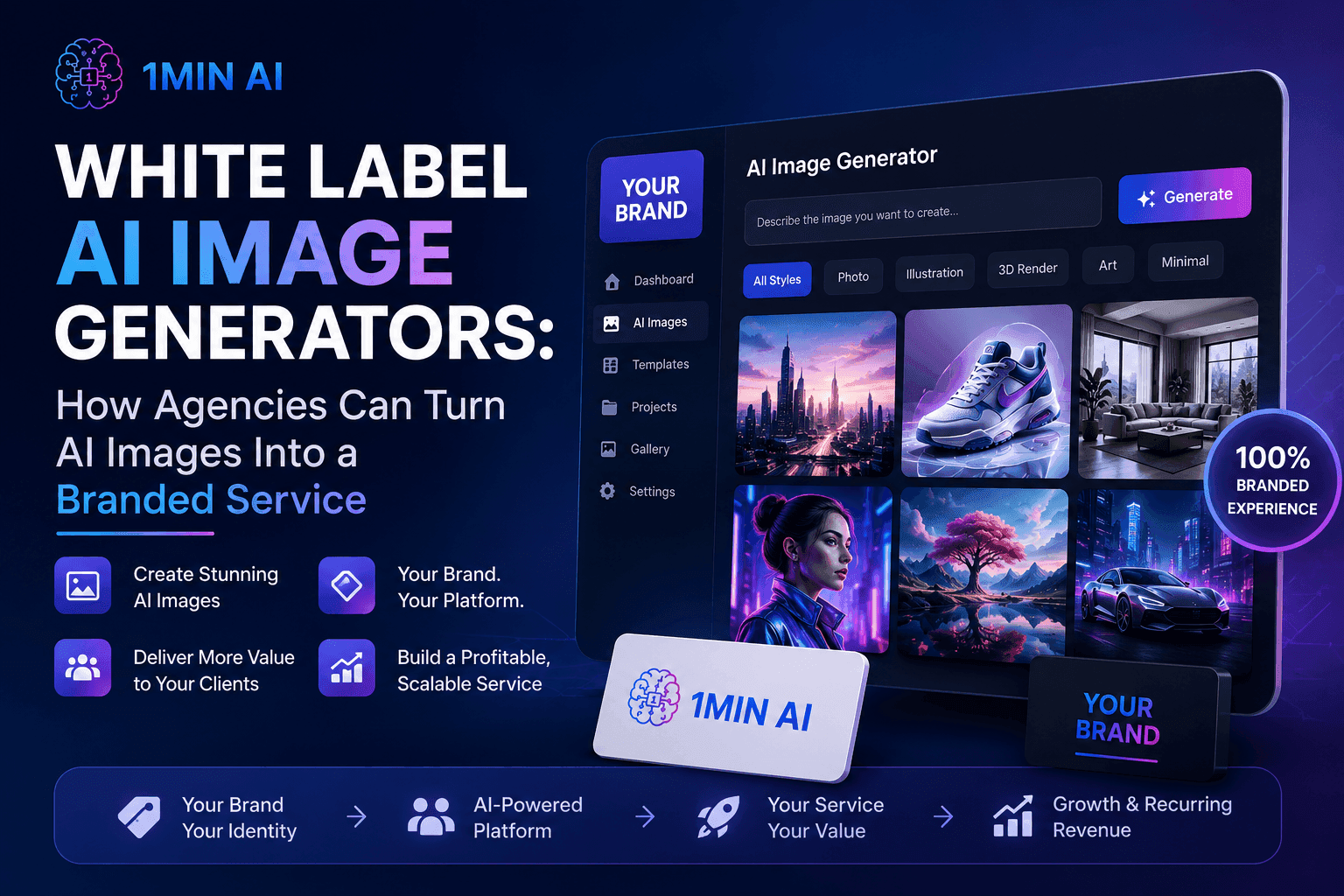
White Label AI Image Generators: How Agencies Can Turn AI Images Into a Branded Service
Learn how agencies can use a white label AI image generator to offer branded creative services for ecommerce, social media, advertising, and branding clients.
Tram TaHow to Create a Podcast Without Expensive Equipment
Learn how to create a podcast without expensive equipment using AI for scripting, voice, video, editing, and content repurposing with 1min.AI.
Lien Anh VuAI Models
Explore the world's leading AI models in one place.
How to Create a Podcast Without Expensive Equipment
Learn how to create a podcast without expensive equipment using AI for scripting, voice, video, editing, and content repurposing with 1min.AI.
Lien Anh Vu
CLAUDE 4.7 OPUS - AWS BEDROCK US
Deploy Claude 4.7 Opus on AWS Bedrock US. Discover enterprise AI infrastructure, advanced coding, adaptive thinking, secure inference, and seamless AWS integration.
Ngoc Hong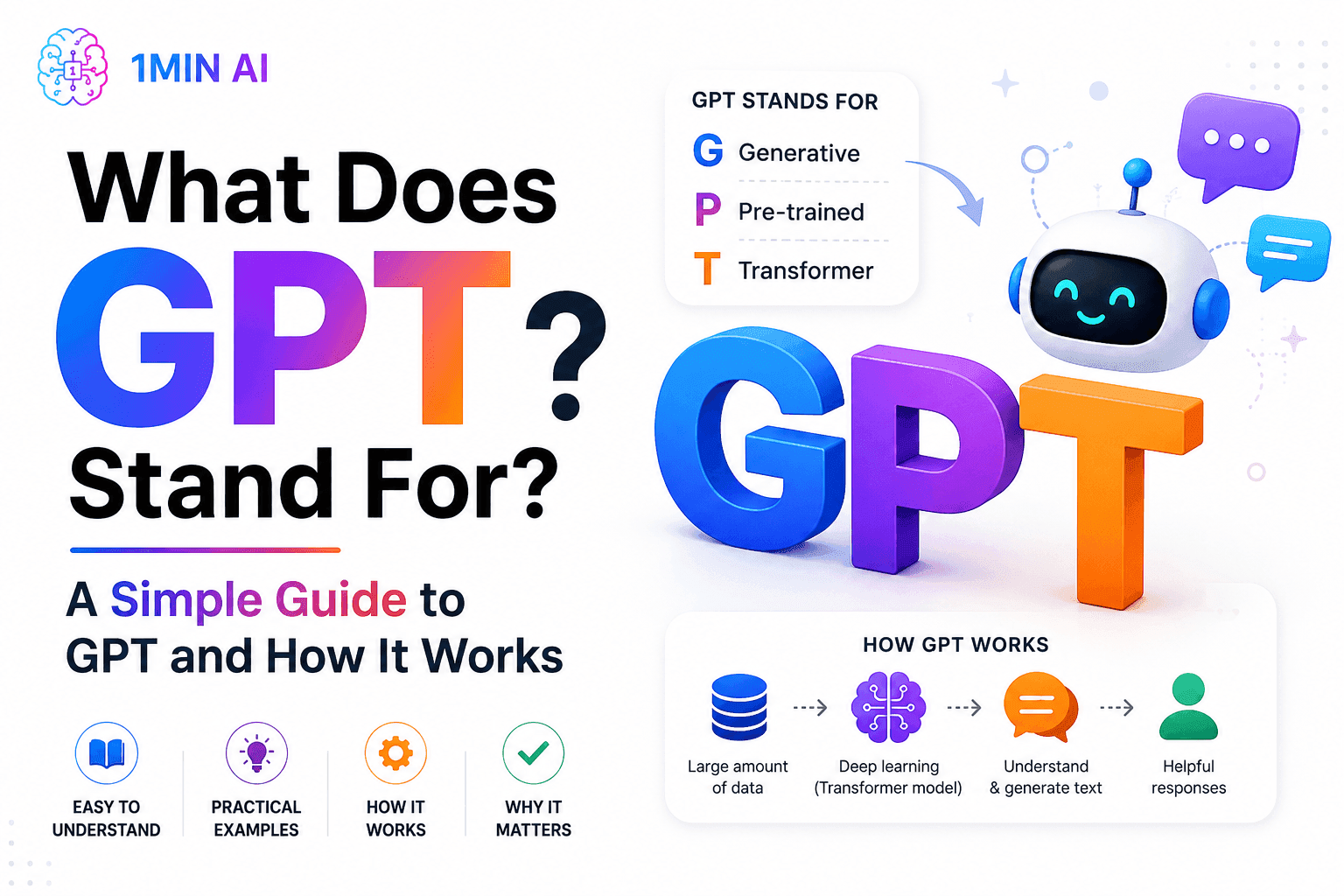
What Does GPT Stand For? A Simple Guide to GPT and How It Works
What does GPT stand for? Learn what GPT means, how Generative Pre-trained Transformer technology works, and why GPT models are important to modern AI.
Tram TaAI Comparisons
Compare AI tools, models, and platforms to find the best fit for your needs.
AI Voice Cloning vs. Voice Changer: Which Drives Higher Retention on Short-Form Parody Videos?
AI Voice Cloning vs. Voice Changer: discover which AI voice tool is better for short-form parody videos, audience retention, character consistency, and faster content production.
Uyen Hoang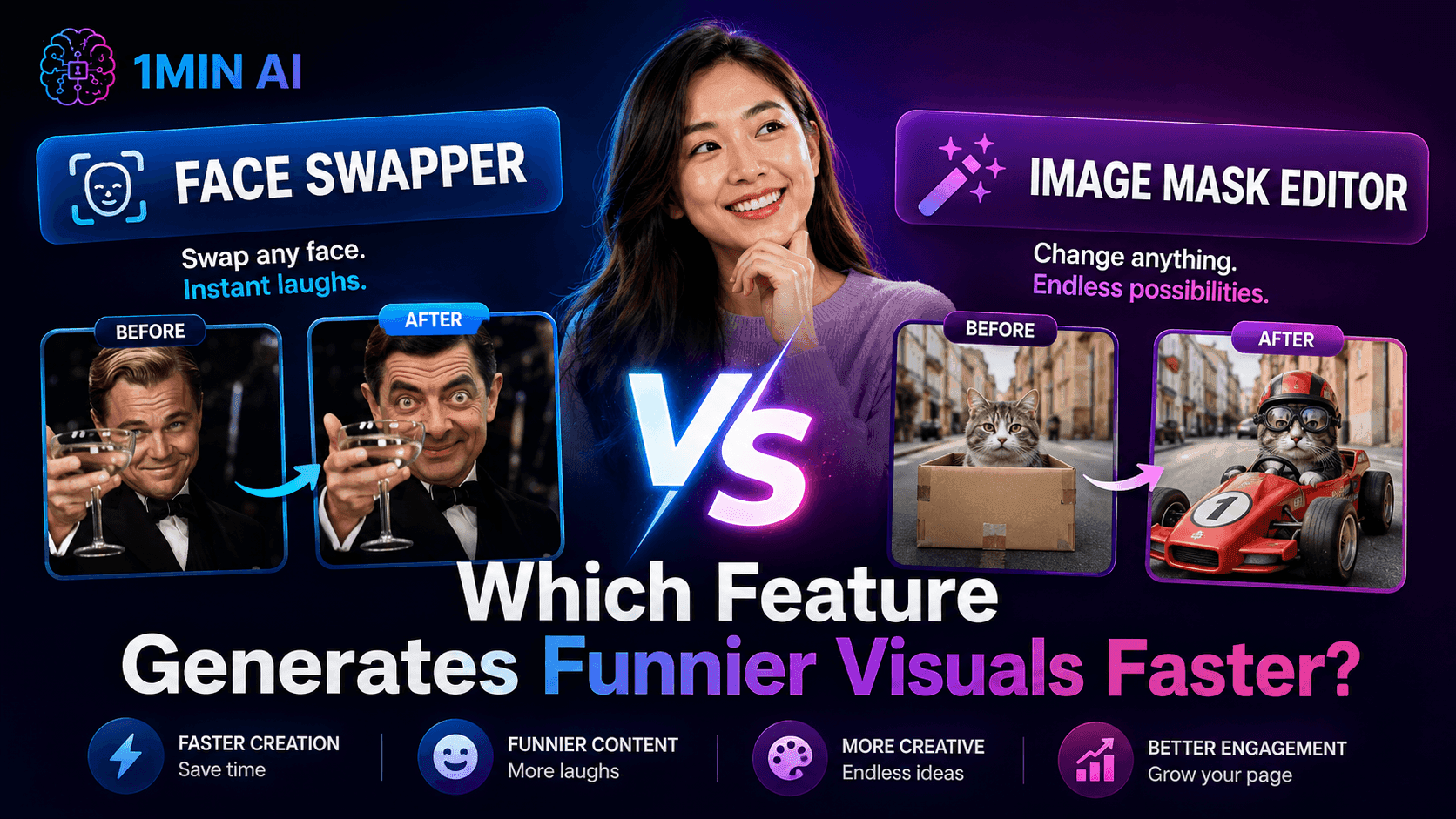
Face Swapper vs. Image Mask Editor: Which Feature Generates Funnier Visual Content Faster?
Face Swapper vs. Image Mask Editor: discover which AI image editing feature is faster for memes, satire, social content, and creative visual campaigns
Uyen Hoang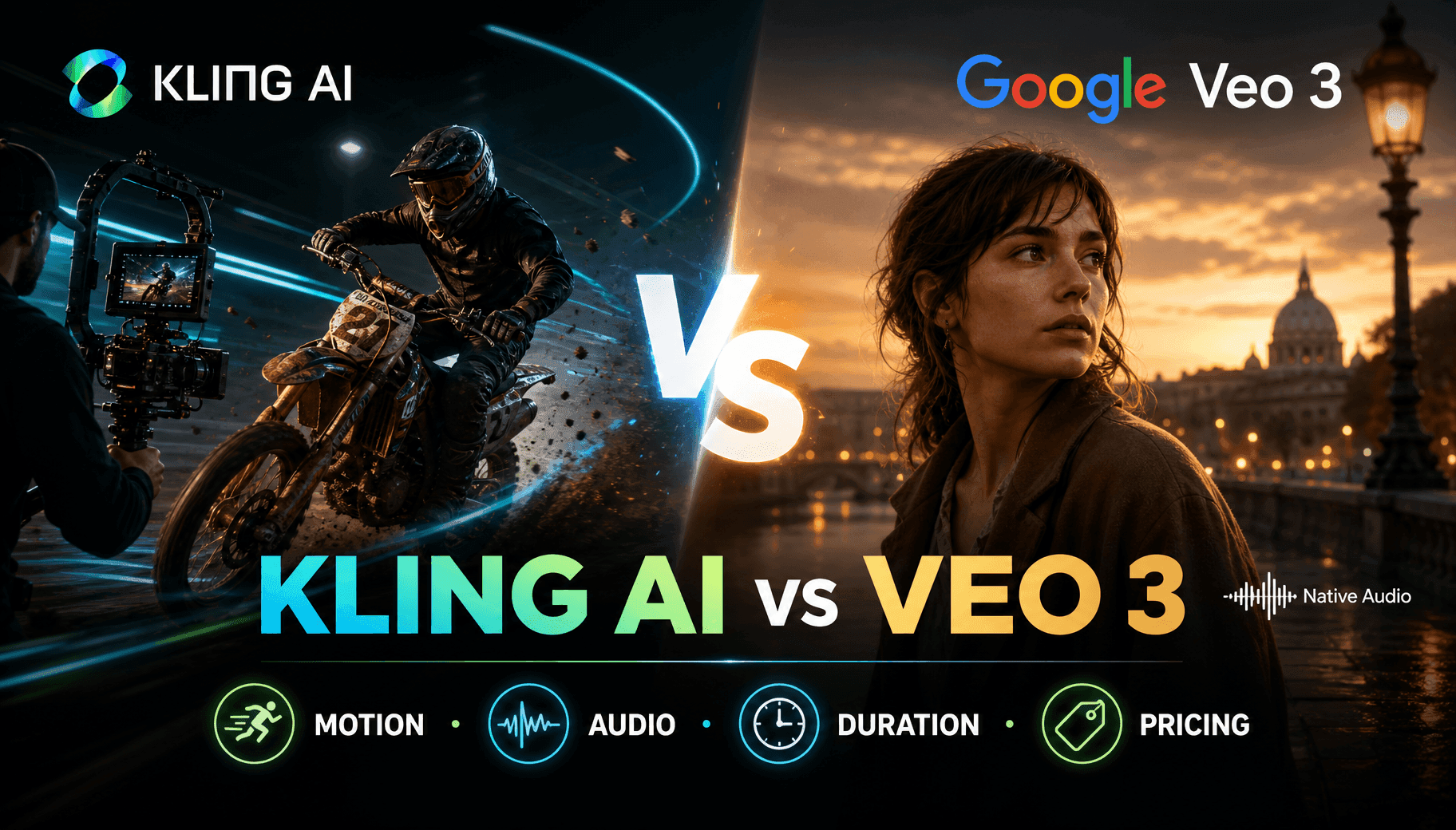
Kling AI Vs Veo 3: Which Model Wins?
Kling AI vs Veo 3: compare motion, native audio, pricing & free tiers to see which AI video generator wins for your project - try both on 1min.AI.
Trang TranAI Integrations
Seamlessly integrate AI with the tools you already use to automate work and boost productivity.
How to Create a Podcast Without Expensive Equipment
Learn how to create a podcast without expensive equipment using AI for scripting, voice, video, editing, and content repurposing with 1min.AI.
Lien Anh Vu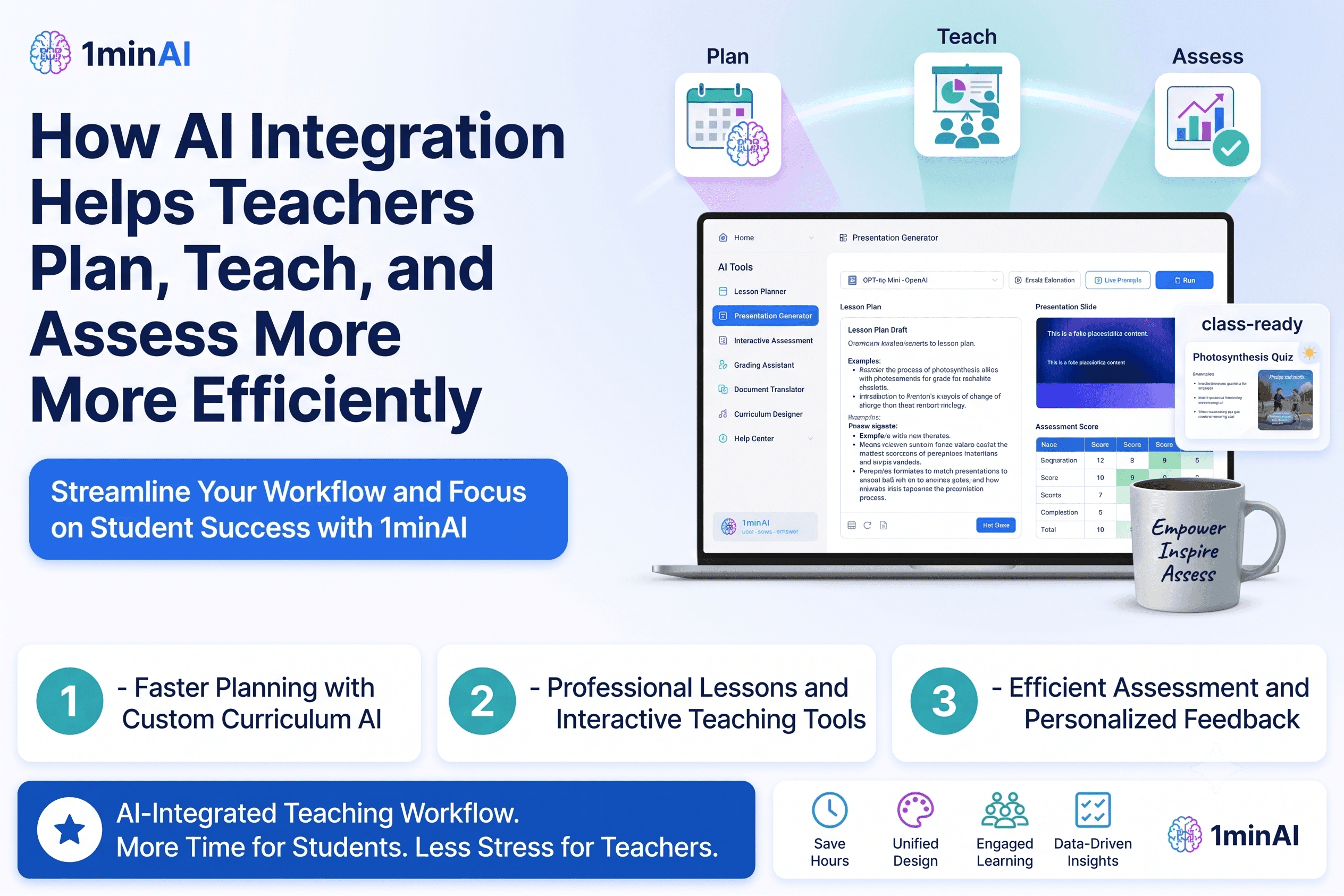
How AI Integrations Help Teachers Plan, Teach, and Assess More Efficiently
Discover how AI integration helps teachers streamline lesson planning, presentations, classroom materials, assessments, and student engagement in one AI workspace.
Tram Ta
AI Content Workflow for Freelancers: From Brief to Post
Discover an AI content workflow for freelancers. Use Claude for brainstorming and ChatGPT for images to turn client briefs into polished social posts faster.
Lien Anh VuAI for Industries
Find the best AI tools and workflows for healthcare, finance, education, legal, manufacturing, retail, real estate, and more
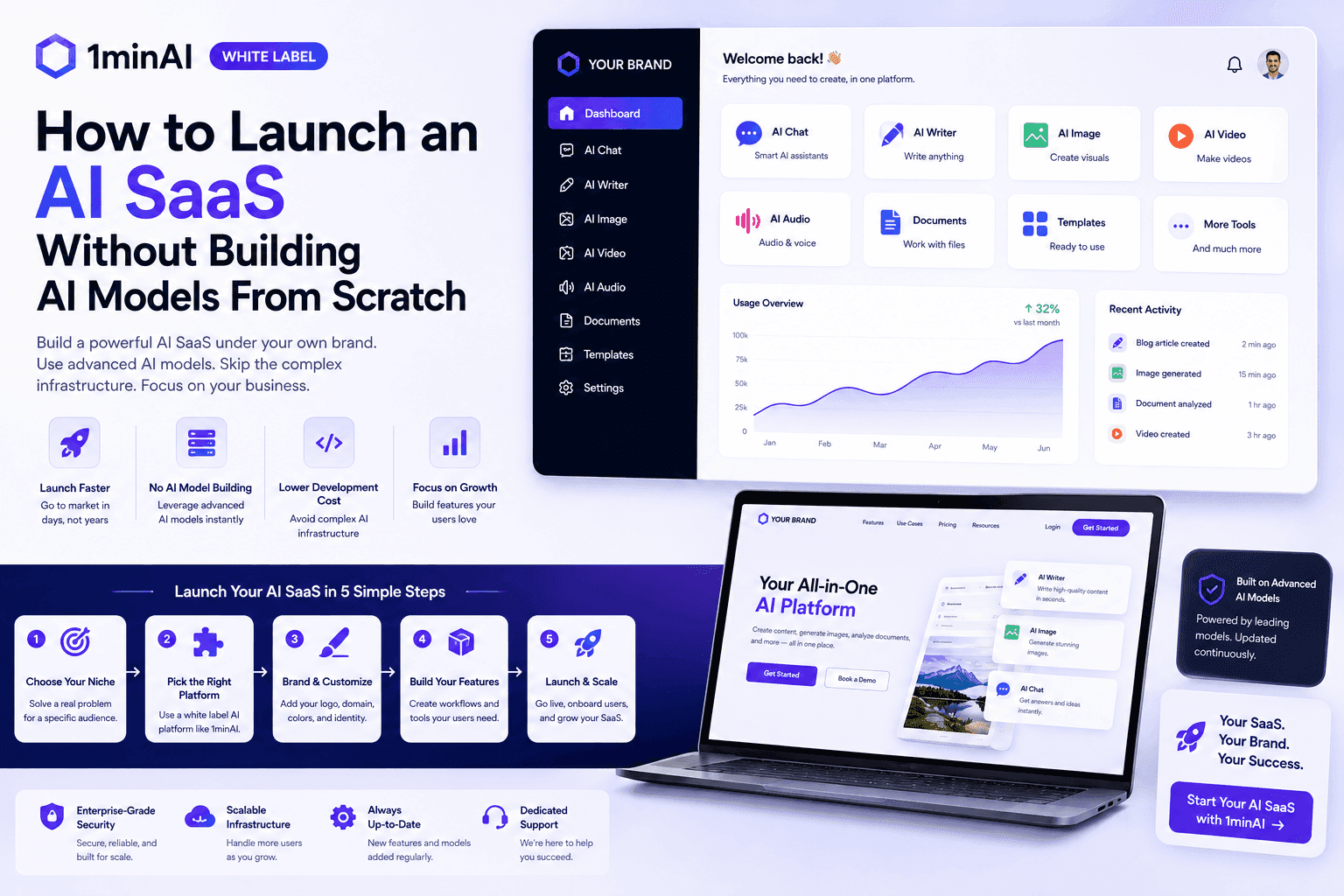
How to Launch an AI SaaS Without Building AI Models From Scratch
Learn how to launch an AI SaaS without building AI models from scratch. Explore white-label AI, product strategy, branding, pricing, and how 1minAI can help.
Tram Ta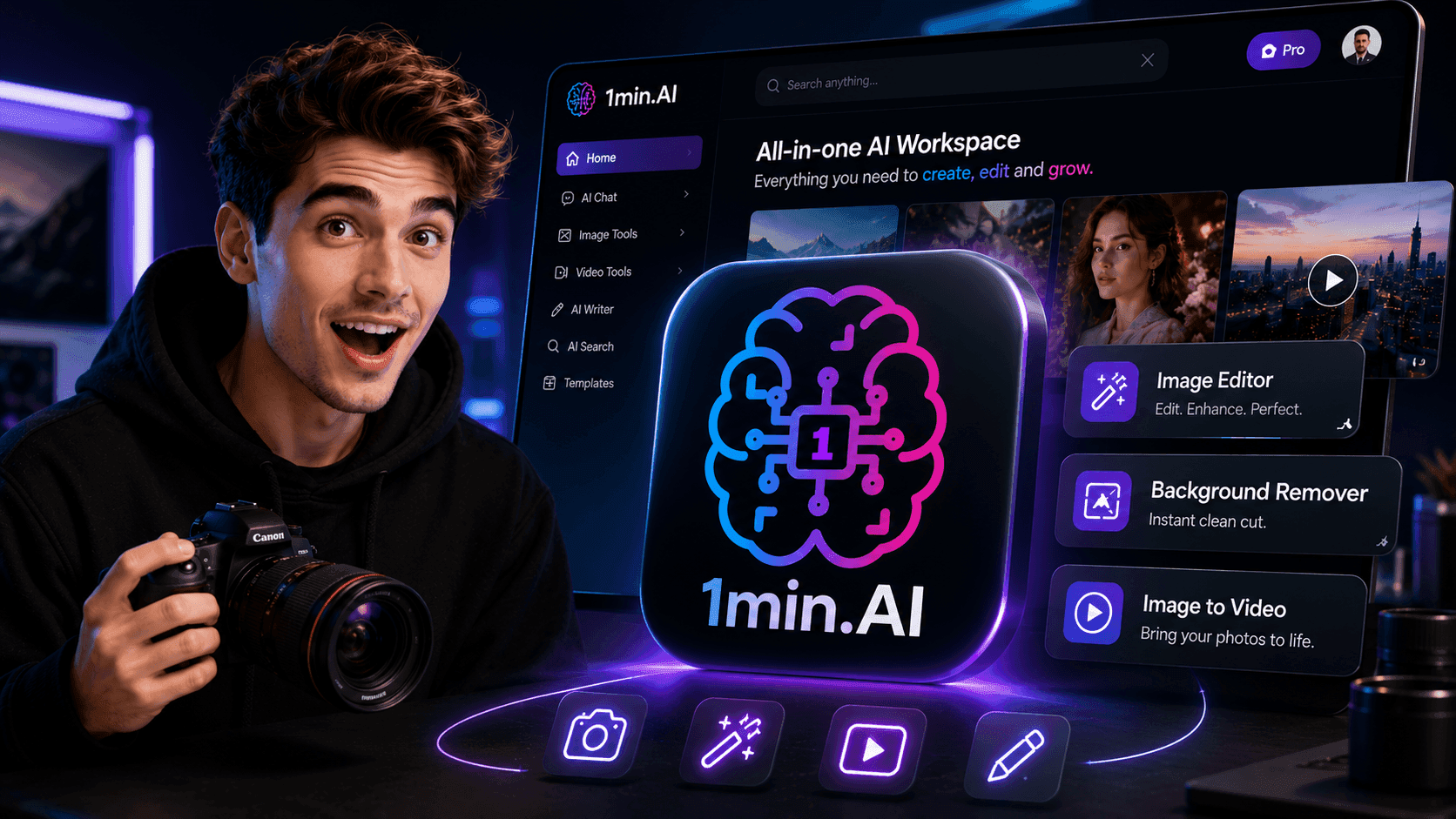
Free AI Tools for Photographers to Elevate Creative Work
Discover free AI tools for photographers to edit images, create visuals and videos, develop content, and streamline client workflows with 1min.AI.
Lien Anh Vu
Free AI Tools for Social Media Managers to Create Faster
Discover free AI tools for social media managers to brainstorm content, create visuals and videos, write captions, and streamline social media workflows with 1min.AI.
Lien Anh VuAI Agents
Discover and run AI agents to automate tasks across your work and daily life.
Remove Unwanted Proof From Pictures With 1minAI
Remove unwanted objects, people, or watermarks from your pictures with 1minAI’s AI Object Remover. Upload, select, and clean your image in a few clicks.
Tram TaWhite Label AI Image Generators: How Agencies Can Turn AI Images Into a Branded Service
Learn how agencies can use a white label AI image generator to offer branded creative services for ecommerce, social media, advertising, and branding clients.
Tram Ta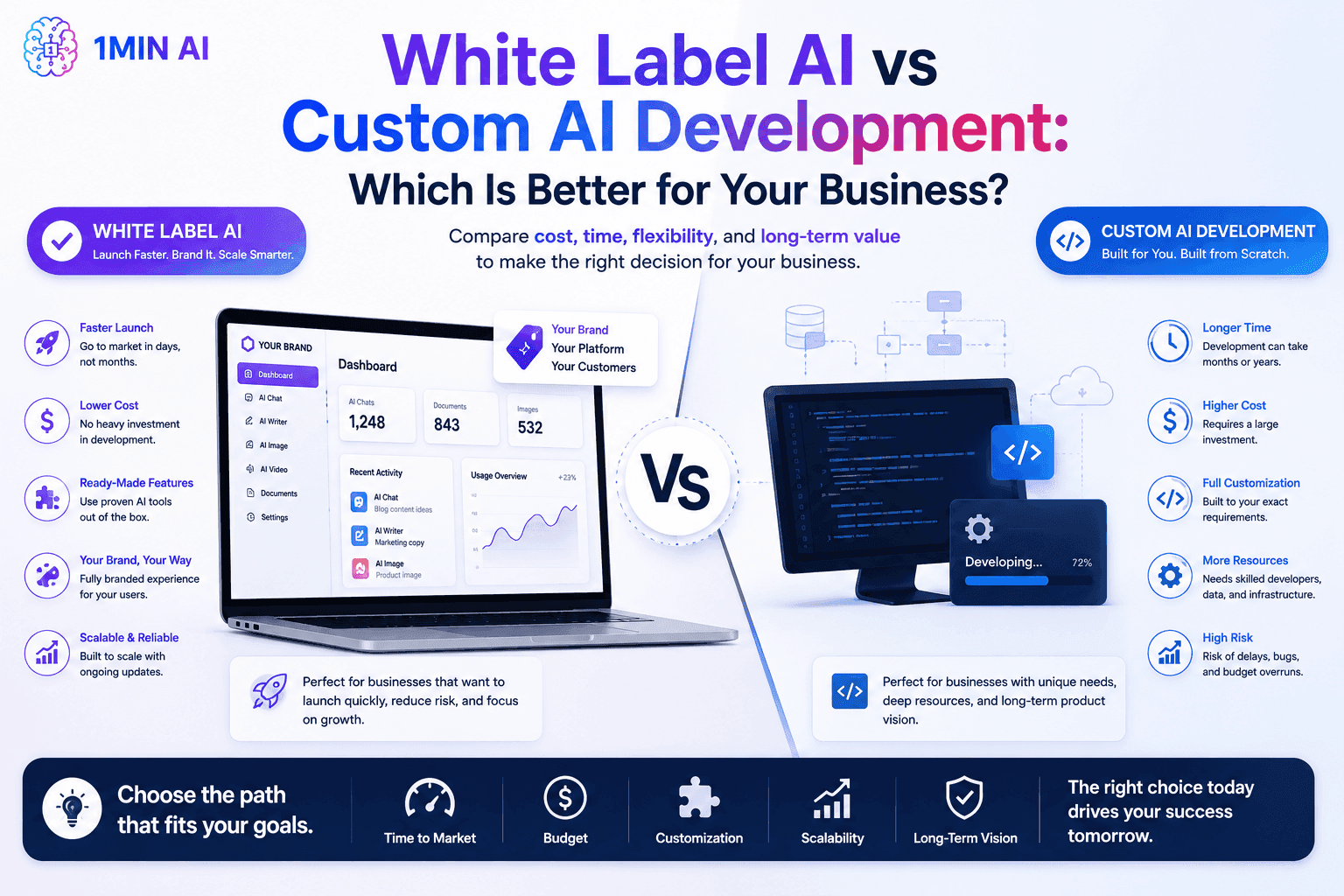
White Label AI vs Custom AI Development: Which Is Better for Your Business?
Compare white label AI vs custom AI development to understand the differences in cost, launch time, customization, maintenance, and scalability.
Tram TaAI Workflows
Explore ready-to-use AI workflows for productivity, marketing, sales, support, and more.
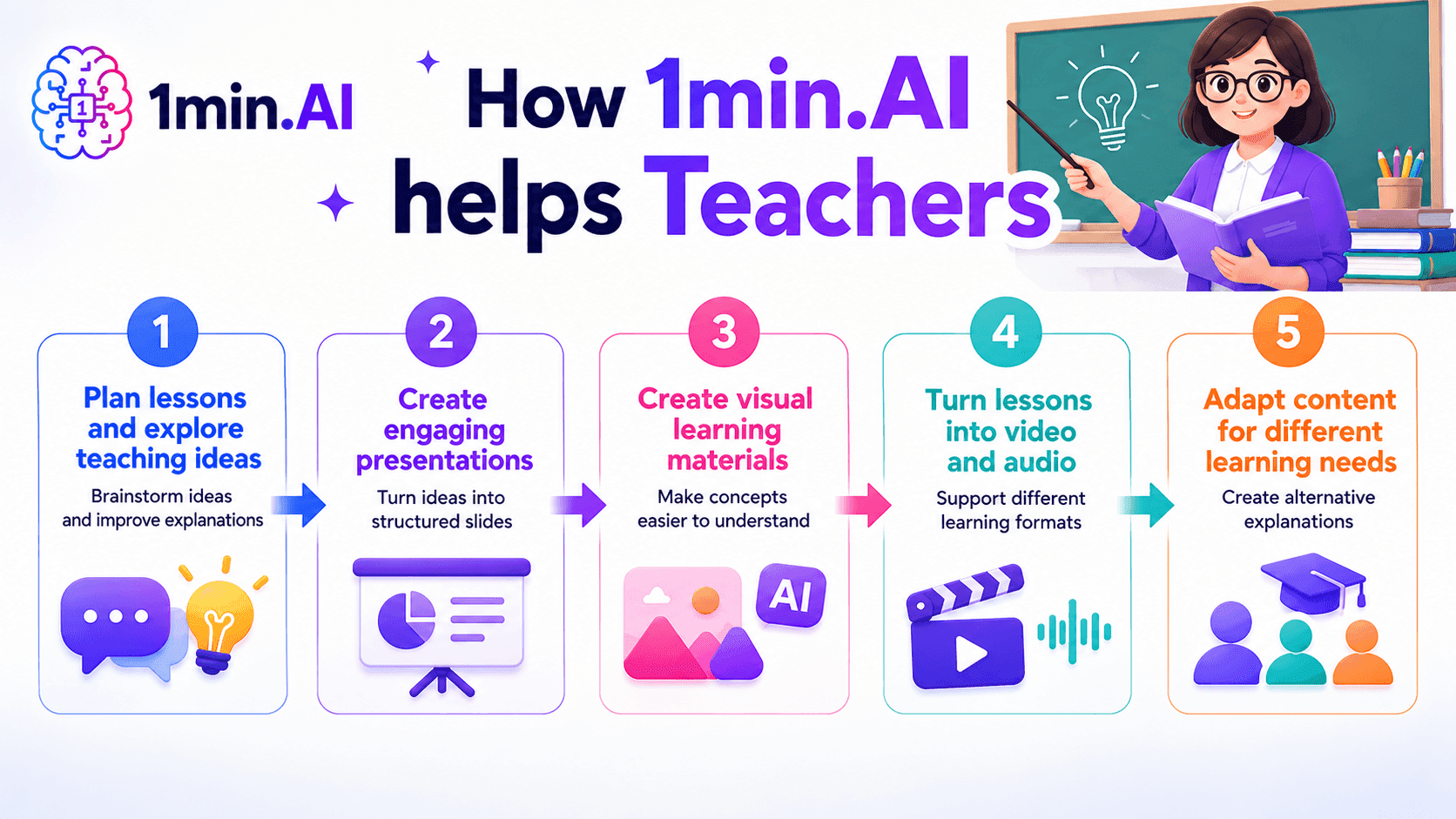
AI tools for Teachers
Discover AI tools for Teachers to create lessons, presentations, visuals, videos, and audio materials from one AI workspace with 1min.AI.
Ngoc Hong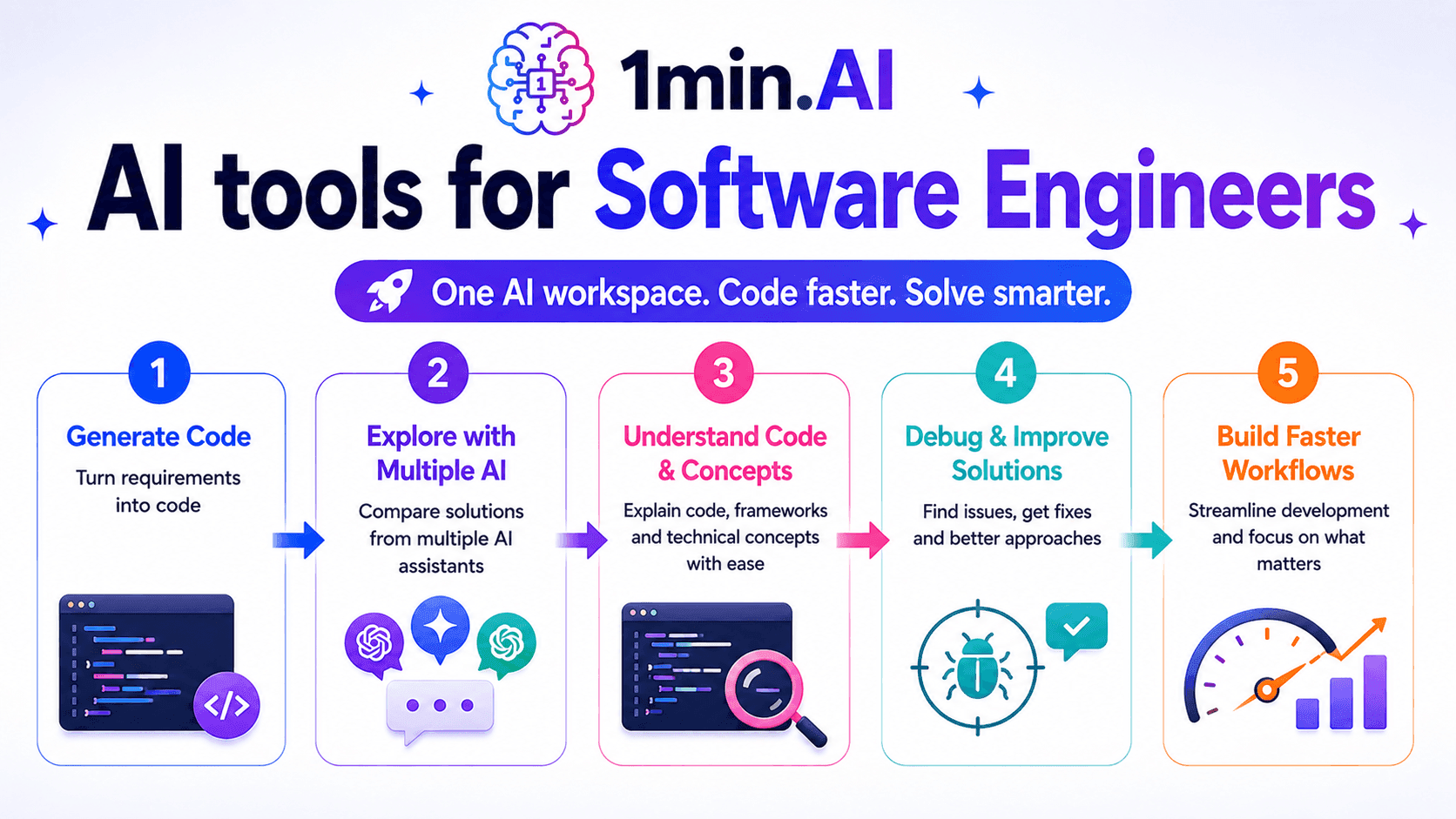
AI Tools for Software Engineers
Discover AI tools for Software Engineers to generate code, debug problems, understand technical concepts, and streamline development with 1min.AI.
Ngoc Hong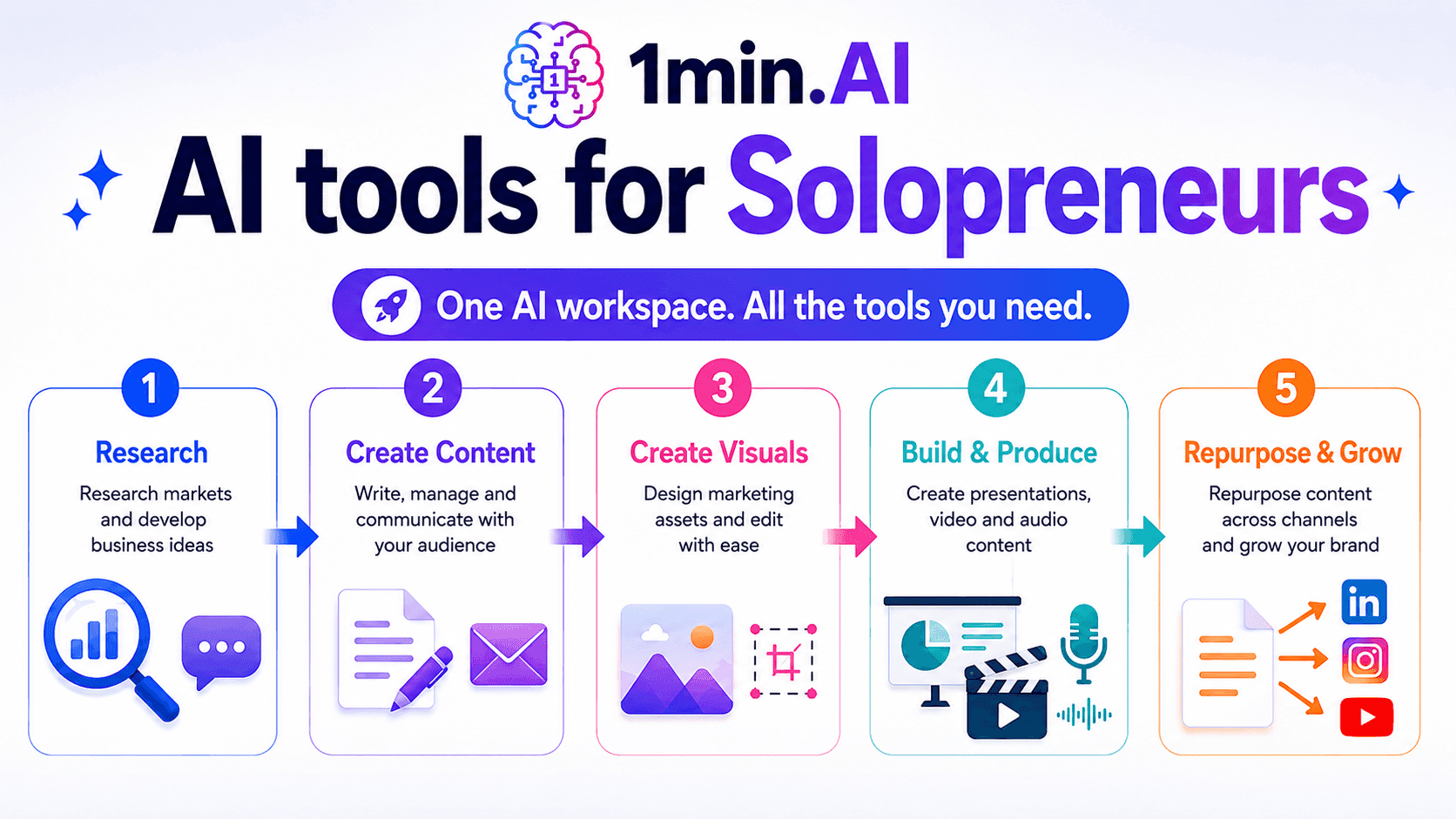
AI tools for Solopreneurs
Discover AI tools for Solopreneurs to research, create content, design, market, and manage business tasks from one AI workspace.
Ngoc HongNewsletter
Weekly AI Innovations with 1minAI

🔮 Weekly AI Innovations #134: Experience Free Qwen on AI Chat; The 3.7 and 3.6 Series Update
Looking for a powerful, free AI assistant? Explore the latest Qwen 3.7 and 3.6 series on 1min.ai. Enjoy high-speed, accurate AI chat at zero cost today!
 Hang Nguyen
🔮 Weekly AI Innovations #133: Earn Credits and more with AI Social
Explore DeepSeek V4's open-source efficiency and xAI's Grok 4.3 & 4.5 for advanced reasoning and ultra-fast coding in 2026.
Hang Nguyen
🔮 Weekly AI Innovations #132: DeepSeek V4 & xAI's Grok 4.3, 4.5
Explore DeepSeek V4's open-source efficiency and xAI's Grok 4.3 & 4.5 for advanced reasoning and ultra-fast coding in 2026.
Hang Nguyen