
Free Audio Editing Apps From A to Z for Beginners

Tram Ta
October 20, 2026
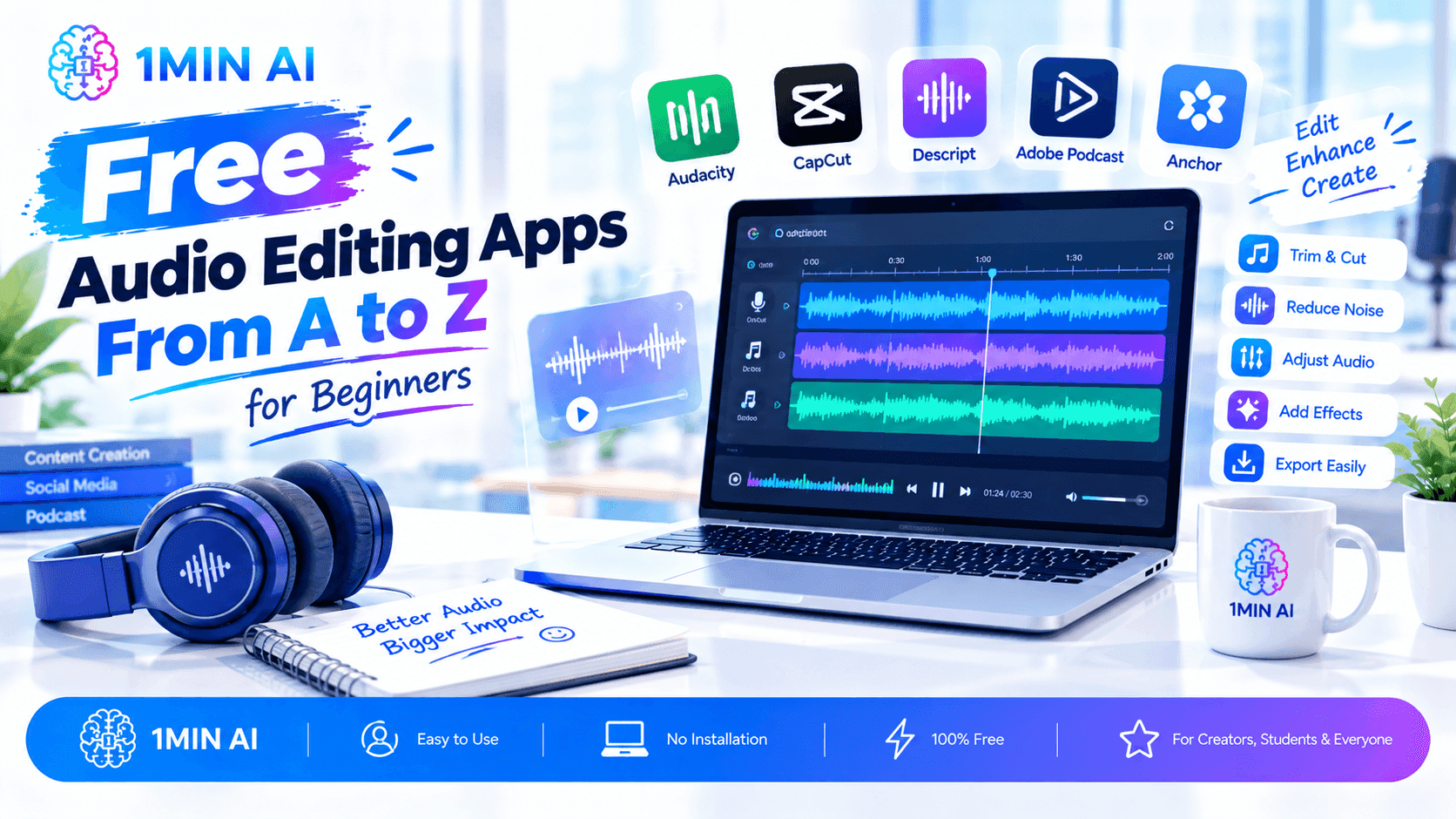
Discover free audio editing apps for beginners and students. Compare easy audio editors, learn essential editing skills, and explore AI audio tools.
Audio editing doesn't have to be expensive or difficult to learn. Whether you're preparing a school presentation, recording a podcast, editing a voice-over, or experimenting with music, free audio editing apps can help you produce clearer, more polished sound. This A-to-Z guide compares beginner-friendly tools, explains the essential editing skills to learn first, and introduces AI audio tools that can help you create and improve audio faster.
What Is Audio Editing?
Audio editing is the process of modifying recorded or generated sound to make it clearer, more organized, or better suited to a specific purpose. Basic editing might involve cutting unwanted sections, adjusting volume, removing distracting noise, or combining multiple recordings.
Students and beginners can use audio editing for:
- School projects: Edit interviews, presentations, language assignments, and recorded reports.
- Podcasts: Remove long pauses, mistakes, and distracting background sounds.
- Video projects: Prepare narration, sound effects, and background audio.
- Music: Arrange clips, balance tracks, and experiment with effects.
- Language learning: Practice pronunciation, record speaking exercises, and prepare translated audio.
- Content creation: Produce voice-overs, short-form videos, and audio for social media.
You don't need professional equipment to begin. A computer or phone, a reasonably quiet recording environment, and a suitable free editor are enough for many everyday projects.
Best Free Audio Editing Apps for Beginners
The best audio editing app depends on your device, project, and experience level. Some tools focus on traditional waveform editing, while others are designed for music production, browser-based workflows, or AI-powered voice cleanup.
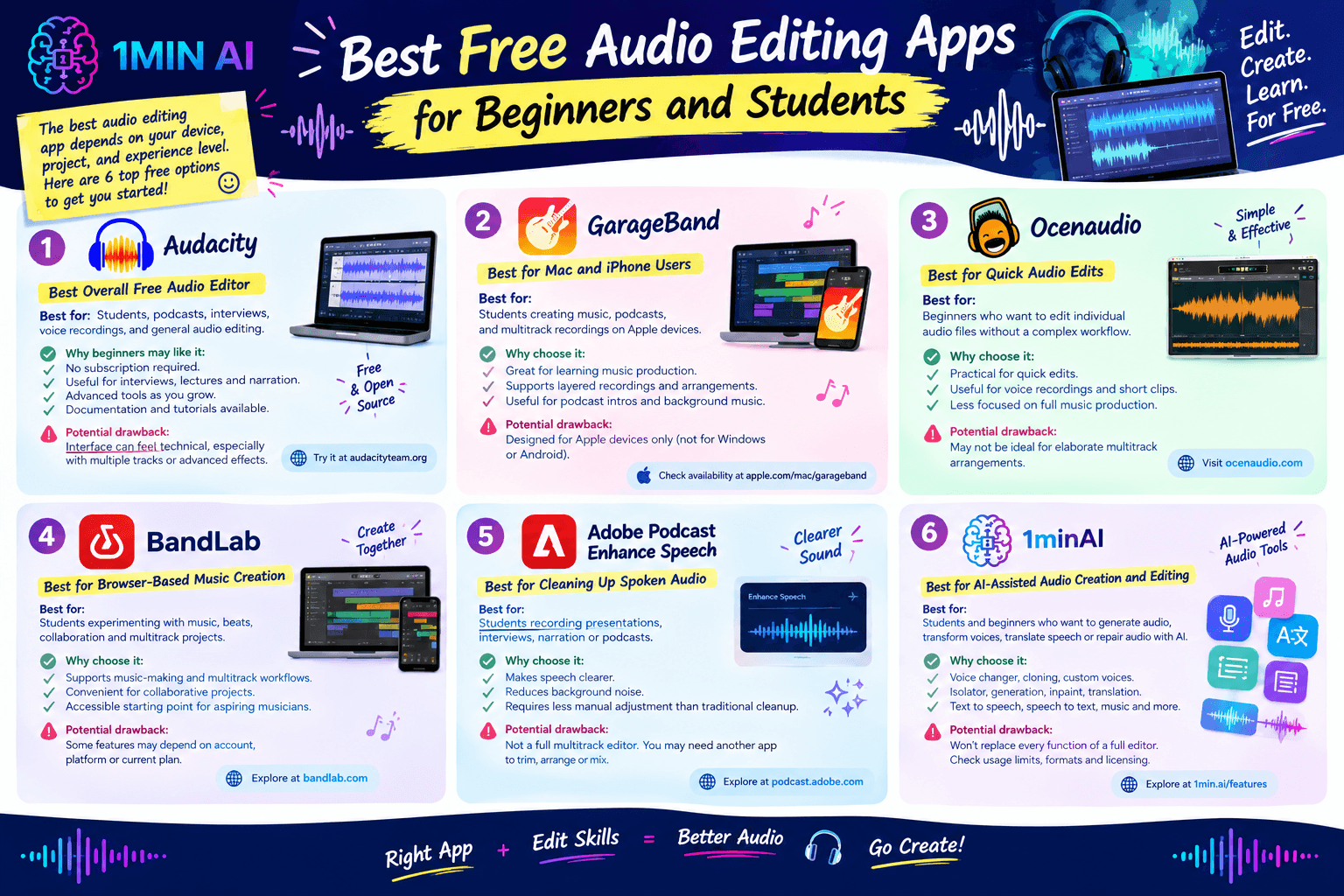
1. Audacity — Best Overall Free Audio Editor
Best for: Students, podcasts, interviews, voice recordings, and general audio editing.
Audacity is a free, open-source desktop audio editor for Windows, macOS, and Linux. It supports recording, cutting, trimming, multitrack editing, effects, noise reduction, and exporting to common audio formats.
Why beginners may like it:
- No subscription is required for the core software.
- Useful for editing interviews, lectures, and narration.
- Offers more advanced tools as your skills improve.
- Has documentation and tutorials for common editing tasks.
Potential drawback: Its interface can feel technical to first-time users, particularly when working with multiple tracks or advanced effects.
Try it at Audacity. Its official website confirms that the software is free and open source.
2. GarageBand — Best for Mac and iPhone Users
Best for: Students creating music, podcasts, and multitrack recordings on Apple devices.
GarageBand is Apple's music creation app. It allows users to record audio, arrange tracks, use virtual instruments, and experiment with loops and effects.
Why choose it:
- Suitable for learning basic music production.
- Supports layered recordings and arrangements.
- Useful for podcast intros, background music, and creative assignments.
Potential drawback: It is designed for Apple's ecosystem, so it isn't the right choice for every Windows or Android user.
Check availability through Apple's official website or App Store: GarageBand.
3. Ocenaudio — Best for Quick Audio Edits
Best for: Beginners who want to edit individual audio files without learning a complex production workflow.
Ocenaudio is a desktop audio editor that can be useful for trimming recordings, inspecting waveforms, applying effects, and making straightforward changes to a single audio file.
Why choose it:
- A practical option for quick edits.
- Useful for voice recordings and short audio clips.
- Less focused on full music-production workflows than a digital audio workstation.
Potential drawback: Users who need elaborate multitrack arrangements may prefer a more comprehensive editor.
Visit Ocenaudio to check supported systems and current download information.
4. BandLab — Best for Browser-Based Music Creation
Best for: Students experimenting with music, beats, collaboration, and multitrack projects.
BandLab offers a browser-based music creation environment and mobile apps. It is useful when you want to create or arrange music without installing a traditional desktop editor.
Why choose it:
- Supports music-making and multitrack workflows.
- Can be convenient for collaborative creative projects.
- Provides an accessible starting point for aspiring musicians.
Potential drawback: Some features and usage conditions may depend on the account, platform, or current plan.
Explore BandLab.
5. Adobe Podcast Enhance Speech — Best for Cleaning Up Spoken Audio
Best for: Students recording presentations, interviews, narration, or podcasts.
Adobe Podcast offers AI-assisted tools for spoken audio. Enhance Speech is designed to make dialogue sound clearer and reduce distracting background noise.
Why choose it:
- Useful when a recording sounds less clear than expected.
- Can help prepare speech before adding it to a presentation or video.
- Requires less manual adjustment than some traditional audio cleanup workflows.
Potential drawback: Speech enhancement is not the same as full multitrack editing. You may still need another app to trim, arrange, mix, or add music.
Explore Adobe Podcast.
6. 1minAI — Best for AI-Assisted Audio Creation and Editing
Best for: Students and beginners who want to generate audio, transform voices, translate speech, or repair selected sections of a recording using AI.
Traditional audio editors give you detailed control over waveforms and tracks. AI audio tools can complement that process by helping with tasks that would otherwise require additional recording, manual cleanup, or specialist software.
1minAI's AI for Audio tools include a collection of tools for voice, speech, and audio generation. Depending on the task, you can explore:
- Voice Changer: Transform an existing recording into a different voice style.
- Voice Cloning: Create speech using a cloned voice, with appropriate permission from the voice owner.
- Voice Design: Generate a custom AI voice by describing its characteristics.
- Voice Isolator: Separate speech from distracting background sounds.
- Audio Generation: Create audio from a description or supported source input.
- Audio Inpaint: Replace a selected section of an audio recording with AI-generated audio.
- Audio Translator: Translate speech into another supported language.
- Text to Speech: Turn written scripts into spoken audio.
- Speech to Text: Convert spoken content into text for notes, transcripts, or further editing.
- Music Generator and Text to Sound: Explore AI-generated music and sound for creative projects.
For example, a student making a short documentary could use a traditional editor to assemble interview clips, use Voice Isolator to improve dialogue clarity, and generate narration with Text to Speech if appropriate. A language-learning project could combine recorded speech with translation and transcription tools.
Potential drawback: AI tools do not replace every function of a full audio editor. You may still need a dedicated app to arrange tracks, make precise cuts, adjust timing, or create a final mix. Also check current free usage limits, supported formats, and licensing conditions before publishing a project.
Explore these 1minAI tools directly:
Quick Comparison: Which Audio Editing App Should You Choose?
| Tool | Best for | Type of workflow |
|---|---|---|
| Audacity | General audio editing and recording | Desktop waveform and multitrack editing |
| GarageBand | Music and creative assignments | Music production on Apple devices |
| Ocenaudio | Quick edits to individual files | Desktop audio editing |
| BandLab | Music creation and collaboration | Browser and mobile music workflow |
| Adobe Podcast Enhance Speech | Improving spoken-audio clarity | AI speech enhancement |
| 1minAI | Voice transformation, generation, translation, and audio repair | AI-assisted audio workflow |
Free features, supported devices, and account requirements can change. Check each provider's official site before choosing a tool for a specific assignment.
How to Choose the Right Audio Editing App
Before downloading software, consider what you need to accomplish. A student editing a five-minute interview has different requirements from someone producing a song or creating a narrated video.
1. Match the Tool to Your Project
Start with the main task:
- Trim a recording: Choose a straightforward audio editor.
- Edit an interview or podcast: Look for noise reduction, multitrack editing, and volume controls.
- Create music: Choose a music-focused app with tracks, loops, and instruments.
- Improve unclear speech: Consider a dedicated speech-enhancement or voice-isolation tool.
- Create narration: Explore text-to-speech or voice-generation tools.
- Translate spoken content: Look for audio translation and transcription features.
Avoid choosing a complicated professional tool when you only need to remove a few seconds from a recording.
2. Check Device Compatibility
Confirm that the app supports your operating system. Desktop software can offer more detailed controls, while browser-based tools may be easier to access from a school computer.
If you use a phone or tablet, check the mobile version specifically. A desktop app may not have an official mobile equivalent.
3. Understand What “Free” Means
A free audio editing app may be fully free, open source, supported by optional paid features, or limited by usage quotas.
Before starting a project, check whether the free version restricts:
- Export formats or audio quality.
- Recording duration or file size.
- AI processing credits or monthly usage.
- Cloud storage or collaboration.
- Commercial use and licensing.
For a school assignment, a free desktop editor may be enough. If you need AI-generated audio, check the tool's current usage terms before relying on it for a large project.
4. Prioritize Ease of Use
Beginners should look for clear playback controls, simple trimming, undo and redo, visible waveforms, and easy export settings.
Learn a few core functions first. You can explore equalization, compression, reverb, and other advanced effects once you are comfortable with basic editing.
How Students Can Use AI Audio Tools With 1minAI
AI can support specific stages of an audio project, especially when creating or transforming speech is more important than manually editing every waveform.
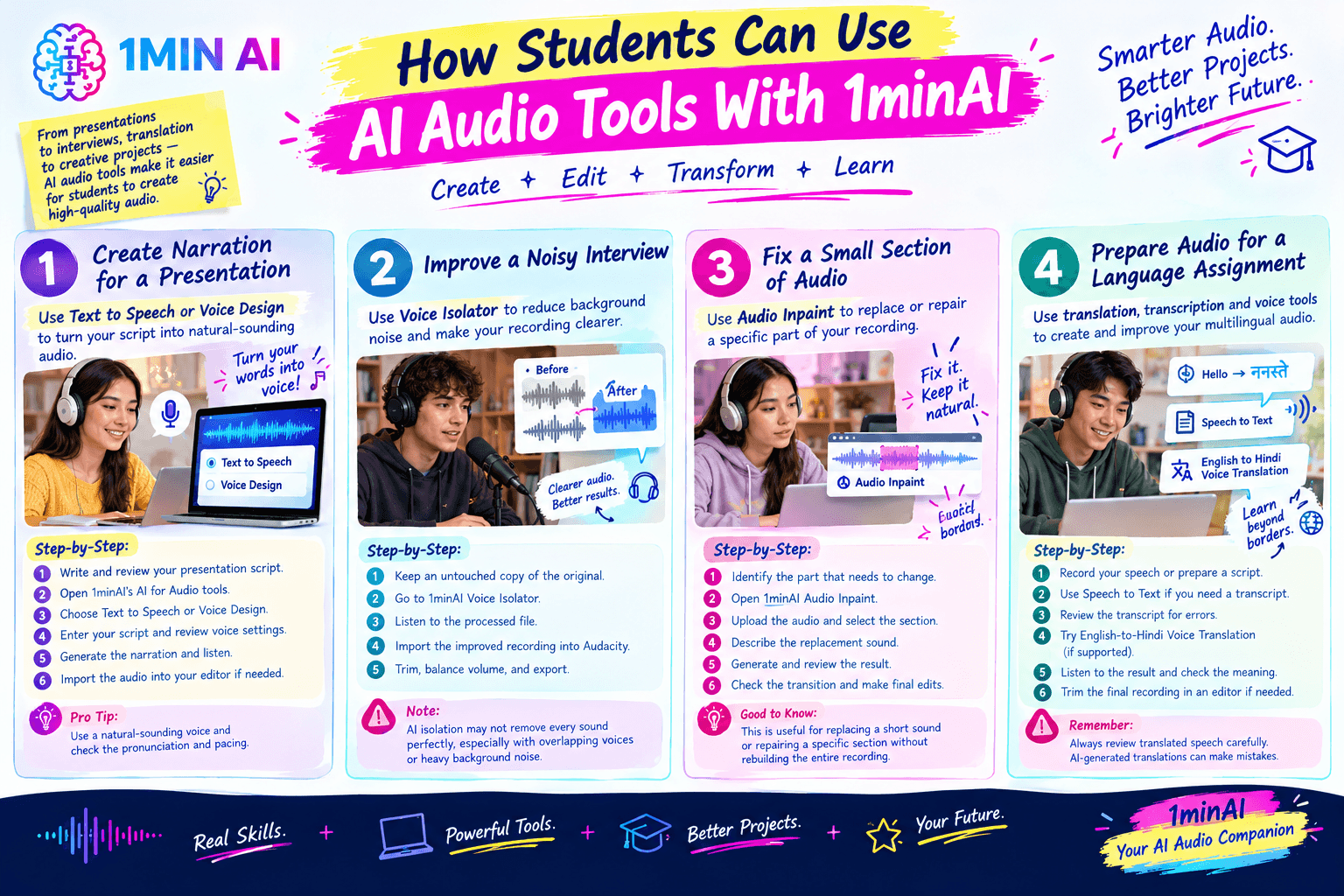
Workflow 1: Create Narration for a Presentation
- Write and review your presentation script.
- Open 1minAI's AI for Audio tools.
- Choose Text to Speech or Voice Design, depending on whether you want a standard generated voice or a custom voice.
- Enter your script and review the available voice and output settings.
- Generate the narration and listen for pronunciation, pacing, and errors.
- Import the audio into your editor if you need to trim it, combine it with slides, or add background sound.
Workflow 2: Improve a Noisy Interview
- Keep an untouched copy of the original recording.
- Try 1minAI Voice Isolator to reduce distracting background sounds around speech.
- Listen to the processed file and check whether the speaker remains natural and understandable.
- Import the improved recording into an editor such as Audacity.
- Trim irrelevant sections, balance volume, and export the finished interview.
AI isolation may not remove every sound perfectly, especially when voices overlap or background noise is severe.
Workflow 3: Fix a Small Section of Audio
- Identify the exact part of the recording that needs to change.
- Open 1minAI Audio Inpaint.
- Upload the audio and select the section you want to replace.
- Describe the replacement sound or audio content.
- Generate and review the result.
- Check the transition around the edited section and make any final adjustments in your audio editor.
This can be useful when you need to replace a short sound or repair a specific section without rebuilding the entire recording.
Workflow 4: Prepare Audio for a Language Assignment
- Record your original speech or prepare a script.
- Use Speech to Text if you need a transcript.
- Review the transcript for recognition errors.
- Explore English-to-Hindi Voice Translation if your assignment involves supported English-to-Hindi audio translation.
- Listen to the result and check the meaning and pronunciation.
- Use a traditional editor to trim the final recording if needed.
Always review translated speech carefully. AI-generated translations can make mistakes, so do not assume that every word or pronunciation is correct.
Common Audio Editing Mistakes Beginners Should Avoid
Removing too much background sound. Heavy noise reduction can distort speech. Compare the processed audio with the original before deciding which version is better.
Making cuts too abruptly. Cutting directly through a word or breath can make an edit obvious. Listen to transitions and use fades when appropriate.
Adding music that is too loud. Background music should support the recording, not compete with the speaker.
Exporting in the wrong format. Check the file requirements before submitting a project or uploading it.
Ignoring copyright. Music and sound effects found online are not automatically free to reuse. Review the license and attribution requirements.
Using AI without reviewing the result. Voice generation, isolation, translation, and audio repair can save time, but the output still needs human quality control.
Forgetting consent. Use voice cloning only when you have appropriate permission. Do not impersonate someone or present synthetic speech as an authentic recording of that person.
Frequently Asked Questions
What is the best free audio editing app for beginners?
Audacity is a strong starting point for general audio editing because it is free, open source, and supports Windows, macOS, and Linux. GarageBand is worth considering for music creation on Apple devices, while simpler editors may be more convenient for quick single-file edits.
Which audio editing software is best for students?
The best choice depends on the assignment. Audacity works well for interviews, presentations, and podcasts. GarageBand suits music projects on Apple devices. AI audio tools can help with narration, speech cleanup, and translation when those tasks are part of the project.
Can I edit audio online for free?
Yes. Some browser-based and AI-powered tools offer audio editing or processing without requiring a traditional desktop application. However, free access may come with limits on usage, file size, processing, or exports, so check the current terms.
Can AI edit audio automatically?
AI can help with tasks such as speech enhancement, voice isolation, voice transformation, audio generation, translation, and replacing selected audio sections. It does not necessarily replace a full audio editor for precise cuts, track arrangement, timing, and final mixing.
What is the difference between audio editing and audio generation?
Audio editing changes existing recordings—for example, trimming a voice recording or adjusting volume. Audio generation creates new audio from text, prompts, or other supported inputs. Some workflows combine both: generate a voice-over, then edit it alongside music and sound effects.
Is 1minAI a replacement for traditional audio editing software?
Not in every situation. 1minAI provides AI-assisted audio tools for tasks such as voice transformation, voice generation, translation, and audio repair. A dedicated editor may still be needed for detailed waveform editing, multitrack mixing, and precise timing.
Conclusion
The best free audio editing app is the one that fits your project and helps you finish it without unnecessary complexity. Start with simple tools for trimming, volume adjustment, and noise cleanup, then explore more advanced editing as your skills grow.
For students and beginners, combining a traditional editor with targeted AI tools can make audio projects more manageable. Use an editor for precise cuts and track arrangement, and explore 1minAI's audio tools when you need help generating speech, transforming voices, translating audio, or repairing selected sections.
For further information, explore 1minAI AI for Audio
Discover more AI features: https://1min.ai/features
Try 1minAI agent now: https://app.1min.ai/ai-agent-demo
- #Commerce
Alternatives
Discover the best alternatives to 1minAI and compare features, pricing, and use cases.

1min.AI vs OpenRouter
1min.AI vs. OpenRouter: Compare the ready-to-use AI creation product against the technical API tool. Find out if you need a zero-code creative studio or a coding infrastructure hub.
 Ngoc Hong
1min.AI vs Jarvis AI
Compare 1min.AI vs Jarvis AI to discover which AI platform is better for writing, research, automation, and content creation. Find the best AI assistant for your workflow.
Ngoc Hong
1min.AI vs Taskade
Compare 1min.AI vs Taskade for AI content creation, automation, agents, and creative workflows to find the right workspace.
Ngoc HongAI Tools
Discover the best AI tools to boost productivity, creativity, and everyday work.
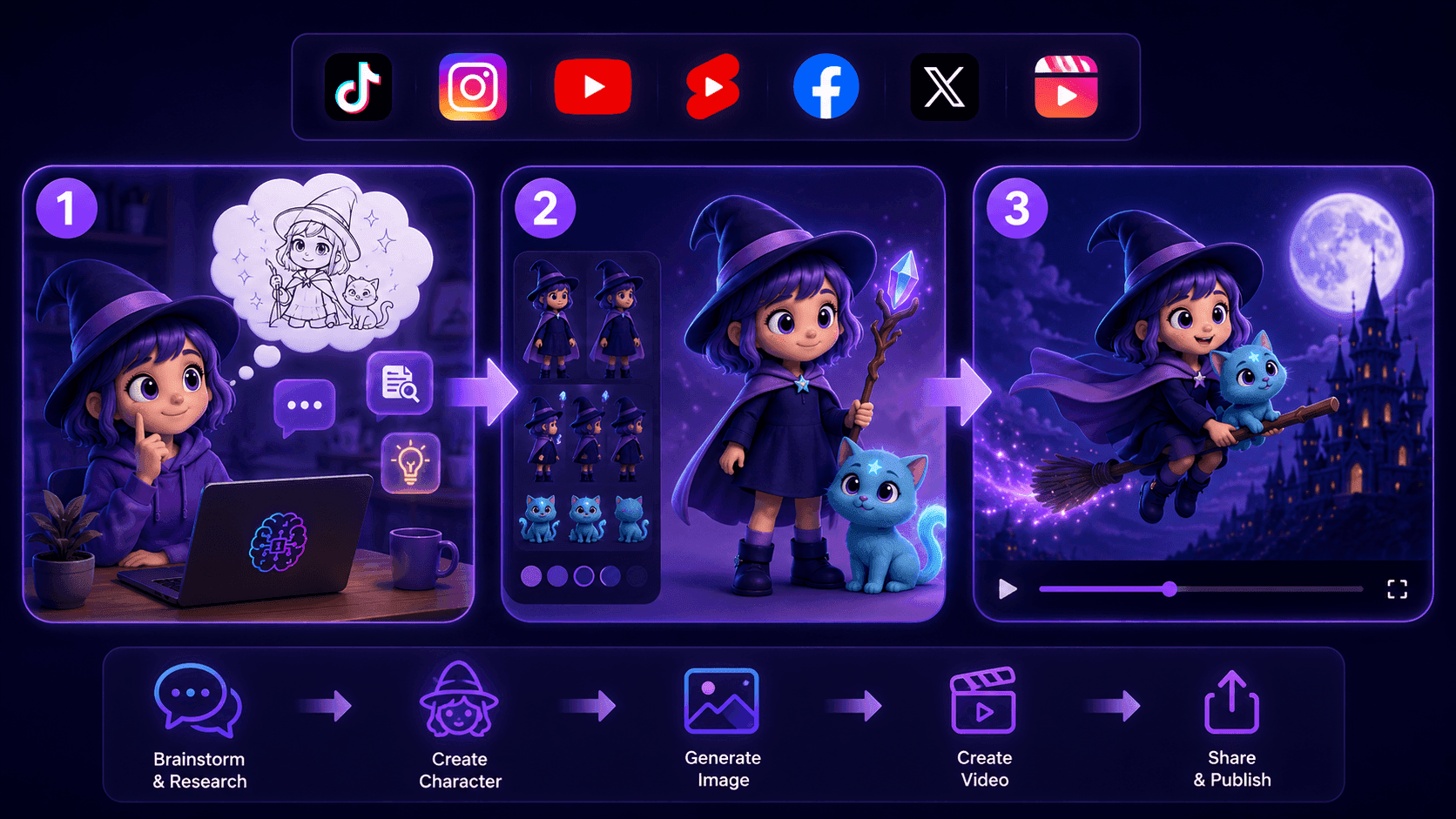
Create Consistent Cartoon Content in Just a Few Steps
Create engaging cartoon videos for TikTok and Reels with 1min.AI. Research ideas, create characters, and turn images into animated videos in 3 simple steps.
 Lien Anh Vu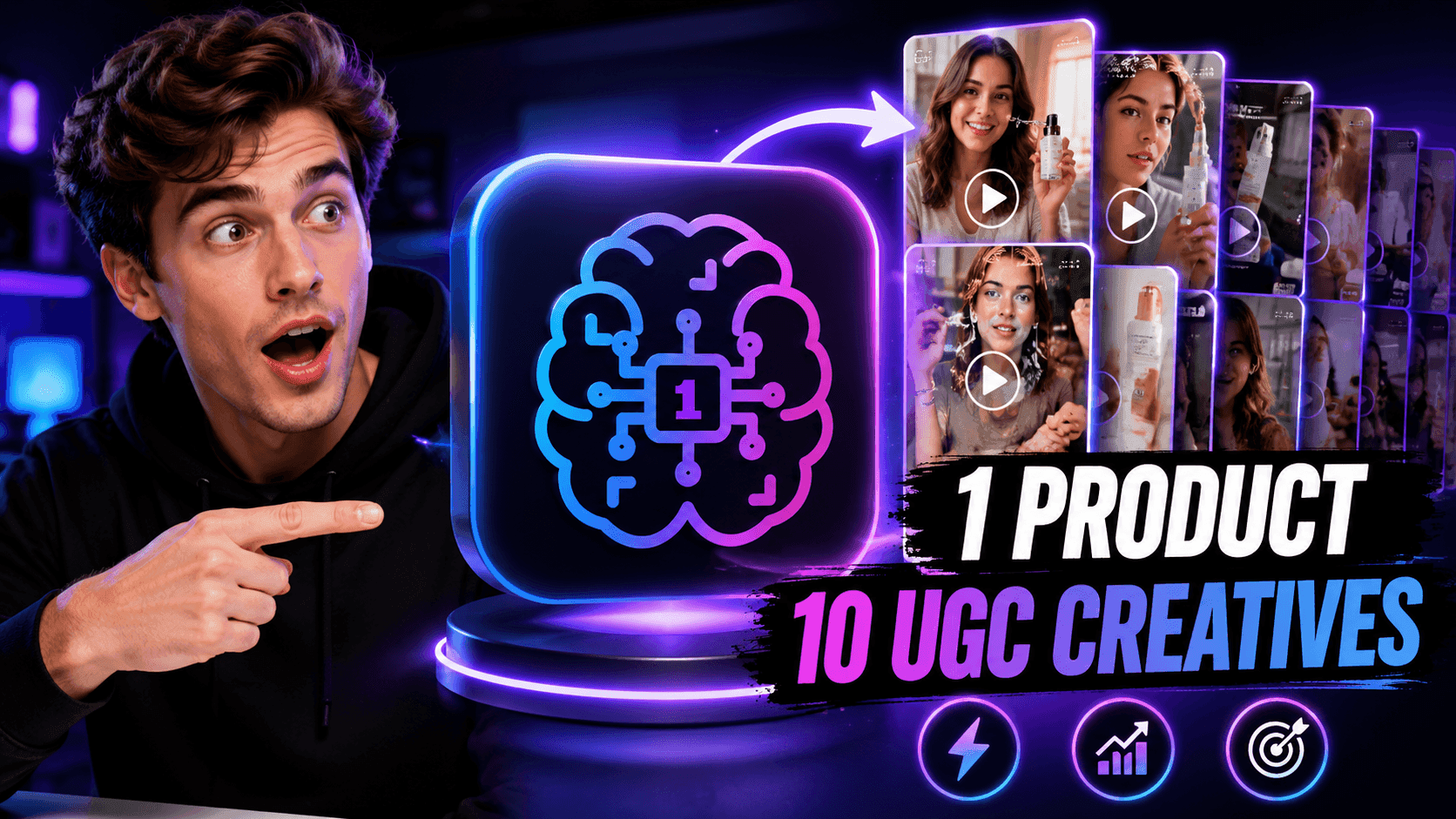
One Product, 10 UGC Creatives: How AI Makes Content Testing Easier
Create more authentic UGC with an AI UGC video generator, test more creative angles and scale affiliate content without filming every version.
Lien Anh Vu
Top 4 Affordable AI Tools for Startup Founders
Discover the top 4 affordable AI tools for startup founders to validate ideas, build products, create content, and launch faster without overspending.
 Tram Ta
AI Features
Comprehensive AI features that streamline workflows, improve efficiency, and empower teams to achieve more.
Create Consistent Cartoon Content in Just a Few Steps
Create engaging cartoon videos for TikTok and Reels with 1min.AI. Research ideas, create characters, and turn images into animated videos in 3 simple steps.
Lien Anh VuOne Product, 10 UGC Creatives: How AI Makes Content Testing Easier
Create more authentic UGC with an AI UGC video generator, test more creative angles and scale affiliate content without filming every version.
Lien Anh Vu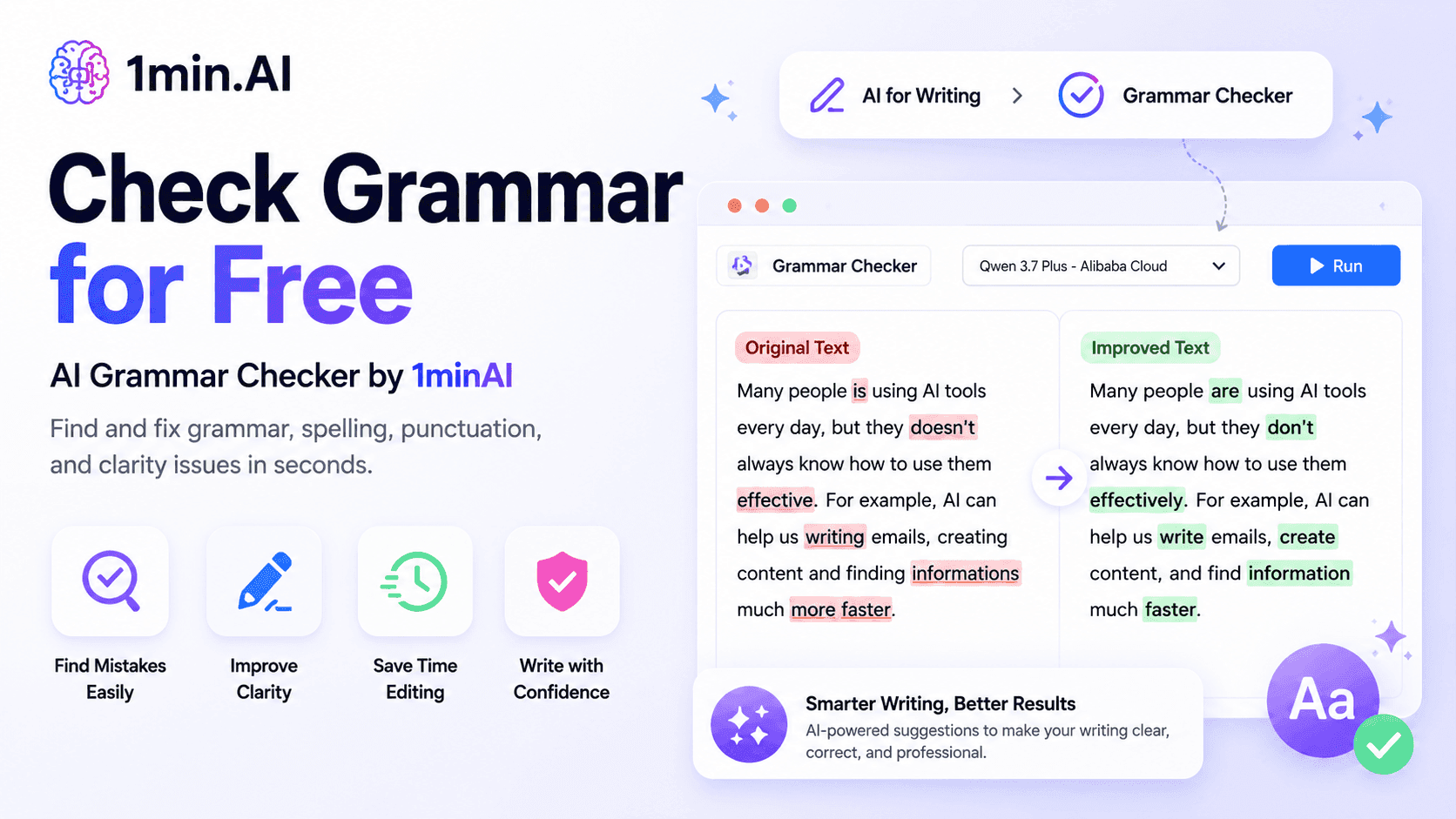
1minAI: Free AI Grammar Checker
Check grammar for free with 1minAI’s AI grammar checker. Find grammar, spelling, and writing mistakes, improve clarity, and polish your content in seconds.
Tram TaAI Use Cases
A curated collection of AI use cases for business, productivity, and industry-specific applications.
Create Consistent Cartoon Content in Just a Few Steps
Create engaging cartoon videos for TikTok and Reels with 1min.AI. Research ideas, create characters, and turn images into animated videos in 3 simple steps.
Lien Anh VuOne Product, 10 UGC Creatives: How AI Makes Content Testing Easier
Create more authentic UGC with an AI UGC video generator, test more creative angles and scale affiliate content without filming every version.
Lien Anh Vu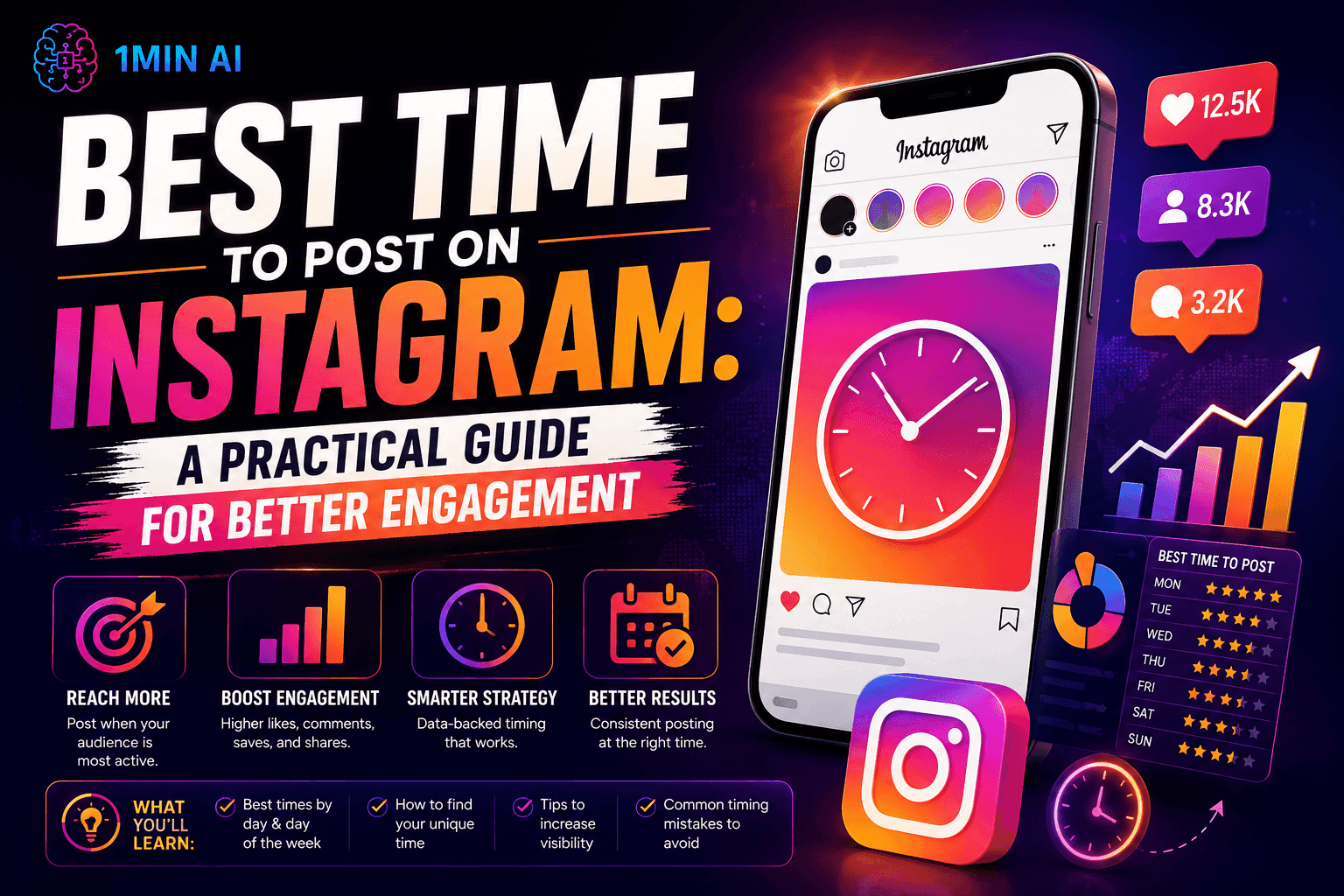
Best Time to Post on Instagram: A Practical Guide for Better Engagement
Discover the best time to post on Instagram, including the best days and times for different audiences, plus tips to find the ideal posting schedule for your account.
Tram TaAI Tutorials
Learn how to use AI with practical, step-by-step tutorials.

Black Friday AI Tool Deals in 2026
Discover what Black Friday AI tool deals 2026 has to offer. Find out how to secure the 1min.AI lifetime deal via AppSumo, Dealify, Stack Social, and verify on Trustpilot, Slashdot, and Software Advice.
 Hang Nguyen
Create Consistent Cartoon Content in Just a Few Steps
Create engaging cartoon videos for TikTok and Reels with 1min.AI. Research ideas, create characters, and turn images into animated videos in 3 simple steps.
Lien Anh Vu
[Seedance 2.5 New] Better AI Product Videos, Less Rework in 1min.AI
Use Seedance 2.5 image to video on 1min.AI to create more consistent AI product videos, reduce failed generations, save credits, and improve UGC workflows.
Lien Anh VuAI Guides
Learn AI faster with practical guides, real-world examples, and actionable best practices.

Safely Buy AI Tools Online: 2026 Black Friday Guide
Discover how to find and secure the best Black Friday AI deals online. Learn expert strategies to avoid scams, combat subscription fatigue, and verify software.
Hang NguyenCreate Consistent Cartoon Content in Just a Few Steps
Create engaging cartoon videos for TikTok and Reels with 1min.AI. Research ideas, create characters, and turn images into animated videos in 3 simple steps.
Lien Anh Vu[Seedance 2.5 New] Better AI Product Videos, Less Rework in 1min.AI
Use Seedance 2.5 image to video on 1min.AI to create more consistent AI product videos, reduce failed generations, save credits, and improve UGC workflows.
Lien Anh VuAI Solutions
Browse the best AI solutions for automation, coding, research, productivity, customer support, marketing, and business workflows.
Safely Buy AI Tools Online: 2026 Black Friday Guide
Discover how to find and secure the best Black Friday AI deals online. Learn expert strategies to avoid scams, combat subscription fatigue, and verify software.
Hang NguyenCreate Consistent Cartoon Content in Just a Few Steps
Create engaging cartoon videos for TikTok and Reels with 1min.AI. Research ideas, create characters, and turn images into animated videos in 3 simple steps.
Lien Anh VuOne Product, 10 UGC Creatives: How AI Makes Content Testing Easier
Create more authentic UGC with an AI UGC video generator, test more creative angles and scale affiliate content without filming every version.
Lien Anh VuAI Models
Explore the world's leading AI models in one place.
Create Consistent Cartoon Content in Just a Few Steps
Create engaging cartoon videos for TikTok and Reels with 1min.AI. Research ideas, create characters, and turn images into animated videos in 3 simple steps.
Lien Anh VuOne Product, 10 UGC Creatives: How AI Makes Content Testing Easier
Create more authentic UGC with an AI UGC video generator, test more creative angles and scale affiliate content without filming every version.
Lien Anh Vu[Seedance 2.5 New] Better AI Product Videos, Less Rework in 1min.AI
Use Seedance 2.5 image to video on 1min.AI to create more consistent AI product videos, reduce failed generations, save credits, and improve UGC workflows.
Lien Anh VuAI Comparisons
Compare AI tools, models, and platforms to find the best fit for your needs.
Kling AI Vs Veo 3: Which Model Wins?
Kling AI vs Veo 3: compare motion, native audio, pricing & free tiers to see which AI video generator wins for your project - try both on 1min.AI.
 Trang Tran
[Seedance 2.5 New] Better AI Product Videos, Less Rework in 1min.AI
Use Seedance 2.5 image to video on 1min.AI to create more consistent AI product videos, reduce failed generations, save credits, and improve UGC workflows.
Lien Anh Vu
DeepSeek V4 Pro vs Flash Comparison
Compare DeepSeek V4 Pro vs DeepSeek V4 Flash metrics. Optimize your agentic apps and improve AI fact checking on 1min.ai today.
Ngoc HongAI Integrations
Seamlessly integrate AI with the tools you already use to automate work and boost productivity.
POV: You Have 10+ Posts to Make Every Day
Learn how to build an AI content workflow that helps content creators produce 10+ social media posts a day faster with AI brainstorming, image generation, and content creation.
Lien Anh Vu
How to Use an AI Fashion Video Generator for Fashion Week 2026
Turn Fashion Week 2026 ideas into stunning fashion videos with AI. Learn how to brainstorm, create visuals, and transform images into videos with one simple workflow.
Lien Anh Vu
Stop Switching Between AI Apps: How AI Integration Transforms Employer Branding
Discover how AI integration helps HR teams streamline employer branding by combining AI writing, documents, images, video, and multiple AI models into one workspace.
Tram TaAI for Industries
Find the best AI tools and workflows for healthcare, finance, education, legal, manufacturing, retail, real estate, and more
Free AI Product Description Generator
Write product descriptions that sell in minutes. Use this free AI product description generator to turn details or a photo into on-brand copy. Try 1min.AI.
Trang Tran
Best Business Productivity Tools for Startups to Maximize Profits | 1minAI
Discover the best business productivity tools for startups to save time, streamline workflows, reduce repetitive tasks, and support profitable growth with AI.
Tram Ta
Best AI Tool for Content Marketing |1minAI
Looking for the best AI tool for content marketing? See how 1minAI helps marketers research, write, repurpose, create visuals, and scale content from one AI workspace.
Tram TaAI Agents
Discover and run AI agents to automate tasks across your work and daily life.
1minAI: Free AI Grammar Checker
Check grammar for free with 1minAI’s AI grammar checker. Find grammar, spelling, and writing mistakes, improve clarity, and polish your content in seconds.
Tram Ta
AI Agents for Facebook
Use an AI Agent for Facebook to create content, generate images, schedule posts, and publish from your documents and conversations.
Ngoc Hong
AI Agent vs AI Assistant: Which One Actually Saves Designers More Time?
Learn the difference between AI Agent vs AI Assistant and discover which solution helps designers automate repetitive work, reduce revisions, and save more time.
Lien Anh VuAI Workflows
Explore ready-to-use AI workflows for productivity, marketing, sales, support, and more.
Create Consistent Cartoon Content in Just a Few Steps
Create engaging cartoon videos for TikTok and Reels with 1min.AI. Research ideas, create characters, and turn images into animated videos in 3 simple steps.
Lien Anh VuOne Product, 10 UGC Creatives: How AI Makes Content Testing Easier
Create more authentic UGC with an AI UGC video generator, test more creative angles and scale affiliate content without filming every version.
Lien Anh VuPOV: You Have 10+ Posts to Make Every Day
Learn how to build an AI content workflow that helps content creators produce 10+ social media posts a day faster with AI brainstorming, image generation, and content creation.
Lien Anh VuNewsletter
Weekly AI Innovations with 1minAI

🔮 Weekly AI Innovations #142: Grok 4.7, Opus 5.5 & Sonnet 5.5 on 1min.ai
Access Grok 4.7, Claude Opus 5.5, and Sonnet 5.5 on 1min.ai. Cut subscription costs by up to 70% and process millions tokens in a single unified workspace.
Hang Nguyen
🔮 Weekly AI Innovations #141: Seedance 2.5 & Stable Audio 3: Next-Gen AI
Explore Seedance 2.0, 2.5, and StabilityAI's Stable Audio 3 on 1min.ai. Generate studio-grade audio and synchronized motion with next-gen generative AI.
Hang Nguyen
🔮 Weekly AI Innovations #140: Deepseek 4.1 Flash & Gemini Upgrades
Explore Deepseek 4.1 Flash and new Gemini models on 1min.ai. Plus, check our update on your Billing - Usage page for better clarity.
Hang Nguyen