
Free AI Demo Video Generator - No Filming Needed

Trang Tran
October 20, 2026
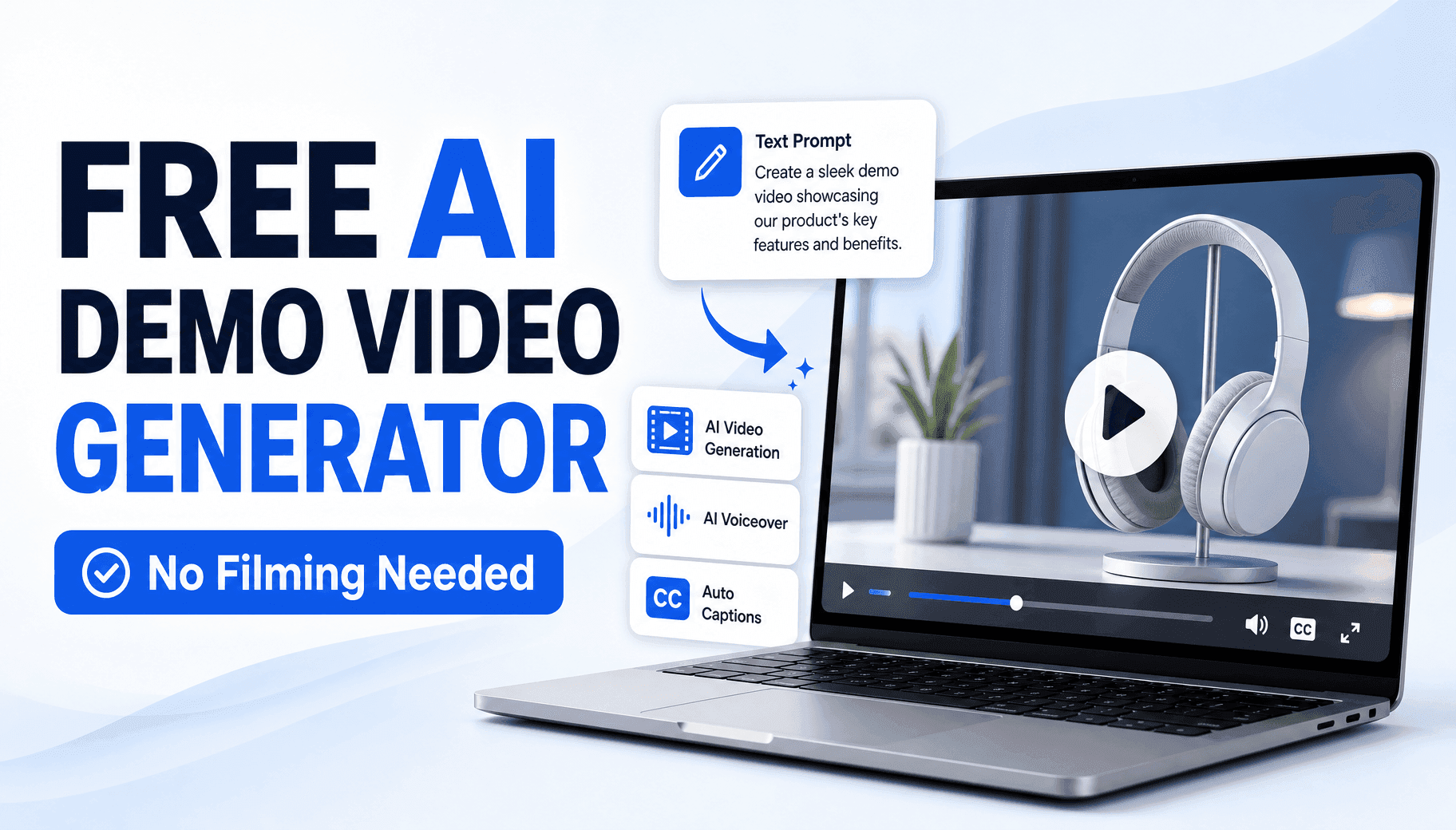
Try 1min.AI’s free AI demo video generator. Turn a text prompt into a product demo video in minutes, with no camera, no editing skills and no sign-up to start.
An AI demo video generator turns a written prompt into a product demo video, with no camera, crew or editing software. With 1min.AI, you describe your demo, pick a video model, and generate. Most people get a first clip in a few minutes.
Product demos are the easiest way to show what you sell, yet they are often the slowest thing to produce. Filming takes planning, editing takes skill, and the video goes out of date after the next release.
This guide shows how to make a product demo video with AI in three steps, which model to pick, and how to keep your demo accurate. You can open 1min.AI and try it right away. You do not need to register anything to get started.
What Is an AI Demo Video Generator?
An AI demo video generator creates a short demo video from text, images or reference files instead of live filming. You supply the message, and the AI handles visuals, motion and, with some models, sound.
What You Provide and What You Get
| You provide | The AI produces |
|---|---|
| A prompt describing your product and scene | A video clip with camera movement |
| Product screenshots (optional) | Animated shots of your real screens |
| A short script (optional) | Narration and captions through add-on tools |
This is why an AI product demo video maker suits SaaS founders, marketers, sales teams and small businesses. They need a polished demo, but they do not have a production crew.
How to Make a Product Demo Video With AI in 3 Steps
Step 1: Describe Your Demo in a Prompt
Open Text to Video in 1min.AI and write what the viewer should see. A clear prompt matters more than any setting.
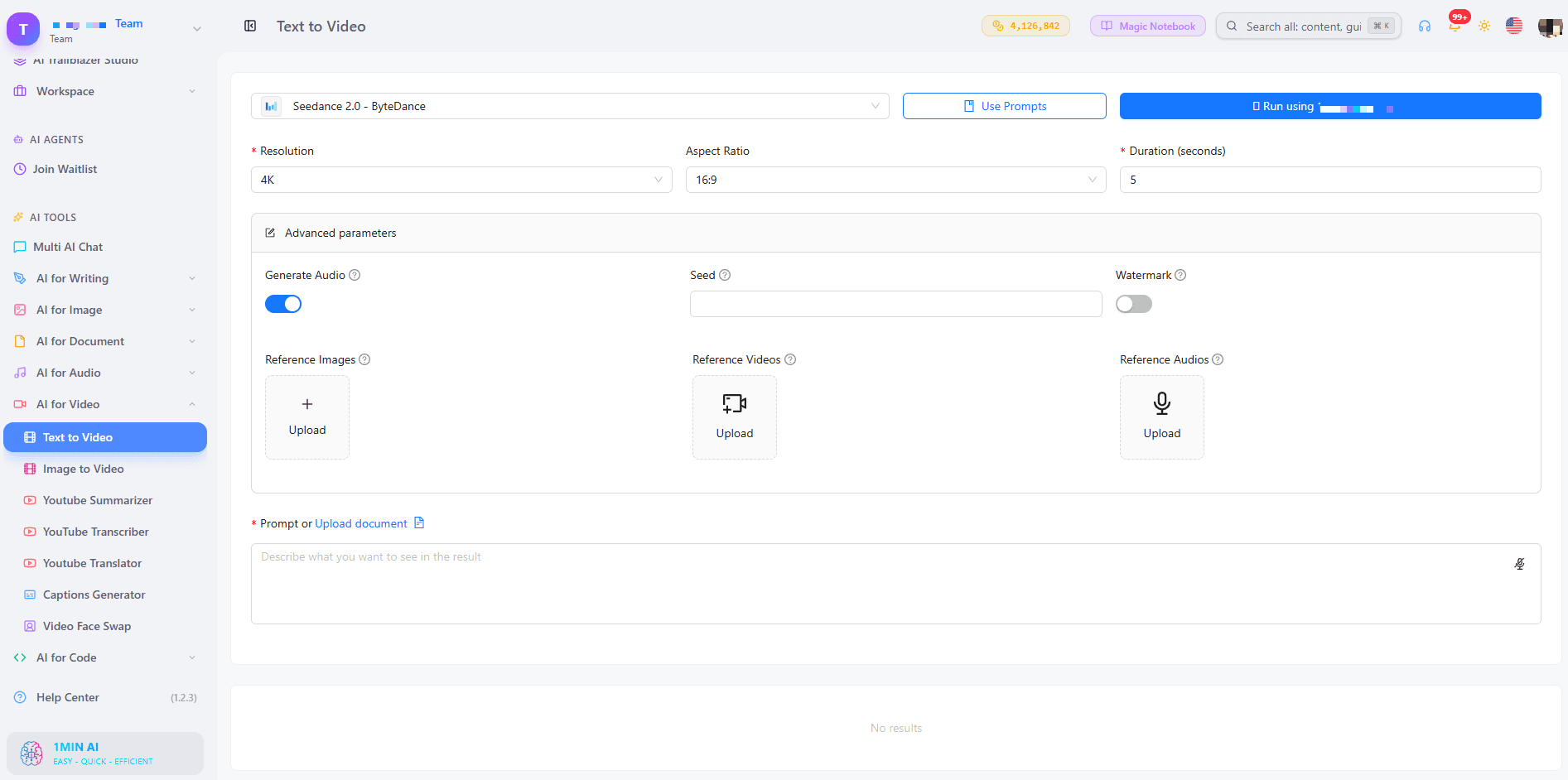
A Simple Prompt Formula
Include four parts: the product, the action, the setting and the camera.
Example Prompt
A clean laptop on a modern desk, showing a project dashboard with colorful charts. A hand clicks a “Create report” button and a report appears. Soft daylight, slow zoom toward the screen, professional product demo style.
Use the What not to include field to avoid common flaws, for example: blurry, distorted text, warped interface, watermark, flickering.
Step 2: Choose a Model and Settings
1min.AI gives you several video models in one place, so you can match the model to your goal.
| Your goal | Model to try | Why it fits |
|---|---|---|
| A multi-scene demo story | Kling 3.0 | Multi shots (up to 6 shots, 15 seconds total) |
| Highest-quality hero clip | Veo 3.1 Video | 720p or 1080p, 16:9 or 9:16 |
| Fast drafts to test prompts | Veo 3.1 Video Fast | Quick iterations before the final render |
| Longer clips with reference files | Seedance 2.5 | Up to 30 seconds, plus reference images, videos and audio |
| Your own voiceover track | Wan 2.7 | Accepts a custom WAV or MP3 audio file |
Settings That Work Well for Demos
- Aspect ratio: 16:9 for websites and YouTube, 9:16 for TikTok and Reels.
- Resolution: Test at 720p, then render the final clip at 1080p.
- Generate audio: Turn it on for ambient sound. Turn it off if you plan to add your own voiceover.
- Kling 1.6 to 2.5: Standard mode for tests, Professional for the final version. Keep CFG Scale between 0.5 and 0.7, and use Default or Zoom camera control.
Step 3: Generate, Review and Refine
Click generate, then watch the result with a critical eye. Check three things: does the motion match your prompt, is any on-screen text readable, and does the clip show one clear idea?
If something is off, change one detail in the prompt and run it again. Short test clips make this cheap and fast. Once a clip works, build the rest of your demo scene by scene.
How to Show Your Real Product Interface
AI-generated visuals are great for context, intros and feature moments. However, video models can misspell text and invent interface details. If viewers must see your exact screens, start from your own images.
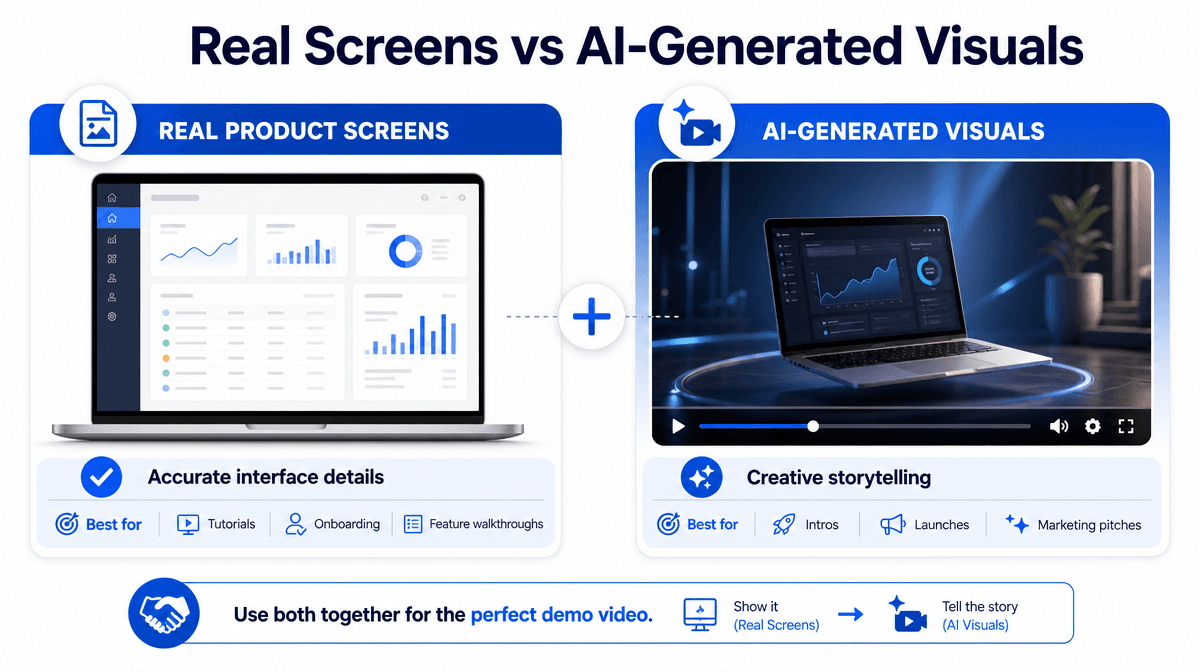
Upload product screenshots to AI Image to Video to add smooth camera motion to your real interface. In Seedance models, you can also add reference images to guide the subject and style. Many teams mix both methods: generated clips for the story, real screenshots for the proof.
Optional Upgrades for a Complete Demo
Once your clips are ready, a few add-ons make the demo feel finished.
Voiceover With Text to Speech
Paste your script into Text to Speech to create a clear narration, then adjust the voice to fit your brand tone.
Captions for Muted Viewing
Use the Captions Generator so your demo works without sound, which is how many people watch online.
Translation for Global Audiences
Use the Content Translator and Audio Translator to create versions for new markets without a second production.
Reusable Workspace Tools
Brand Voice List, Prompt List, Tag List and Asset List help you keep tone, prompts and files organized, and they work without an account. Shared Zone and History need an account, which helps when a team collaborates or revisits past projects.
Which Demo Format Fits You?
Two questions decide your structure.
SaaS walkthrough or marketing pitch?
- SaaS walkthrough: Show one workflow from start to finish with practical narration.
- Marketing pitch: Lead with the outcome, use shorter scenes and a benefit-led script.
Real screens or generated visuals?
- Real screens: Best for tutorials, onboarding and feature announcements.
- Generated visuals: Best for launches, pitches and brand storytelling.
If you are unsure, start with a short generated clip for the hook and add real screenshots for the details.
Who Uses an AI Demo Video Generator?
- SaaS founders and product teams: Publish a launch clip the day a feature ships.
- Marketers and creators: Turn one message into website, social and email versions.
- Sales and customer success teams: Send a consistent on-demand preview before the first call.
- Small businesses: Make a professional demo without hiring an agency.
Tips for a Demo Video That Converts
- Open with the problem: Viewers stay when they recognize their own pain.
- Show one or two features: A focused demo beats a full tour.
- Keep each clip short: Build longer demos from several short scenes.
- Add captions every time
- End with one action: Tell viewers exactly what to do next.
Why Trust 1min.AI for Demo Videos?
1min.AI brings text, image, audio, video and document tools into one AI workspace, so a demo project does not mean juggling separate apps. Users rate the platform Excellent on Trustpilot, and it has earned recognition from SourceForge, Slashdot, Capterra, Software Advice and GetApp.
Treat AI output as a strong first draft. Review your script for accuracy, check that visuals match your current product, and listen to any voiceover before publishing. A quick human review keeps your demo precise and on brand.
Frequently Asked Questions
What is the best AI demo video generator?
The best option is the one that fits your workflow. Look for flexible inputs such as text and images, a choice of video models, voiceover, captions and translation in one place. 1min.AI offers all of these in a single workspace.
Can I use an AI demo video generator online for free?
Yes. You can try 1min.AI online and start generating a demo video straight away, with no sign-up needed to begin.
How do I make a SaaS product demo video with AI?
Describe the workflow in a prompt, choose a model, and generate. For exact interface visuals, animate your own screenshots with Image to Video.
Do I need video editing skills?
No. You write a prompt, pick your settings and review the result. Adjust the prompt to refine it.
How long should a product demo video be?
Most demos work best between 60 and 120 seconds. Since AI clips are short, build the full demo from several scenes and finish with one clear call to action.
Can I make a product demo video with AI in other languages?
Yes. Translate your script with the Content Translator and create localized voiceovers with the Audio Translator.
Start Building Your Demo Video
A strong product demo no longer needs a crew, a studio or a long editing queue. Write one clear prompt, choose a model, and see your first scene in minutes.
- #Transaction
Alternatives
Discover the best alternatives to 1minAI and compare features, pricing, and use cases.

1min.AI vs OpenRouter
1min.AI vs. OpenRouter: Compare the ready-to-use AI creation product against the technical API tool. Find out if you need a zero-code creative studio or a coding infrastructure hub.
 Ngoc Hong
Apaya Alternative
Compare 1min.AI and Apaya for LinkedIn content, brand context, visuals, scheduling, pricing, and creative work beyond social media.
Ngoc Hong
Taplio Alternative
Looking beyond Taplio Growth? Compare 1min.AI for lower-cost AI writing, LinkedIn visuals and scheduling, plus document, audio, and video tools.
Ngoc HongAI Tools
Discover the best AI tools to boost productivity, creativity, and everyday work.
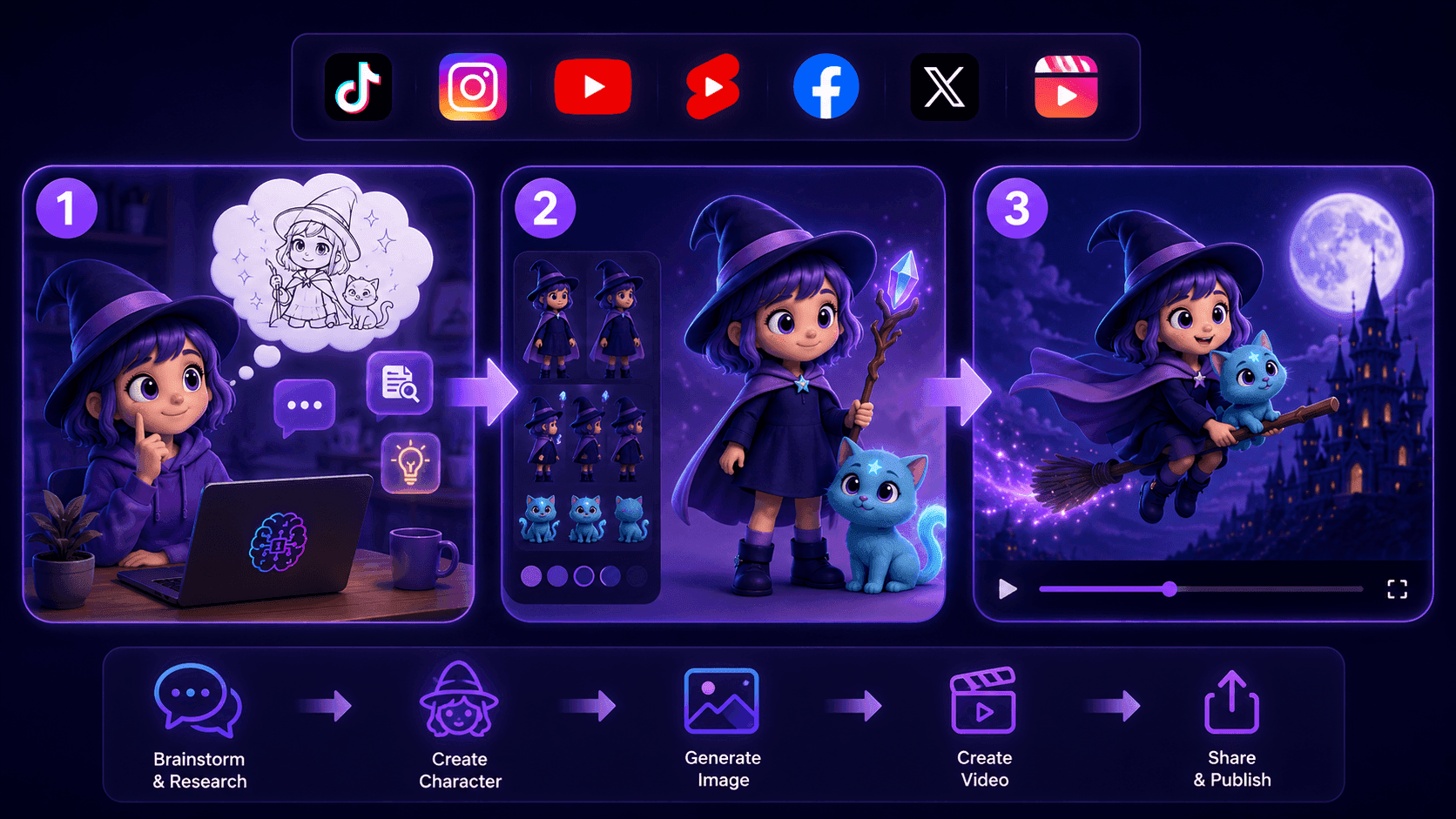
Create Consistent Cartoon Content in Just a Few Steps
Create engaging cartoon videos for TikTok and Reels with 1min.AI. Research ideas, create characters, and turn images into animated videos in 3 simple steps.
 Lien Anh Vu
One Product, 10 UGC Creatives: How AI Makes Content Testing Easier
Create more authentic UGC with an AI UGC video generator, test more creative angles and scale affiliate content without filming every version.
Lien Anh Vu
Top 4 Affordable AI Tools for Startup Founders
Discover the top 4 affordable AI tools for startup founders to validate ideas, build products, create content, and launch faster without overspending.
 Tram Ta
AI Features
Comprehensive AI features that streamline workflows, improve efficiency, and empower teams to achieve more.
Create Consistent Cartoon Content in Just a Few Steps
Create engaging cartoon videos for TikTok and Reels with 1min.AI. Research ideas, create characters, and turn images into animated videos in 3 simple steps.
Lien Anh VuOne Product, 10 UGC Creatives: How AI Makes Content Testing Easier
Create more authentic UGC with an AI UGC video generator, test more creative angles and scale affiliate content without filming every version.
Lien Anh Vu
1minAI: Free AI Grammar Checker
Check grammar for free with 1minAI’s AI grammar checker. Find grammar, spelling, and writing mistakes, improve clarity, and polish your content in seconds.
Tram TaAI Use Cases
A curated collection of AI use cases for business, productivity, and industry-specific applications.
Create Consistent Cartoon Content in Just a Few Steps
Create engaging cartoon videos for TikTok and Reels with 1min.AI. Research ideas, create characters, and turn images into animated videos in 3 simple steps.
Lien Anh VuOne Product, 10 UGC Creatives: How AI Makes Content Testing Easier
Create more authentic UGC with an AI UGC video generator, test more creative angles and scale affiliate content without filming every version.
Lien Anh Vu
Best Time to Post on Instagram: A Practical Guide for Better Engagement
Discover the best time to post on Instagram, including the best days and times for different audiences, plus tips to find the ideal posting schedule for your account.
Tram TaAI Tutorials
Learn how to use AI with practical, step-by-step tutorials.

Black Friday AI Tool Deals in 2026
Discover what Black Friday AI tool deals 2026 has to offer. Find out how to secure the 1min.AI lifetime deal via AppSumo, Dealify, Stack Social, and verify on Trustpilot, Slashdot, and Software Advice.
 Hang Nguyen
Create Consistent Cartoon Content in Just a Few Steps
Create engaging cartoon videos for TikTok and Reels with 1min.AI. Research ideas, create characters, and turn images into animated videos in 3 simple steps.
Lien Anh Vu
[Seedance 2.5 New] Better AI Product Videos, Less Rework in 1min.AI
Use Seedance 2.5 image to video on 1min.AI to create more consistent AI product videos, reduce failed generations, save credits, and improve UGC workflows.
Lien Anh VuAI Guides
Learn AI faster with practical guides, real-world examples, and actionable best practices.

Safely Buy AI Tools Online: 2026 Black Friday Guide
Discover how to find and secure the best Black Friday AI deals online. Learn expert strategies to avoid scams, combat subscription fatigue, and verify software.
Hang NguyenCreate Consistent Cartoon Content in Just a Few Steps
Create engaging cartoon videos for TikTok and Reels with 1min.AI. Research ideas, create characters, and turn images into animated videos in 3 simple steps.
Lien Anh Vu[Seedance 2.5 New] Better AI Product Videos, Less Rework in 1min.AI
Use Seedance 2.5 image to video on 1min.AI to create more consistent AI product videos, reduce failed generations, save credits, and improve UGC workflows.
Lien Anh VuAI Solutions
Browse the best AI solutions for automation, coding, research, productivity, customer support, marketing, and business workflows.
Safely Buy AI Tools Online: 2026 Black Friday Guide
Discover how to find and secure the best Black Friday AI deals online. Learn expert strategies to avoid scams, combat subscription fatigue, and verify software.
Hang NguyenCreate Consistent Cartoon Content in Just a Few Steps
Create engaging cartoon videos for TikTok and Reels with 1min.AI. Research ideas, create characters, and turn images into animated videos in 3 simple steps.
Lien Anh VuOne Product, 10 UGC Creatives: How AI Makes Content Testing Easier
Create more authentic UGC with an AI UGC video generator, test more creative angles and scale affiliate content without filming every version.
Lien Anh VuAI Models
Explore the world's leading AI models in one place.
Create Consistent Cartoon Content in Just a Few Steps
Create engaging cartoon videos for TikTok and Reels with 1min.AI. Research ideas, create characters, and turn images into animated videos in 3 simple steps.
Lien Anh VuOne Product, 10 UGC Creatives: How AI Makes Content Testing Easier
Create more authentic UGC with an AI UGC video generator, test more creative angles and scale affiliate content without filming every version.
Lien Anh Vu[Seedance 2.5 New] Better AI Product Videos, Less Rework in 1min.AI
Use Seedance 2.5 image to video on 1min.AI to create more consistent AI product videos, reduce failed generations, save credits, and improve UGC workflows.
Lien Anh VuAI Comparisons
Compare AI tools, models, and platforms to find the best fit for your needs.
Kling AI Vs Veo 3: Which Model Wins?
Kling AI vs Veo 3: compare motion, native audio, pricing & free tiers to see which AI video generator wins for your project - try both on 1min.AI.
 Trang Tran
[Seedance 2.5 New] Better AI Product Videos, Less Rework in 1min.AI
Use Seedance 2.5 image to video on 1min.AI to create more consistent AI product videos, reduce failed generations, save credits, and improve UGC workflows.
Lien Anh Vu
DeepSeek V4 Pro vs Flash Comparison
Compare DeepSeek V4 Pro vs DeepSeek V4 Flash metrics. Optimize your agentic apps and improve AI fact checking on 1min.ai today.
Ngoc HongAI Integrations
Seamlessly integrate AI with the tools you already use to automate work and boost productivity.
POV: You Have 10+ Posts to Make Every Day
Learn how to build an AI content workflow that helps content creators produce 10+ social media posts a day faster with AI brainstorming, image generation, and content creation.
Lien Anh Vu
How to Use an AI Fashion Video Generator for Fashion Week 2026
Turn Fashion Week 2026 ideas into stunning fashion videos with AI. Learn how to brainstorm, create visuals, and transform images into videos with one simple workflow.
Lien Anh Vu
Stop Switching Between AI Apps: How AI Integration Transforms Employer Branding
Discover how AI integration helps HR teams streamline employer branding by combining AI writing, documents, images, video, and multiple AI models into one workspace.
Tram TaAI for Industries
Find the best AI tools and workflows for healthcare, finance, education, legal, manufacturing, retail, real estate, and more
Free AI Product Description Generator
Write product descriptions that sell in minutes. Use this free AI product description generator to turn details or a photo into on-brand copy. Try 1min.AI.
Trang Tran
Best Business Productivity Tools for Startups to Maximize Profits | 1minAI
Discover the best business productivity tools for startups to save time, streamline workflows, reduce repetitive tasks, and support profitable growth with AI.
Tram Ta
Best AI Tool for Content Marketing |1minAI
Looking for the best AI tool for content marketing? See how 1minAI helps marketers research, write, repurpose, create visuals, and scale content from one AI workspace.
Tram TaAI Agents
Discover and run AI agents to automate tasks across your work and daily life.
1minAI: Free AI Grammar Checker
Check grammar for free with 1minAI’s AI grammar checker. Find grammar, spelling, and writing mistakes, improve clarity, and polish your content in seconds.
Tram Ta
AI Agents for Facebook
Use an AI Agent for Facebook to create content, generate images, schedule posts, and publish from your documents and conversations.
Ngoc Hong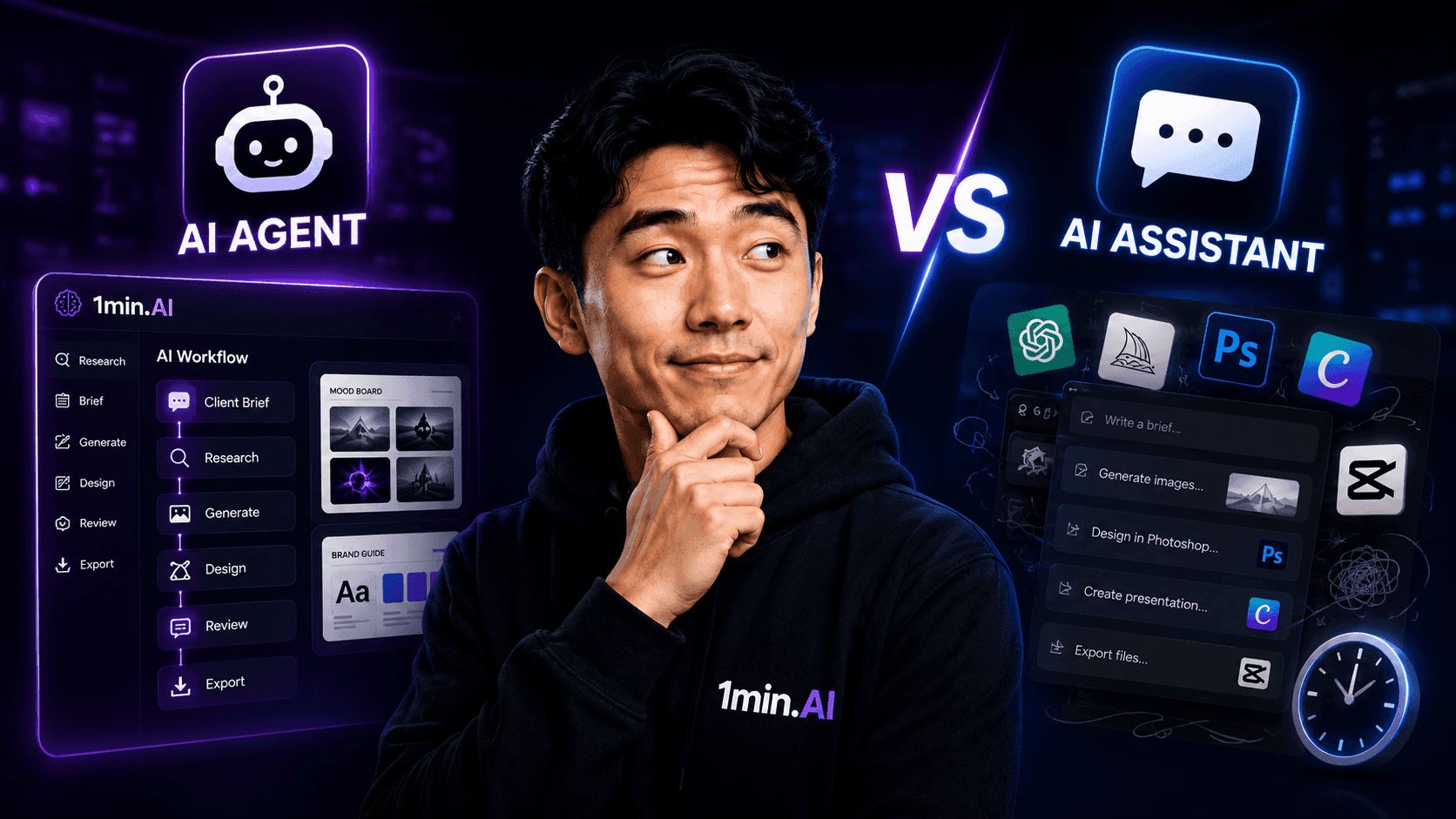
AI Agent vs AI Assistant: Which One Actually Saves Designers More Time?
Learn the difference between AI Agent vs AI Assistant and discover which solution helps designers automate repetitive work, reduce revisions, and save more time.
Lien Anh VuAI Workflows
Explore ready-to-use AI workflows for productivity, marketing, sales, support, and more.
Create Consistent Cartoon Content in Just a Few Steps
Create engaging cartoon videos for TikTok and Reels with 1min.AI. Research ideas, create characters, and turn images into animated videos in 3 simple steps.
Lien Anh VuOne Product, 10 UGC Creatives: How AI Makes Content Testing Easier
Create more authentic UGC with an AI UGC video generator, test more creative angles and scale affiliate content without filming every version.
Lien Anh VuPOV: You Have 10+ Posts to Make Every Day
Learn how to build an AI content workflow that helps content creators produce 10+ social media posts a day faster with AI brainstorming, image generation, and content creation.
Lien Anh VuNewsletter
Weekly AI Innovations with 1minAI

🔮 Weekly AI Innovations #143: Update GPT-6, GPT-6.1 & Ideogram 4.0
Access GPT-6 Sol, Luna, GPT-6.1 Sol, and Ideogram 4.0 on 1min.ai. Boost typography accuracy to 98.4% and cut reasoning latency by 45% in one platform.
Hang Nguyen
🔮 Weekly AI Innovations #142: Grok 4.7, Opus 5.5 & Sonnet 5.5 on 1min.ai
Access Grok 4.7, Claude Opus 5.5, and Sonnet 5.5 on 1min.ai. Cut subscription costs by up to 70% and process millions tokens in a single unified workspace.
Hang Nguyen
🔮 Weekly AI Innovations #141: Seedance 2.5 & Stable Audio 3: Next-Gen AI
Explore Seedance 2.0, 2.5, and StabilityAI's Stable Audio 3 on 1min.ai. Generate studio-grade audio and synchronized motion with next-gen generative AI.
Hang Nguyen