
Best Free Video Editor for YouTube Without Watermark | 1minAI

Tram Ta
October 13, 2026
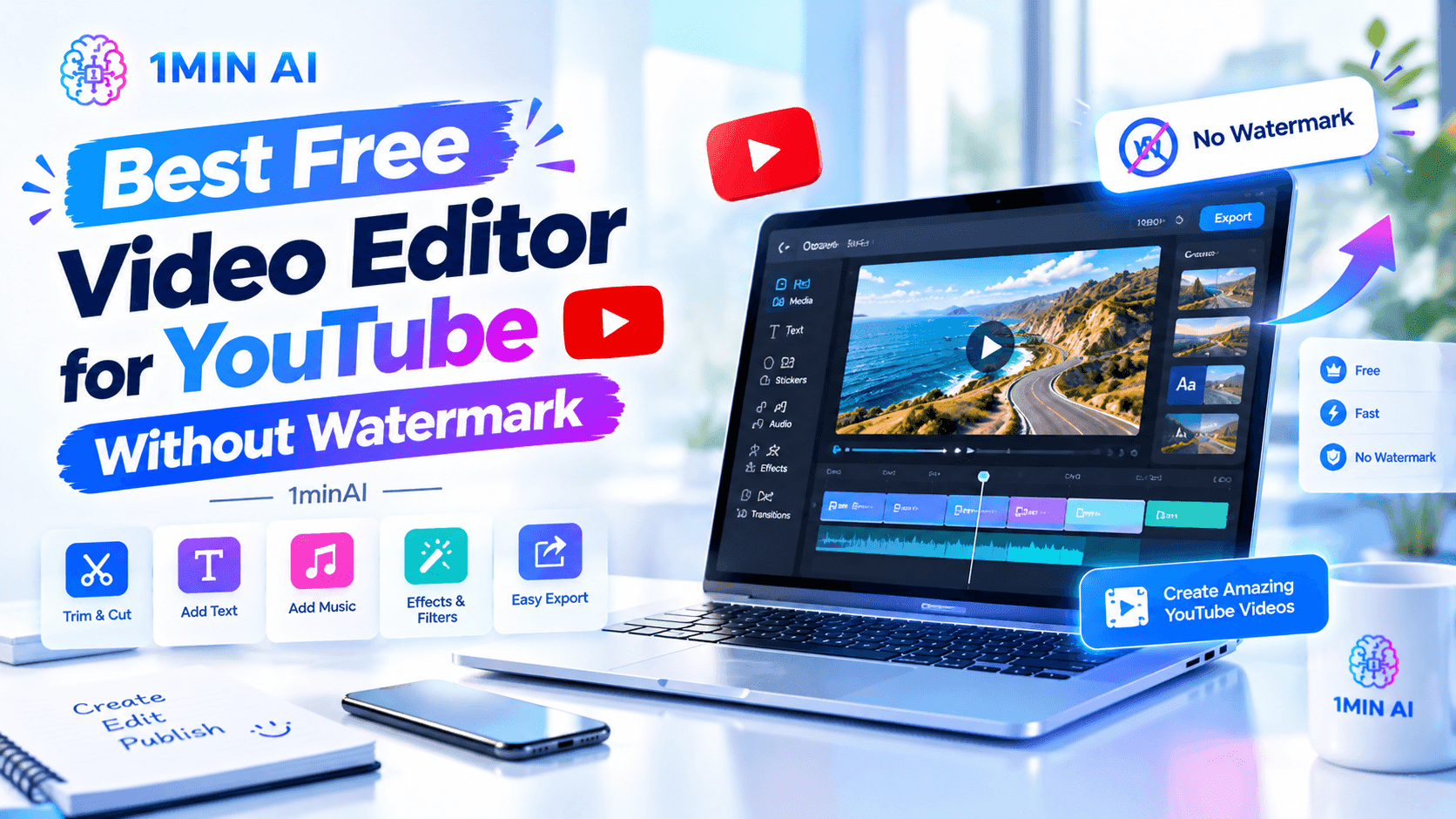
Looking for the best free video editor for YouTube without a watermark? Explore editing tips and 1minAI tools for creating, captioning, and improving videos.
Finding the best free video editor for YouTube without a watermark can be challenging. You want to create professional-looking videos, add captions, improve your content, and export videos without distracting branding—all without paying for an expensive subscription.
The right tool depends on what you want to create. A traditional video editor is useful for trimming footage, arranging clips, adjusting audio, and adding transitions. AI-powered tools can help with other parts of production, including generating video clips, animating images, creating captions, and repurposing existing YouTube content.
1minAI is an AI-powered video creation workspace that brings several video-related tools together. Its AI for Video menu includes Text to Video, Image to Video, YouTube Summarizer, YouTube Transcriber, YouTube Translator, Captions Generator, and Video Face Swap.
What Should You Look for in a Free YouTube Video Editor?
Before choosing a tool, consider the tasks you need to complete most often.
1. Watermark-free exports
If you publish videos regularly, a watermark can affect the appearance of your channel. Check whether the free plan permits exports without a watermark, and whether that policy changes based on resolution, format, or feature.
Do not assume that a tool advertised as free includes unlimited watermark-free exports.
2. Essential editing features
A useful YouTube editing workflow may require:
- Trimming clips and removing unwanted footage
- Combining clips and arranging scenes
- Adjusting audio levels and adding music
- Adding titles, transitions, and visual effects
- Exporting in a format suitable for YouTube
Check that your chosen editor supports the specific features you need. AI video generation and traditional timeline editing solve different problems.
3. Captions and accessibility
Captions help viewers follow dialogue, particularly when they watch without sound. They can also improve accessibility and make spoken content easier to repurpose.
Look for automatic caption generation, transcription, and options to review the text before publishing.
4. AI-powered creation tools
AI tools can help creators produce supplementary footage, animate still images, personalize videos, and summarize long videos. These capabilities are useful when you need more content but have limited time or production resources.
5. Practical free-plan limits
Check the available credits, video duration, export resolution, storage period, and commercial-use terms. A free plan may be suitable for testing a workflow but insufficient for frequent production.
How 1minAI Helps You Create Better YouTube Videos
1minAI brings AI-powered video creation and related content tools into one workspace. It can complement a traditional editor by helping you create new visuals, prepare captions, personalize clips, and extract ideas from existing videos.
Here are the most relevant features for YouTube creators.
1. Text to Video: Create Clips From Prompts
Text to Video lets you turn a written description into a video clip. This can help when you need illustrative footage, a visual hook, or a scene that would be difficult to record yourself.
For example, a travel creator could use a prompt such as:
Prompt: Cinematic Travel B-Roll
Create a cinematic 8-second establishing shot of a coastal town at sunrise. Show gentle waves, warm sunlight reflecting on the water, and a slow camera movement toward colorful buildings. Use realistic lighting, natural colors, and smooth motion. Do not include text or logos.
You can explore 1minAI's Text to Video tools and API documentation to learn more about text-based video generation.
Generated footage may need additional editing, sound design, and color adjustments before it fits your final YouTube video.
2. Image to Video: Animate Still Images
If you already have thumbnails, product images, illustrations, or photographs, Image to Video can help turn static visuals into moving clips.
This is useful for explainer videos, product presentations, storytelling, and visual transitions. Instead of searching for suitable stock footage for every scene, you can experiment with animating images you already have.
Try this prompt:
Prompt: Product Showcase
Animate the uploaded product photograph into a polished 6-second product showcase. Slowly move the camera closer to the product while maintaining its original shape, color, and proportions. Use soft studio lighting and a clean background. Keep the product centered and avoid adding text or extra objects.
Explore the Luma AI Image to Video API documentation for more information about this image-to-video workflow.
3. Video Face Swap: Personalize Creative Clips
1minAI also offers Video Face Swap, which can help creators experiment with face replacement in a target video.
Potential applications include fictional characters, creative skits, and approved promotional concepts. Use your own face or obtain permission from the person whose likeness you use. Do not create deceptive videos that imply someone said or did something they did not.
For developers building workflows around this capability, see the Video Face Swap API documentation.
Remember that face swapping is a specialized video feature, not a replacement for standard trimming, audio editing, or timeline assembly.
4. Captions Generator: Prepare Videos for Viewing Without Sound
Captions are particularly useful for Shorts, tutorials, interviews, and social clips. They can help viewers follow the content when they cannot turn on audio.
A practical workflow is to generate captions, review the transcript for names and technical terms, correct timing or wording where needed, and check that the final captions are readable on mobile screens.
Before publishing, verify whether the caption tool provides the export format and styling options you need.
5. YouTube Summarizer: Turn Long Videos Into Useful Notes
Not every video task involves editing footage. Sometimes you need to understand a long video before creating a response, tutorial, or follow-up piece of content.
1minAI's YouTube Summarizer helps you work with video content by summarizing key information. This can be useful for research, outlining a response video, reviewing educational material, or identifying points to discuss in a new video.
Use summaries as a starting point. Check important claims against the original video, especially when accuracy matters.
6. SV4D 2.0: Explore Advanced Video-to-4D Creation
For creators working on experimental visuals, game assets, or VFX concepts, 1minAI also offers Free 4D Video Generation with SV4D 2.0.
The tool is designed for video-to-4D workflows, including generating multiple viewpoints from video input. This is a specialized capability rather than a standard YouTube editing feature, but it may be useful for creators who want to explore more advanced visual production.
How to Create a YouTube Video With 1minAI
You can use 1minAI alongside your preferred video editor. A simple workflow looks like this:
Step 1: Plan your video. Define the topic, audience, key message, and scenes you need. Write a short script or outline before creating visuals.
Step 2: Generate supplementary footage. Use Text to Video for scenes described with prompts or Image to Video to animate suitable still images.
Step 3: Create or prepare captions. Use the Captions Generator where appropriate, then review the text for errors and readability.
Step 4: Add specialized effects if needed. Use Video Face Swap only when it fits the creative goal and you have the necessary permission.
Step 5: Assemble the final video. Import the generated clips and other footage into a conventional video editor if you need to trim scenes, arrange a timeline, mix audio, or add transitions.
Step 6: Review the export. Check resolution, aspect ratio, audio, captions, and visual consistency. Confirm the editor's watermark policy before exporting the final version.
Step 7: Prepare the video for YouTube. Write a relevant title and description, choose a thumbnail, and verify that you have the rights to use all footage, music, images, and likenesses.
Which 1minAI Tools Fit Your YouTube Workflow?
| Your goal | Relevant 1minAI tool |
|---|---|
| Generate a scene from a written prompt | Text to Video |
| Animate an existing image | Image to Video |
| Experiment with face replacement | Video Face Swap |
| Prepare captions | Captions Generator |
| Extract key points from a video | YouTube Summarizer |
| Explore multi-view video-to-4D creation | SV4D 2.0 |
These tools support different parts of the production process. If you need detailed timeline editing, frame-by-frame trimming, or advanced audio mixing, use a dedicated video editor for those tasks.
Can You Use 1minAI as a Free Video Editor Without a Watermark?
1minAI provides free access to try its AI platform, but you should distinguish between free AI video tools and a traditional free video editor with confirmed watermark-free exports.
The available features and usage limits can depend on the tool and plan. Before relying on 1minAI for a final YouTube export, check the current credit requirements, output options, and any watermark restrictions shown in the app.
If your primary goal is to assemble recorded footage and export a complete video without a watermark, choose a conventional editor that explicitly confirms this capability on its free plan. You can then use 1minAI to create supplementary visuals, captions, and other assets.
For agencies or businesses that want to build video-generation services into their own branded experience, explore the 1minAI White Label AI Video Generator to learn more about its offering.
Frequently Asked Questions
What is the best free video editor for YouTube without a watermark?
The best choice depends on your editing needs. Compare free-plan watermark policies, export resolution, timeline controls, audio features, and caption support. Confirm the current terms before committing to a workflow.
Is 1minAI a traditional video editor?
1minAI focuses on AI-powered content creation and video-related tools, including Text to Video, Image to Video, Video Face Swap, Captions Generator, and YouTube Summarizer. It can complement a conventional editor, particularly for generating and preparing content.
Can I create YouTube videos with AI?
Yes. AI tools can help generate visual clips, animate images, prepare captions, and summarize source videos. You may still need a conventional editor to assemble footage, refine timing, mix audio, and export a finished video.
Can I use AI-generated videos on a monetized YouTube channel?
Potentially, but check the relevant tool's commercial-use terms and YouTube's current policies. You are responsible for rights to source materials, music, likenesses, and other assets. AI-generated content should also be reviewed for accuracy and quality.
Does free video editing software always remove watermarks?
No. Some free plans allow watermark-free exports, while others restrict them or reserve them for paid plans. Check the exact export policy rather than relying on the word “free.”
Conclusion
The best free video editor for YouTube without a watermark is one that fits your production needs and clearly explains its free-plan limitations. Traditional editors handle timeline assembly and finishing, while AI tools can speed up content creation.
With 1minAI, YouTube creators can explore Text to Video, Image to Video, Video Face Swap, Captions Generator, and YouTube Summarizer in one AI workspace. Combine the tools that fit your workflow with a suitable editor, then review every export before publishing.
For further information, explore the 1minAI AI Video tools.
Discover more AI features: https://1min.ai/features
Try 1minAI agent now: https://app.1min.ai/ai-agent-demo
- #Commerce
Alternatives
Discover the best alternatives to 1minAI and compare features, pricing, and use cases.

1min.AI vs OpenRouter
1min.AI vs. OpenRouter: Compare the ready-to-use AI creation product against the technical API tool. Find out if you need a zero-code creative studio or a coding infrastructure hub.
 Ngoc Hong
1min.AI vs Jarvis AI
Compare 1min.AI vs Jarvis AI to discover which AI platform is better for writing, research, automation, and content creation. Find the best AI assistant for your workflow.
Ngoc Hong
1min.AI vs Taskade
Compare 1min.AI vs Taskade for AI content creation, automation, agents, and creative workflows to find the right workspace.
Ngoc HongAI Tools
Discover the best AI tools to boost productivity, creativity, and everyday work.
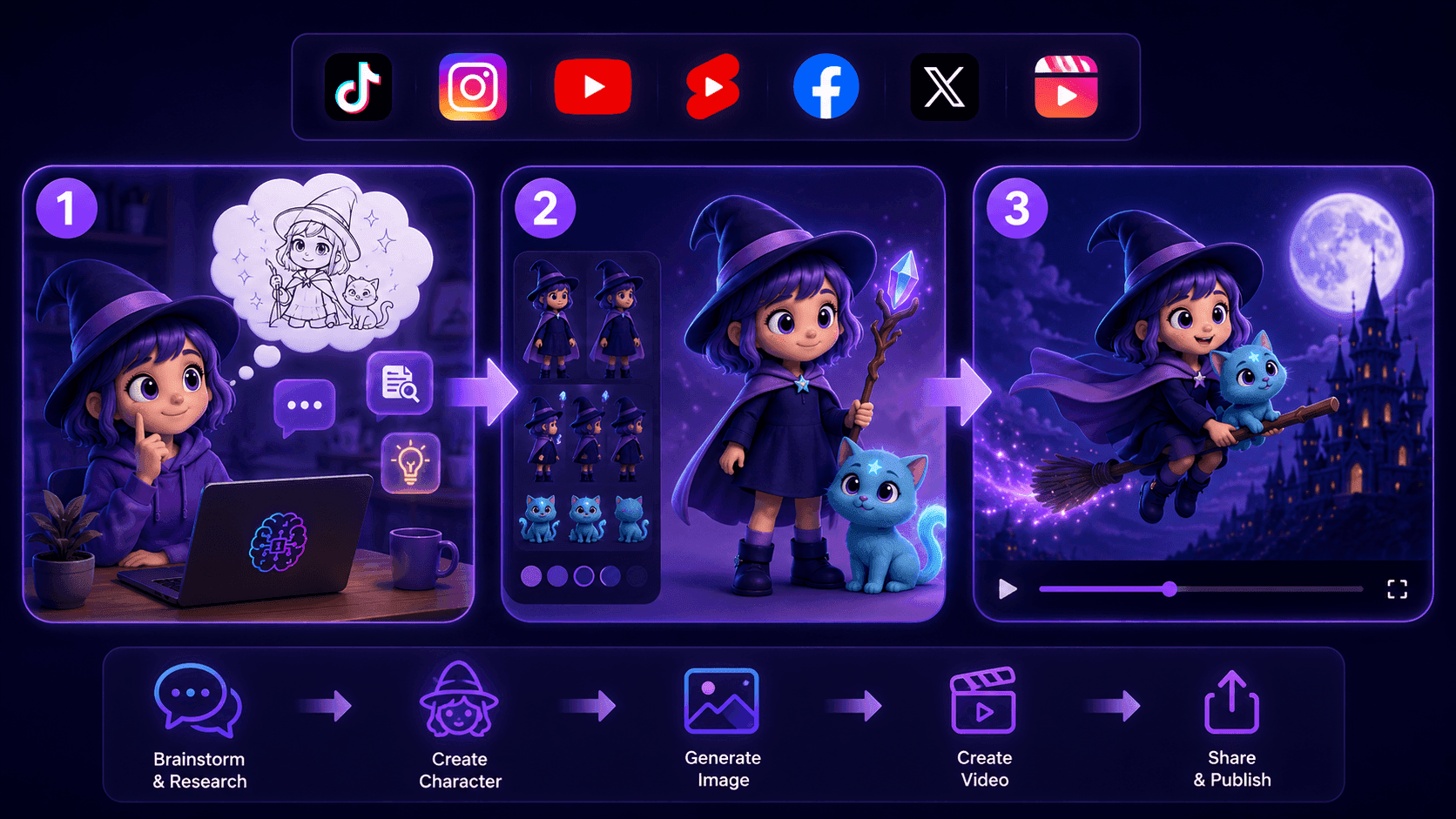
Create Consistent Cartoon Content in Just a Few Steps
Create engaging cartoon videos for TikTok and Reels with 1min.AI. Research ideas, create characters, and turn images into animated videos in 3 simple steps.
 Lien Anh Vu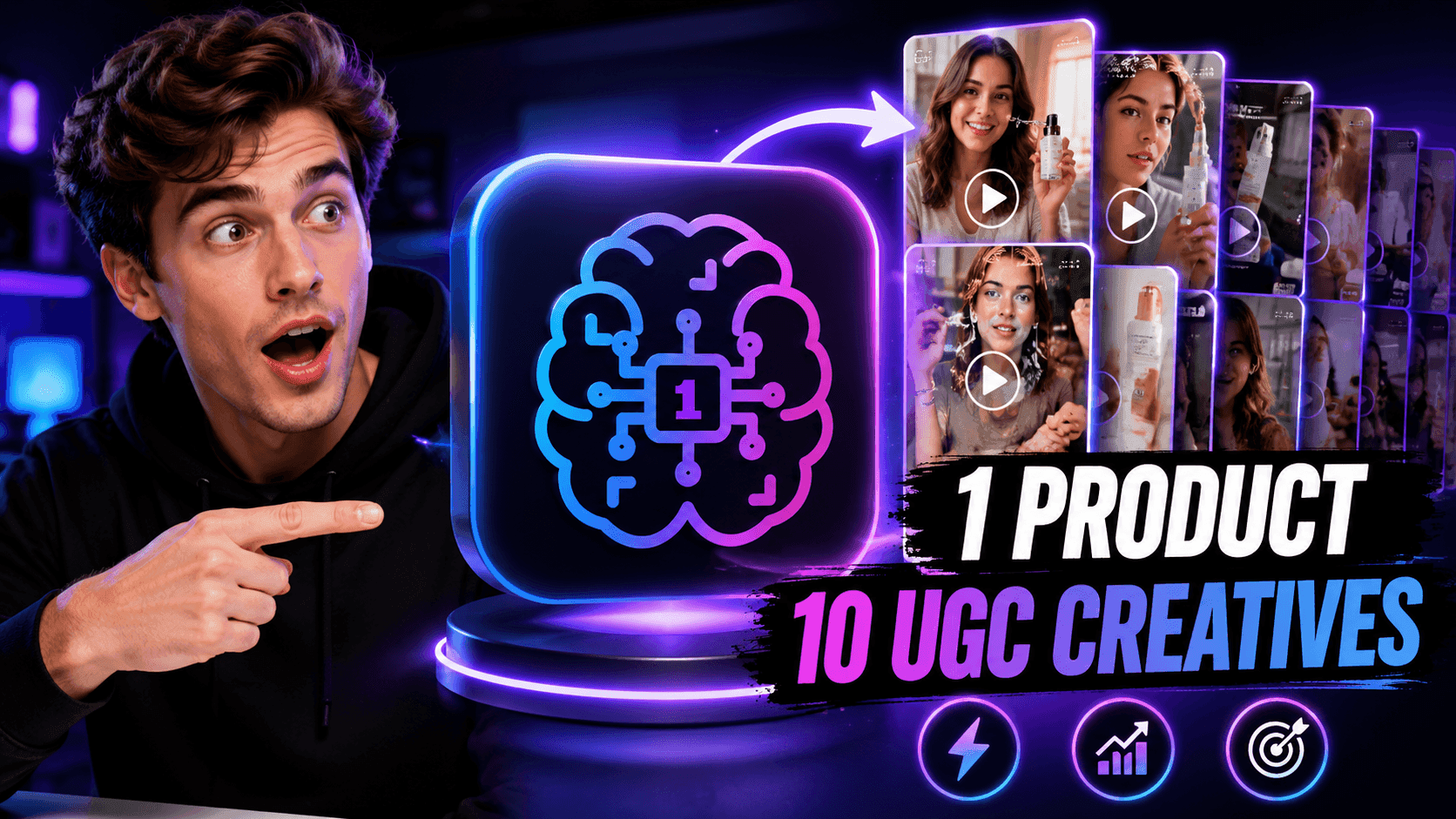
One Product, 10 UGC Creatives: How AI Makes Content Testing Easier
Create more authentic UGC with an AI UGC video generator, test more creative angles and scale affiliate content without filming every version.
Lien Anh Vu
Top 4 Affordable AI Tools for Startup Founders
Discover the top 4 affordable AI tools for startup founders to validate ideas, build products, create content, and launch faster without overspending.
 Tram Ta
AI Features
Comprehensive AI features that streamline workflows, improve efficiency, and empower teams to achieve more.
Create Consistent Cartoon Content in Just a Few Steps
Create engaging cartoon videos for TikTok and Reels with 1min.AI. Research ideas, create characters, and turn images into animated videos in 3 simple steps.
Lien Anh VuOne Product, 10 UGC Creatives: How AI Makes Content Testing Easier
Create more authentic UGC with an AI UGC video generator, test more creative angles and scale affiliate content without filming every version.
Lien Anh Vu
1minAI: Free AI Grammar Checker
Check grammar for free with 1minAI’s AI grammar checker. Find grammar, spelling, and writing mistakes, improve clarity, and polish your content in seconds.
Tram TaAI Use Cases
A curated collection of AI use cases for business, productivity, and industry-specific applications.
Create Consistent Cartoon Content in Just a Few Steps
Create engaging cartoon videos for TikTok and Reels with 1min.AI. Research ideas, create characters, and turn images into animated videos in 3 simple steps.
Lien Anh VuOne Product, 10 UGC Creatives: How AI Makes Content Testing Easier
Create more authentic UGC with an AI UGC video generator, test more creative angles and scale affiliate content without filming every version.
Lien Anh Vu
Best Time to Post on Instagram: A Practical Guide for Better Engagement
Discover the best time to post on Instagram, including the best days and times for different audiences, plus tips to find the ideal posting schedule for your account.
Tram TaAI Tutorials
Learn how to use AI with practical, step-by-step tutorials.
Black Friday AI Tool Deals in 2026
Discover what Black Friday AI tool deals 2026 has to offer. Find out how to secure the 1min.AI lifetime deal via AppSumo, Dealify, Stack Social, and verify on Trustpilot, Slashdot, and Software Advice.
 Hang Nguyen
Create Consistent Cartoon Content in Just a Few Steps
Create engaging cartoon videos for TikTok and Reels with 1min.AI. Research ideas, create characters, and turn images into animated videos in 3 simple steps.
Lien Anh Vu
[Seedance 2.5 New] Better AI Product Videos, Less Rework in 1min.AI
Use Seedance 2.5 image to video on 1min.AI to create more consistent AI product videos, reduce failed generations, save credits, and improve UGC workflows.
Lien Anh VuAI Guides
Learn AI faster with practical guides, real-world examples, and actionable best practices.

Safely Buy AI Tools Online: 2026 Black Friday Guide
Discover how to find and secure the best Black Friday AI deals online. Learn expert strategies to avoid scams, combat subscription fatigue, and verify software.
Hang NguyenCreate Consistent Cartoon Content in Just a Few Steps
Create engaging cartoon videos for TikTok and Reels with 1min.AI. Research ideas, create characters, and turn images into animated videos in 3 simple steps.
Lien Anh Vu[Seedance 2.5 New] Better AI Product Videos, Less Rework in 1min.AI
Use Seedance 2.5 image to video on 1min.AI to create more consistent AI product videos, reduce failed generations, save credits, and improve UGC workflows.
Lien Anh VuAI Solutions
Browse the best AI solutions for automation, coding, research, productivity, customer support, marketing, and business workflows.
Safely Buy AI Tools Online: 2026 Black Friday Guide
Discover how to find and secure the best Black Friday AI deals online. Learn expert strategies to avoid scams, combat subscription fatigue, and verify software.
Hang NguyenCreate Consistent Cartoon Content in Just a Few Steps
Create engaging cartoon videos for TikTok and Reels with 1min.AI. Research ideas, create characters, and turn images into animated videos in 3 simple steps.
Lien Anh VuOne Product, 10 UGC Creatives: How AI Makes Content Testing Easier
Create more authentic UGC with an AI UGC video generator, test more creative angles and scale affiliate content without filming every version.
Lien Anh VuAI Models
Explore the world's leading AI models in one place.
Create Consistent Cartoon Content in Just a Few Steps
Create engaging cartoon videos for TikTok and Reels with 1min.AI. Research ideas, create characters, and turn images into animated videos in 3 simple steps.
Lien Anh VuOne Product, 10 UGC Creatives: How AI Makes Content Testing Easier
Create more authentic UGC with an AI UGC video generator, test more creative angles and scale affiliate content without filming every version.
Lien Anh Vu[Seedance 2.5 New] Better AI Product Videos, Less Rework in 1min.AI
Use Seedance 2.5 image to video on 1min.AI to create more consistent AI product videos, reduce failed generations, save credits, and improve UGC workflows.
Lien Anh VuAI Comparisons
Compare AI tools, models, and platforms to find the best fit for your needs.
Kling AI Vs Veo 3: Which Model Wins?
Kling AI vs Veo 3: compare motion, native audio, pricing & free tiers to see which AI video generator wins for your project - try both on 1min.AI.
 Trang Tran
[Seedance 2.5 New] Better AI Product Videos, Less Rework in 1min.AI
Use Seedance 2.5 image to video on 1min.AI to create more consistent AI product videos, reduce failed generations, save credits, and improve UGC workflows.
Lien Anh Vu
DeepSeek V4 Pro vs Flash Comparison
Compare DeepSeek V4 Pro vs DeepSeek V4 Flash metrics. Optimize your agentic apps and improve AI fact checking on 1min.ai today.
Ngoc HongAI Integrations
Seamlessly integrate AI with the tools you already use to automate work and boost productivity.
POV: You Have 10+ Posts to Make Every Day
Learn how to build an AI content workflow that helps content creators produce 10+ social media posts a day faster with AI brainstorming, image generation, and content creation.
Lien Anh Vu
How to Use an AI Fashion Video Generator for Fashion Week 2026
Turn Fashion Week 2026 ideas into stunning fashion videos with AI. Learn how to brainstorm, create visuals, and transform images into videos with one simple workflow.
Lien Anh Vu
Stop Switching Between AI Apps: How AI Integration Transforms Employer Branding
Discover how AI integration helps HR teams streamline employer branding by combining AI writing, documents, images, video, and multiple AI models into one workspace.
Tram TaAI for Industries
Find the best AI tools and workflows for healthcare, finance, education, legal, manufacturing, retail, real estate, and more
Best Business Productivity Tools for Startups to Maximize Profits | 1minAI
Discover the best business productivity tools for startups to save time, streamline workflows, reduce repetitive tasks, and support profitable growth with AI.
Tram Ta
Best AI Tool for Content Marketing |1minAI
Looking for the best AI tool for content marketing? See how 1minAI helps marketers research, write, repurpose, create visuals, and scale content from one AI workspace.
Tram Ta
7 Low-Cost AI Business Ideas for Your Startup
Explore 7 low-cost AI business ideas you can start with a small budget, from content and video services to AI consulting, reselling, and automation.
Tram TaAI Agents
Discover and run AI agents to automate tasks across your work and daily life.
1minAI: Free AI Grammar Checker
Check grammar for free with 1minAI’s AI grammar checker. Find grammar, spelling, and writing mistakes, improve clarity, and polish your content in seconds.
Tram Ta
AI Agents for Facebook
Use an AI Agent for Facebook to create content, generate images, schedule posts, and publish from your documents and conversations.
Ngoc Hong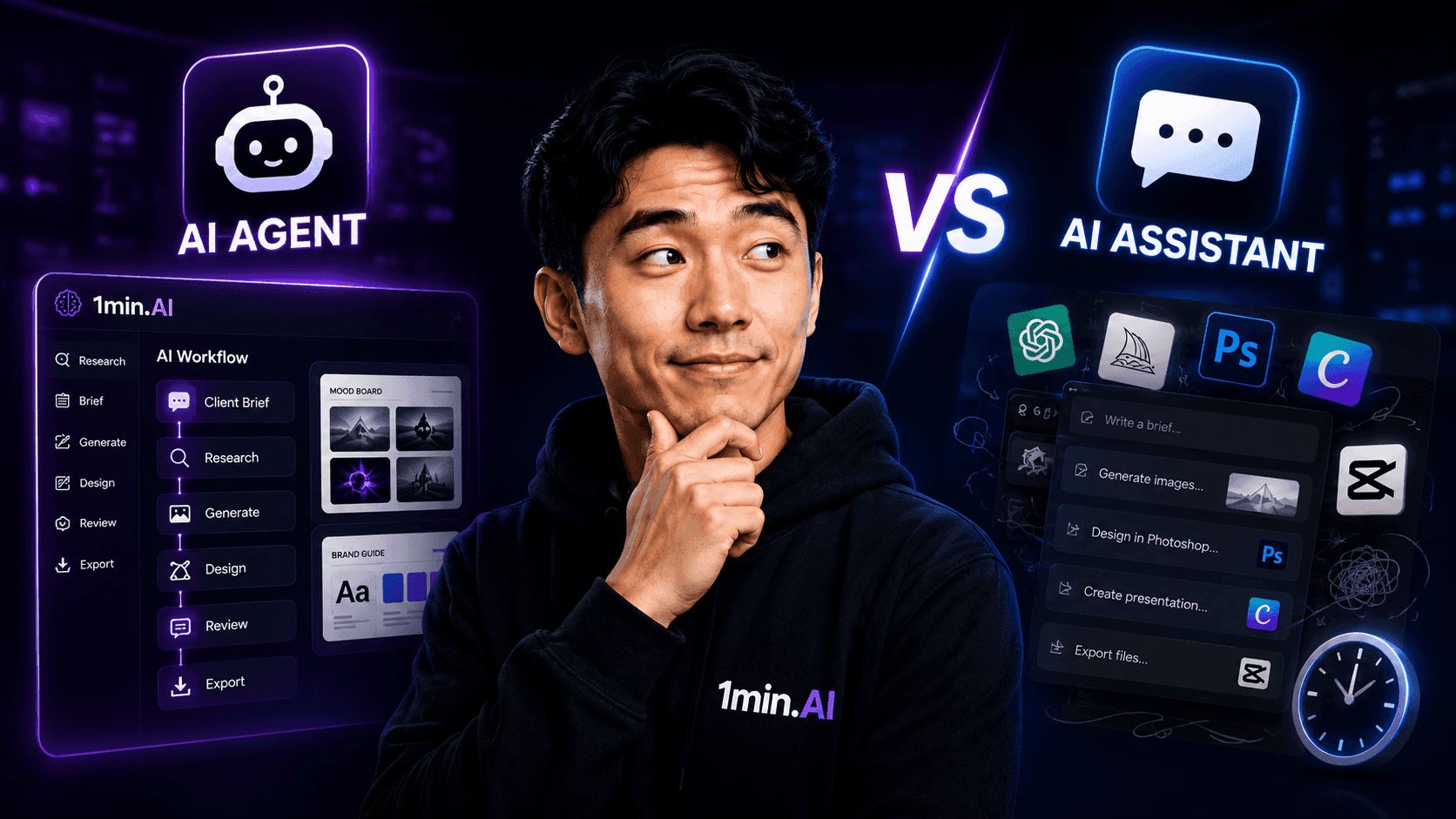
AI Agent vs AI Assistant: Which One Actually Saves Designers More Time?
Learn the difference between AI Agent vs AI Assistant and discover which solution helps designers automate repetitive work, reduce revisions, and save more time.
Lien Anh VuAI Workflows
Explore ready-to-use AI workflows for productivity, marketing, sales, support, and more.
Create Consistent Cartoon Content in Just a Few Steps
Create engaging cartoon videos for TikTok and Reels with 1min.AI. Research ideas, create characters, and turn images into animated videos in 3 simple steps.
Lien Anh VuOne Product, 10 UGC Creatives: How AI Makes Content Testing Easier
Create more authentic UGC with an AI UGC video generator, test more creative angles and scale affiliate content without filming every version.
Lien Anh VuPOV: You Have 10+ Posts to Make Every Day
Learn how to build an AI content workflow that helps content creators produce 10+ social media posts a day faster with AI brainstorming, image generation, and content creation.
Lien Anh VuNewsletter
Weekly AI Innovations with 1minAI

🔮 Weekly AI Innovations #141: Seedance 2.5 & Stable Audio 3: Next-Gen AI
Explore Seedance 2.0, 2.5, and StabilityAI's Stable Audio 3 on 1min.ai. Generate studio-grade audio and synchronized motion with next-gen generative AI.
Hang Nguyen
🔮 Weekly AI Innovations #140: Deepseek 4.1 Flash & Gemini Upgrades
Explore Deepseek 4.1 Flash and new Gemini models on 1min.ai. Plus, check our update on your Billing - Usage page for better clarity.
Hang Nguyen
🔮 Weekly AI Innovations #139: Dawn of the next-gen AI
Discover the immense power of GPT-6 Astra and Claude Fable 5.1. Unlock next-generation AI models on 1min.ai to solve complex tasks effortlessly.
Hang Nguyen