
Claude Opus 5.5 as an AI Writing Assistant for Designers

Lien Anh Vu
20 de noviembre de 2026
Discover how designers can use Claude Opus 5.5 on 1min.AI to write portfolio descriptions and social media captions with a simple AI writing workflow.
Finished a design project but struggling to find the right words to describe it?
Claude Opus 5.5 can work as an AI writing assistant for designers, helping you write project descriptions, explain creative decisions, and create social media captions without starting from a blank page.
In this tutorial, we'll show you how to use Claude Opus 5.5 on 1min.AI to turn a finished branding project into content ready to share.
Why Designers Need an AI Writing Assistant
Designers spend a lot of time creating visuals, but presenting their work is just as important.
A great design still needs a clear story, whether you're introducing a project on Instagram, explaining your creative process on LinkedIn, or writing a portfolio description.
With Claude Opus 5.5, you can:
- Write project descriptions that explain the ideas behind your designs.
- Create social media captions adapted to different platforms.
- Improve your writing by adjusting tone, clarity, and length.
- Save time on repetitive writing while keeping your creative message consistent.
If you're managing several creative tasks, explore how AI tools for designer studios can support everything from brainstorming to content creation.
How to Use Claude Opus 5.5 on 1min.AI
Let's use our fictional Morrow Coffee branding project as an example.
The goal is to write content that introduces the project and explains its creative direction.
Step 1: Open Content Generator
First, visit 1min.AI and open AI for Writing → Content Generator.
Choose the type of content you want to create, such as Instagram Post, LinkedIn Post, or TikTok Description.
Then select Claude Opus 5.5 from the available AI models.
You can also set the language, tone, length, and brand voice to match your audience.
Step 2: Add Your Project Details
Now, tell Claude what your design project is about.
For our example, we're introducing Morrow Coffee — First Light, a fictional coffee branding concept inspired by peaceful mornings.
Here's a prompt you can customize for your own project.
Copy-Ready Prompt
Act as a professional copywriter helping a freelance graphic designer showcase a creative project.
Project: Morrow Coffee — First Light
Project type: Self-initiated fictional branding concept.
Creative concept: A warm, minimal coffee brand inspired by the calm atmosphere of early mornings.
Visual elements: Soft cream and brown colors, editorial typography, a minimal coffee illustration, and a gentle SVG animation.
Write a social media caption that:
- Starts with an engaging hook.
- Introduces the project and its inspiration.
- Explains the key visual design choices.
- Uses a natural, creative tone.
- Ends with a question that encourages feedback.
Adapt the writing to the selected social media platform. Avoid generic marketing phrases and do not describe this fictional concept as a real client project.
Enter your project information into Content Generator, select your preferred settings, and click Run.
Step 3: Create Captions for Different Platforms
One design project can become several social media posts, but each platform needs a slightly different approach.
For example, here are three sample ways to introduce Morrow Coffee.
Instagram — Visual Storytelling
What if your morning coffee felt like a little moment of peace? ☕
Meet Morrow Coffee — First Light, a personal branding concept inspired by warm sunlight, quiet mornings, and simple everyday rituals.
Soft colors, editorial typography, and gentle animation bring the idea together.
Which detail is your favorite? ✨
#BrandIdentity #GraphicDesign #CreativeProcess
LinkedIn — Professional Project Showcase
A strong brand identity starts with a clear creative direction.
For my self-initiated Morrow Coffee concept, I explored how color, typography, and subtle motion can communicate a calm, premium brand experience.
The result is First Light, a visual direction inspired by the warmth and simplicity of early mornings.
This project reminded me how important it is to connect every design decision to a consistent brand story.
TikTok — Short and Engaging
Turning a simple coffee brand idea into a complete visual identity ☕✨ From warm colors to animated details, here's the creative process behind Morrow Coffee — First Light. #BrandDesign #DesignProcess #GraphicDesigner
These examples show how the same project can be presented differently without changing its core story.
To understand how hooks, tone, and calls to action work across platforms, read our guide on creating social media captions with an AI Content Generator.
Step 4: Review and Refine Your Writing
Once Claude generates your content, don't publish it immediately.
Check whether it:
- Explains your project accurately.
- Matches your personal or brand voice.
- Sounds natural instead of overly promotional.
- Fits the platform you're posting on.
If a caption feels too generic, adjust your instructions and generate another version.
For example, try:
Rewrite this caption in a more personal and conversational tone. Focus on the creative decisions behind the project. Keep it concise and avoid exaggerated claims.
A few small adjustments can make your content feel more authentic to your work.
See the Complete Creative Workflow
Want to see how the Morrow Coffee project came together?
In our video tutorial, we use Claude on 1min.AI to brainstorm a branding concept, create an SVG animation, build a portfolio website, and write social media content.
If you're also working on your own creative website, check out our guide to building a portfolio website with 1min.AI.
Make Your Creative Work Easier to Share
Your design tells a visual story. The right words help people understand it.
With Claude Opus 5.5 on 1min.AI, you can turn project details into clearer descriptions and platform-specific captions while keeping control of your creative voice.
You focus on the design. Let AI help with the first draft.
🚀 Try Claude Opus 5.5 on 1min.AI and turn your creative projects into content worth sharing.
- #Informational
Alternativas
Descubre las mejores alternativas a 1minAI y compara características, precios y casos de uso.

1min.AI vs OpenRouter
1min.AI vs. OpenRouter: Compara el producto de creación de IA listo para usar con la herramienta técnica de API. Descubre si necesitas un estudio creativo sin código o una infraestructura para desarrolladores.
 Ngoc Hong
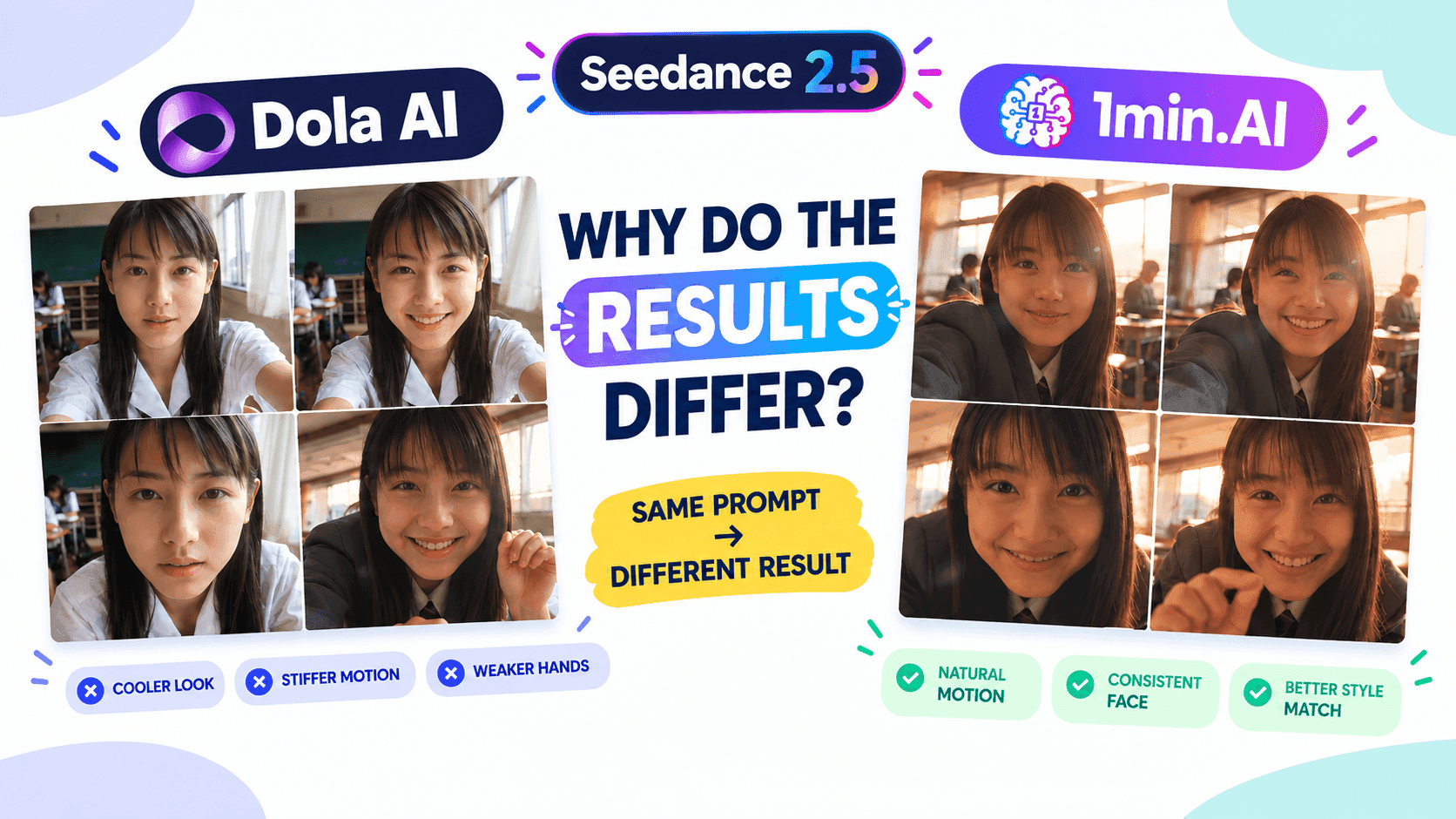
1min. AI vs Dola AI
¿Buscas una alternativa a Dola AI? Compara 1min.AI vs Dola AI en generación de video, planes gratis, precios y privacidad para elegir la app de IA adecuada.
Ngoc Hong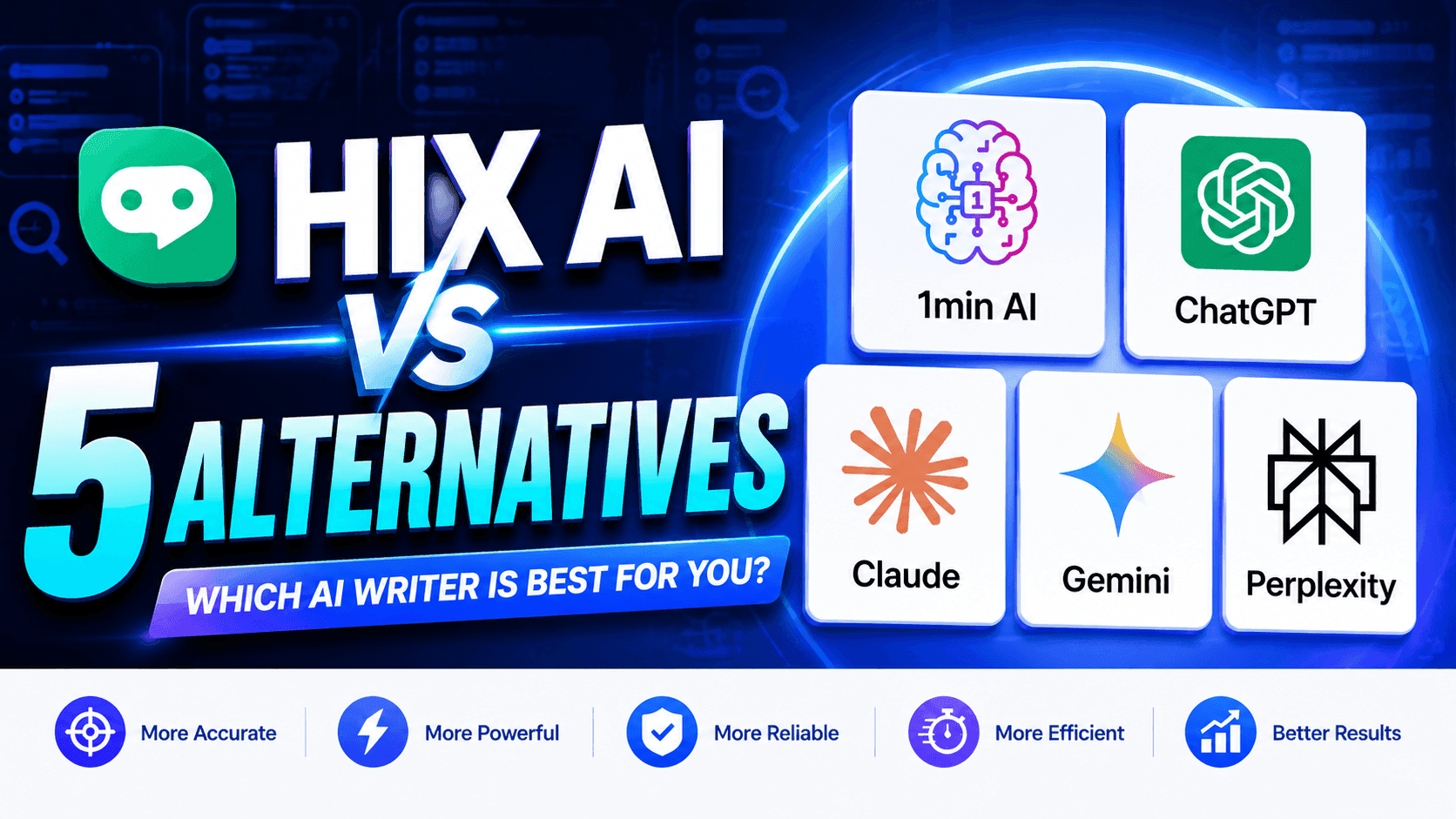
1minAI vs Hix AI
Compara 5 alternativas a HIX AI para chat con IA, investigación, redacción, imágenes, video, precios y flujos de trabajo de IA flexibles.
Ngoc HongHerramientas de IA
Descubre las mejores herramientas de IA para aumentar la productividad, la creatividad y el trabajo diario.
Un producto, 10 creativos UGC: cómo la IA facilita la prueba de contenido
Crea UGC más auténtico con un generador de videos UGC con IA, prueba más ángulos creativos y escala contenido de afiliados sin filmar cada versión.
 Lien Anh Vu
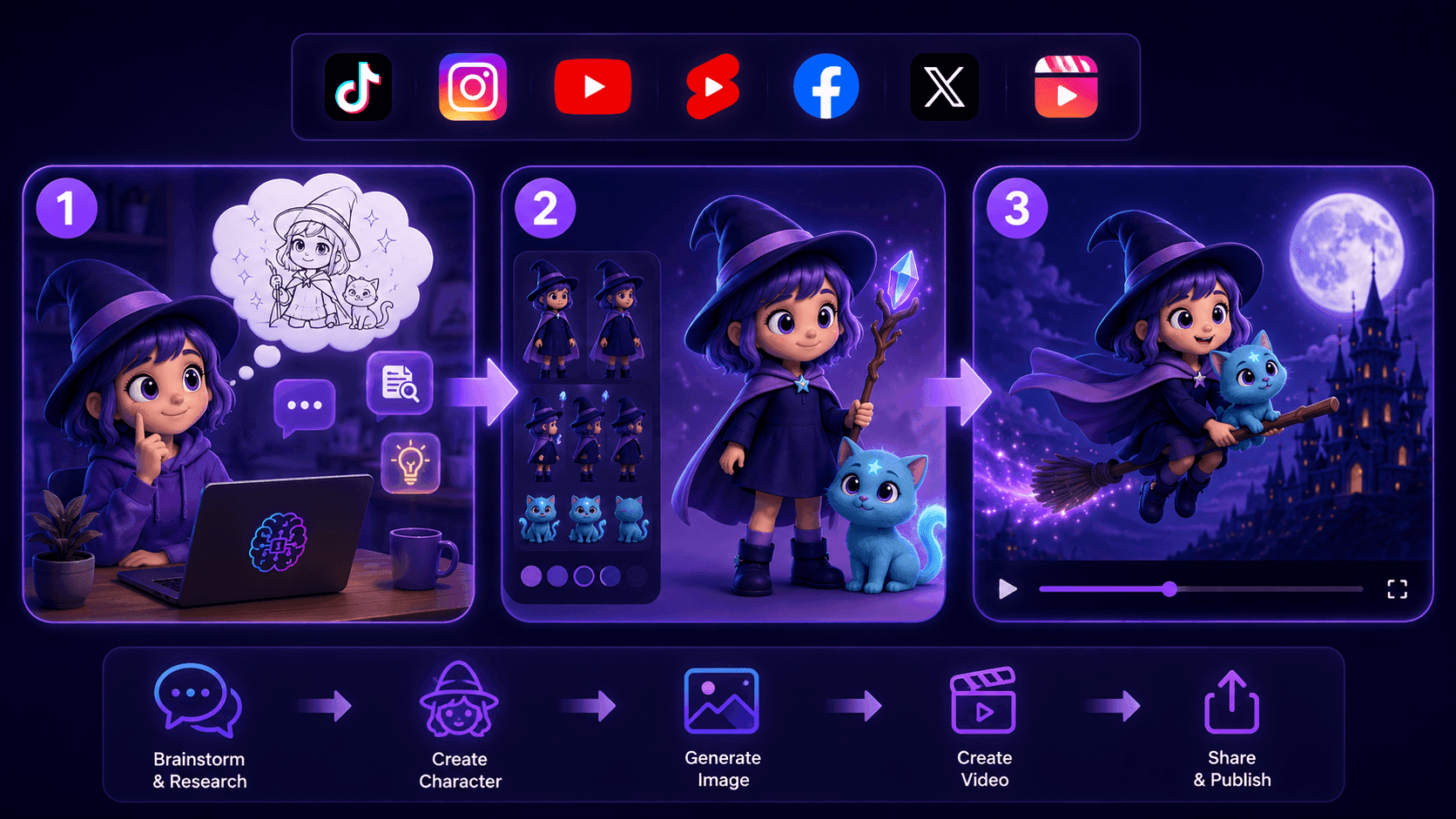
Crea contenido animado constante en solo unos pasos
Crea videos animados para TikTok y Reels en 3 pasos simples con 1min.AI, desde investigar ideas hasta personajes y videos animados.
Lien Anh Vu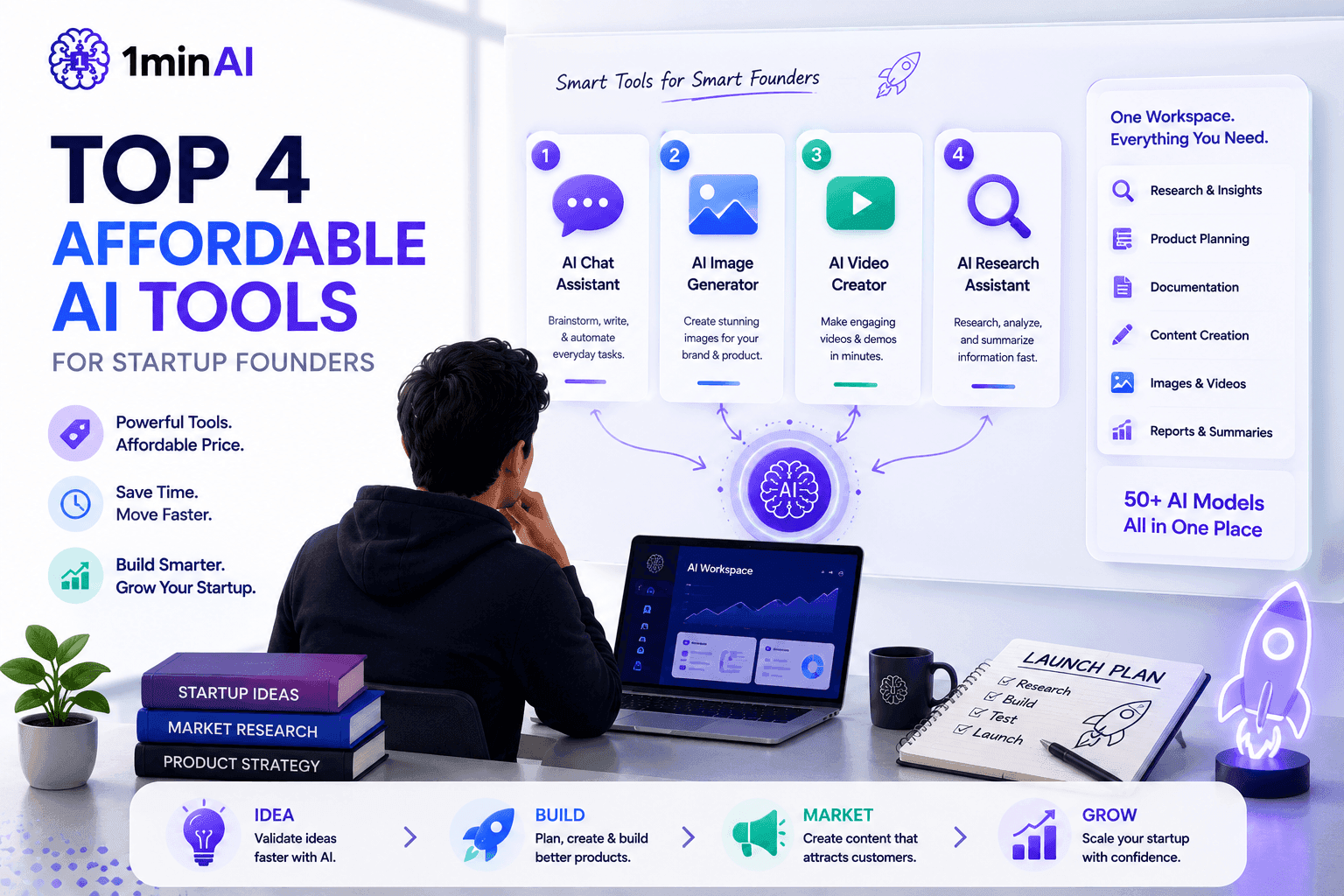
Las 4 mejores herramientas de IA asequibles para fundadores de startups
Descubre las 4 mejores herramientas de IA asequibles para fundadores de startups para validar ideas, crear productos, generar contenido y lanzar más rápido sin gastar de más.
 Tram Ta
Funciones de IA
Funciones de IA completas que agilizan los flujos de trabajo, mejoran la eficiencia y permiten a los equipos lograr más.
Un producto, 10 creativos UGC: cómo la IA facilita la prueba de contenido
Crea UGC más auténtico con un generador de videos UGC con IA, prueba más ángulos creativos y escala contenido de afiliados sin filmar cada versión.
Lien Anh VuCrea contenido animado constante en solo unos pasos
Crea videos animados para TikTok y Reels en 3 pasos simples con 1min.AI, desde investigar ideas hasta personajes y videos animados.
Lien Anh Vu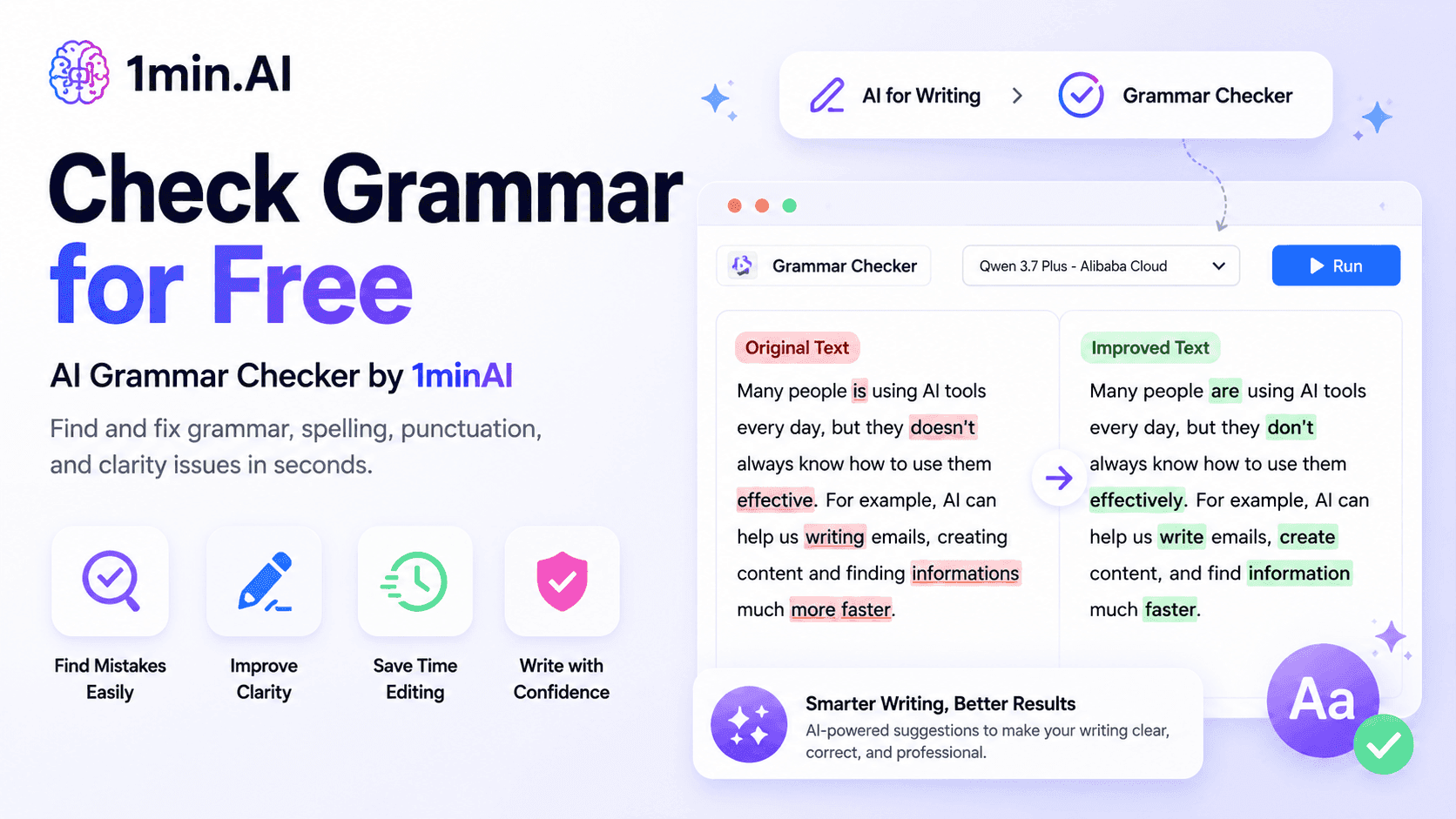
1minAI: Corrector gramatical de IA gratis
Revisa la gramática gratis con el corrector gramatical de IA de 1minAI. Encuentra errores de gramática, ortografía y redacción, mejora la claridad y pule tu contenido en segundos.
Tram TaCasos de uso de IA
Una colección curada de casos de uso de IA para negocios, productividad y aplicaciones específicas por industria.
Un producto, 10 creativos UGC: cómo la IA facilita la prueba de contenido
Crea UGC más auténtico con un generador de videos UGC con IA, prueba más ángulos creativos y escala contenido de afiliados sin filmar cada versión.
Lien Anh VuCrea contenido animado constante en solo unos pasos
Crea videos animados para TikTok y Reels en 3 pasos simples con 1min.AI, desde investigar ideas hasta personajes y videos animados.
Lien Anh Vu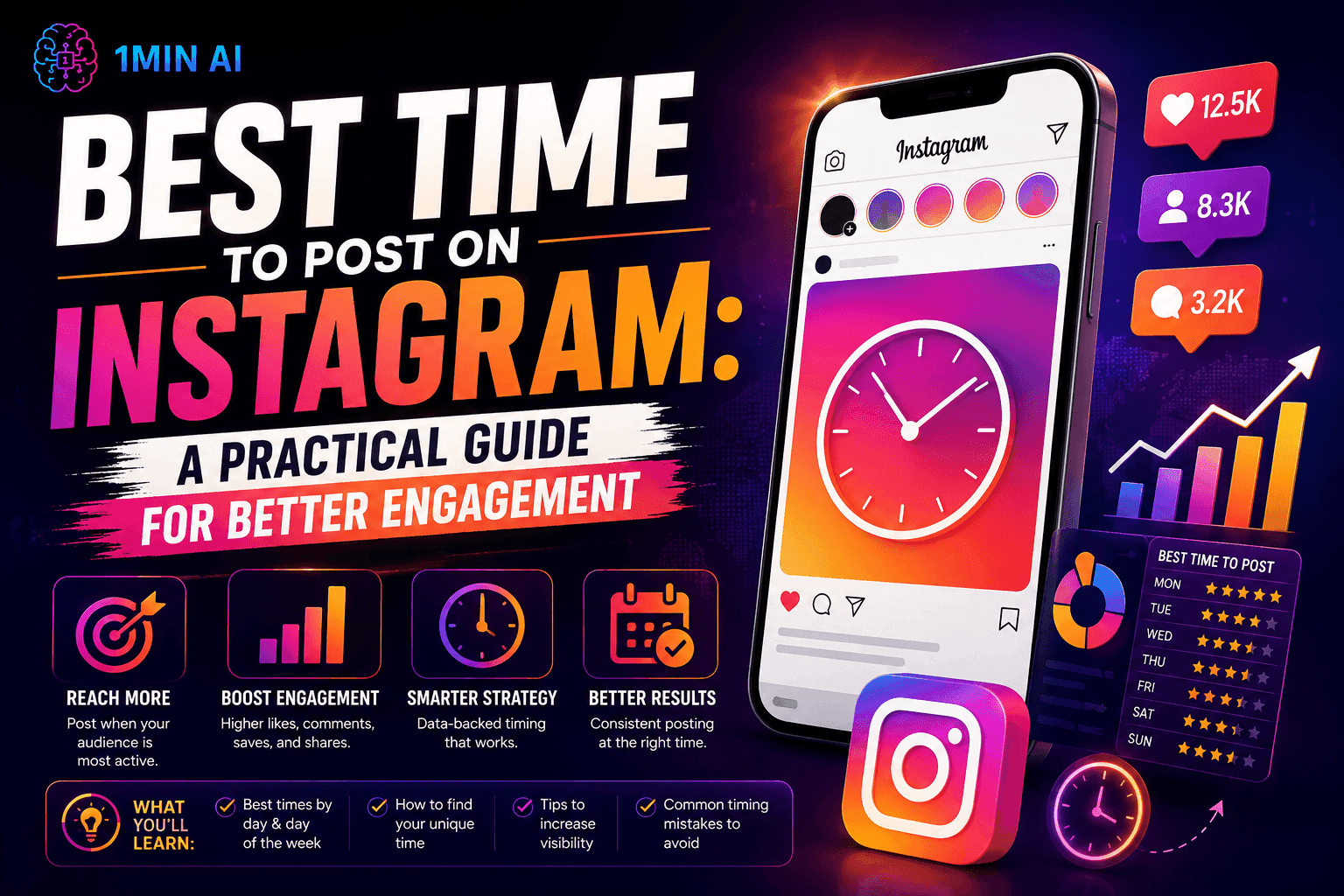
Mejor hora para publicar en Instagram: una guía práctica para mejorar la interacción
Descubre la mejor hora para publicar en Instagram, incluidos los mejores días y horas para distintas audiencias, además de consejos para encontrar el horario ideal de publicación para tu cuenta.
Tram TaTutoriales de IA
Aprende a usar la IA con tutoriales prácticos paso a paso.
Crea contenido animado constante en solo unos pasos
Crea videos animados para TikTok y Reels en 3 pasos simples con 1min.AI, desde investigar ideas hasta personajes y videos animados.
Lien Anh Vu
Ofertas de herramientas de IA para Black Friday en 2026
Descubre qué ofrecen las ofertas de herramientas de IA para Black Friday 2026. Averigua cómo asegurar la oferta de por vida de 1min.AI a través de AppSumo, Dealify y Stack Social, y verifica en Trustpilot, Slashdot y Software Advice.
 Hang Nguyen
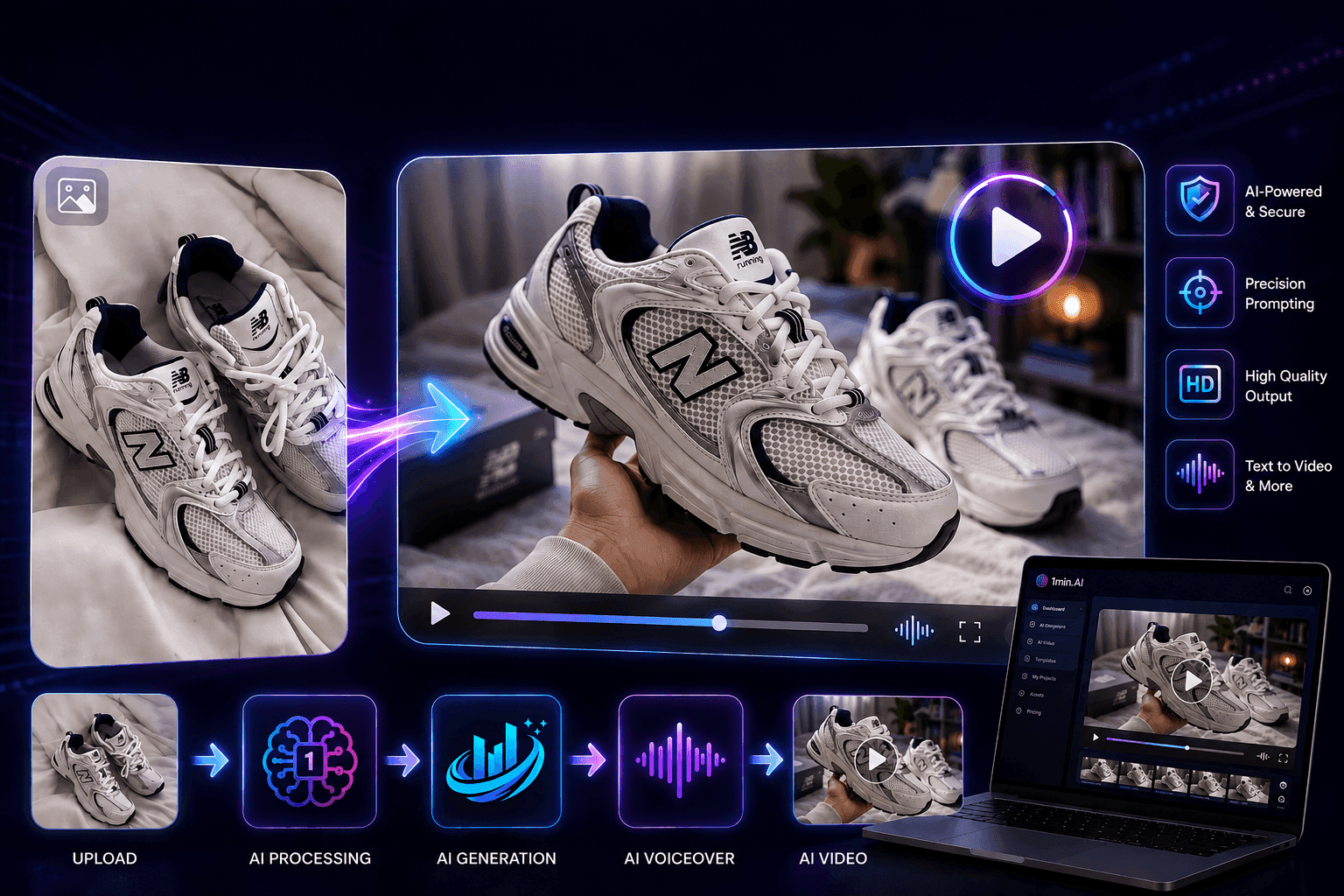
Consistencia de producto de imagen a video con IA y Seedance para detener la deformación y escalar reseñas de productos
Detén la deformación de los logos con consistencia de producto de imagen a video con IA y genera hoy videos de reseñas con calidad de estudio en 1min.AI.
Lien Anh VuGuías de IA
Aprende IA más rápido con guías prácticas, ejemplos del mundo real y mejores prácticas aplicables.
Crea contenido animado constante en solo unos pasos
Crea videos animados para TikTok y Reels en 3 pasos simples con 1min.AI, desde investigar ideas hasta personajes y videos animados.
Lien Anh Vu
Compra con seguridad herramientas de IA en línea: Guía de Black Friday 2026
Descubre cómo encontrar y asegurar las mejores ofertas de Black Friday en IA en línea. Aprende estrategias expertas para evitar estafas, combatir la fatiga de suscripciones y verificar software.
Hang NguyenConsistencia de producto de imagen a video con IA y Seedance para detener la deformación y escalar reseñas de productos
Detén la deformación de los logos con consistencia de producto de imagen a video con IA y genera hoy videos de reseñas con calidad de estudio en 1min.AI.
Lien Anh VuSoluciones de IA
Explore las mejores soluciones de IA para automatización, codificación, investigación, productividad, atención al cliente, marketing y flujos de trabajo empresariales.
Un producto, 10 creativos UGC: cómo la IA facilita la prueba de contenido
Crea UGC más auténtico con un generador de videos UGC con IA, prueba más ángulos creativos y escala contenido de afiliados sin filmar cada versión.
Lien Anh VuCrea contenido animado constante en solo unos pasos
Crea videos animados para TikTok y Reels en 3 pasos simples con 1min.AI, desde investigar ideas hasta personajes y videos animados.
Lien Anh Vu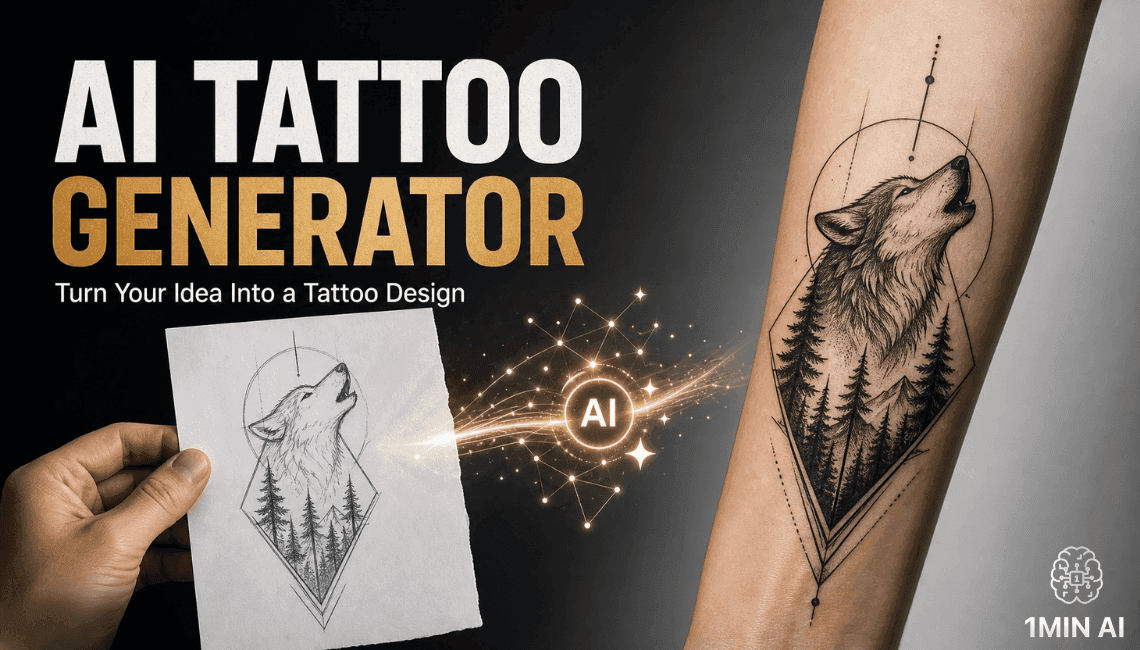
Generador Gratis de Tatuajes con IA: Diseños Personalizados
Convierte cualquier idea en un diseño de tatuaje personalizado con el generador gratis de tatuajes con IA de 1min.AI. Describe tu idea, elige un estilo y descarga en segundos.
 Trang Tran
Modelos de IA
Explora los modelos de IA líderes del mundo en un solo lugar.
Un producto, 10 creativos UGC: cómo la IA facilita la prueba de contenido
Crea UGC más auténtico con un generador de videos UGC con IA, prueba más ángulos creativos y escala contenido de afiliados sin filmar cada versión.
Lien Anh VuCrea contenido animado constante en solo unos pasos
Crea videos animados para TikTok y Reels en 3 pasos simples con 1min.AI, desde investigar ideas hasta personajes y videos animados.
Lien Anh VuConsistencia de producto de imagen a video con IA y Seedance para detener la deformación y escalar reseñas de productos
Detén la deformación de los logos con consistencia de producto de imagen a video con IA y genera hoy videos de reseñas con calidad de estudio en 1min.AI.
Lien Anh VuComparaciones de IA
Compara herramientas, modelos y plataformas de IA para encontrar la que mejor se adapte a tus necesidades.
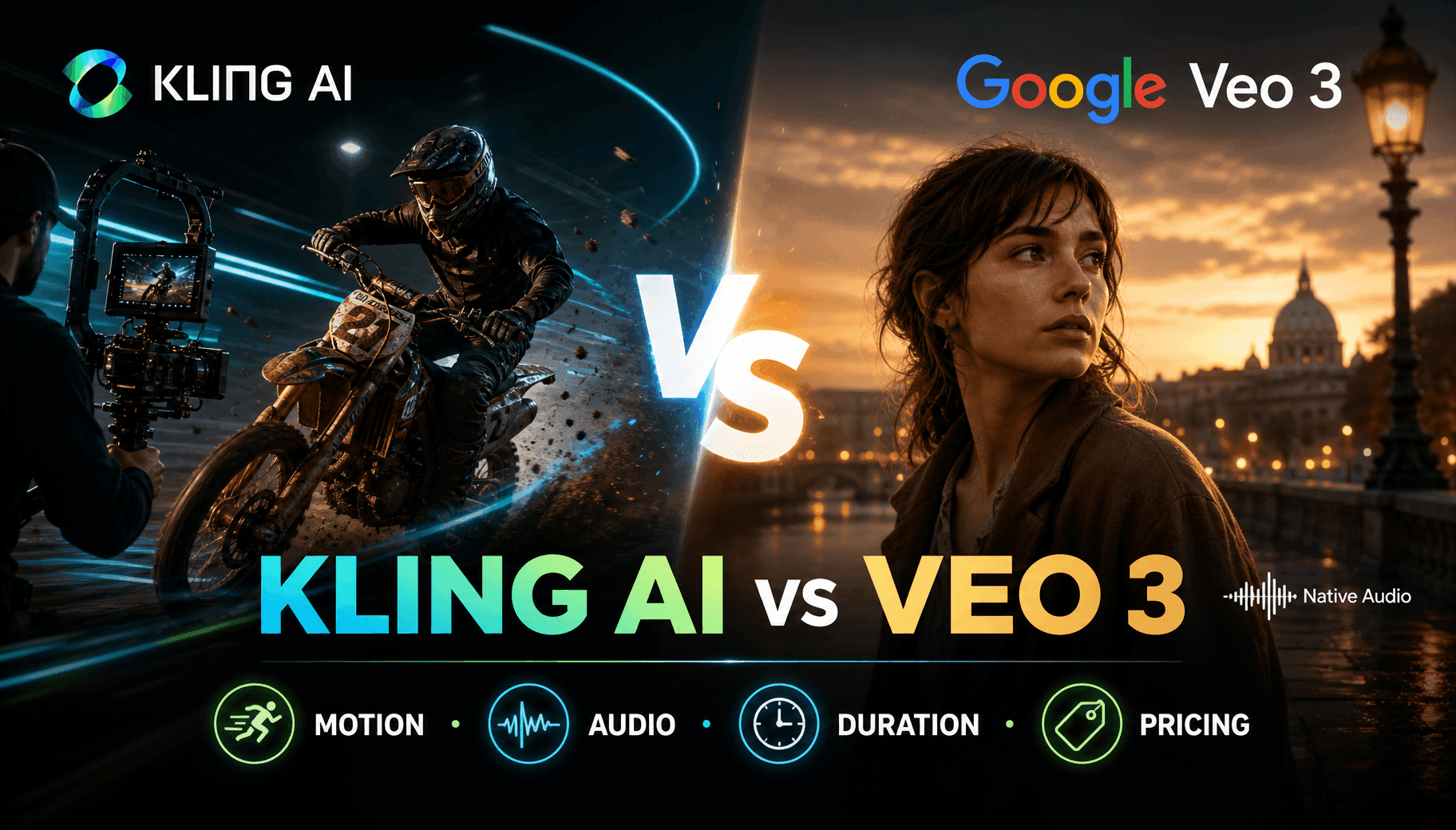
Kling AI vs Veo 3: ¿qué modelo gana?
Kling AI vs Veo 3: compara movimiento, audio nativo, precios y planes gratis para ver qué generador de video con IA gana para tu proyecto. Prueba ambos en 1min.AI.
Trang TranConsistencia de producto de imagen a video con IA y Seedance para detener la deformación y escalar reseñas de productos
Detén la deformación de los logos con consistencia de producto de imagen a video con IA y genera hoy videos de reseñas con calidad de estudio en 1min.AI.
Lien Anh Vu
Comparación DeepSeek V4 Pro vs Flash
Compara métricas de DeepSeek V4 Pro y DeepSeek V4 Flash. Optimiza tus aplicaciones agentivas y mejora la verificación de hechos de IA en 1min.ai hoy.
Ngoc HongIntegraciones de IA
Integra la IA de forma fluida con las herramientas que ya usas para automatizar tareas y aumentar la productividad.
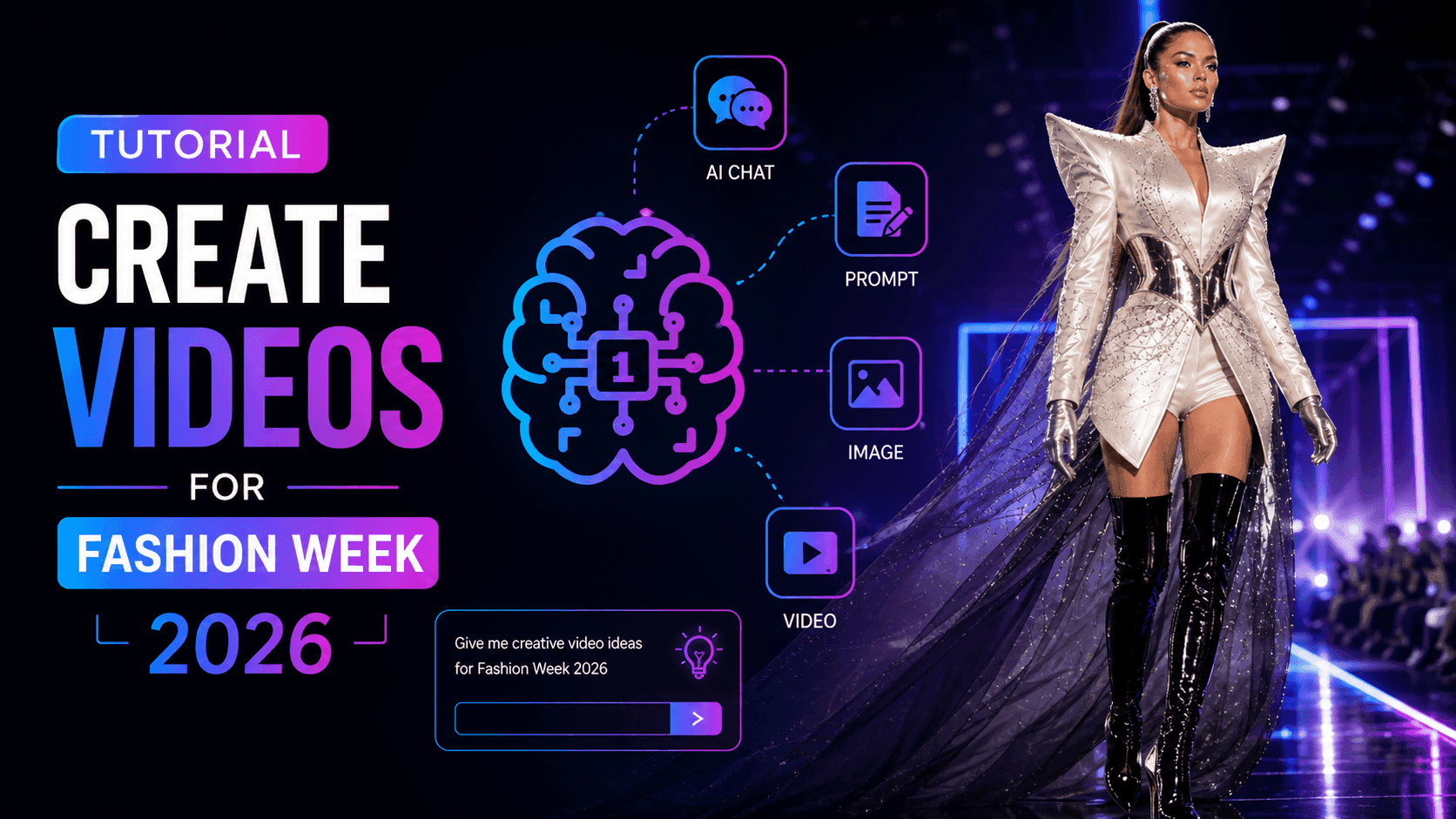
Cómo usar un generador de video de moda con IA para Fashion Week 2026
Convierte ideas de Fashion Week 2026 en videos de moda impactantes con IA. Aprende a idear, crear visuales y transformar imágenes en videos con un flujo de trabajo simple.
Lien Anh Vu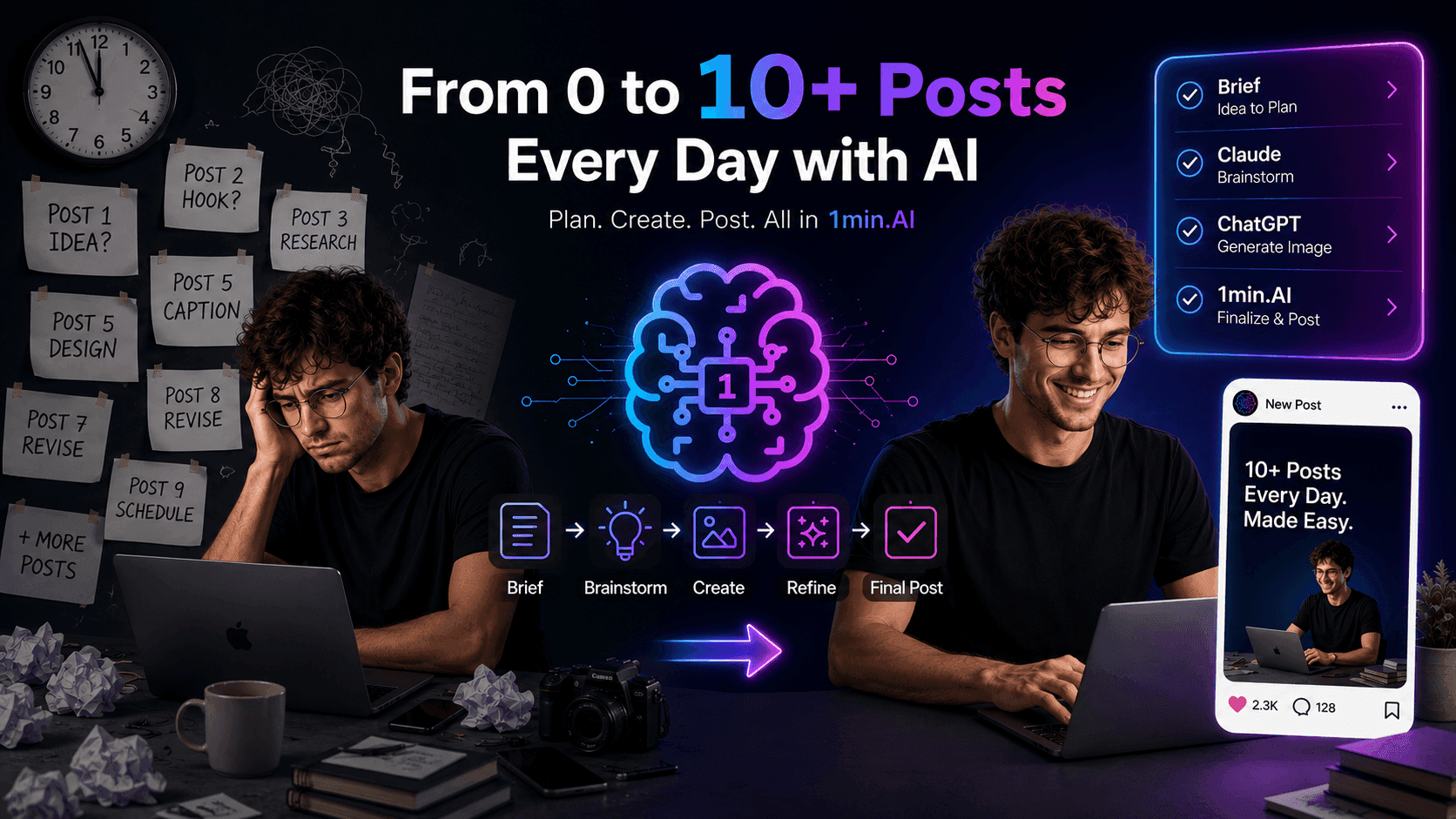
POV: Tienes más de 10 publicaciones que hacer cada día
Aprende a crear un flujo de trabajo de contenido con IA que ayuda a los creadores de contenido a producir más de 10 publicaciones al día más rápido con lluvia de ideas, generación de imágenes y creación de contenido con IA.
Lien Anh Vu
Deja de Cambiar entre Apps de IA: Cómo la Integración de IA Transforma el Employer Branding
Descubre cómo la integración de IA ayuda a los equipos de RR. HH. a optimizar el employer branding al combinar redacción con IA, documentos, imágenes, video y múltiples modelos de IA en un solo espacio de trabajo.
Tram TaIA para Industrias
Encuentre las mejores herramientas y flujos de trabajo de IA para atención médica, finanzas, educación, legal, manufactura, comercio minorista, bienes raíces y más.
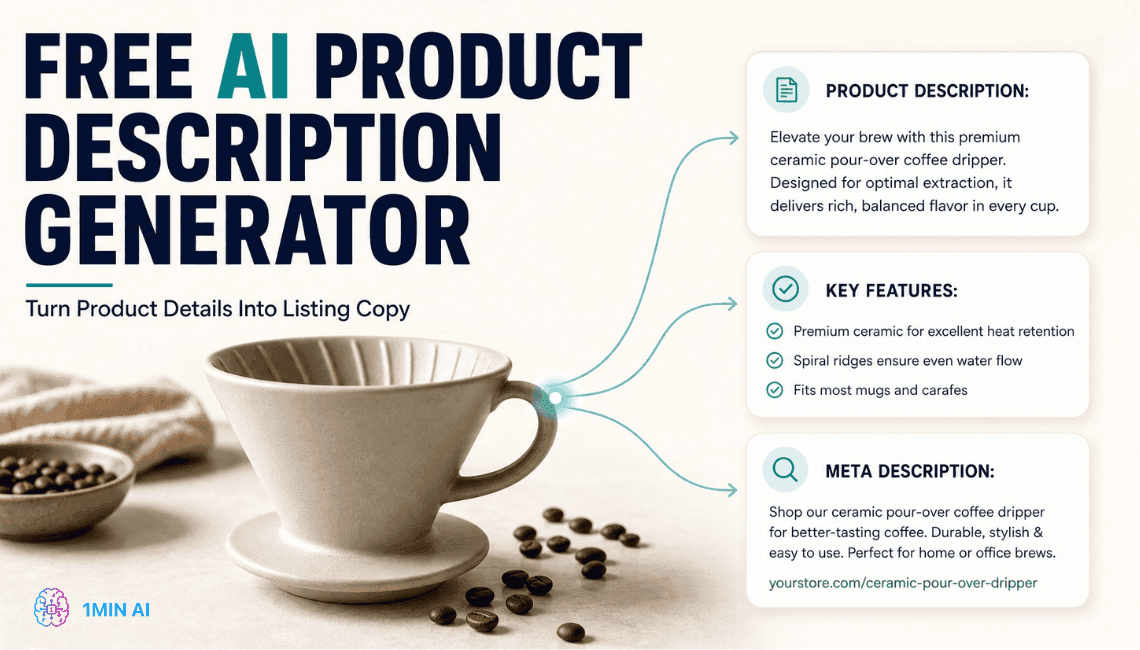
Generador gratuito de descripciones de producto con IA
Escribe descripciones de producto que vendan en minutos. Usa este generador gratuito de descripciones de producto con IA para convertir detalles o una foto en texto alineado con tu marca. Prueba 1min.AI.
Trang Tran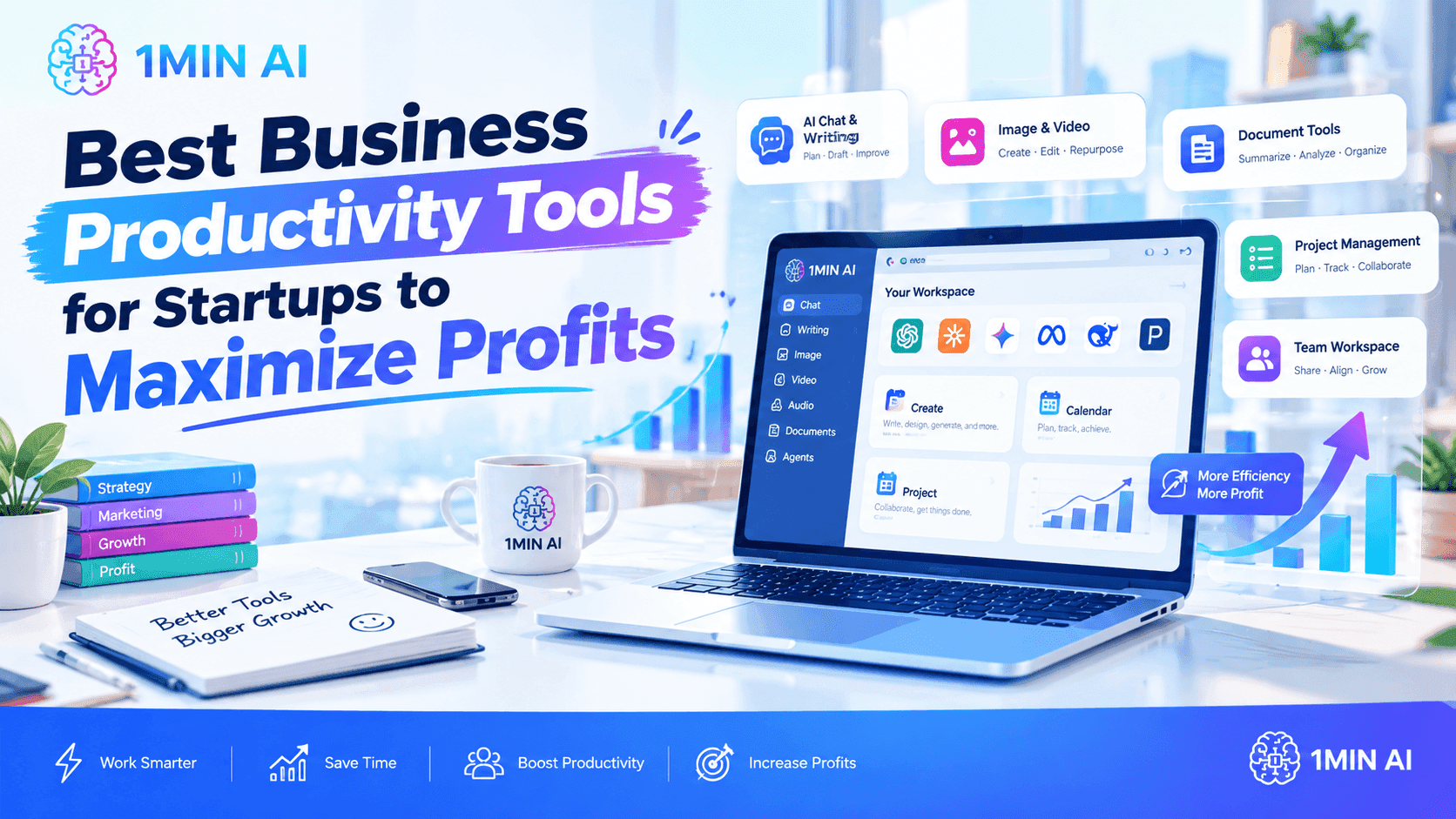
Las mejores herramientas de productividad empresarial para startups para maximizar las ganancias | 1minAI
Descubre las mejores herramientas de productividad empresarial para startups para ahorrar tiempo, optimizar flujos de trabajo, reducir tareas repetitivas y apoyar un crecimiento rentable con IA.
Tram Ta
La mejor herramienta de IA para marketing de contenidos |1minAI
¿Buscas la mejor herramienta de IA para marketing de contenidos? Mira cómo 1minAI ayuda a los especialistas en marketing a investigar, escribir, reutilizar, crear elementos visuales y escalar contenido desde un solo espacio de trabajo de IA.
Tram TaAgentes de IA
Descubre y ejecuta agentes de IA para automatizar tareas en tu trabajo y vida diaria.
1minAI: Corrector gramatical de IA gratis
Revisa la gramática gratis con el corrector gramatical de IA de 1minAI. Encuentra errores de gramática, ortografía y redacción, mejora la claridad y pule tu contenido en segundos.
Tram Ta
Agentes de IA para Facebook
Usa un Agente de IA para Facebook para crear contenido, generar imágenes, programar publicaciones y publicar desde tus documentos y conversaciones.
Ngoc Hong
Agente de IA vs Asistente de IA: ¿Cuál realmente les ahorra más tiempo a los diseñadores?
Conoce la diferencia entre Agente de IA vs Asistente de IA y descubre qué solución ayuda a los diseñadores a automatizar tareas repetitivas, reducir revisiones y ahorrar más tiempo.
Lien Anh VuFlujos de trabajo de IA
Explore flujos de trabajo de IA listos para usar para productividad, marketing, ventas, soporte y más.
Un producto, 10 creativos UGC: cómo la IA facilita la prueba de contenido
Crea UGC más auténtico con un generador de videos UGC con IA, prueba más ángulos creativos y escala contenido de afiliados sin filmar cada versión.
Lien Anh VuCrea contenido animado constante en solo unos pasos
Crea videos animados para TikTok y Reels en 3 pasos simples con 1min.AI, desde investigar ideas hasta personajes y videos animados.
Lien Anh VuCómo usar un generador de video de moda con IA para Fashion Week 2026
Convierte ideas de Fashion Week 2026 en videos de moda impactantes con IA. Aprende a idear, crear visuales y transformar imágenes en videos con un flujo de trabajo simple.
Lien Anh VuBoletín
Innovaciones semanales en IA con 1minAI

🔮 Innovaciones semanales de IA #142: Grok 4.7, Opus 5.5 y Sonnet 5.5 en 1min.ai
Accede a Grok 4.7, Claude Opus 5.5 y Sonnet 5.5 en 1min.ai. Reduce los costos de suscripción hasta en 70% y procesa millones de tokens en un solo espacio de trabajo unificado.
Hang Nguyen
🔮 Weekly AI Innovations #143: Actualización Actualización GPT-6, GPT-6.1 y Ideogram 4.0 y Ideogram 4.0
Accede a GPT-6 Sol, Luna, GPT-6.1 Sol e Ideogram 4.0 en 1min.ai. Mejora la precisión tipográfica al 98.4% y reduce la latencia de razonamiento en un 45% en una sola plataforma.
Hang Nguyen
🔮 Innovaciones semanales de IA #141: Seedance 2.5 y Stable Audio 3: IA de próxima generación
Explora Seedance 2.0, 2.5 y Stable Audio 3 de StabilityAI en 1min.ai. Genera audio de calidad de estudio y movimiento sincronizado con IA generativa de próxima generación.
Hang Nguyen