
How Designers Can Fix Low Resolution Images With AI

Lien Anh Vu
19 September 2026
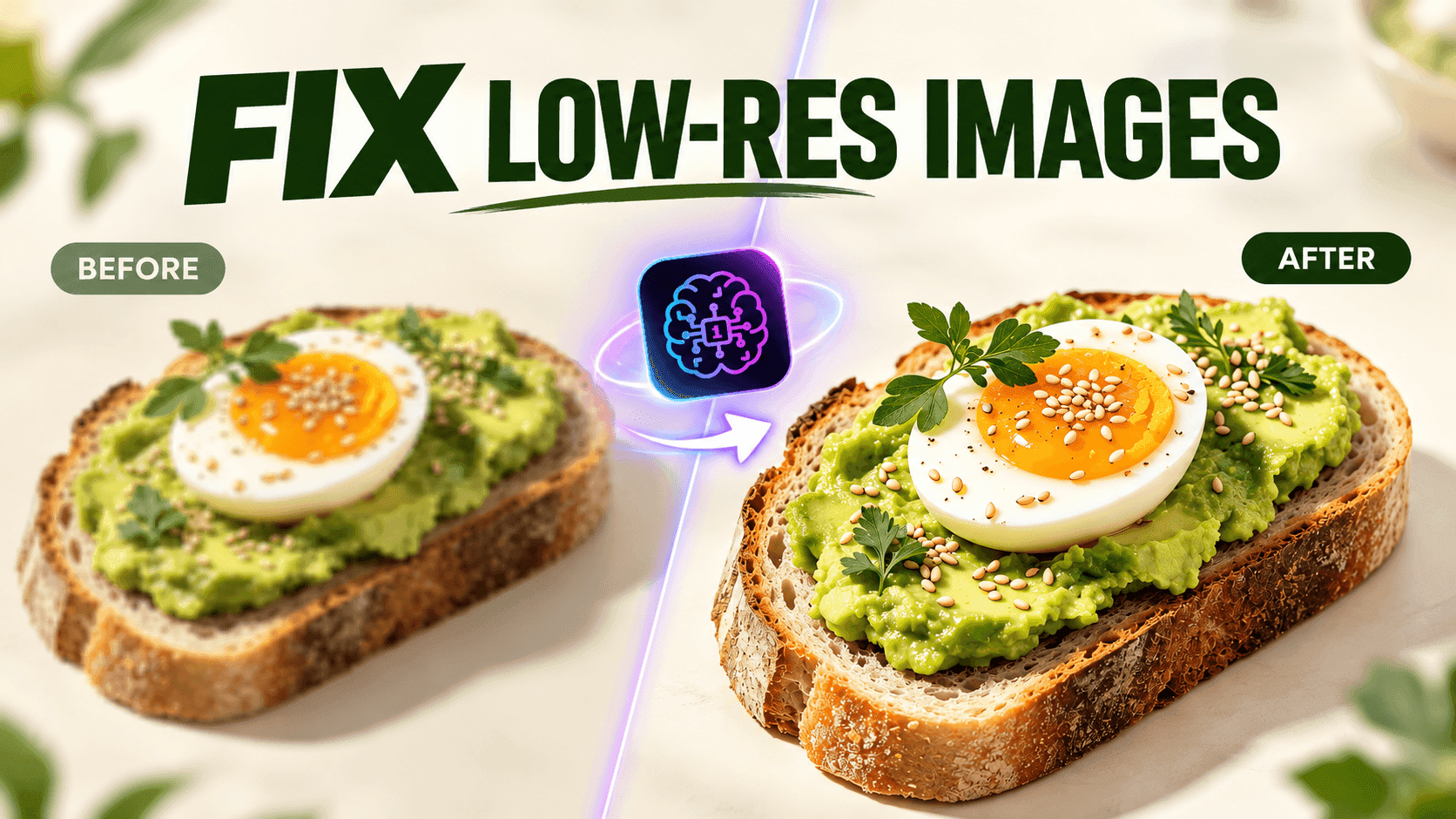
Learn how an AI image upscaler can fix low resolution images and help designers turn the right asset into a usable visual without starting over.
You finally find the perfect image for your design, but the moment you enlarge it, the quality falls apart. Instead of searching for another asset or spending more time fixing it manually, an AI image upscaler can help improve the resolution while letting you keep the visual direction you already chose. In this guide, discover how to turn a low resolution asset into a usable design element with 1min.AI and keep your workflow moving.
When the Right Asset Has the Wrong Resolution
Perfect Image, Wrong Resolution
For designers, finding an image is not simply about finding something visually attractive. The asset needs to work within a specific creative direction, composition, color palette, subject, and project requirement. This is why discovering the right visual can take considerable time.
The frustrating part comes when the image looks perfect at first glance but fails once it is placed into the actual design. You enlarge it to fit the composition and suddenly the details become blurry, the edges lose definition, and the image starts looking pixelated. The asset is still exactly what you wanted creatively, but its resolution prevents you from using it effectively.
At this point, many designers have two options: search for another asset or try to improve the existing one. Searching again may seem straightforward, but it also means repeating the same research process and potentially compromising on the visual direction. If the original image already fits the brief, replacing it simply because of its resolution can create unnecessary work.
Why Images Become Pixelated When Enlarged
The reason this happens is relatively simple. A low resolution image contains a limited amount of pixel information. When you enlarge it beyond its original dimensions, the software has to stretch that existing information across a larger area, which can make details appear soft, blurry, or pixelated.
This becomes particularly noticeable when the image is used as a large visual element, where sharp edges, textures, facial details, product features, or other fine details need to remain clear. An image that looks perfectly acceptable as a small thumbnail may therefore become unusable when placed prominently in a design.
The important distinction for designers is that low resolution does not necessarily mean the asset is the wrong asset. If the composition, subject, style, and overall visual direction are already right, the problem may simply be that the file needs to be improved before it can be used at the required size.
The Rework Low Quality Assets Create
A low resolution asset can create more work than it initially appears to. Once you discover the problem, you may need to return to your original search, find alternative images, compare them against your design, download new files, test them in the composition, and potentially adjust the layout again.
This is especially inefficient when the original asset was already close to perfect. Changing the image can affect the balance of the composition, the relationship between visual elements, the placement of text, and even the overall creative direction. What started as a simple image quality issue can therefore turn into a chain of additional design decisions.
This is where an AI image upscaler becomes relevant. Rather than immediately replacing an asset that already works creatively, designers can first try improving its resolution and determine whether the enhanced version is suitable for the project.
Improve the Asset Instead of Replacing It in 1min.AI
What Is an AI Image Upscaler?
An AI image upscaler increases the resolution of an image while using AI to enhance or reconstruct visual details during the process. This is different from simply stretching an image to a larger size because the goal is to produce a more usable result rather than only increasing its dimensions.
For designers, the value is not simply getting a larger image. The real benefit is being able to preserve an asset that already fits the creative direction while addressing the technical limitation that prevented it from being used at the required size.
This makes image upscaling particularly useful at the point where the designer has already made a creative decision but the source file is not technically strong enough to support that decision.
When Should Designers Use an AI Image Upscaler?
The most useful way to think about an AI image upscaler is not as a replacement for finding high quality assets, but as a solution for situations where the visual is right and the resolution is wrong.
For example, you may find a product image that fits perfectly into a campaign concept, a reference image that has exactly the composition you need, or a visual element that works with the rest of your layout but becomes pixelated when enlarged. In these situations, searching for another asset may create more work than improving the one you already have.
The decision can therefore be quite straightforward: if the visual itself does not fit the brief, find another asset. If the visual fits the brief but the resolution is holding it back, try upscaling it first.
The Workflow in 1min.AI: From Low Resolution Asset to Usable Visual
Find the Right Asset
Start with the visual itself rather than its resolution. Look for an asset that matches the project's subject, composition, style, lighting, colors, and overall creative direction. If you find an image that works particularly well for the concept, save it even if the initial file is smaller than ideal.
Check the Resolution
Before placing the asset into the final composition, test how it behaves at the size you actually need. An image may look perfectly fine in its original dimensions but reveal pixelation once it is enlarged. Checking the image early allows you to determine whether the problem is with the visual itself or simply with its resolution.
Upscale With 1min.AI
If the asset is visually suitable but too small or low quality for the intended application, use Image Upscaler in 1min.AI to improve its resolution. The purpose is to make the existing asset more usable while preserving the visual direction that made you choose it in the first place.
After upscaling, compare the result with the original and evaluate whether the details, edges, textures, and overall quality are sufficient for your design. This step keeps the designer in control because the AI output is still evaluated against the actual requirements of the project.
Continue Designing
Once the enhanced image meets the required quality, bring it back into the design and continue with the work that actually moves the project forward, whether that means refining the composition, adjusting typography, developing the layout, or preparing the final deliverable.
The value of this workflow is not that AI removes the designer from the process. Instead, it removes one technical obstacle between finding the right asset and using it effectively.
Upscale or Find a New Asset?
The decision ultimately depends on what is wrong with the image.
If the asset does not match the creative concept, its resolution is irrelevant because replacing it is still necessary. However, if the asset already has the right subject, composition, style, and visual direction, replacing it solely because it is low resolution may create unnecessary rework.
A useful workflow is therefore to ask one question before starting another asset search: Is the image wrong, or is the resolution wrong?
If the image is wrong, find another one. If the image is right but the resolution is not sufficient, try an AI image upscaler first. This allows designers to solve the actual problem instead of restarting a part of the workflow that was already working.
When an AI Image Upscaler May Not Be Enough
AI upscaling can improve many low resolution images, but it does not guarantee that every severely damaged or extremely blurry image will become production ready. If the original file contains very little usable visual information, significant compression artifacts, or extensive blur, the final result may still require a different source asset.
The right approach is therefore to treat upscaling as part of the designer's evaluation process rather than an automatic fix for every image. After processing the image, review it at the actual size and context where it will appear. If the enhanced result meets the project's quality requirements, it can move forward. If it does not, finding a better source remains the better option.
FAQ
What is an AI image upscaler?
An AI image upscaler is a tool that increases the resolution of an image while using AI to enhance or reconstruct visual details, making the image more suitable for larger applications.
How can I upscale a low resolution image?
Upload the low resolution image to an AI image upscaling tool, process it, and review the enhanced version at the size required for your design. With 1min.AI, you can use Image Upscaler to improve an existing asset before bringing it back into your design workflow.
Can AI fix a blurry image?
AI can improve certain blurry or low quality images, particularly when the main issue is insufficient resolution. However, the quality of the original image still affects how much improvement can be achieved.
Does image upscaling increase image resolution?
Yes. Image upscaling increases the dimensions and resolution of an image. AI based upscaling also attempts to improve the visual details of the enlarged result instead of simply stretching the original pixels.
Should designers upscale an image or find a new one?
It depends on the problem. If the visual does not fit the project, finding another asset makes sense. If the visual already fits the creative direction but its resolution is too low, upscaling can be a practical way to avoid unnecessary rework.
Keep the Right Asset and Keep Designing
A low resolution image does not always mean you chose the wrong asset. When the visual already fits your creative direction, the more efficient approach can be to solve the resolution problem instead of restarting the search.
With 1min.AI Image Upscaler, you can improve low resolution images and turn suitable assets into more usable visuals, allowing you to spend less time replacing assets and more time refining the design itself.
🚀 Upscale your images with 1min.AI Image Upscaler and keep your design workflow moving.
Alternatives
Discover the best alternatives to 1minAI and compare features, pricing, and use cases.
1min.AI vs OpenRouter
1min.AI vs. OpenRouter: Compare the ready-to-use AI creation product against the technical API tool. Find out if you need a zero-code creative studio or a coding infrastructure hub.
 Ngoc Hong
1min.AI vs Taskade
Compare 1min.AI vs Taskade for AI content creation, automation, agents, and creative workflows to find the right workspace.
Ngoc Hong
1min.AI vs Lovart
Compare 1min.AI vs Lovart across features, pricing, credits, brand tools, and use cases to find the right AI platform for your workflow.
Ngoc HongAI Tools
Discover the best AI tools to boost productivity, creativity, and everyday work.
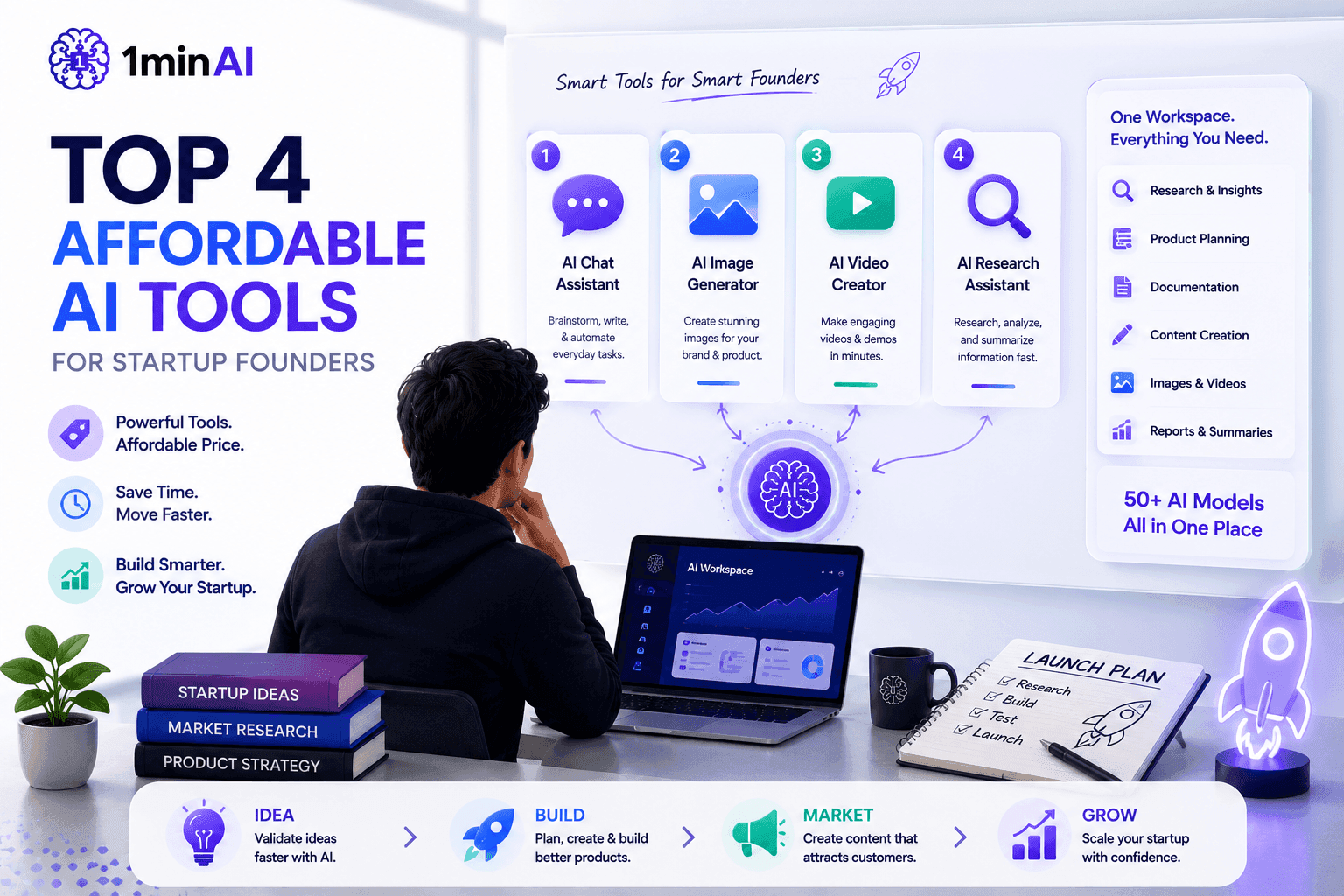
Top 4 Affordable AI Tools for Startup Founders
Discover the top 4 affordable AI tools for startup founders to validate ideas, build products, create content, and launch faster without overspending.
 Tram Ta
[Seedance 2.5 New] Better AI Product Videos, Less Rework in 1min.AI
Discover how AI image-to-video product consistency helps creators reduce failed generations, save AI credits, and produce more usable commercial and UGC content.
 Lien Anh Vu
Turn “Make It Better” Into Better Content With AI
Use AI to turn vague client feedback into clear revisions, reduce unnecessary edits, and deliver better content faster.
Lien Anh VuAI Features
Comprehensive AI features that streamline workflows, improve efficiency, and empower teams to achieve more.
One Product, 10 UGC Creatives: How AI Makes Content Testing Easier
Create more authentic UGC with an AI UGC video generator, test more creative angles and scale affiliate content without filming every version.
Lien Anh Vu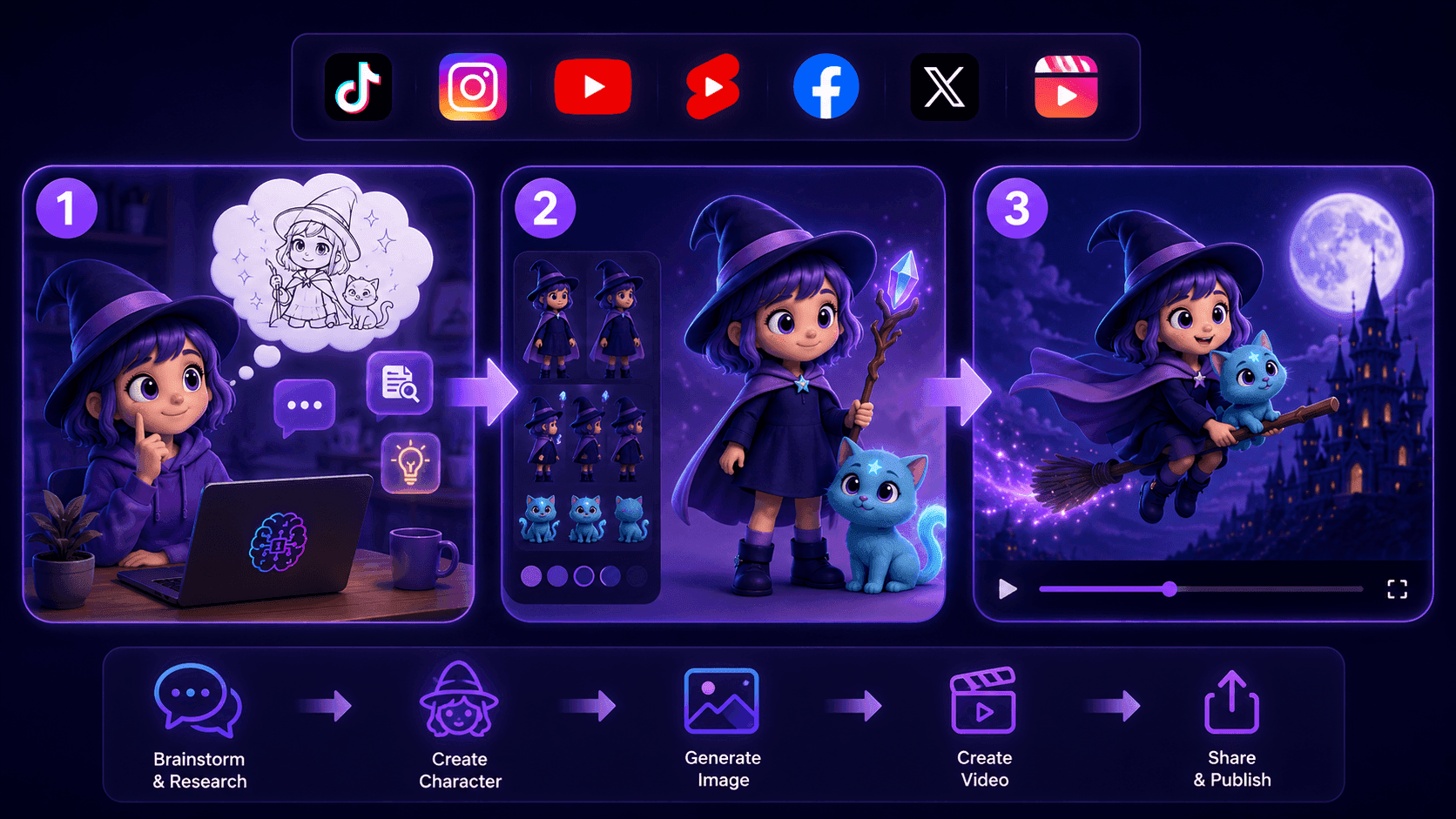
Create Consistent Cartoon Content in Just a Few Steps
Create cartoon videos for TikTok and Reels in 3 simple steps with 1min.AI, from researching ideas to characters and animated videos.
Lien Anh Vu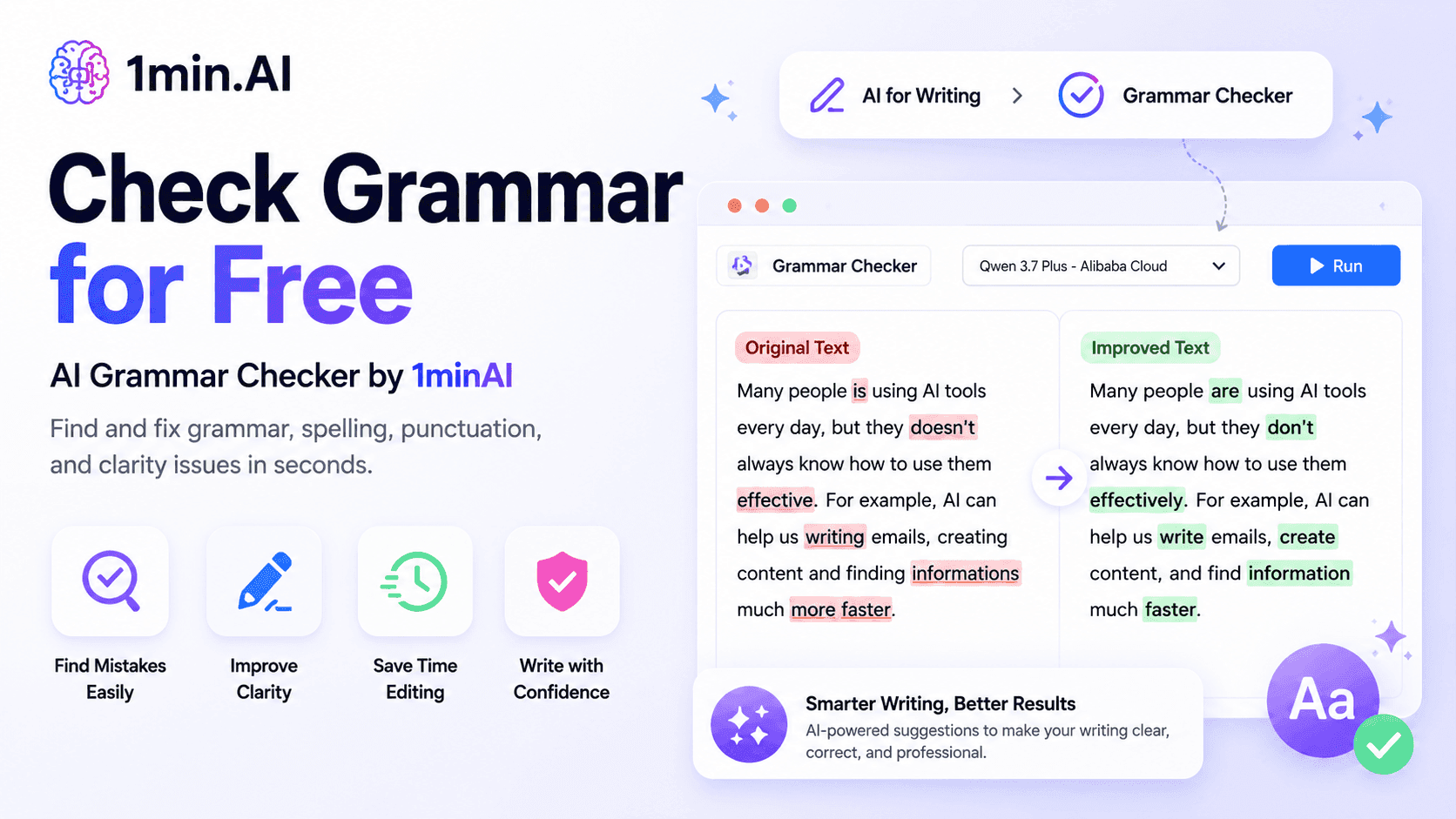
1minAI: Free AI Grammar Checker
Check grammar for free with 1minAI’s AI grammar checker. Find grammar, spelling, and writing mistakes, improve clarity, and polish your content in seconds.
Tram TaAI Use Cases
A curated collection of AI use cases for business, productivity, and industry-specific applications.
One Product, 10 UGC Creatives: How AI Makes Content Testing Easier
Create more authentic UGC with an AI UGC video generator, test more creative angles and scale affiliate content without filming every version.
Lien Anh Vu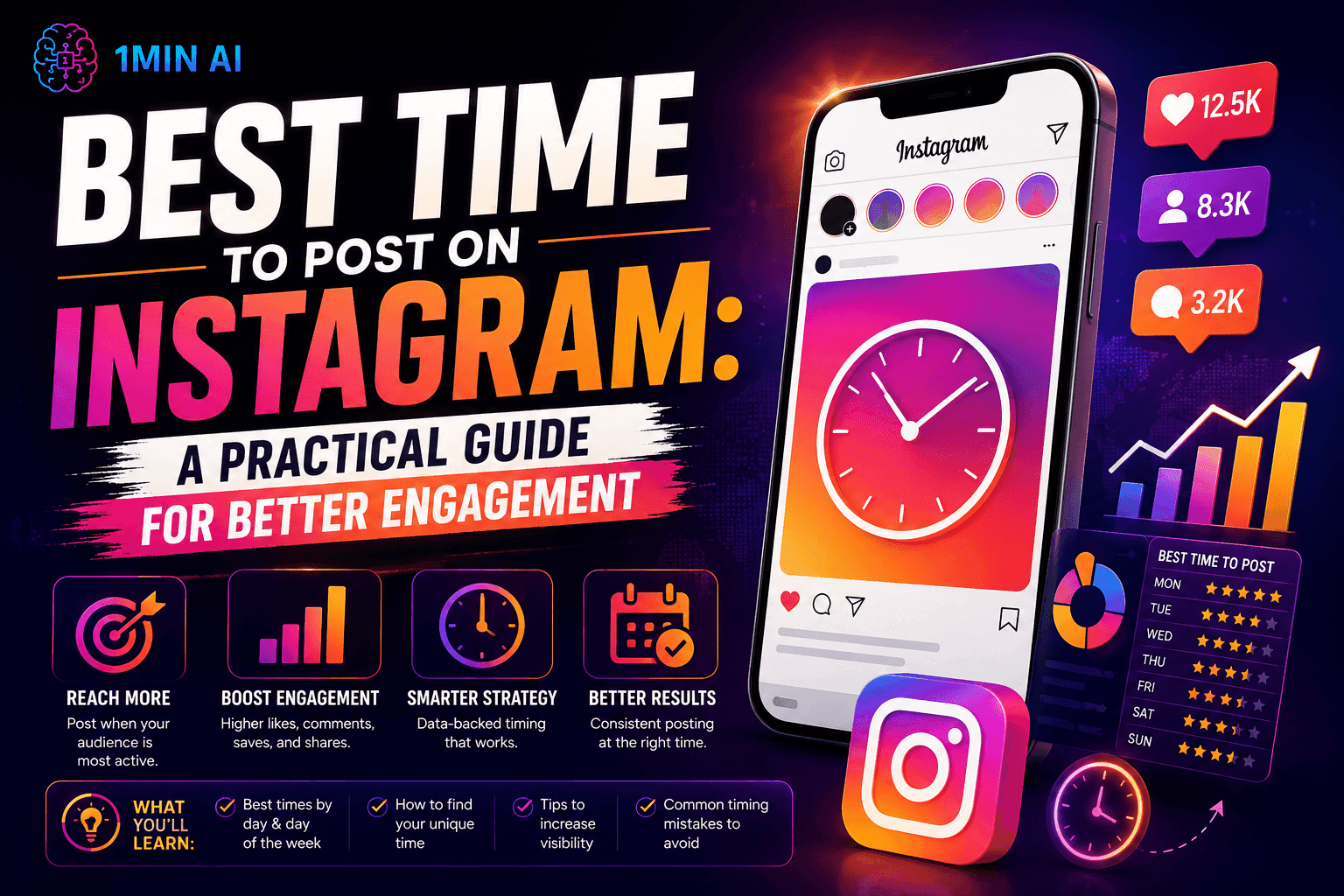
Best Time to Post on Instagram: A Practical Guide for Better Engagement
Discover the best time to post on Instagram, including the best days and times for different audiences, plus tips to find the ideal posting schedule for your account.
Tram Ta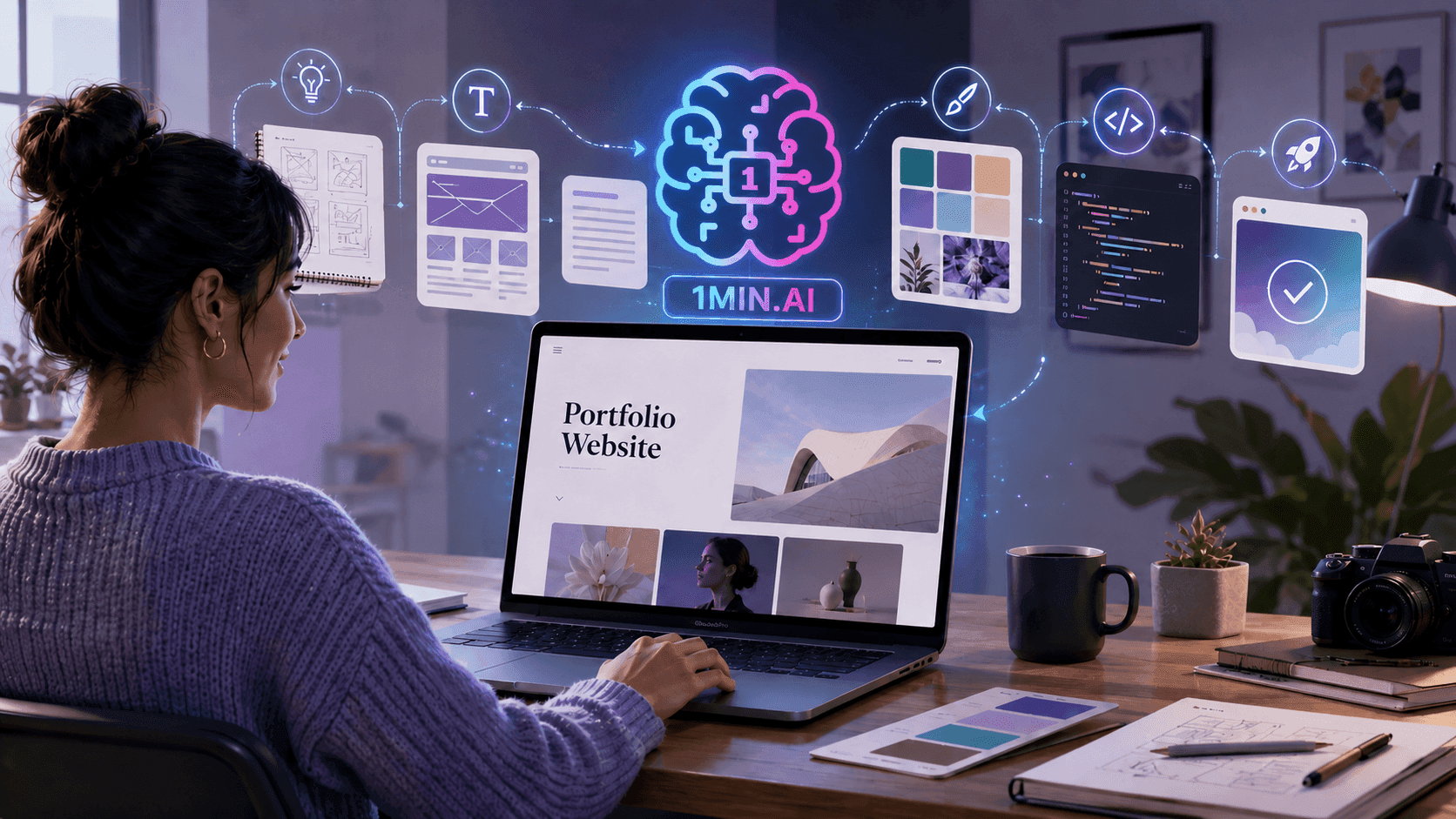
Build a Portfolio Website Faster with 1min.AI
Learn how freelance creatives can use 1min.AI to plan, write, design, and generate a professional portfolio website faster, even without strong coding skills.
Lien Anh VuAI Tutorials
Learn how to use AI with practical, step-by-step tutorials.

Black Friday AI Tool Deals in 2026
Discover what Black Friday AI tool deals 2026 has to offer. Find out how to secure the 1min.AI lifetime deal via AppSumo, Dealify, Stack Social, and verify on Trustpilot, Slashdot, and Software Advice.
 Hang Nguyen
Create Consistent Cartoon Content in Just a Few Steps
Create cartoon videos for TikTok and Reels in 3 simple steps with 1min.AI, from researching ideas to characters and animated videos.
Lien Anh Vu[Seedance 2.5 New] Better AI Product Videos, Less Rework in 1min.AI
Discover how AI image-to-video product consistency helps creators reduce failed generations, save AI credits, and produce more usable commercial and UGC content.
Lien Anh VuAI Guides
Learn AI faster with practical guides, real-world examples, and actionable best practices.

Safely Buy AI Tools Online: 2026 Black Friday Guide
Discover how to find and secure the best Black Friday AI deals online. Learn expert strategies to avoid scams, combat subscription fatigue, and verify software.
Hang NguyenCreate Consistent Cartoon Content in Just a Few Steps
Create cartoon videos for TikTok and Reels in 3 simple steps with 1min.AI, from researching ideas to characters and animated videos.
Lien Anh Vu[Seedance 2.5 New] Better AI Product Videos, Less Rework in 1min.AI
Discover how AI image-to-video product consistency helps creators reduce failed generations, save AI credits, and produce more usable commercial and UGC content.
Lien Anh VuAI Solutions
Browse the best AI solutions for automation, coding, research, productivity, customer support, marketing, and business workflows.
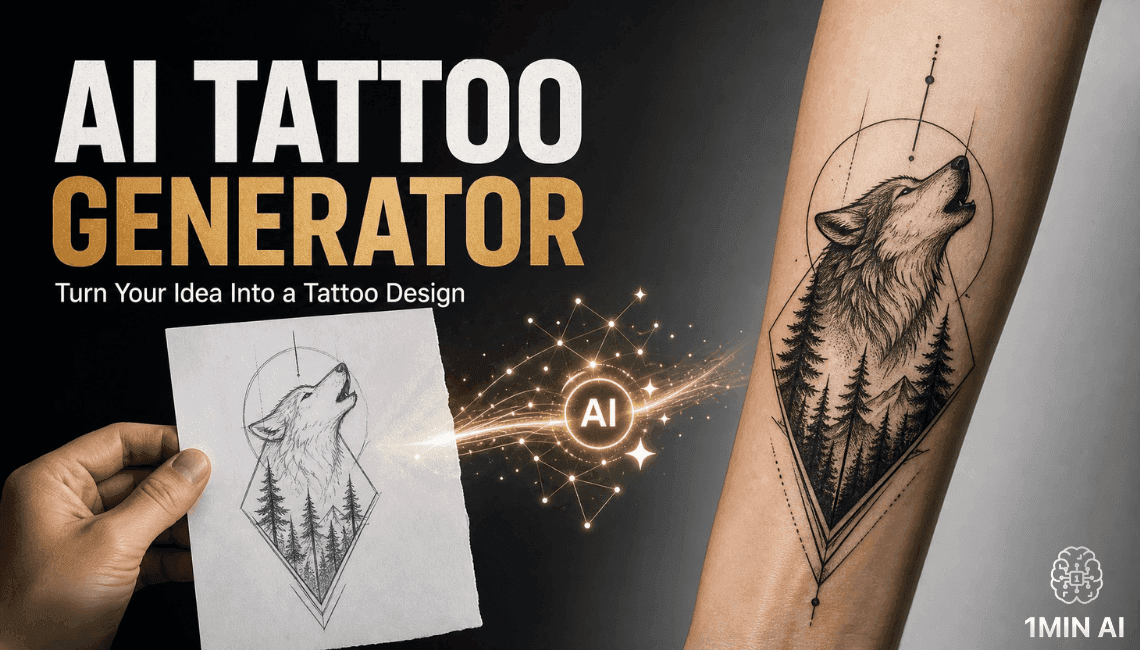
Free AI Tattoo Generator: Custom Designs
Turn any idea into a custom tattoo design with 1min.AI's free AI tattoo generator. Describe your idea, pick a style, and download in seconds.
 Trang Tran
Safely Buy AI Tools Online: 2026 Black Friday Guide
Discover how to find and secure the best Black Friday AI deals online. Learn expert strategies to avoid scams, combat subscription fatigue, and verify software.
Hang Nguyen[Seedance 2.5 New] Better AI Product Videos, Less Rework in 1min.AI
Discover how AI image-to-video product consistency helps creators reduce failed generations, save AI credits, and produce more usable commercial and UGC content.
Lien Anh VuAI Models
Explore the world's leading AI models in one place.
One Product, 10 UGC Creatives: How AI Makes Content Testing Easier
Create more authentic UGC with an AI UGC video generator, test more creative angles and scale affiliate content without filming every version.
Lien Anh VuCreate Consistent Cartoon Content in Just a Few Steps
Create cartoon videos for TikTok and Reels in 3 simple steps with 1min.AI, from researching ideas to characters and animated videos.
Lien Anh Vu[Seedance 2.5 New] Better AI Product Videos, Less Rework in 1min.AI
Discover how AI image-to-video product consistency helps creators reduce failed generations, save AI credits, and produce more usable commercial and UGC content.
Lien Anh VuAI Comparisons
Compare AI tools, models, and platforms to find the best fit for your needs.
Kling AI Vs Veo 3: Which Model Wins?
Kling AI vs Veo 3: compare motion, native audio, pricing & free tiers to see which AI video generator wins for your project - try both on 1min.AI.
Trang Tran[Seedance 2.5 New] Better AI Product Videos, Less Rework in 1min.AI
Discover how AI image-to-video product consistency helps creators reduce failed generations, save AI credits, and produce more usable commercial and UGC content.
Lien Anh Vu
DeepSeek V4 Pro vs Flash Comparison
Compare DeepSeek V4 Pro vs DeepSeek V4 Flash metrics. Optimize your agentic apps and improve AI fact checking on 1min.ai today.
Ngoc HongAI Integrations
Seamlessly integrate AI with the tools you already use to automate work and boost productivity.
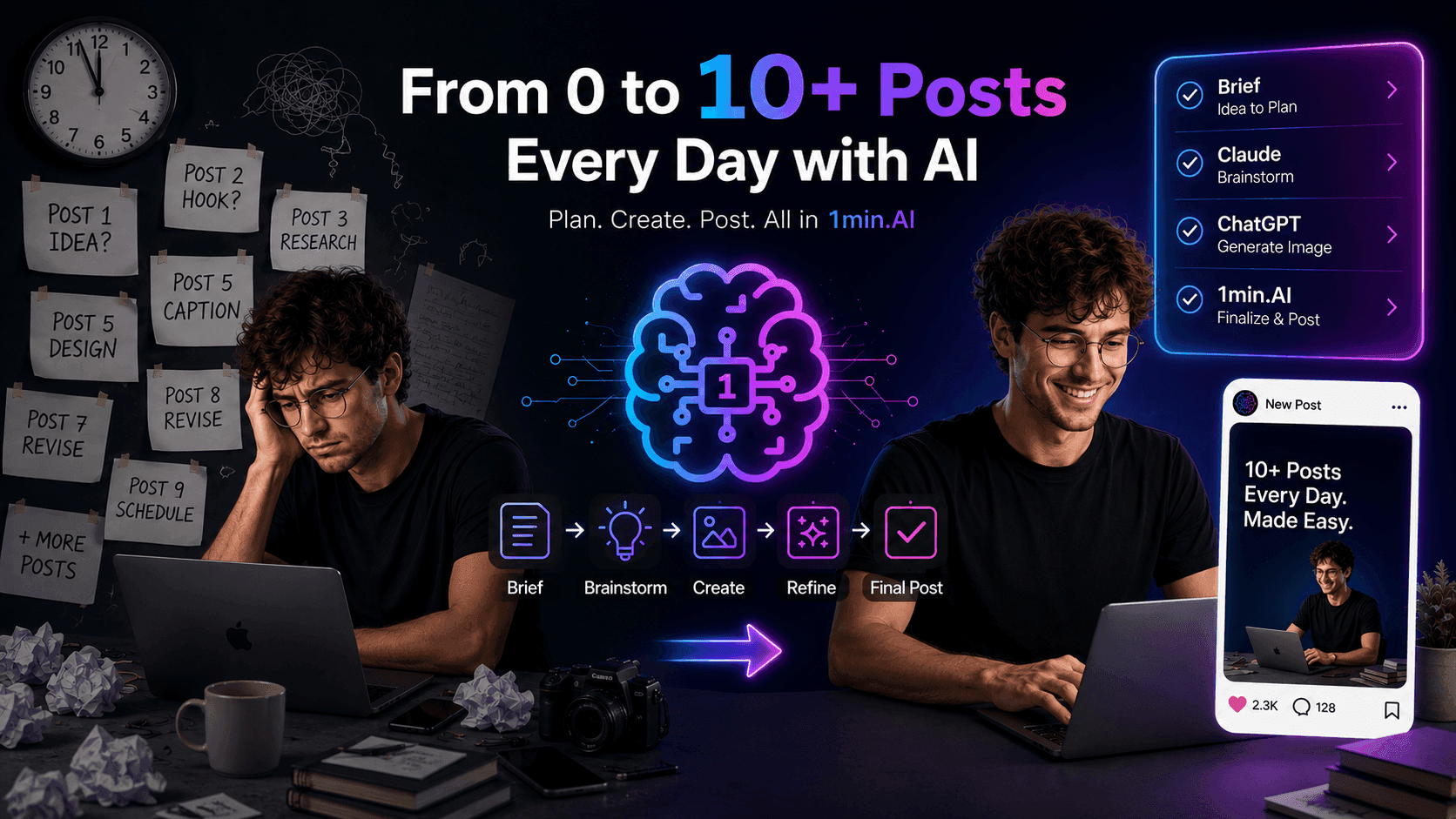
POV: You Have 10+ Posts to Make Every Day
Learn how to build an AI content workflow that helps content creators produce 10+ social media posts a day faster with AI brainstorming, image generation, and content creation.
Lien Anh Vu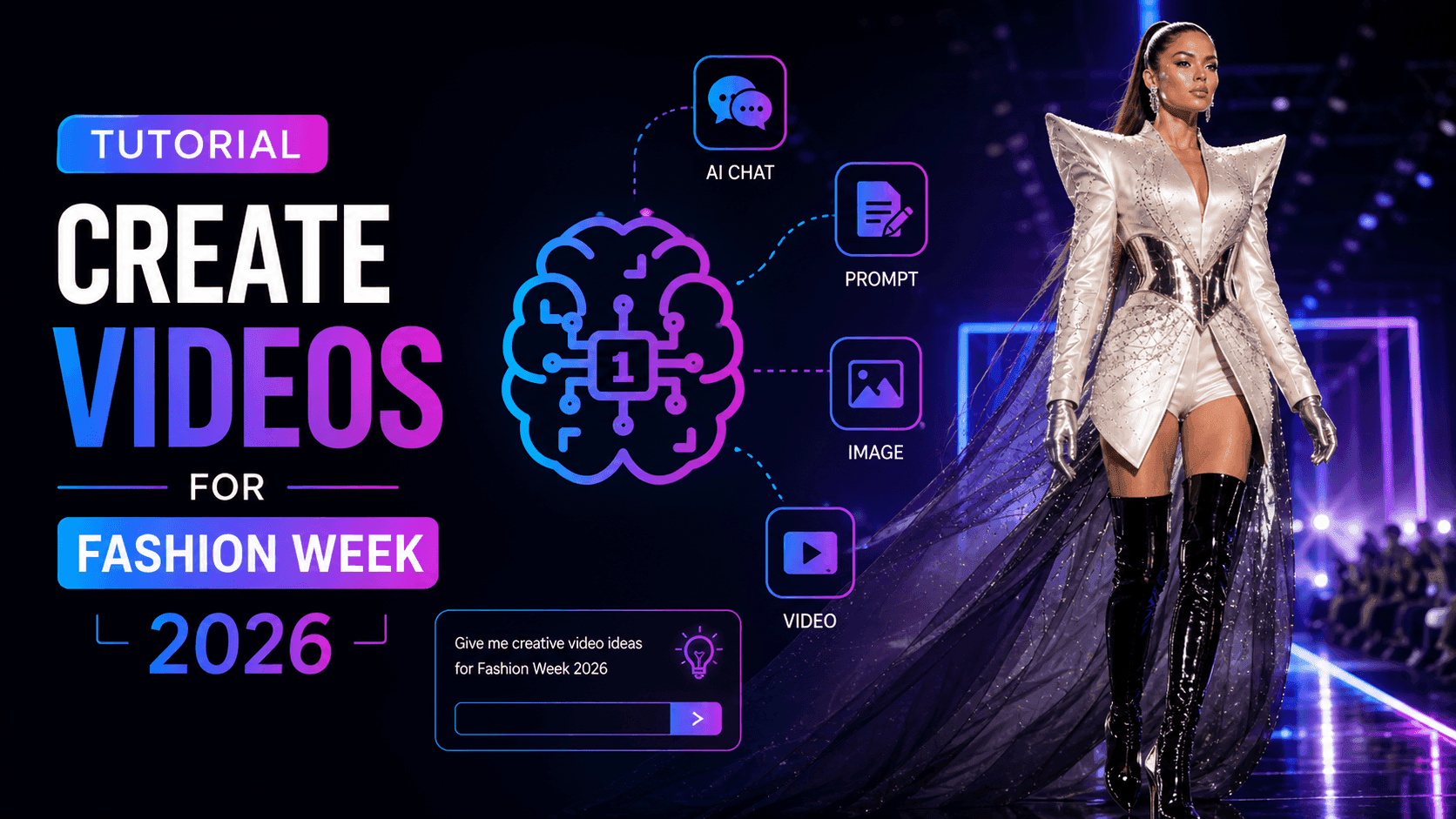
How to Use an AI Fashion Video Generator for Fashion Week 2026
Turn Fashion Week 2026 ideas into stunning fashion videos with AI. Learn how to brainstorm, create visuals, and transform images into videos with one simple workflow.
Lien Anh Vu
Stop Switching Between AI Apps: How AI Integration Transforms Employer Branding
Discover how AI integration helps HR teams streamline employer branding by combining AI writing, documents, images, video, and multiple AI models into one workspace.
Tram TaAI for Industries
Find the best AI tools and workflows for healthcare, finance, education, legal, manufacturing, retail, real estate, and more

Free AI Real Estate Video Generator
Turn listing photos into narrated property videos with AI real estate video tools. See how 1min.AI creates walkthroughs, voiceovers & captions in minutes.
Trang Tran
Free AI Virtual Staging: Furnish Any Room
Stage any real estate listing with AI virtual staging: upload a photo, pick a style, and get a photorealistic furnished room in seconds, free to try.
Trang Tran
The Problem With AI Design? It Looks Too AI
AI-generated designs can look polished but still feel artificial. Here are 5 prompt techniques designers can use to create more realistic, intentional visuals.
Lien Anh VuAI Agents
Discover and run AI agents to automate tasks across your work and daily life.
1minAI: Free AI Grammar Checker
Check grammar for free with 1minAI’s AI grammar checker. Find grammar, spelling, and writing mistakes, improve clarity, and polish your content in seconds.
Tram Ta
AI Agents for Facebook
Use an AI Agent for Facebook to create content, generate images, schedule posts, and publish from your documents and conversations.
Ngoc Hong
AI Agent vs AI Assistant: Which One Actually Saves Designers More Time?
Learn the difference between AI Agent vs AI Assistant and discover which solution helps designers automate repetitive work, reduce revisions, and save more time.
Lien Anh VuAI Workflows
Explore ready-to-use AI workflows for productivity, marketing, sales, support, and more.
Create Consistent Cartoon Content in Just a Few Steps
Create cartoon videos for TikTok and Reels in 3 simple steps with 1min.AI, from researching ideas to characters and animated videos.
Lien Anh VuPOV: You Have 10+ Posts to Make Every Day
Learn how to build an AI content workflow that helps content creators produce 10+ social media posts a day faster with AI brainstorming, image generation, and content creation.
Lien Anh VuHow to Use an AI Fashion Video Generator for Fashion Week 2026
Turn Fashion Week 2026 ideas into stunning fashion videos with AI. Learn how to brainstorm, create visuals, and transform images into videos with one simple workflow.
Lien Anh VuNewsletter
Weekly AI Innovations with 1minAI
🔮 Weekly AI Innovations #137: ElevenLabs Music & AI social Profile Control
The newest 1min.ai updates deliver professional music generation and highly requested privacy tools. Dive into a seamless workflow today!
Hang Nguyen
🔮 Weekly AI Innovations #136: Grok 4.6 and Smart Data Retention
Discover the latest 1min.ai updates! Upgrade to Grok 4.6 for blazing-fast AI, and check our new Data Retention policies to secure your files today.
Hang Nguyen
🔮 Weekly AI Innovations #135: Claude Opus 5 and new AI Social Features
Experience the powerful Claude Opus 5 model, and explore new AI Social features like User Pages and Following creators.
Hang Nguyen